
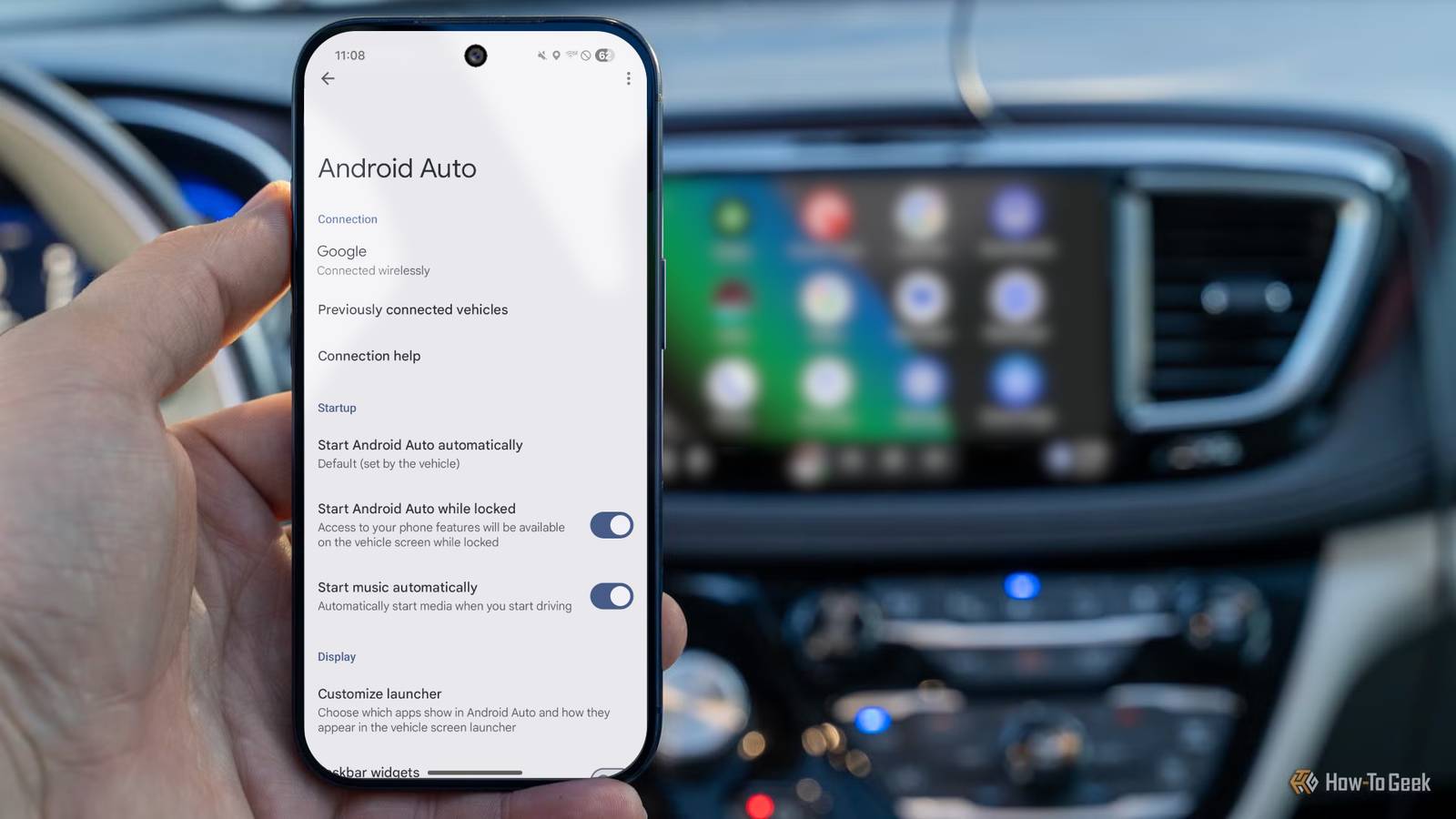
Android Auto is obviously designed to be used on a screen in your vehicle while keeping your hands on the wheel and your eyes on the road. And that means it doesn’t necessarily need access to everything you get on your phone. It’s packed with navigation apps, voice controls, regular apps, and entertainment, but I’ve turned off a few things.
See, the less you actually interact with Android Auto or CarPlay in your car, the better. You want to reach your destination safely, quickly, and with as few distractions as possible. That’s why I have a bunch of automations that make it easy to get in and go, without fumbling with things, and it’s also why I disable several core features.
So, put your phone out of sight and out of mind, keep those hands on the steering wheel, and enjoy a better Android Auto by disabling these phone features.
Disable those messaging apps
Do you really need that message read aloud?
A few of the many benefits of Android Auto are customization and app support, but do you really need Microsoft Teams, WhatsApp, Telegram, or Google Messages to alert you while driving?
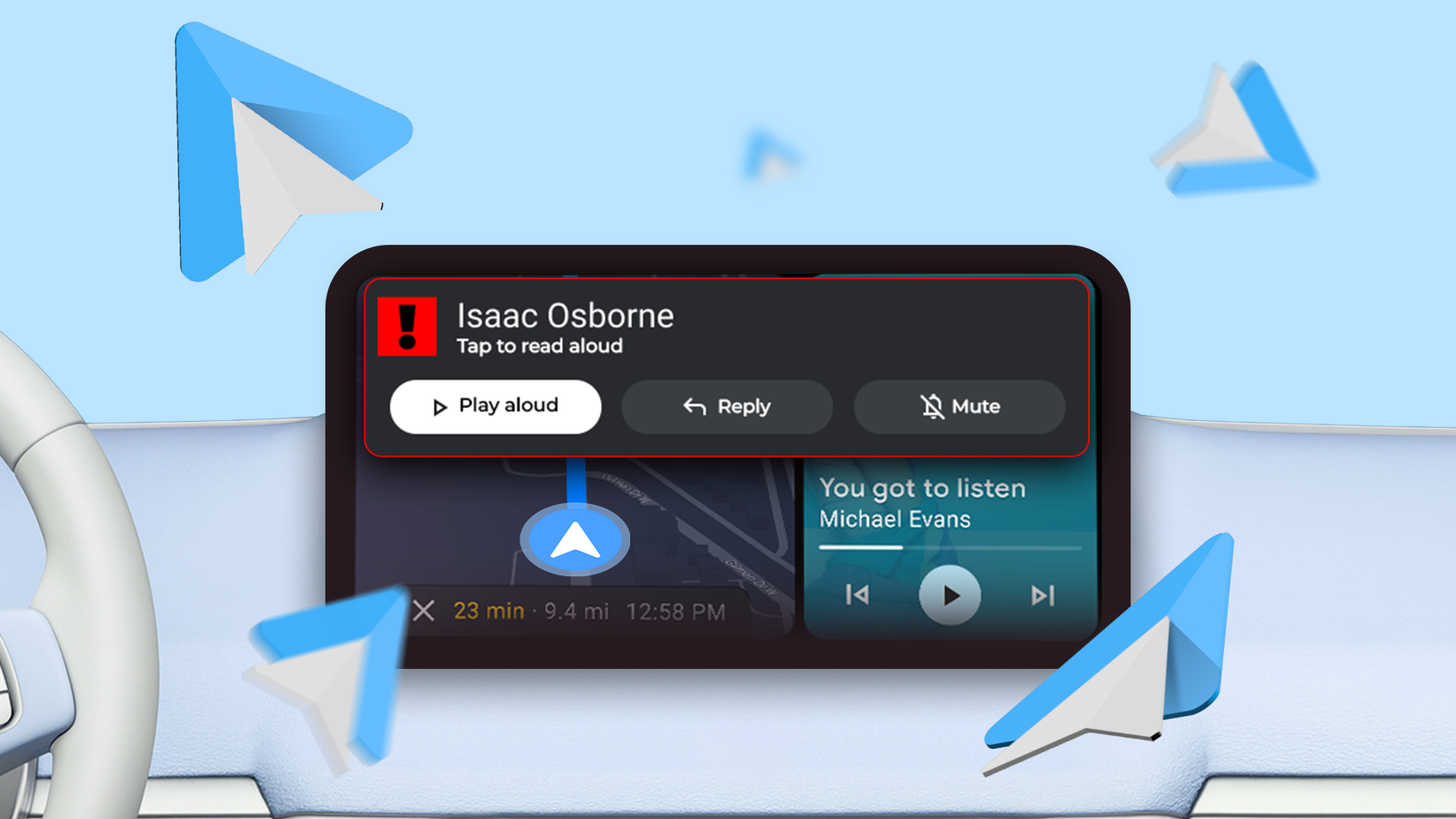
Android Auto can read messages aloud, either automatically or with a tap on the on-screen notification. Furthermore, you can use voice dictation to respond quickly. That’s nice, but it’s certainly a distraction, especially when that conversation can likely wait until later. Furthermore, at least on my display, Google Message notifications take up over a third of the screen, blocking crucial maps and navigation instructions.
Related
I don’t use Google Maps in Android Auto anymore—this navigation app took its place
Better in all the right ways.
I don’t need to be getting alerts to incoming texts, especially group chats, when I’m supposed to be focusing on the road. And there’s nothing worse than trying to swipe away a text notification in the middle of traffic or a busy freeway while you’re trying to follow directions. As a result, I disable it all.
Get the ultimate Android Auto setup by turning off text message alerts and messages read aloud in settings. Find Android Auto in settings, scroll down to Messaging, and toggle off Show message notifications.
Get rid of notifications
Group chats can wait
Credit: Lucas Gouveia/How-To Geek
While this next one is technically a continuation of the first suggestion, it’s for more than just messages. Depending on the various Android Auto apps you have installed, you can get notifications from Messages, Teams, music streaming apps, phone calls, and of course, navigation.
Naturally, you’ll want to keep navigation alerts and notifications, but everything else you’d typically get on your phone isn’t super necessary while driving. I turn off all message notifications, group conversations, and the “Notifications with Assistant” feature, too. That last one allows Android Auto to send notifications to Google, which then can read the message aloud or take other actions.
Related
Stop fighting Android Auto’s voice commands—use these custom shortcuts instead
Hey Google, shortcuts are better
Some notifications are managed in the Android Auto settings menu, while others are in individual app settings. Either way, scrap the notifications and focus on the road.
Similarly, I don’t rely much on Android Auto voice commands, as it often gets things wrong. Instead, I set up a bunch of one-click custom shortcuts to make calls or instantly text my wife when I’m headed home.
 Quiz
Quiz
8 Questions · Test Your Knowledge
Android Auto vs CarPlay
Trivia challenge
Think you know your way around in-car tech? Put your Android Auto and
CarPlay knowledge to the test.
HistoryFeaturesCompatibilityTechBrands
Begin
Which platform launched first — Android Auto or Apple CarPlay?
AAndroid Auto, in 2014BApple CarPlay, in 2013CApple CarPlay, in 2014DAndroid Auto, in 2015
Correct! Apple CarPlay debuted in March 2014 at the Geneva Motor Show.
Android Auto followed later that same year, announced at Google I/O in June 2014 and released to the
public in 2015.
Not quite. Apple CarPlay actually launched first, debuting in March 2014
at the Geneva Motor Show. Android Auto was announced shortly after but didn’t reach consumers until
2015.
Continue
What is the minimum iOS version required to use Apple CarPlay?
AiOS 6BiOS 7.1CiOS 8DiOS 9
Correct! CarPlay requires iOS 7.1 or later, which was the very first
version to support it when the feature launched in 2014. That said, newer CarPlay features often require
more recent iOS versions.
Not quite. Apple CarPlay requires a minimum of iOS 7.1. This was the
version Apple shipped alongside CarPlay’s launch in 2014, though many advanced features require updated
iOS versions.
Continue
Which of the following Google apps is natively integrated into Android Auto for
navigation?
AGoogle MapsBWazeCGoogle EarthDGoogle Maps and Waze
Correct! Both Google Maps and Waze are natively supported on Android
Auto, giving drivers two popular navigation options from Google’s ecosystem. Waze is especially popular
for its real-time traffic and hazard reporting.
Not quite. Android Auto actually supports both Google Maps and Waze
natively. Since Google owns Waze, both apps are fully integrated and available on the platform for
turn-by-turn navigation.
Continue
Which wireless technology does Apple CarPlay use to connect wirelessly to a car?
ABluetooth onlyBWi-Fi onlyCA combination of Bluetooth and Wi-FiDNFC and Wi-Fi
Correct! Wireless CarPlay uses Bluetooth to initiate the connection and
then switches to Wi-Fi for the actual data transfer, resulting in a faster and more reliable experience
than Bluetooth alone could provide.
Not quite. Wireless CarPlay uses both Bluetooth and Wi-Fi together.
Bluetooth handles the initial pairing handshake, while Wi-Fi takes over for the high-bandwidth data
streaming needed to mirror your iPhone’s interface.
Continue
Which automaker was the first to offer Android Auto in a production vehicle?
AToyotaBHyundaiCFordDChevrolet
Correct! Hyundai was the first automaker to ship Android Auto in a
production car, with the 2015 Hyundai Sonata. This was a milestone moment that helped legitimize Android
Auto as a real in-car platform.
Not quite. Hyundai holds the distinction of being the first automaker to
offer Android Auto in a production vehicle — the 2015 Sonata. Hyundai was an early and enthusiastic
partner with Google on the platform.
Continue
Which voice assistant is used natively in Apple CarPlay?
AAlexaBGoogle AssistantCSiriDCortana
Correct! Siri is Apple’s native voice assistant and is deeply integrated
into CarPlay. You can use Siri to send messages, make calls, get directions, and control music — all
without taking your hands off the wheel.
Not quite. CarPlay uses Siri, Apple’s own voice assistant. Unlike
Android Auto, which uses Google Assistant, CarPlay is tightly tied to Siri for hands-free control of
navigation, messaging, and media.
Continue
Which major automaker notably refused to support Apple CarPlay and Android Auto
until reversing course in 2023?
ABMWBToyotaCVolkswagenDHonda
Correct! Toyota was famously one of the last major holdouts against
CarPlay and Android Auto, citing safety and data privacy concerns. The company finally began adding
CarPlay and Android Auto support to its vehicles starting in 2023.
Not quite. Toyota was the notable holdout. For years, the automaker
resisted adding CarPlay and Android Auto support, preferring its own infotainment systems. It finally
began offering both starting in 2023 after significant consumer pressure.
Continue
What is the name of Apple’s next-generation CarPlay system announced in 2022 that
extends to instrument clusters and multiple screens?
ACarPlay ProBCarPlay UltraCNext-generation CarPlayDCarPlay Max
Correct! Apple simply refers to it as ‘next-generation CarPlay.’
Announced at WWDC 2022, it promises to take over all screens in a vehicle, including the instrument
cluster, offering a deeply integrated iPhone experience throughout the entire car.
Not quite. Apple called it ‘next-generation CarPlay’ — no flashy
sub-brand. Announced at WWDC 2022, this upgraded system is designed to extend across all vehicle
displays, including speedometers and climate controls, creating a fully immersive iPhone-driven cockpit.
See My Score
Challenge Complete
Your Score
/ 8
Thanks for playing!
Try Again
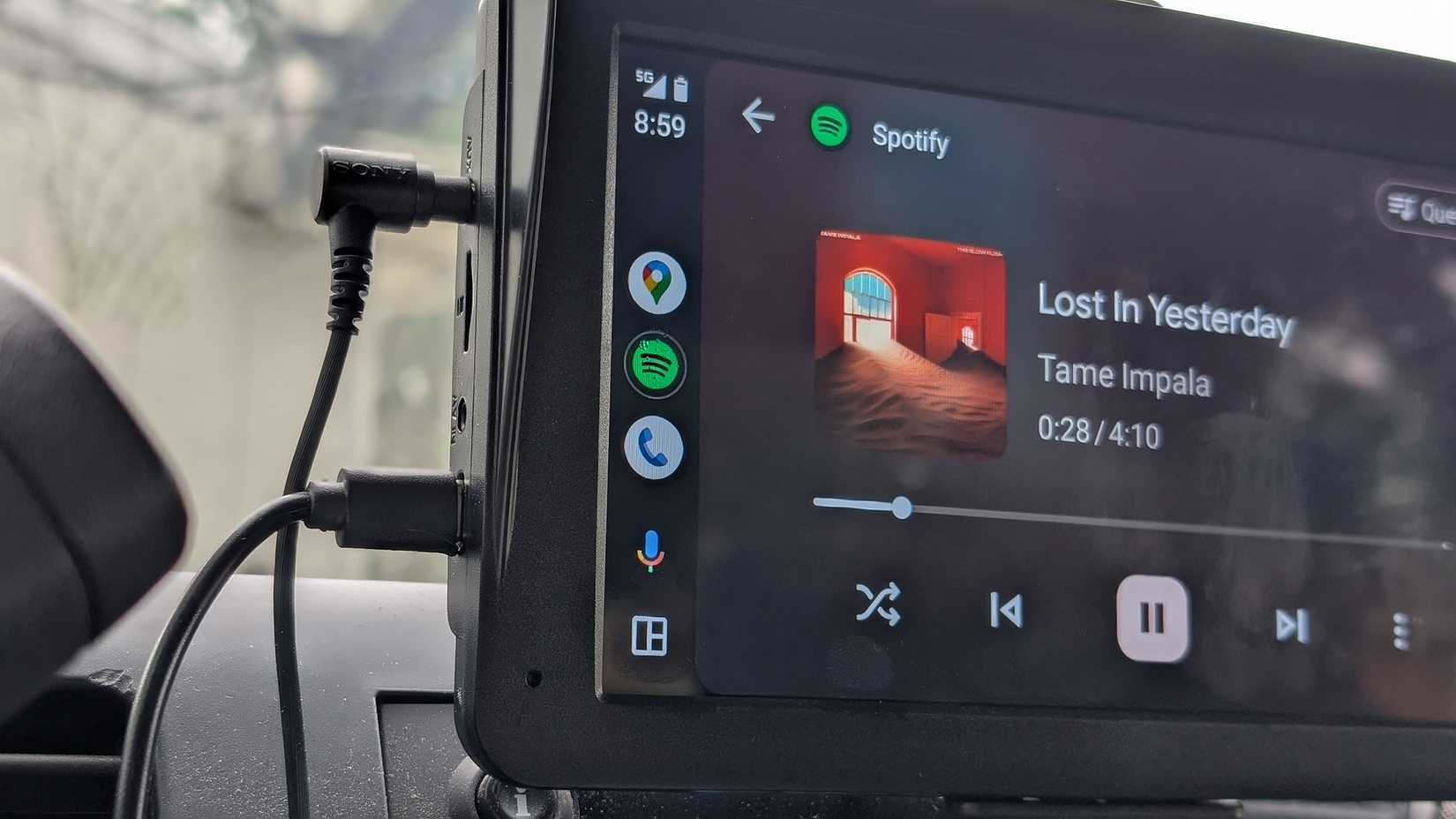
Don’t start music automatically
I’ll control the tunes when I’m ready
Credit: Joe Fedewa / How-To Geek
Everyone has different preferences, which is why it’s great that Android Auto offers a few features you can customize or disable to meet your needs. Another feature in settings that’s enabled by default is “start music automatically”.
For a while, I kept this enabled, letting the system instantly find whatever I had playing last and fire it up automatically. However, I’ve since deactivated it and found the experience much better.
When you first hop into the vehicle and actually need to use Android Auto, you’re adding an address for maps and navigation, chatting with friends or family, or talking about where to go to dinner. I don’t want to fight the music, or have it blasting full volume, and have to quickly turn it down or find the pause button all because my last drive was a jam session.
Turn this automatic feature off, and take things easy. Now, the music is waiting for me to hit play once I’m ready.
The less, the better, honestly
I love all that Android Auto has to offer, and I do have a few unique apps like Game Snacks installed for when I’m not actively driving. The infotainment software is packed with features, but honestly, the less, the better when I’m behind the wheel.
Android Auto supports a bunch of apps installed on my phone, but I only have a select few set to appear in the Android Auto app tray. That’s by design. I have all my essential apps, like Waze and YouTube Music, then a bunch of shortcuts that do entire tasks with a single tap. That way, I can focus on what’s important, for my sake, and others on the road.