
In May, Samsung started rolling out the One UI 8.5 update to eligible smartphones. Aside from all the AI trickery and subtle tweaks, one thing that stood out to me was the Call Screening feature added with One UI 8.5. With One UI 8.5’s Call Screening feature, my Samsung Galaxy S25 Ultra picked up the call on its own, had a full conversation with the caller, and handed me a transcript of the call.
It turned out to be a pre-approved loan pitch, something like a robocall that keeps finding its way back to your line, no matter how many times you block them. Call screening has genuinely changed the way I treat unknown numbers, and here’s how you can put it to good use.
Related
One UI 9 is coming — these are the features to look out for
Samsung is cooking with this one.
It builds on Call Assist, not replaces it
Reused from MUO’s S24 Ultra review – https://www.makeuseof.com/samsung-galaxy-s24-ultra-review/
Zarif Ali/MakeUseOf
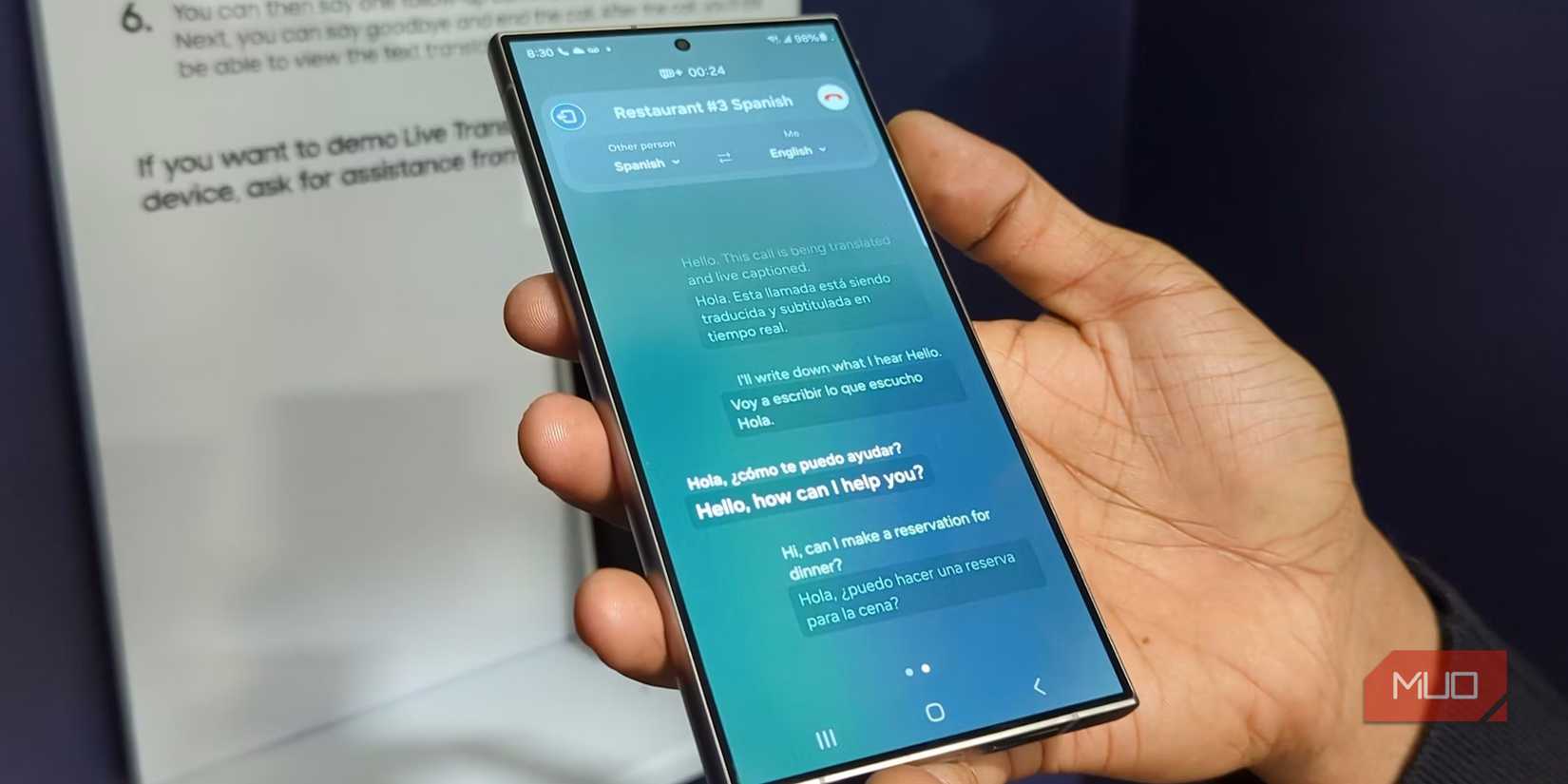
Call screening is a feature in the Samsung Galaxy Phone app. Galaxy AI powers it and provides the same set of features as Live Translate and Text Call. Call screening acts like your personal assistant, and when an unknown call or suspicious number rings your phone, it takes charge and answers on your behalf.
The best part is that you can read the conversation in real-time right there on your screen, according to Samsung’s own support page. As soon as the One UI 8.5 update landed on my phone, I went ahead and changed a few settings and enabled Call Screening.
It lets you see the conversation and jump in to take the call yourself, live, at any point. Otherwise, you can let your phone handle it and trust the AI to give you a recap. Which, in my case, has been pretty solid. I have used Live Translate before, so I found this to be similar. But the results are not much improved.
Samsung has included Call Screening inside the Call Assist feature rather than launching a separate app or something.
Turning on Call Screening is easy
It is as easy as 1,2,3
Setting up Call Screening on your One UI 8.5 eligible phone is quite easy. Samsung has baked the feature right inside the Phone app, and it is easy to turn on. Here’s what you need to do:
Open the Phone app.
Tap on the three-dot menu icon and select Settings.
Under the Call Assist section, you will see Call Screening. Tap it to open.
Toggle it on. You will also see a toggle for the Auto screen calls option. You can turn this on to let your phone take calls from unknown numbers and have them screened automatically.
You can also choose your preferred transcription language and set the assistant’s voice speed. For me, I was given only the option to choose the default voice option. If you want to completely keep spam calls away, you should also check whether the scam-call toggle is switched on.
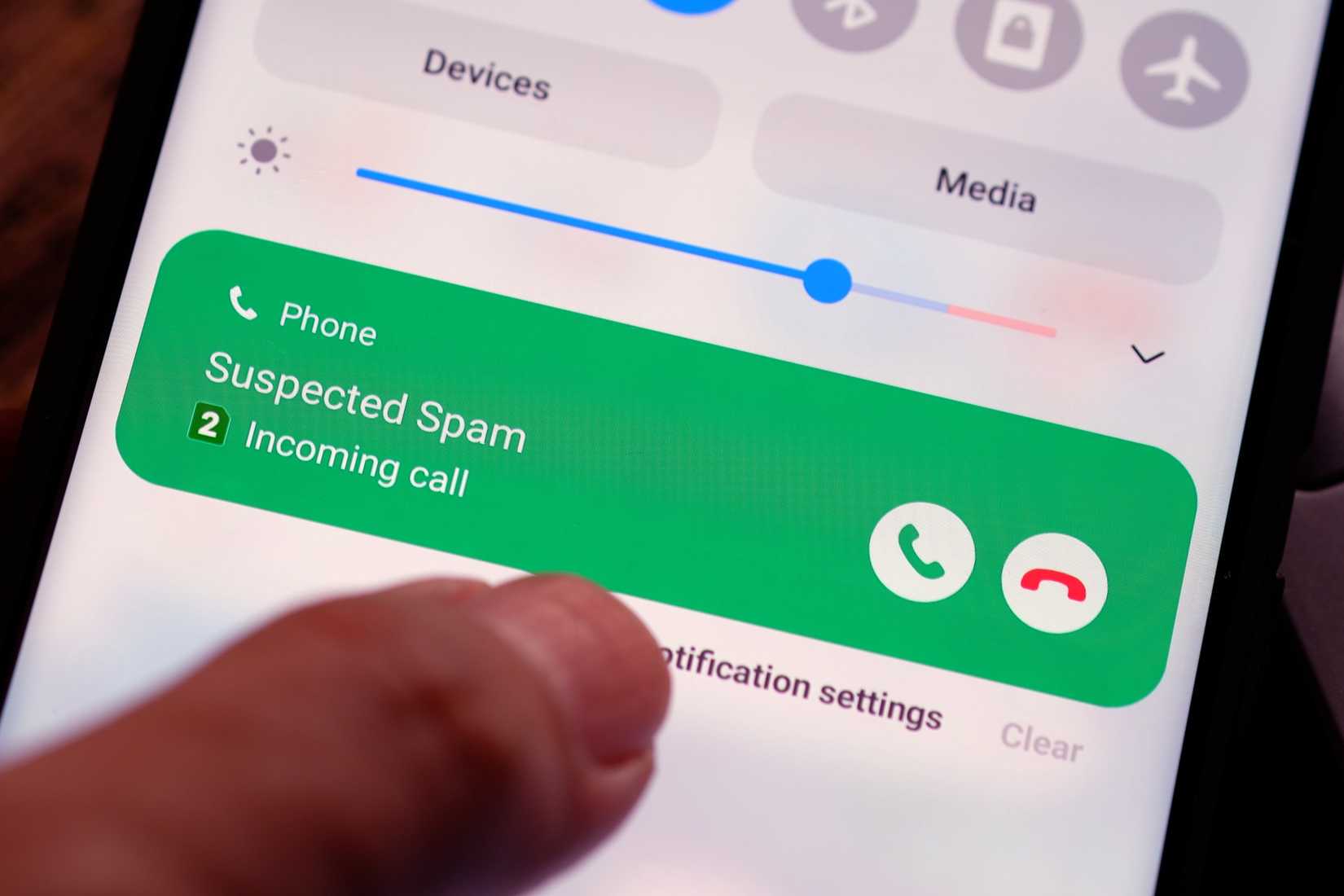
Now, whenever you get a call, in addition to the two general options — take the call (green button) or reject the call (red button) — you also see a new button called Call Assist. When you tap on Call Assist, you get to the page, then tap on Call Screening.
Galaxy AI on your phone will start screening the call, and you can read the transcript in real time. You can reject the call during transcription or choose the Text Call option to respond with a preset or customized message.
Related
8 Galaxy AI Features I Need Every Day
AI really does make life a little easier.
Reading the transcript is the best part
You get to know what you have avoided
wisely/ShutterstockCredit: wisely/Shutterstock
I receive a lot of spam calls, for loans, for four-wheelers, insurance, and whatnot. Since I turned on Call Screening, I have peace of mind when picking up calls that actually matter. The other day, I received a call about a car I don’t own, and the caller continued with a scripted pitch.
Thankfully, Galaxy AI took charge and kept asking questions to clarify things, as if it were conducting an interview. Most of the time, callers eventually gave up on the series of questions my Samsung phone was asking.
If you ever wished to see exactly what a scam caller says before deciding whether to bother, the wish is granted with One UI 8.5. Unlike voicemail, you can skim the whole exchange in a matter of a few seconds.
Another good thing is that since the feature is baked in, there is no need to install third-party apps like Truecaller on your phone. While Truecaller just gives you the number of the person calling you, Call Screening takes the call for you.
It is also not exclusive to newer devices. I even have the Galaxy S24 Ultra, and the Call Screening feature is available on it. You just need to be updated to One UI 8.5, which is one of the reasons why Samsung phones hold up remarkably well years after launch.
Should you bother turning it on?
For me, Call Screening is one of those features I don’t mind keeping turned on. Since I receive a lot of spam calls, it answers them on my behalf, saving me time and energy. If you are also in the same place as me, or want to avoid having an awkward “who is this and why are you calling me during dinner” moment, then Call Screening is worth it. Do note that standard call charges will still apply, and the feature can act up if your phone’s storage is full. Also, it doesn’t totally prevent scam calls from ringing your phone. It just screens them for you so that you don’t have to answer.

8.5/10
SoC
Snapdragon 8 Elite Gen 5
Display
6.9-inch Dynamic Super AMOLED 2X
RAM
12 or 16 GB
Storage
256GB, 512GB, or 1TB
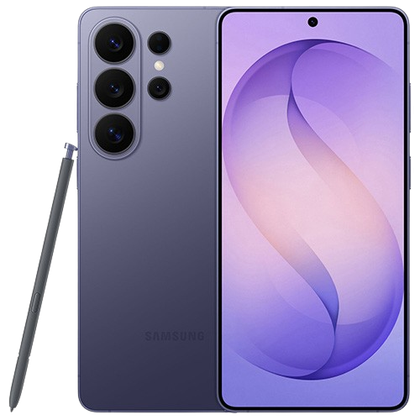
The Samsung Galaxy S26 Ultra isn’t a massive leap in specs compared to the previous generation Samsung Galaxy S25 Ultra, but it boasts improvements in every aspect. The major differentiators are two features that will appeal to power users and content creators, called Privacy Display and Horizontal Lock.