
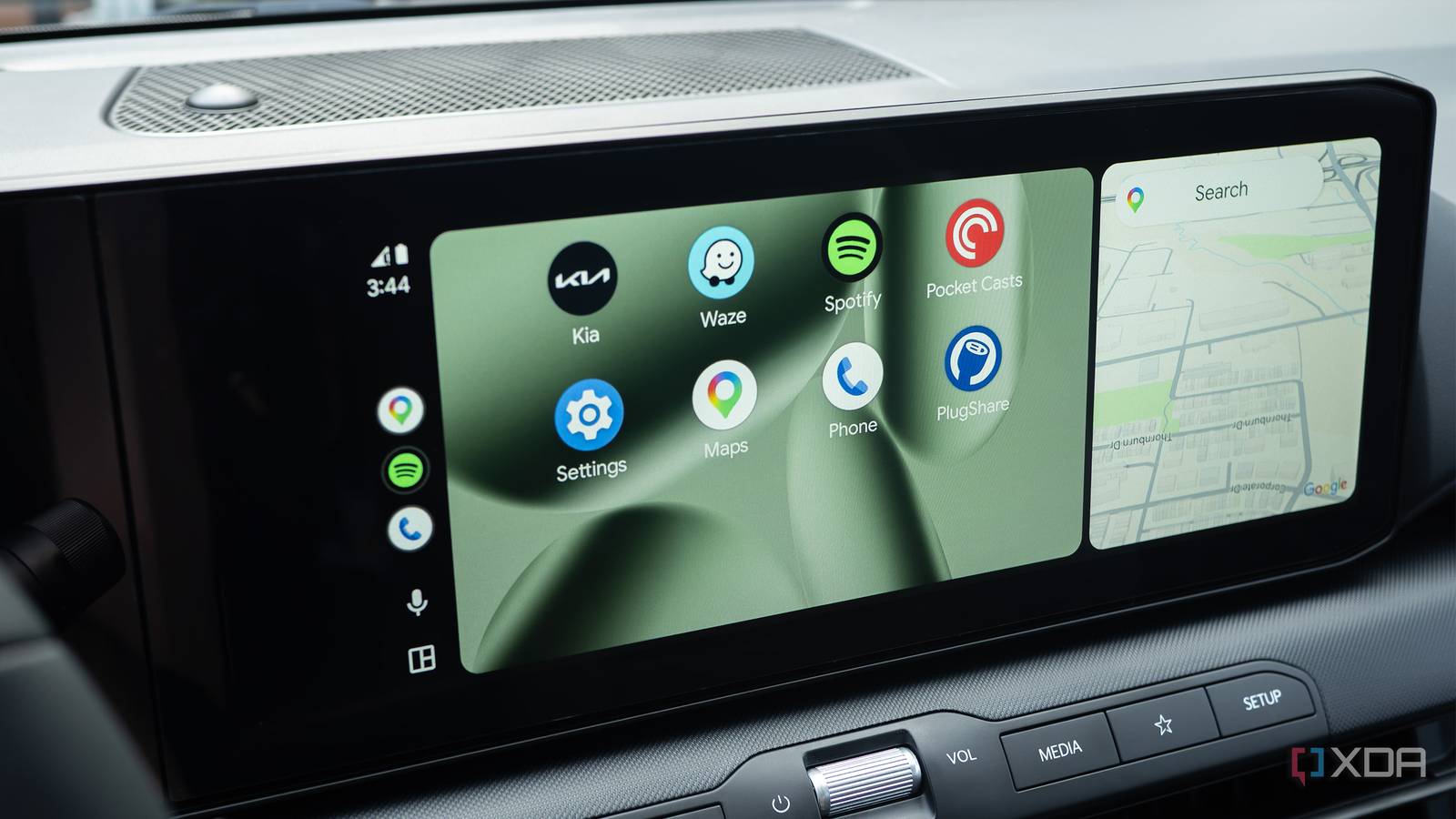
My car for the last few years has been a 2022 Ioniq 5. I’m a big fan of Hyundai’s EV, but one odd limitation is the lack of true wireless Android Auto and CarPlay, despite being released at a time when more vehicles had started to ditch the dreaded cord. Fast-forward to 2026, and I recently purchased a Kia K4 Hatchback as my family’s second vehicle — thankfully, the somewhat sporty car features true wireless Android Auto out of the box.
I’ve, of course, used various wireless Android Auto adapters over the years and covered a few of them at XDA, including the Carlinkit 5.0 (2air) and the Ottocast Cabin Care. While both devices work fine, they often don’t instantly connect to my Pixel 10 Pro when I’m using Android Auto, despite my best efforts. I also don’t use them all the time, especially Ottocast Cabin Care, which I only hook up when I pick my son up from daycare so I can use its on-screen camera.
With all of this in mind, my Kia K4 Hatchback is the first vehicle I’ve ever owned that supports true wireless Android Auto without the need for a third-party adapter, so I decided it was finally time to change a few key settings to make sure my new car’s infotainment system runs as smoothly as possible. After making all of these admittedly very simple changes, my experience with wireless Android Auto has been flawless and surprisingly convenient, at least so far (given the random disconnection issues I’ve heard about, hopefully that continues).
Related
4 Android Auto settings I always change right away on a new phone
When it comes to my in-car infotainment system, I like to keep things efficient and distraction free.
I stopped music from autoplaying when my Pixel 10 Pro wirelessly connects to my car
I don’t need whatever I was last listening to blasting my eardrums right away
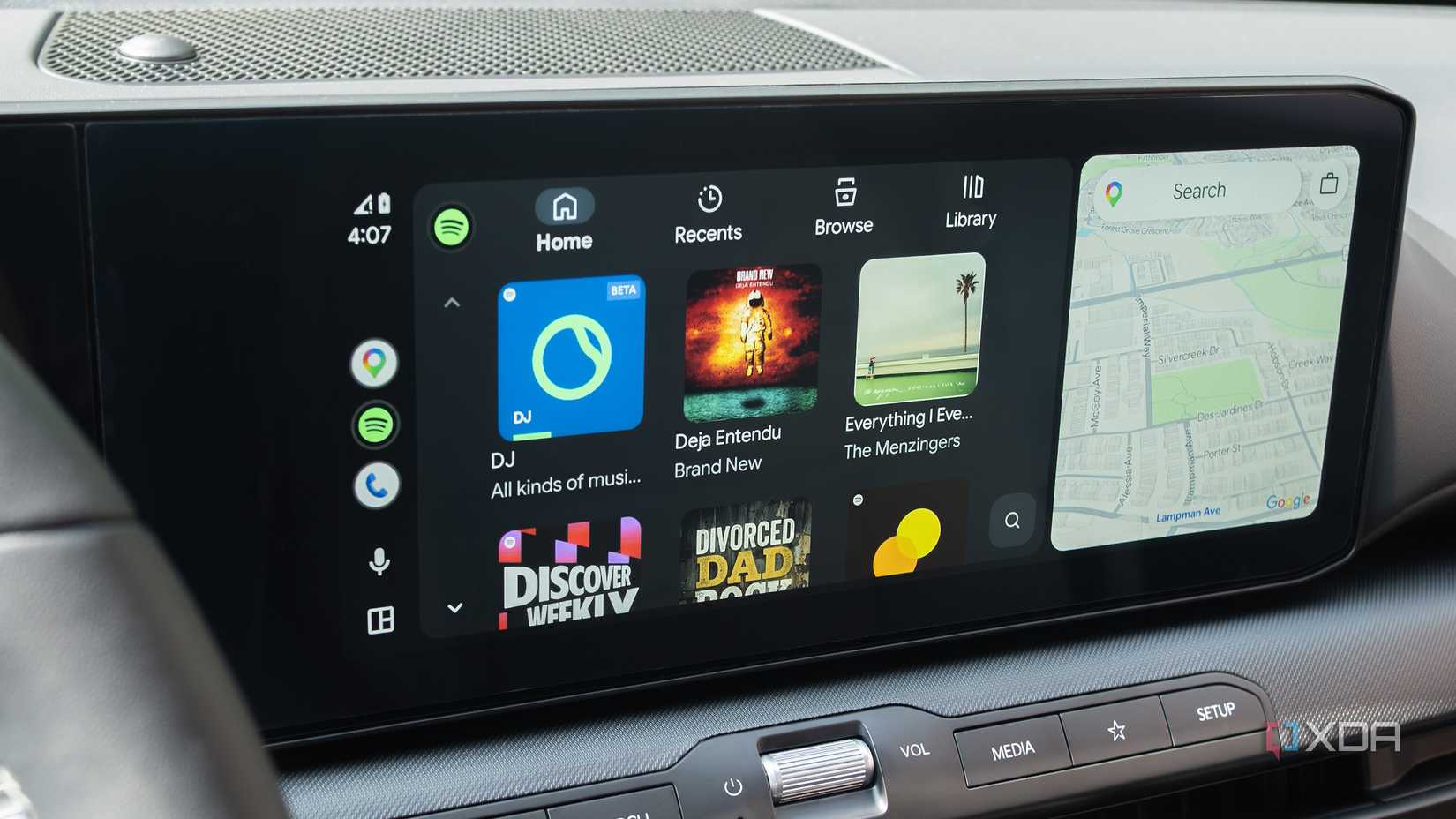
When I’ve used wired Android Auto, this wasn’t really a problem. I get in my Ioniq 5, turn the car on, and then plug my phone in to use Android Auto when I’m ready. In that situation, I really didn’t mind that music started playing again right away. With wireless Android Auto, my Android device boots up as soon as I turn on my car, and whatever I was last listening to, whether it’s a podcast on PocketCasts or something on Spotify, immediately starts playing.
With that in mind, I navigated to Settings > Connected Devices > Connection Preferences > Android Auto (it’s at the bottom, so you’ll need to scroll a bit), and turned off Start Music Automatically. With this feature off, I no longer get hit by the sultry sounds of Limp Bizkit’s Break Stuff the moment I’m in my vehicle, and can instead decide when I actually want to hear Fred Durst tell me that “everybody sucks.”
I always want Android Auto to start as soon as I turn my car on
This creates a seamless infotainment experience
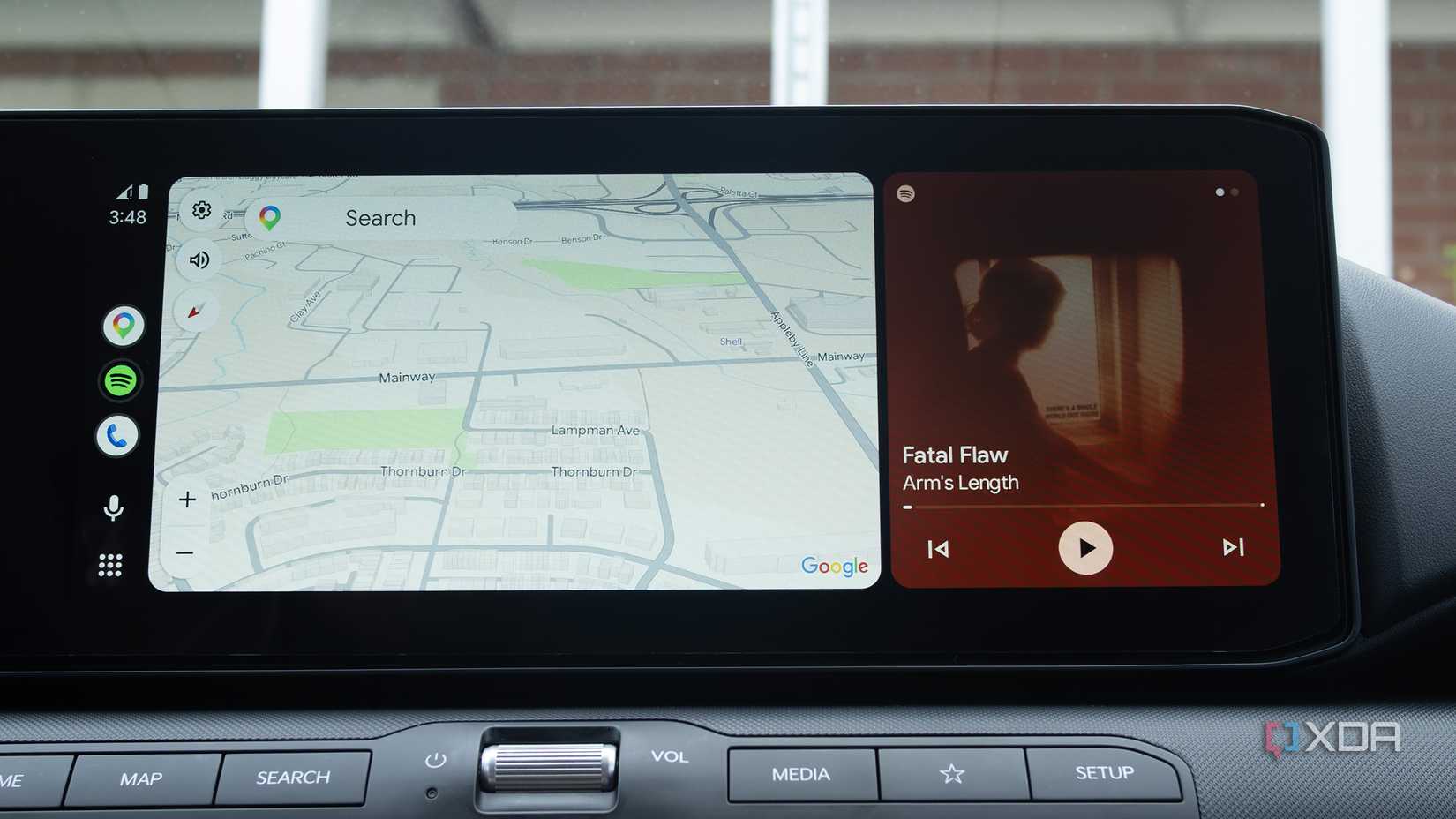
I just complained about music starting as soon as my phone wirelessly connects to my car, but one of the things I have really appreciated about the wireless Android Auto experience so far is that it connects immediately. My K4 EX doesn’t feature Kia’s in-car navigation system and instead relies entirely on Android Auto or CarPlay, so an instant connection is key to me getting on the road as quickly as possible.
To change this setting, I once again navigated to Settings > Connected Devices > Connection Preferences > Android Auto and tapped on Start Android Auto Automatically. I was then given three options: Always, If Used On The Last Drive, and Default (Set By Vehicle). Just to be safe, I flipped my setting from If Used on the Last Vehicle to Always. That way, I know for sure that as soon as my car turns on, Android Auto is booted up and ready to go. In some cases, you might also need to set a setting within your car’s infotainment system to launch Android Auto immediately (I didn’t need to do this).
I set Android Auto to run while my phone is still locked
This setting is also useful for wired Android Auto
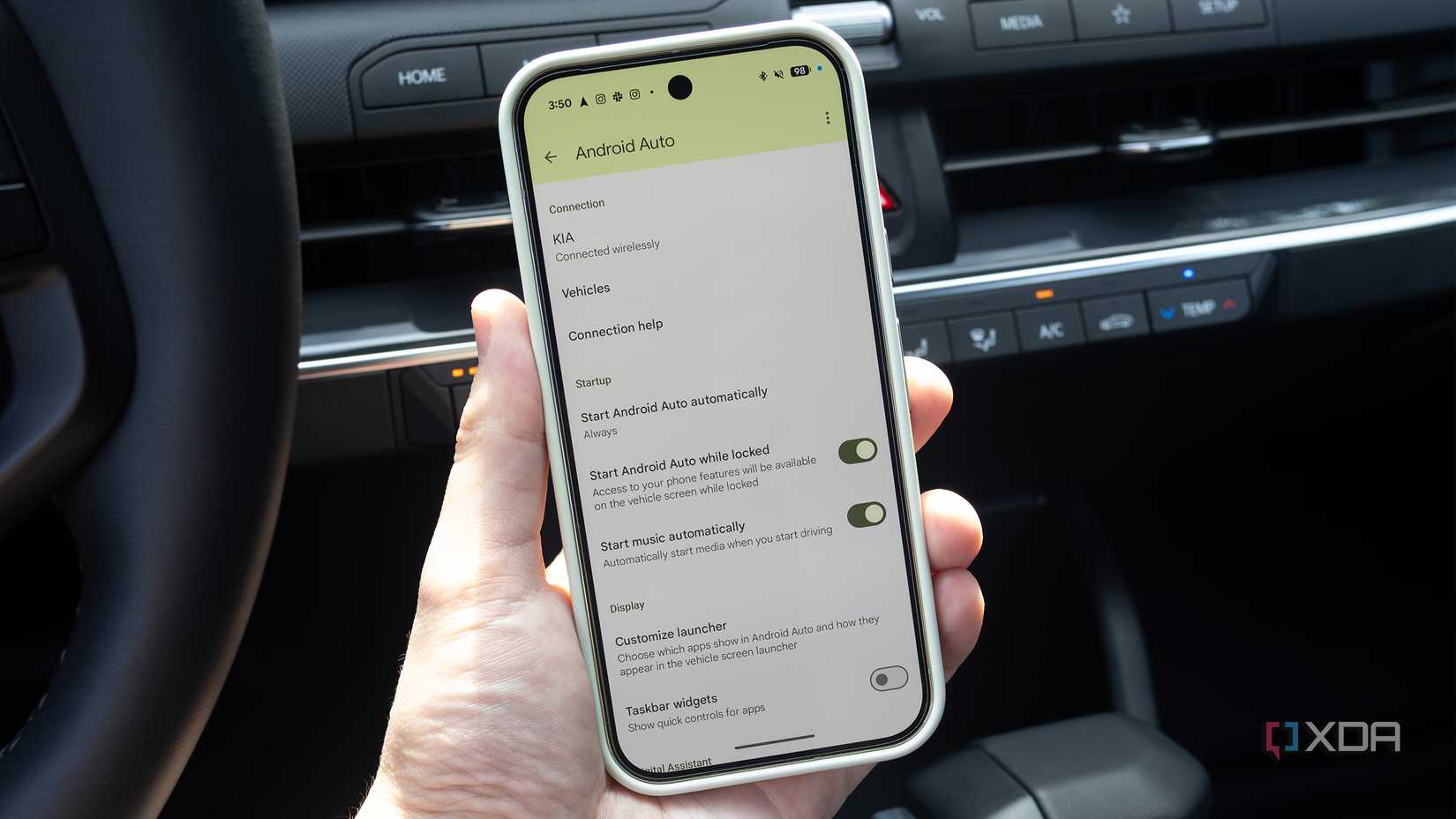
This setting might seem obvious to some, and in some cases, it’ll be turned on by default — for some reason it wasn’t with my Pixel 10 Pro. I guess that explains why I needed to unlock my phone before it connected to Android Auto after the initial wireless setup. To access this setting, I once again head to Settings > Connected Devices > Connection Preferences > Android Auto and toggled on Start Android Auto While Locked.
With this feature on, I no longer need to unlock my Pixel 10 Pro for Android Auto to properly connect to my car. Instead, Google’s infotainment system immediately wirelessly connects as soon as I turn my K4 on.
Related
Android Auto kept disconnecting until I changed one hidden setting
The solution to my issue was more straightforward than I expected.