
Ever since I got a new infotainment system in my car, I treated Android Auto as nothing more than a glorified way to mirror Google Maps and YouTube Music onto my dashboard.
It was functional, but it never felt like it was actually working for me.
That changed last week when I finally went beyond the default interface and started digging into the deeper configuration menus.
By tweaking a few overlooked settings and leveraging a few powerful shortcuts, my morning commute has become more productive.
Related
These Android Auto problems make my commute harder than it should be
These long-standing issues annoy me to this day
Always start Android Auto automatically
Nothing kills the ‘futuristic car’ vibe faster than having to fumble with your phone and unlock it just to get your maps and music running.
Thanks to these tweaks, I don’t even take the phone out of my pocket. It just works.
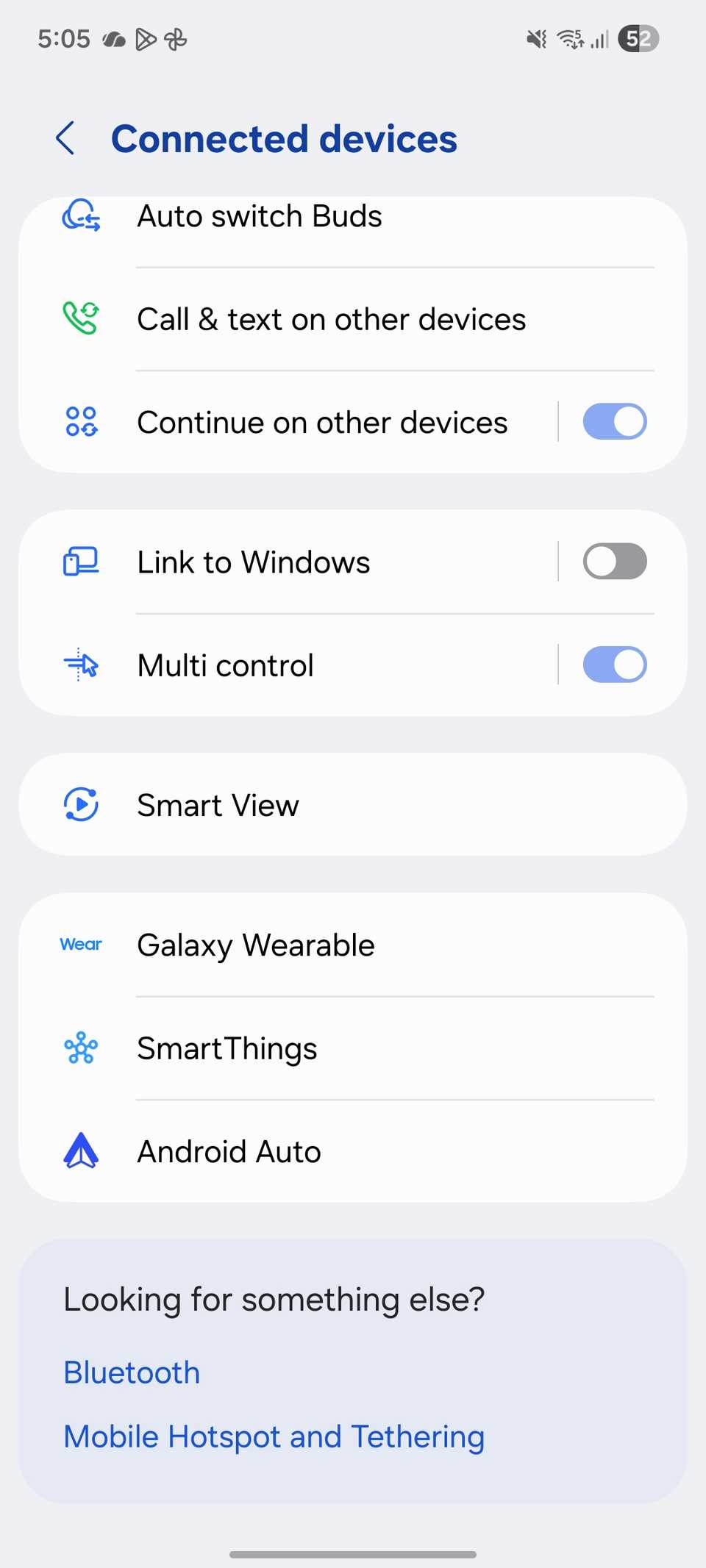
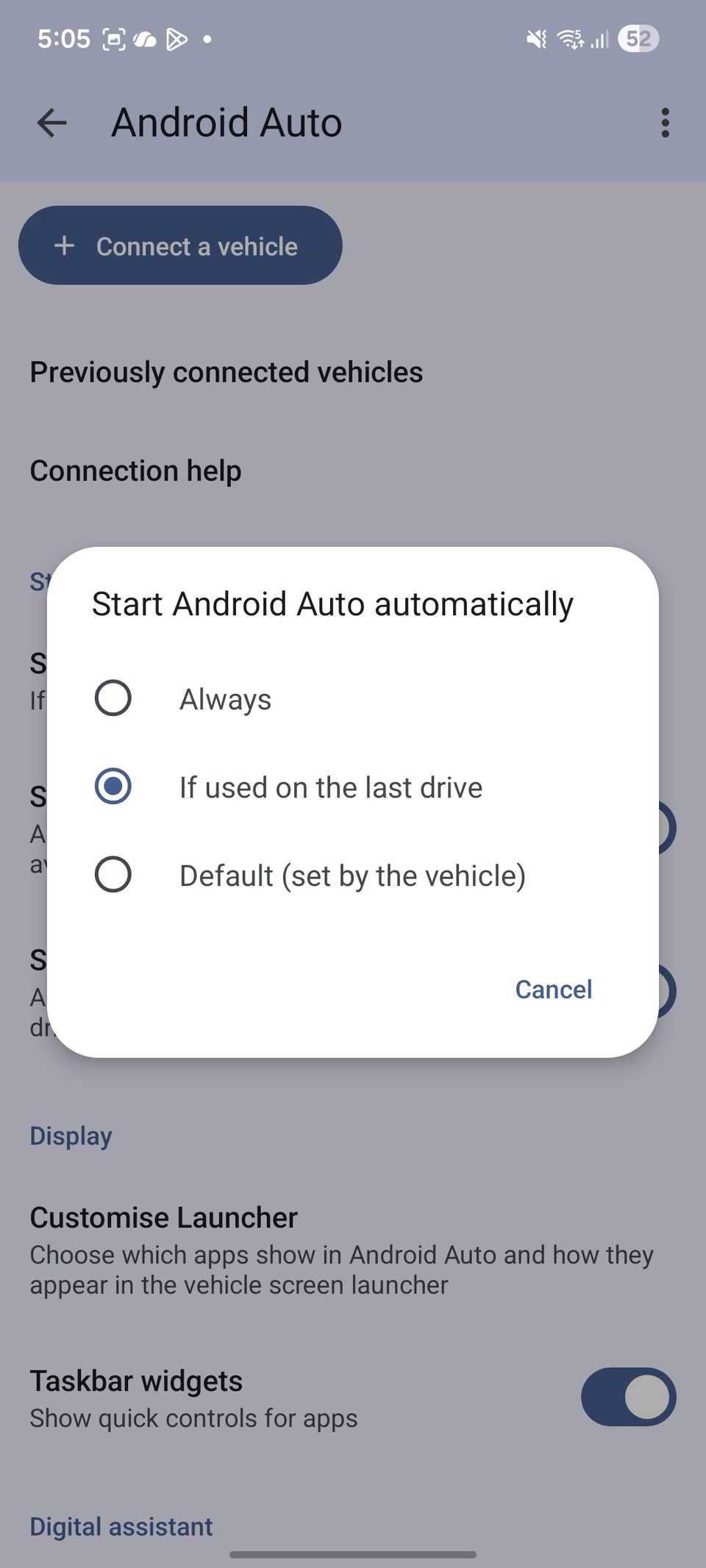
The core of my setup is toggling Start Android Auto automatically to Always. By default, some systems are set to ‘If used during the last drive,’ which is fine until it isn’t.
By forcing it to Always, my phone and the head unit connect instantly. It’s just a seamless transition from my pocket to the dashboard.
I have also enabled the Start Android Auto while locked toggle. I used to think I had to bypass my security every time I got in the driver’s seat, but this setting allows the encrypted connection to bridge over the lock screen.
It’s a massive win for both convenience and safety. I don’t have to worry about biometrics failing due to my sweaty hands or because I’m wearing sunglasses.
And if you usually listen to your favorite playlists right after getting into the driver’s seat, make sure to enable the Start music automatically toggle.
Customize Android Auto launcher
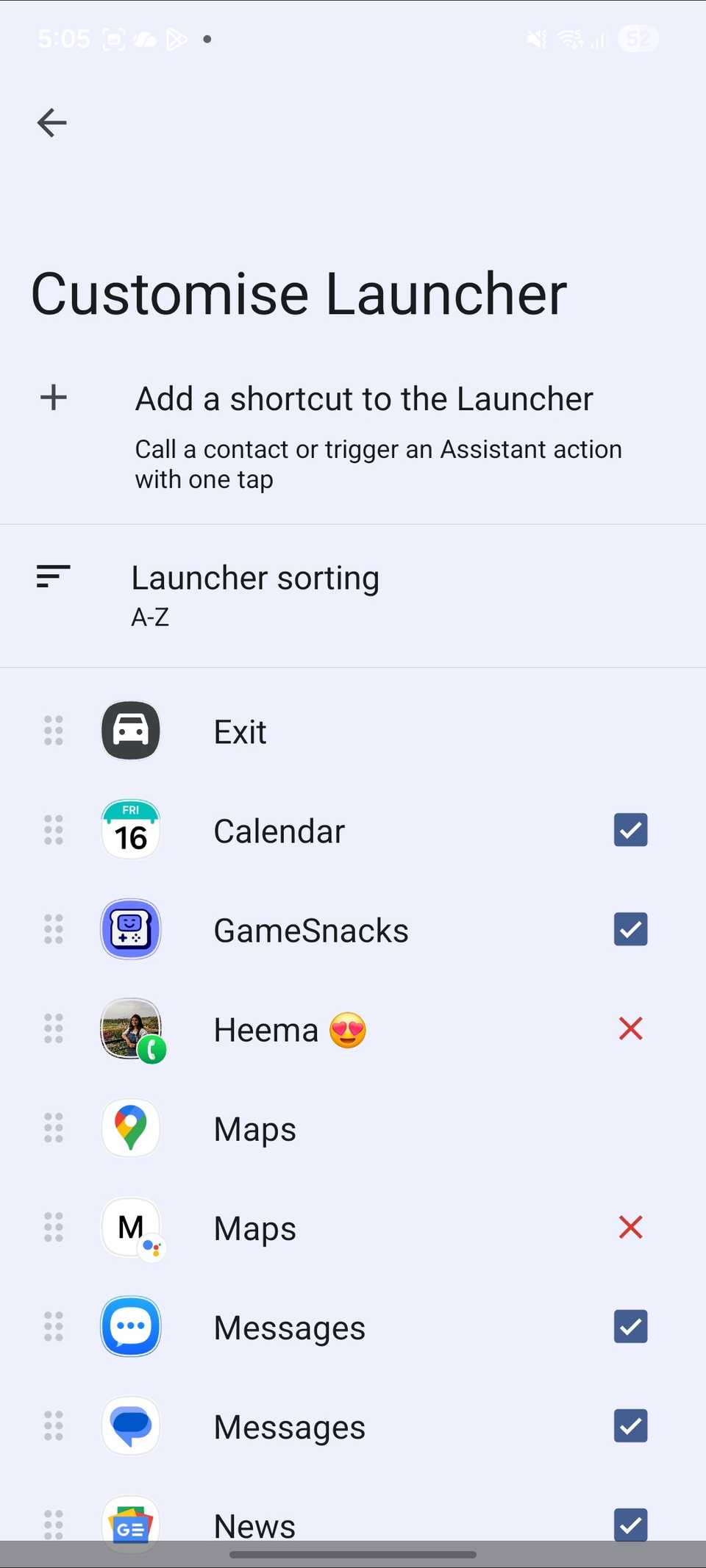
One of the biggest productivity drains in a car is a cluttered interface.
For months, I just scrolled past dozens of apps I would never use while driving just to find one thing I actually needed.
When I realized I could customize the launcher, I started treating it like a specialized dashboard.
The first thing I did was disable any app that didn’t serve a purpose at 60 mph. I unchecked everything that wasn’t essential.
By hiding the bloat, I reduced my app list from three pages of scrolling down to one single, clean screen. When the clutter was gone, I rearranged the remaining icons.
I moved Google Maps and the YouTube Music app to the very top of the list. The real productivity hack isn’t about hiding apps, though. It’s about adding custom shortcuts.
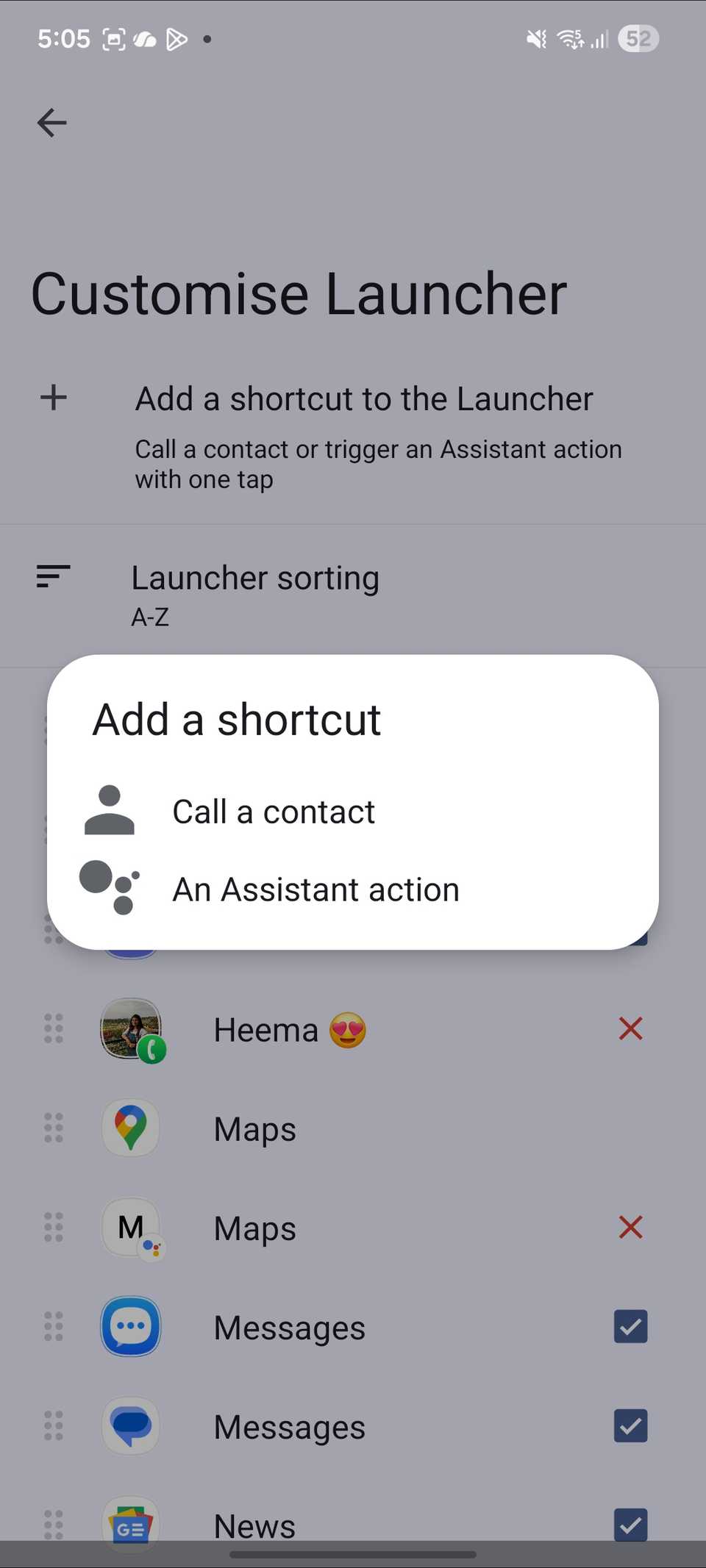
In the same customization menu, there is an option to add a shortcut to the launcher, and this is where things get interesting.
Through the one-tap contacts menu, I added direct shortcuts for my wife and business partner.
Now, instead of navigating through a Phone menu or hoping Assistant hears me correctly over the road noise, I just tap their icon and the call starts immediately.
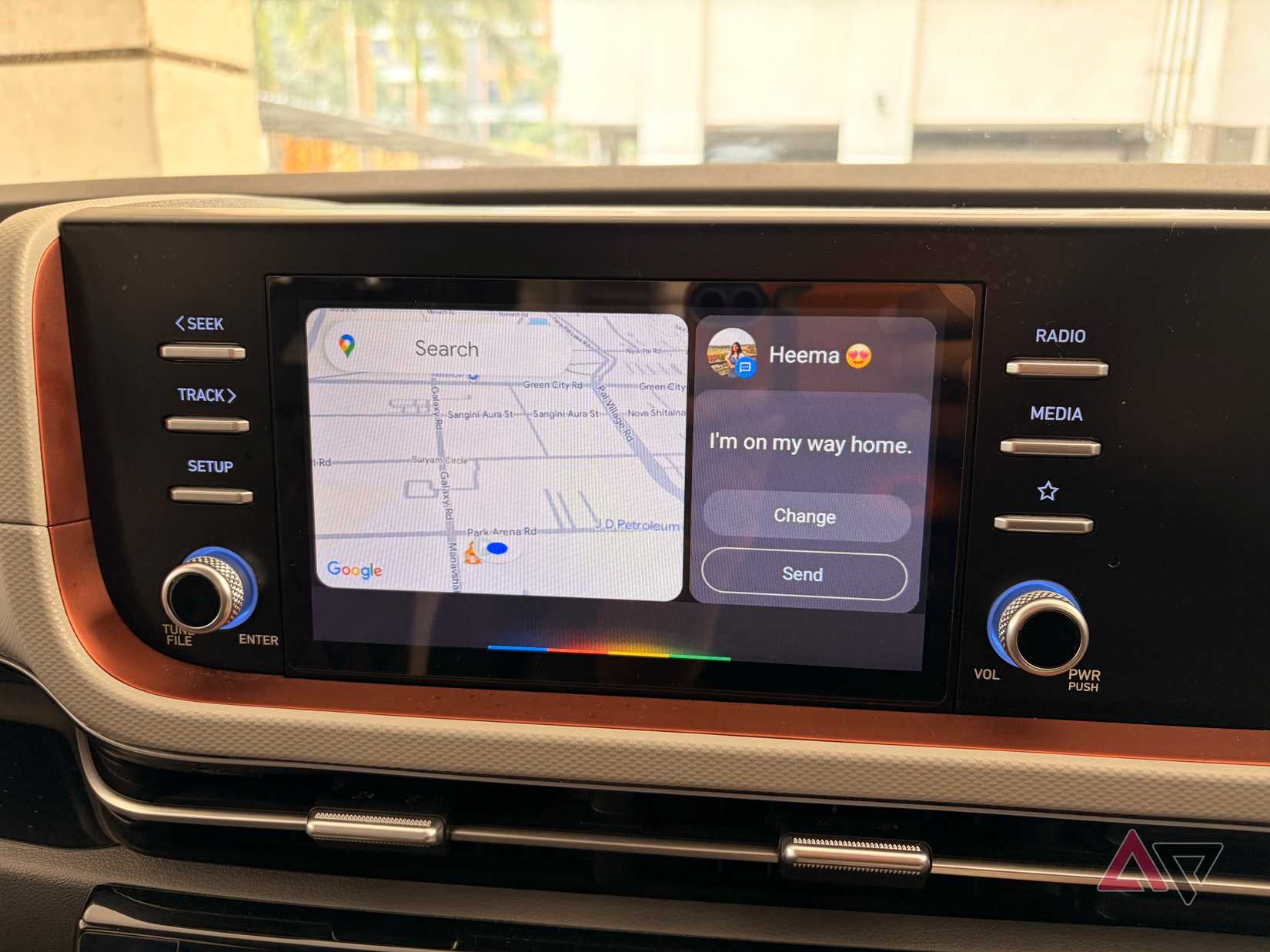
Google Assistant actions are my favorite feature. I created a custom action for my ‘Heading Home’ routine. With one tap, the system starts navigation to my house and drops a text saying ‘I’m on my way!’
Enable quick control for apps
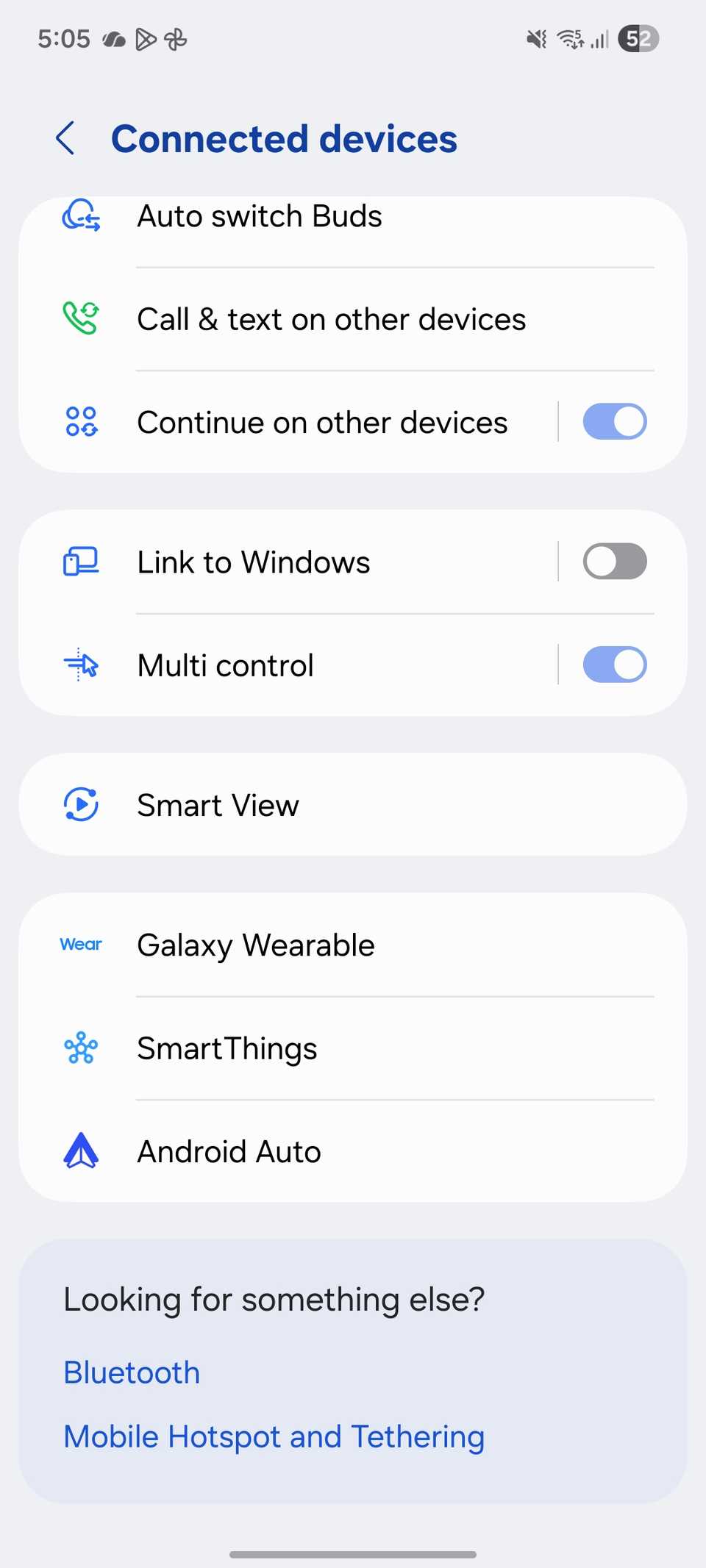
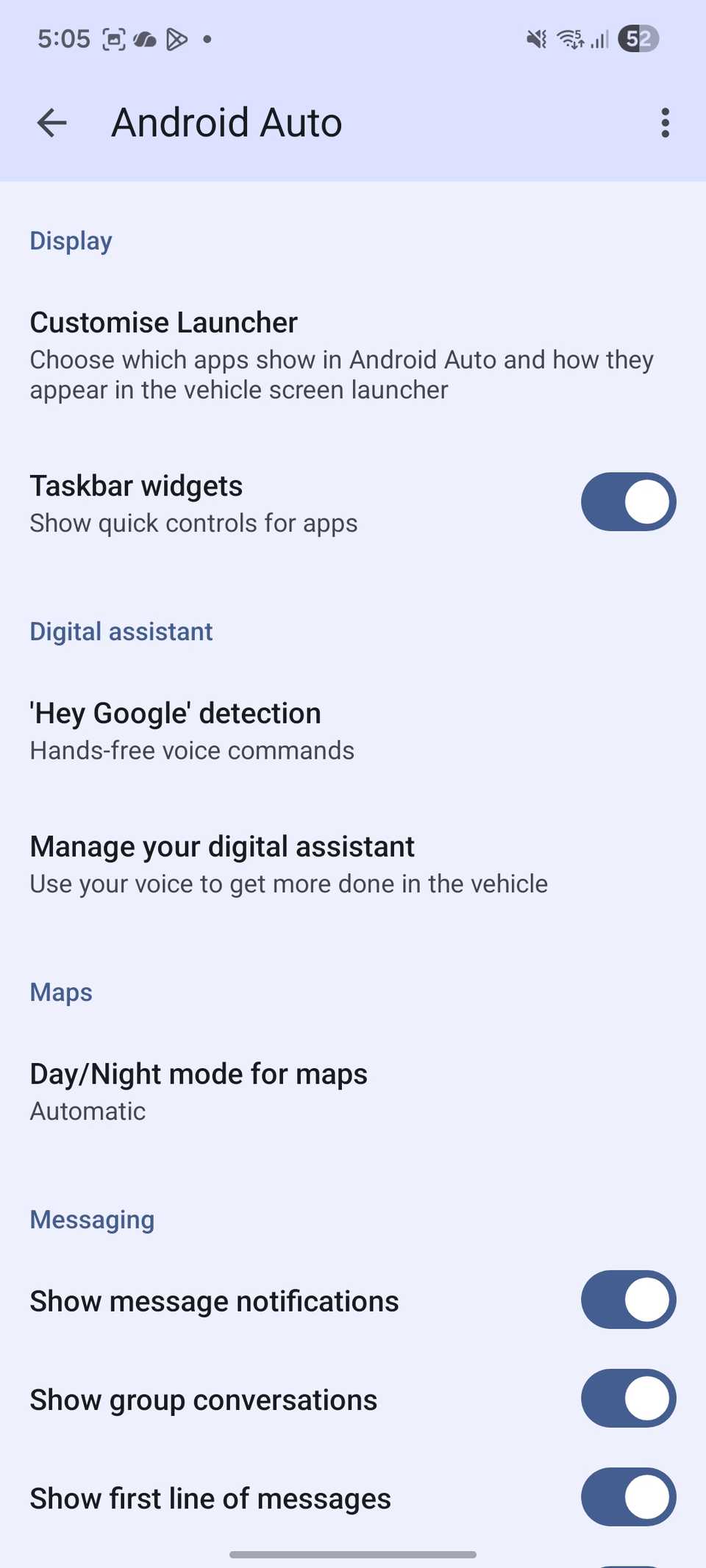
Of all the small tweaks I have made, enabling the taskbar widgets is one that feels most like a pro upgrade.
The beauty of this feature is that it puts quick controls directly at the bottom of the screen, regardless of which app is currently in the background.
If I’m looking at Google Maps, I don’t have to leave the map to skip a song or pause a podcast. A mini-player widget sits right there in the taskbar, giving me play/pause and skip buttons that are always accessible.
Change the Android Auto layout
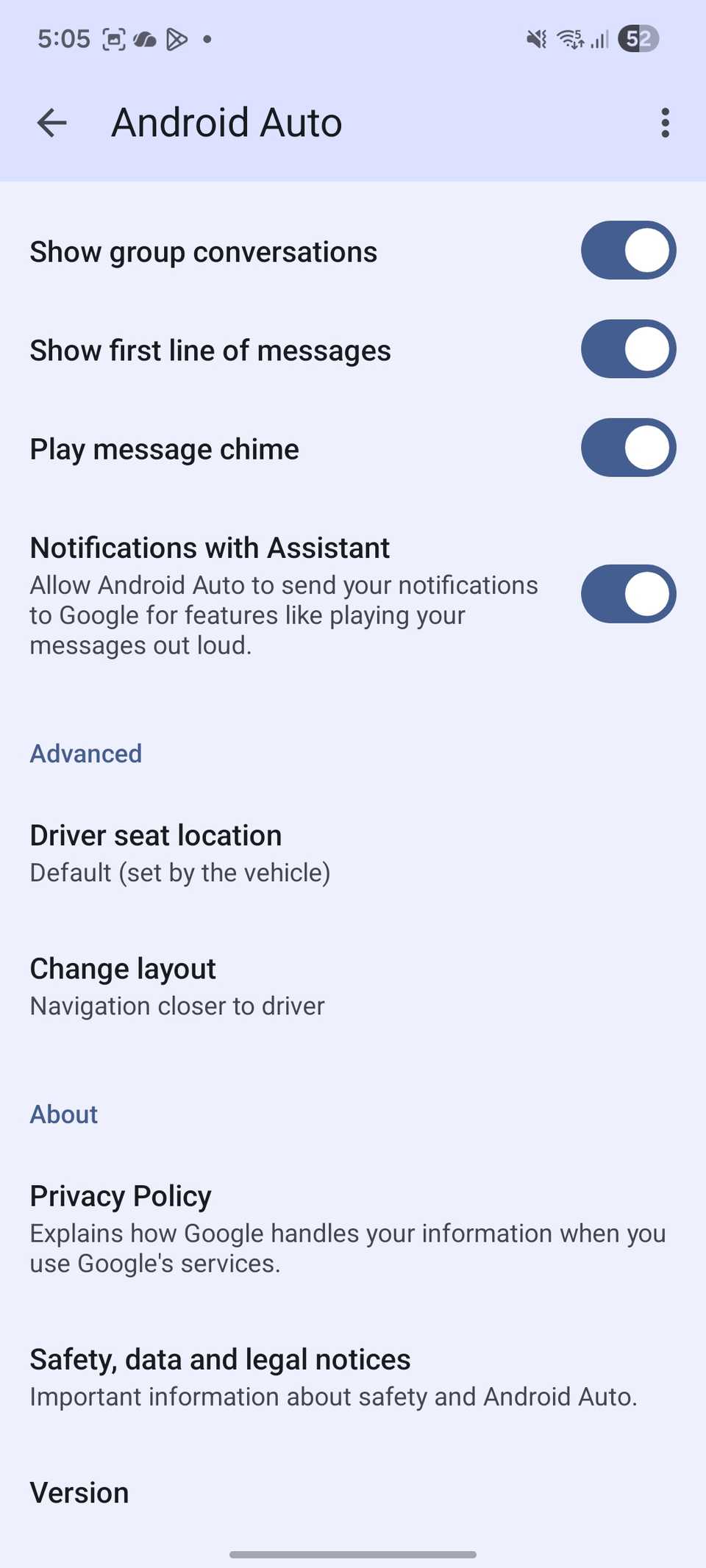
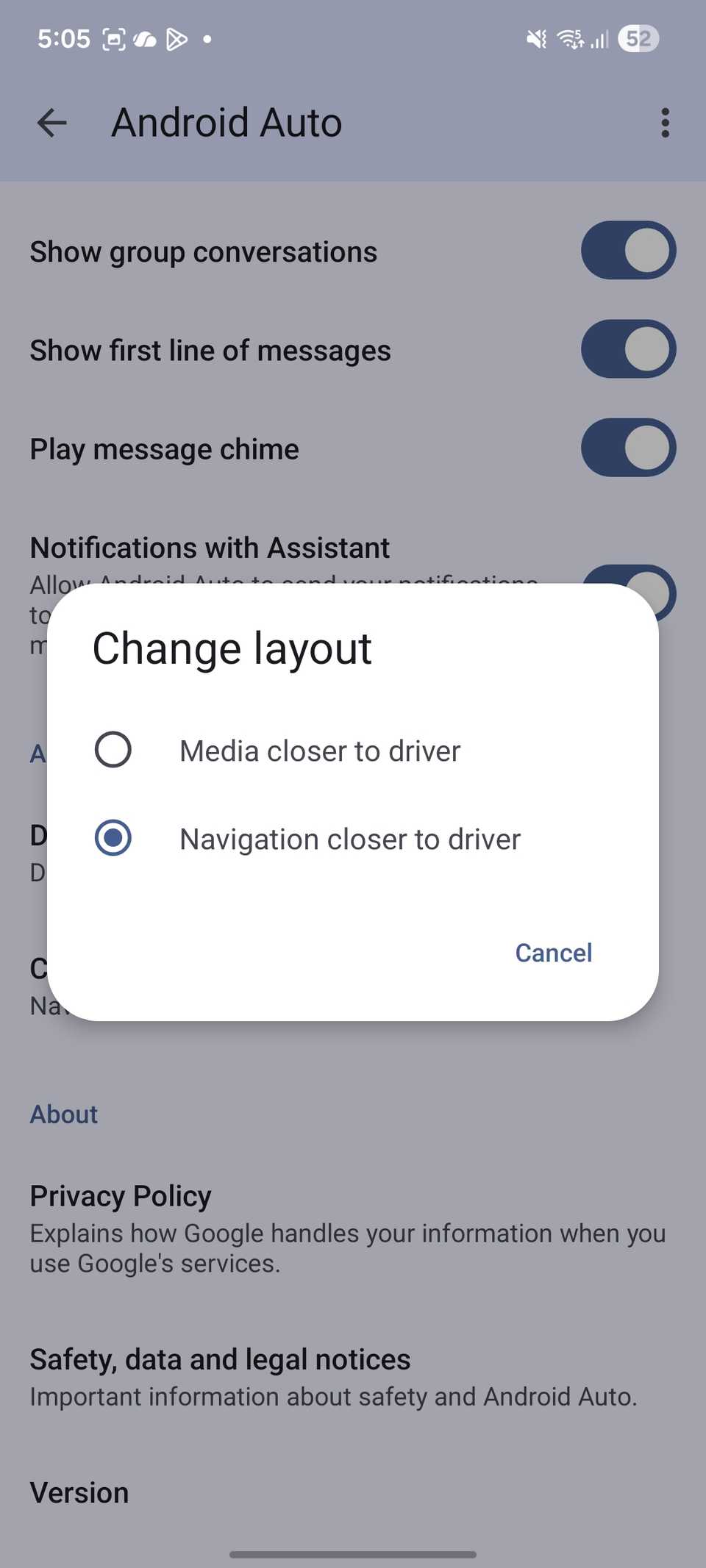
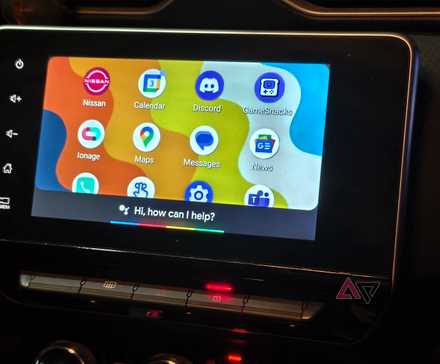
One of the most satisfying changes I made was finally fixing the screen layout.
By default, Android Auto often splits the screen with music on one side and navigation on the other.
I realized that having my YouTube Music or podcast controls sitting right next to my hand was actually a waste of real estate.
After all, I have physical media buttons right there on my steering wheel. I can skip tracks, play, pause, and adjust volume without ever touching the screen.
I dove into the settings and toggled the Navigation closed to driver option. Now, when I need to glance at a complex junction or check my ETA, my eyes barely have to leave the road.
Related
I love this little-known Android Auto trick that gives you a virtual car upgrade
Make your drives safer and smarter
Create a Routine for Android Auto (for Samsung users)
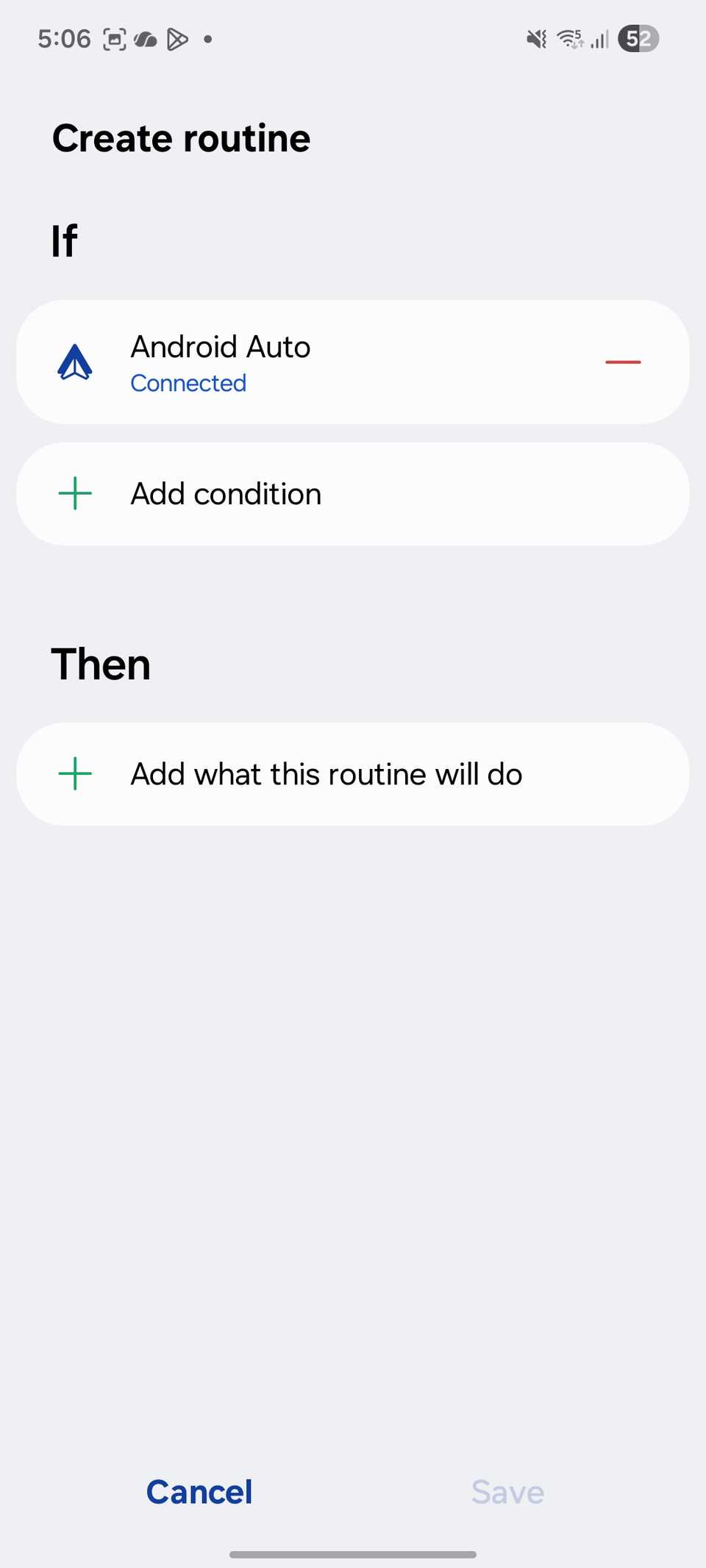
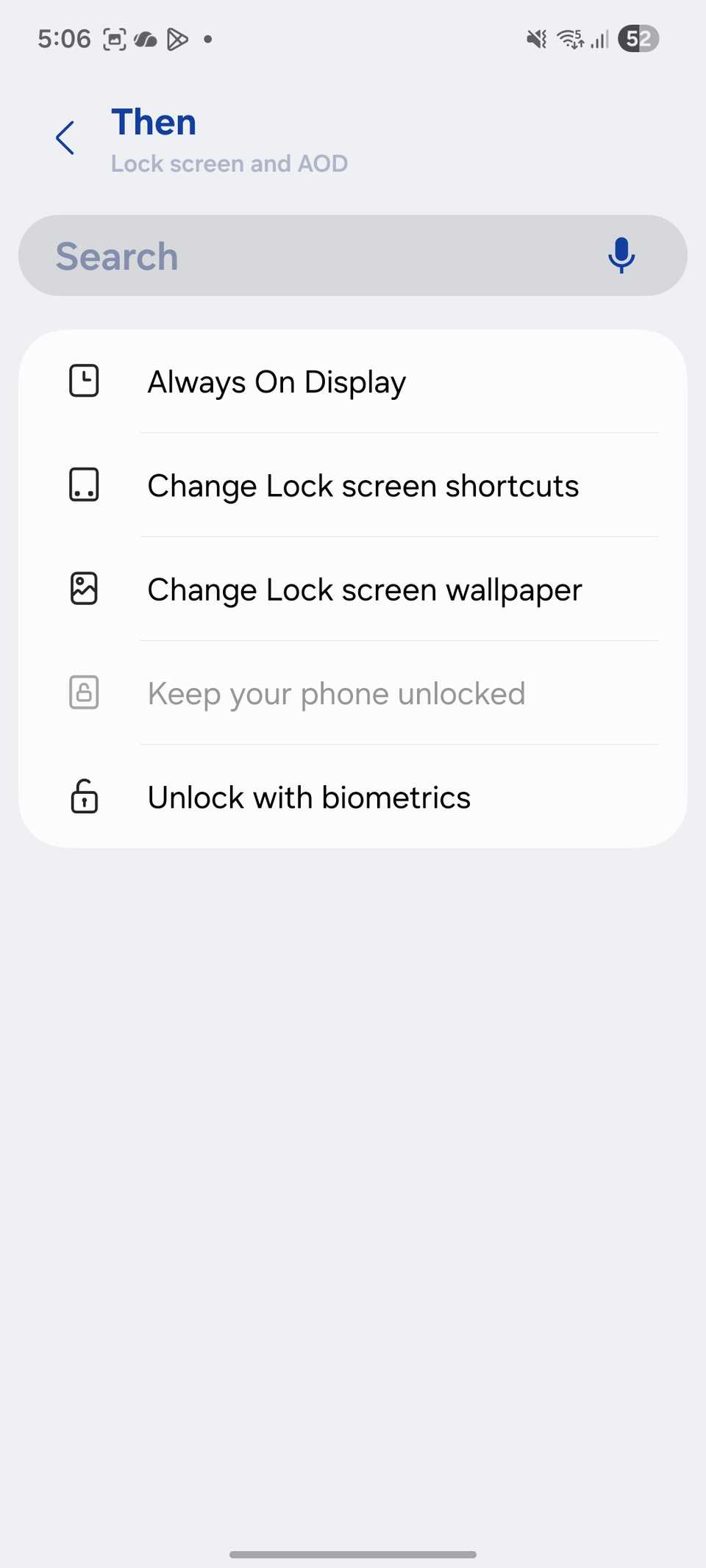
If you have one of the latest Samsung Galaxy phones, you can create a routine for Android Auto.
For example, I have set a routine where the system disables Always on Display (to preserve battery) whenever I connect to my car’s Android Auto system.
The possibilities are endless here. You need to dig into the Settings > Modes and Routines menu to make changes.
Fix your commute
Whether it’s your phone, computer, or car, it’s easy to settle for the default experience. We just plug in our phones, accept the defaults, and navigate around the friction.
If you are still fighting with a cluttered dashboard or generic alerts, take this as your sign to stop settling for the factory experience and finally make your car as smart as the phone in your pocket.
Meanwhile, check out our dedicated post to find some of the useful apps for Android Auto.