
I recently checked my Digital Wellbeing settings and was frankly shocked by how much time I waste scrolling social media, diving down Wikipedia rabbit holes, and otherwise messing about on my phone when I should either be fast asleep or getting on with my day.
It then occurred to me that the solution lay in my trusty old Pixel 5 phone, which has been sitting in my bedside drawer for the past 18 months. I would set it up as a Google Nest-style bedside assistant and sleep tracker, with only the necessary apps installed. I could then banish my primary phone to its dock in my office, to charge overnight, without distracting me or infringing on my precious sleep.
The hardware setup
Some simple but important tips to get it right
Any old phone on any platform can be configured to serve as a SIM-free bedside assistant. However, a few factors made my Pixel 5 a strong choice:
Its OLED display is perfect as an always-on clock without being too bright at night.
It features built-in wireless charging for reduced cable clutter.
It has a compact size that doesn’t dominate my bedside table.
It demonstrates excellent standby efficiency and sips power overnight.
As an added bonus, Google’s Always-On Display and Bedtime Mode are optimized at the system level, so I don’t need to rely on third-party apps, although these would make a perfectly acceptable workaround if necessary.
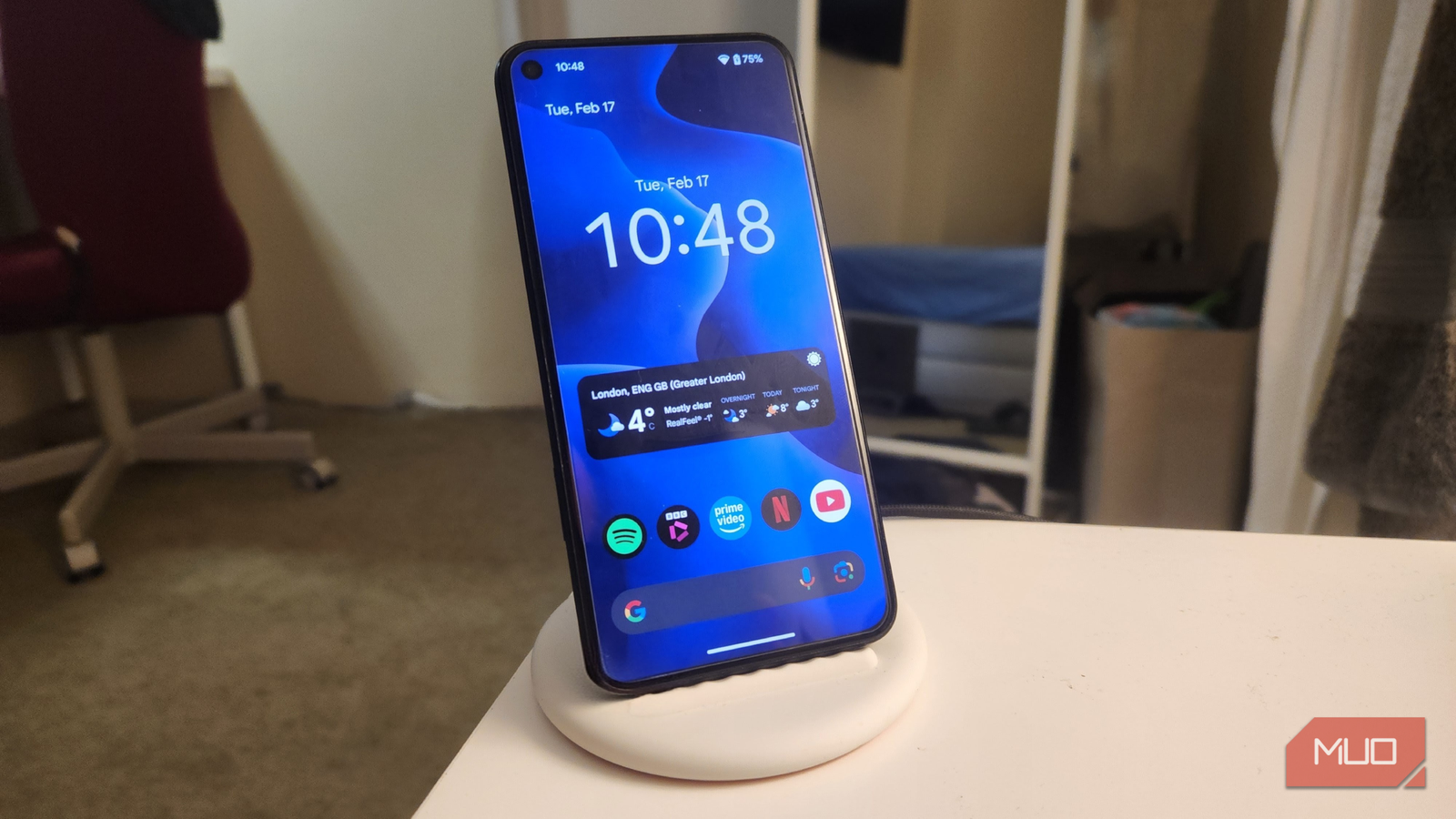
I installed the Pixel on a vertical wireless charging pad I already owned to keep the screen glanceable, reduce heat buildup and clutter, and give it that mini-smart display aesthetic. I then positioned it close enough to tap and within range for accurate sleep monitoring (more on that later). It’s also worth considering removing thick cases to improve charging efficiency and prevent excessive heat buildup.
As an option, plug your wireless charger into a smart plug, scheduled to power off for an hour each day. This helps prolong battery life, as it won’t sit at 100% around the clock.
The always-on configuration
Crucial steps to ensure your bedside assistant works as intended
The following steps turned my old brick of a phone into a useful device again, one that functions much like a Google Nest Hub, with a few extra benefits thrown in:
Step 1: Enable always-on display
Go to Settings -> Display -> Lock screen and enable Always show time and info. This gives you a minimal clock and notification icons, as well as subtle OLED-friendly shifting that prevents screen burn-in.
Step 2: Enable bedtime mode
Go to: Settings -> Digital Wellbeing -> Bedtime Mode and turn on Do Not Disturb, dim the screen, and set it to activate automatically at your preferred sleep time. This makes the phone feel like a purpose-built bedside device instead of, well, a phone.
Step 3: Build a minimal home screen
I had the option to install a minimal launcher, such as Niagara Launcher, which is ideal for a bedside setup, but in the end, I opted to stick with the native Pixel Launcher for its clean aesthetics and simple functionality. I then added the following:
Google Calendar widget
Accuweather weather widget
Google At-a-Glance
A single row of essential streaming apps for music/podcasts and TV
The streaming apps mean my assistant also functions as a handset for casting to my TV, removing the need for a remote and further reducing bedside clutter.
Related
I turned my old tablet into a smart home dashboard, and it’s perfect
I use my 1st-gen iPad Pro as a smart home dashboard
Smart alarm, sleep tracking, and morning routines
This is where the setup becomes genuinely useful
My first step towards reclaiming a regular sleep pattern was to install the Sleep as Android app. This uses the phone’s accelerometer and microphone to track sleep phases. Other features include a smart wake-up window that wakes me during light sleep, and it shows my long-term sleep trends.
Next, I set up a backup alarm to go off ten minutes after my initial wake-up call. This ensures that I start my day as actively as possible. I kept the stock Google Clock app for all world clock/alarm/timer applications, accessible via the widget on my home screen.
Finally, I set up a Google Assistant routine (or Automation) in the Google Home app, so my phone becomes fully integrated into my morning habits. I started by setting up the voice command Good Morning as the trigger for the following actions:
Read today’s calendar
Tell me the weather
Read the news or start a podcast, or playlist
Other smart home features that can be activated at this stage include turning on lights or adjusting smart thermostats. As it stands, as soon as my alarm turns off, I wake during a light sleep phase, my day is summarized aloud, and I listen to the BBC news.
I’ve essentially created a Google Nest Hub for free
My old Pixel 5 now tracks my sleep, wakes me intelligently, shows tomorrow’s schedule, controls my Chromecast, runs smart home routines, and has replaced the need for a separate smart display. Most importantly, it will be the catalyst for better sleep patterns, greater productivity, and improved digital well-being.
Next time you catch sight of your old handset that is gathering dust, think of the potential it offers. Mine was destined for e-waste and is now a purpose-built bedside assistant — not bad for old hardware that would otherwise have remained sitting in my drawer.