
Reading takes focus, and focus is increasingly hard to come by, especially as we grow more accustomed to doomscrolling and short-form video. What if your documents could meet you halfway instead of demanding your full attention at every moment?
With the rollout of Gemini-powered audio features, Docs has now become a hands-free workspace that mirrors how people actually consume information today. The Listen feature came first, and the addition of AI-generated audio summaries builds on it. Together, these features change how you interact with lengthy files, particularly when they’re so easy to access and integrate into your workflow.
You can now listen to your documents in Google Docs
Docs has learned how to speak
The first audio-generation addition is a feature called “Listen to this tab,” which does exactly what it promises. Using Gemini, Google Docs can generate clear, natural-sounding audio versions of your document’s content, and the result is something I find pleasant enough to listen to for extended periods.
There are two main ways to use it, depending on how you use Google Docs. If you’re primarily a reader who enjoys audiobooks and would rather listen than read, or if you like listening while you read, as I do, you can navigate to Tools -> Audio -> Listen to this tab, and the audio starts playing immediately.
Once the audio is playing, a floating player appears on screen that you can move anywhere. You’ll always be in full control of the experience, including the playback speed and the voice/tone of the audio. You can choose from several distinct voice profiles, such as Educator, Teacher, and Motivator, each with its own tone and energy. All you have to do is click 1x, which is the default playback speed, or the three-dot menu, which lets you change voice and insert a customizable audio button.
Alternatively, if you’re an author who wants to share the experience with others, you can embed a playable audio button directly into the document via Insert -> Audio buttons -> Listen to tab. Once it’s inserted, you can hover over the button and click the pencil icon to adjust the label, color, and size to better match your document’s style.
There are a few limitations to keep in mind. The audio stops if your document exceeds 20,000 characters, which means very long files may need to be split into smaller sections for a complete listen. For now, the feature is limited to desktop and English, so if you prefer using Google Docs on your phone or working in other languages, you’ll need to wait for future updates.
Officially, the feature is available to Google Workspace customers on Business Standard and Plus, Enterprise Standard and Plus, and those with Gemini Business, Enterprise, or Education add-ons. However, if you’re enrolled in Google Workspace Labs, which is Google’s early-access testing program, you may already have access regardless of your subscription tier.
Related
5 Gemini and Google Workspace hacks that save me hours each week
If you aren’t using Gemini in your favorite Workspace apps, you’re missing out on major productivity gains.
AI summaries allow you to skim your documents with your ears
Docs is also learning what’s worth saying
Screenshot by Ada
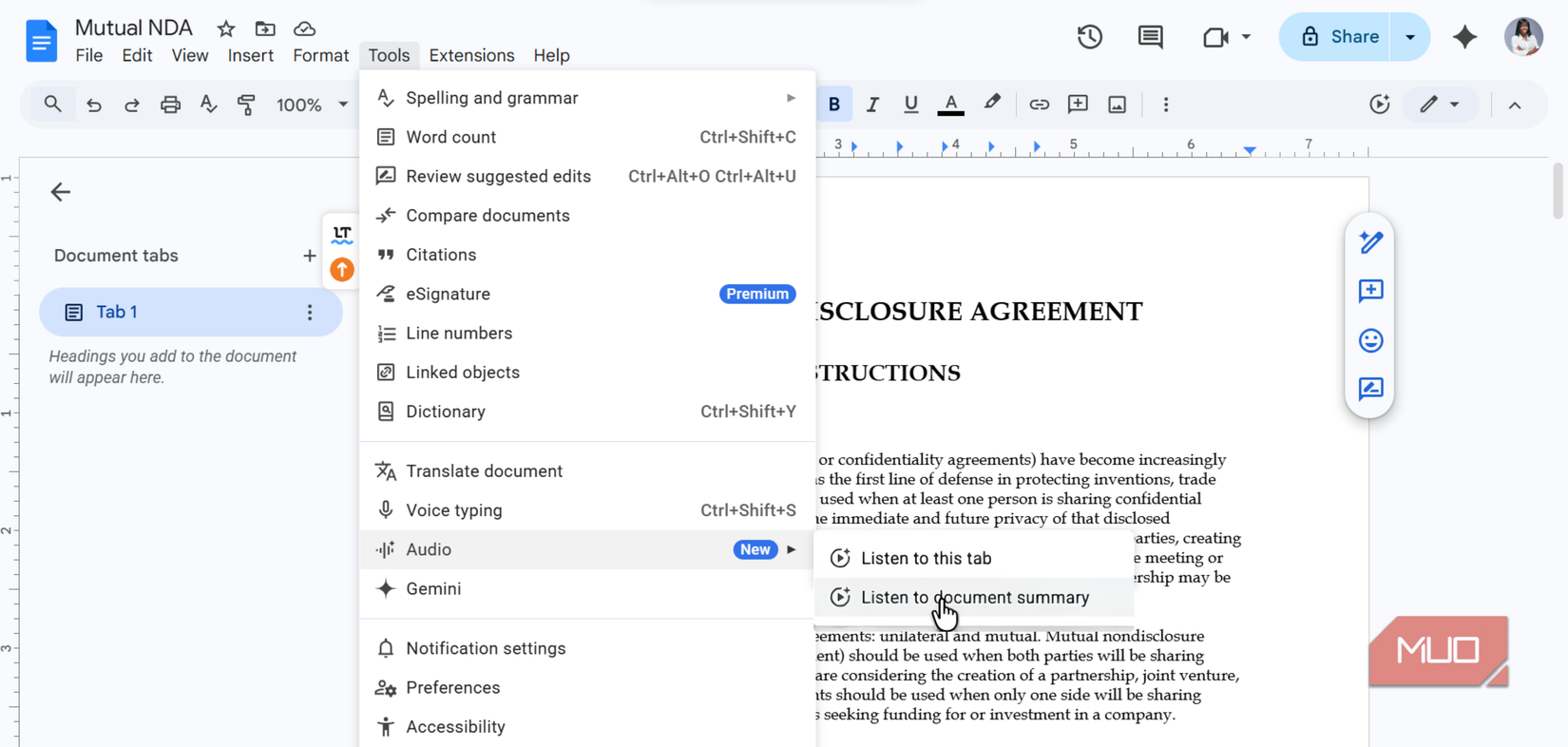
This second feature, which is newer than the listening mode, is even more brilliant. While Listen to this tab reads your document word for word, the Listen to document summary feature asks Gemini to synthesize the content into a concise verbal overview. Instead of spending twenty minutes reading, you can listen to a spoken summary that usually runs just a few minutes, much like the kind of briefing you would expect from a well-prepared colleague catching you up before a meeting.
The feature can pull information from multiple tabs within a single document to provide a more holistic view of what you’ve written or documented. If you’ve structured a report across several tabbed sections, the summary doesn’t just grab the first one; it’ll synthesize across all of them. As a result, you can easily catch up on meeting notes you didn’t have time to read, pull the key points from a lengthy policy document, or orient yourself before jumping into a collaborative project file.
You can access the feature through Tools -> Audio -> Listen to document summary. Like the listening feature, summaries support the same audio player format, voice profiles, and speed controls, so the listening experience stays consistent. Needless to say, Gemini needs actual content to synthesize before the option becomes available. The feature won’t work on blank or nearly empty documents.
The summary feature began rolling out on February 12, 2026, so you should have received it by the end of February 2026, if you’re getting it. It’s available to Business and Enterprise (Standard and Plus) tiers, as well as Google AI Pro and Ultra subscribers. There’s no toggle to enable it, so you either already have access, will receive it soon, or don’t have it. Like the listening feature, it’s currently limited to desktop browsers and to English.
Something you should note is that there’s a real risk of AI hallucinations with this feature. Because Gemini is actively synthesizing and condensing your content rather than reading it verbatim, you might hear things that are off, which isn’t any different from our experiences with even the best AI chatbots or generative tools. For that reason, the audio summary is best used as a starting point for understanding a document rather than as a definitive account of its content.

Related
5 Hilarious Times AI Chatbots Went Wild and Hallucinated
You really shouldn’t trust everything an AI chatbot tells you.
A new way to interact with your documents
If email has become something you skim and Slack has become something you scroll, Google Docs may be turning into something you listen to. Documents are no longer purely static files that demand your full attention in one place and at one time. They are increasingly becoming briefings that can accompany you on your commute, play in the background while you wash dishes, or fit into the moments when you can’t afford to stay anchored to a screen.
If you’re curious whether you already have access, it only takes a moment to check your Docs menu and try the feature for yourself. You may find that listening makes it easier to stay engaged and actually absorb more of what your documents are trying to tell you.