
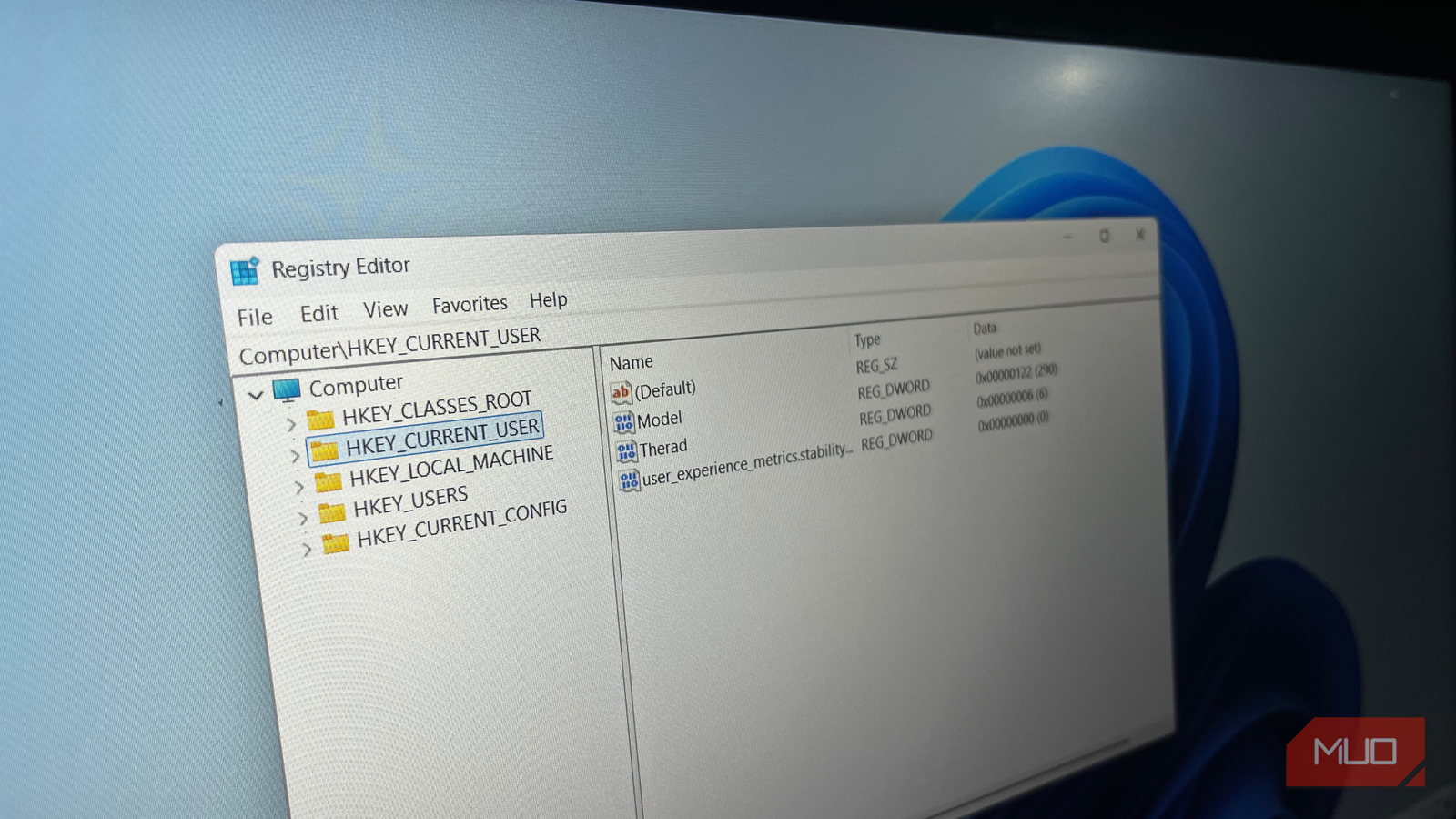
Windows makes countless behind-the-scenes decisions for you, like power profiles, background services, and startup priorities — most of them invisible and rarely explained. Buried even deeper is a registry setting that has been shaping network performance since the Windows Vista era. It’s called NetworkThrottlingIndex, and it has a role in how your system handles network traffic during gaming, streaming, or large downloads. This feature is one of several Windows 11 registry hacks that actually make it better.
Once you understand what it does, a sudden spike in ping starts to look less mysterious. The adjustment itself takes only a couple of minutes. The more meaningful question is why the tweak has an effect at all, and whether changing it makes sense for your system.
Windows has been capping your network traffic behind the scenes since Vista
Meet the invisible speed bump you never consented to
Credit: Ben Stegner/MakeUseOf
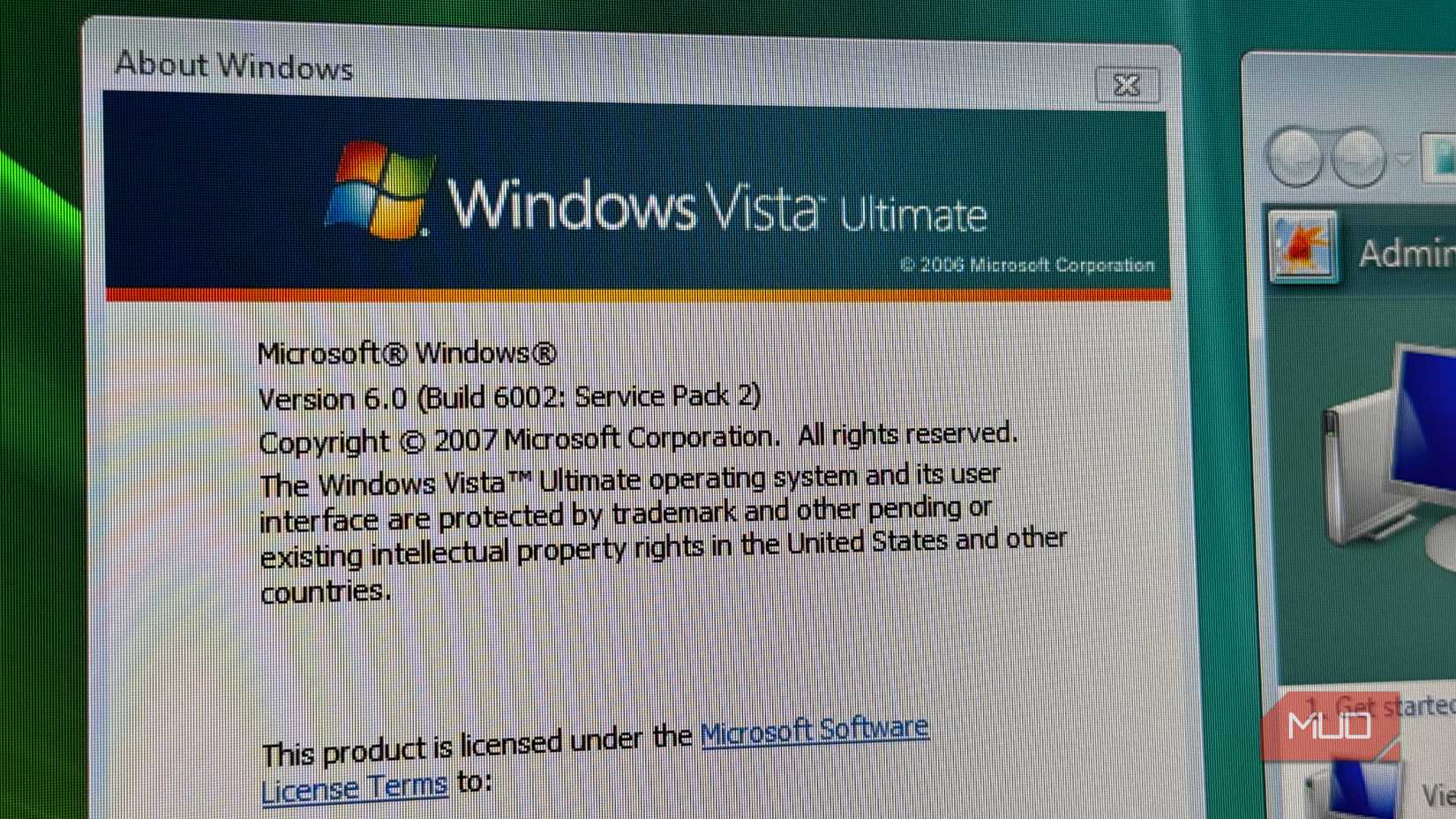
To make sense of NetworkThrottlingIndex, you have to zoom out a bit and look at what’s called the Multimedia Class Scheduler Service, or MMCSS. It showed up back in the Windows Vista era to fix a very real problem at the time: stuttering audio. If you were using a media player, a DAW, or even an early PC game, background tasks could interrupt playback and cause pops, crackles, or lag. MMCSS stepped in with a clear goal. When multimedia apps are running, they get priority access to CPU and disk resources, so you get a seamless experience.
As part of that balancing act, Windows made an assumption. High-speed network traffic can be CPU-intensive, so to protect media playback, the system limits how much non-multimedia network traffic gets processed. By default, MMCSS throttles it to 10 packets per millisecond, or 10,000 packets per second. That limit is defined by the NetworkThrottlingIndex registry value, which is set to 0x0000000a. This is one of those default Windows settings that are secretly slowing down your PC because it treats modern networking as a threat to system stability.
In 2006, this was a perfectly sensible design. On a single-core CPU with a slow mechanical hard drive, the interrupts generated by a flooded network card could easily “starve” an audio thread, causing audible pops and glitches. Sacrificing a bit of network throughput to keep a movie from skipping was a fair deal for the era.
The problem is that hardware has evolved, and this rule has not. Today’s systems run multi-core CPUs, lightning-fast NVMe drives, and gigabit internet connections. The old fear that network traffic would overwhelm the processor is largely outdated. Yet the 10-packet-per-millisecond ceiling still sits there. On a modern gigabit line, that default setting can effectively cap non-multimedia traffic at roughly 15 MB per second, or about 120Mbps. If you’re paying for 500Mbps or even 1Gbps, your machine may be idling under a speed limit designed for a computer from another era. The symptoms show up as uneven download speeds, sudden ping spikes during streams, or subtle micro-stutters in games, even when your ISP is delivering plenty of bandwidth.
Changing one value in the registry can tell Windows to get out of the way
The shortest commute to a faster connection
The actual fix is by changing NetworkThrottlingIndex to 0xffffffff — a hex value that effectively means “no limit” — you’re instructing Windows to stop imposing the packet-processing cap entirely. The throttle disappears, and your system is free to handle network traffic as fast as your hardware allows.
Here’s how to do it:
Press Win + R, type regedit, and press Enter. If prompted by UAC, click Yes.
Navigate to: HKEY_LOCAL_MACHINE\SOFTWARE\Microsoft\Windows NT\CurrentVersion\Multimedia\SystemProfile
In the right-hand pane, look for the NetworkThrottlingIndex DWORD entry. If it’s not there, right-click the pane, select New -> DWORD (32-bit) Value, and name it NetworkThrottlingIndex.
Double-click the entry, make sure the Base is set to Hexadecimal, and change the value to ffffffff.
Click OK, then restart your PC.
Before touching anything, it’s worth backing up your registry. Go to File -> Export in Registry Editor and save a copy somewhere safe. It takes thirty seconds and could save you an hour of headaches.
Related
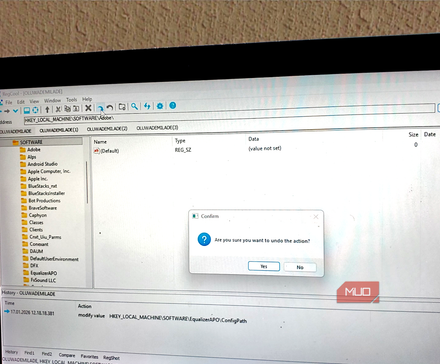
I edited the Windows Registry without fear using this safer editor
Registry edits without cold sweats. Who knew.
Once you’ve rebooted, the change is live. The difference tends to be most noticeable on gigabit and other high-speed connections, especially in competitive online games where stable, low latency matters more than peak download rates. On slower connections, the default cap rarely approaches the available bandwidth, so the impact is typically minimal.
Here’s where we pump the brakes (intentionally, this time)
Before you celebrate, there’s fine print to read
Disabling NetworkThrottlingIndex isn’t a free lunch. The throttle exists for a reason. When you disable it, you’re essentially telling Windows to stop babysitting network traffic and let your drivers and hardware deal with the full flood of interrupts. On a modern desktop with a solid, dedicated network card, that usually works out fine. But the story gets more nuanced depending on your setup.
If your setup is sensitive to DPC (Deferred Procedure Call) latency, removing the cap altogether can introduce instability. DPC latency reflects how quickly the operating system responds to hardware-level requests. When it spikes, the symptoms show up as micro-stutters in games or crackling audio during playback. If your system starts to feel jittery under heavy network activity after applying the tweak, you may be running into interrupt saturation.
There’s an irony here. In certain edge cases, eliminating the throttle can create more instability during multimedia tasks rather than less. If you’re gaming while streaming or running audio production software alongside a large download, the original ceiling may have been acting as a stabilizer.
If you’d rather tune than disable, there’s a middle ground. Instead of wiping the limit entirely, try increasing the value to 15–25 rather than the default 10. That raises the bandwidth ceiling without abandoning Windows’ ability to prioritize time-sensitive multimedia threads. It becomes a matter of tuning rather than tearing down safeguards.
Go in informed, come out faster — hopefully
In the end, NetworkThrottlingIndex is one of those tweaks that favors curiosity over blind optimism. It’s not a set-it-and-forget-it switch. Make the adjustment, go about your usual routine for a day or two, and actually pay attention to how your system behaves.
If downloads feel steadier and your games hold a more consistent ping, then you’ve uncovered a small but meaningful improvement that was hiding in plain sight. If you start noticing audio hiccups or a weird jitter under load, no harm done. Just set the value back to 0x0000000a and call it a learning experience.
Either way, you walk away with a better understanding of your system than before. And that kind of insight is often more valuable than the tweak itself.