
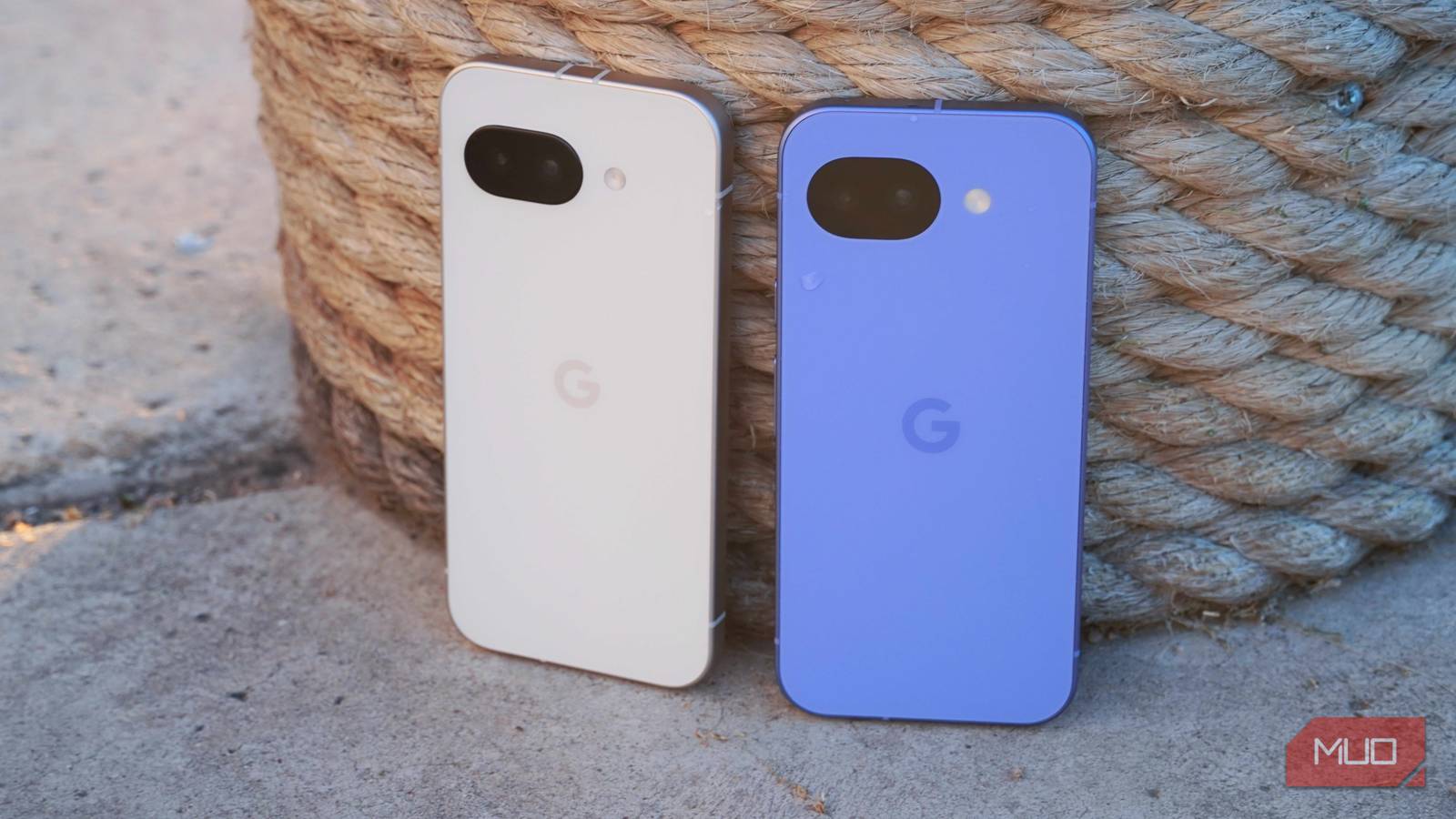
I’ve been using my Google Pixel for a while now, and everything was running smoothly until recently. Over the past few days, I have noticed lagging and general sluggishness that really had me concerned. I didn’t just want to accept it as is, so I decided to dig in and explore the settings. After changing a few settings, the difference was immediate. My Pixel felt snappier and more responsive, honestly, like a brand-new phone all over again.
Related
I thought my Pixel 10 Pro’s screen was defective — turns out I just had this feature enabled
My Pixel’s screen kept acting up. Turns out, nothing was broken, I just had one setting turned on.
Touch input is giving me trouble
Make every tap count
Everything starts with the touch. Lately, I noticed my Pixel’s touchscreen wasn’t as responsive as it used to be, and it was starting to affect daily use. The first thing I tried was turning on Increased Sensitivity on my device. This setting makes the screen more receptive to even lighter taps, which immediately makes interactions feel snappier. On the contrary, if you’re using a screen protector, this feature ensures your Pixel remains just as responsive, so you don’t have to tap harder or struggle with misfires. Essentially, it keeps your touchscreen feeling sharp and precise, no matter what’s covering it. To turn it on, follow these steps:
Open the Settings app on your Pixel.
Go to Display & Touch.
Under the Touch section, select Touch Sensitivity.
Toggle Increased Sensitivity on.
Once this is enabled, your Pixel should respond to your touch with much more ease.
A little storage cleanup goes a long way
Your phone is full and it’s not handling it well
When your phone runs out of storage, it starts struggling. Apps take longer to open, animations feel choppy, and even simple tasks can become frustrating. That’s because your device needs some free space to function smoothly. Without it, everything slows down. Think of it like an overstuffed backpack. When it’s neatly packed, carrying it is easy. But once you start cramming things in without thinking, it gets heavy, messy, and harder to manage. Your phone works the same way; because of too much clutter, the performance definitely takes a hit.
So, clearing some space can make a big difference in day-to-day usage. It gives your phone room to breathe, helping apps run better and reducing those annoying lags. Here’s how you can clean things up on Pixel:
Open the Settings app.
Scroll down and tap on Storage.
Look for the Free up Space section.
Tap it to open the Cleanup section in Files by Google.
Review and remove large files, old downloads, and other unnecessary data.
Before you start deleting, take a moment to double-check what you’re removing. It’s easy to get carried away and accidentally wipe something you might need later.
Too much happening in the background can hurt performance
Your phone is busy doing things you didn’t ask for
Background activity on your Pixel can drag performance down without you even knowing. Many apps continue running behind the scenes, constantly syncing data, checking for updates, and sending notifications. All of this uses up RAM and processing power, which can make your phone feel slower than it should.
You’re not actively using these apps, but they’re still running in the background, using resources. Once you limit this unnecessary activity, your phone has more room to focus on what actually matters, and things start to feel smoother again. Here’s how you can manage it:
Open the Settings app.
Go to Apps, then tap All Apps.
Select an app you don’t use often.
This will open its App Info page.
Scroll down to the Unused App Settings tab.
Turn on the toggle for Manage App if Unused.
When this setting is enabled, your phone will automatically step in if the app isn’t used for a while. It removes permissions, clears temporary files, stops notifications, and even archives the app to save space. Go through your apps and enable this for the ones you rarely touch. It’s a simple way to reduce background noise and keep your Pixel running more efficiently, without the constant manual cleanup.
Speeding up system animations
When everything just snaps into place
Changing animation speed on your Pixel is one of the easiest ways to make it feel faster without actually changing the hardware. By default, animations are slightly slower to look smooth and polished, but they can also make the phone feel a step behind your input. When you reduce the animation scale to 0.5x, everything happens more quickly. Apps open faster, menus pop up instantly, and switching between apps feels far more responsive. It doesn’t boost raw performance, but it removes that slight delay that often feels like lag, especially on older devices.
You can turn off animations completely, but that can make the experience feel a bit abrupt. Setting it to 0.5x strikes a nice balance between speed and smoothness. Here’s how you can enable it:
Open the Settings app.
Scroll down and tap on About Phone.
Tap on Build number seven times until you see “You’re a developer!”
Go back and open System.
Tap on Developer Options.
Scroll down to the Drawing section.
Find Window animation scale, Transition animation scale, and Animator duration scale.
Set all three to 0.5x.
Once this is done, you’ll notice that the difference is immediate. Your Pixel will feel quicker, more responsive, and just a lot more pleasant to use for everyday tasks.
Related
I never set up a new phone without changing this setting
One tweak can seriously improve how your Android feels
Say hello to a brand-new Pixel
Your Pixel will feel fresh again, almost as if you’re using a new phone. I’m glad I didn’t rush into buying a new device, because this one still has plenty to offer. Use it fully, enjoy the experience, and make the most of it. Sometimes, a few simple tweaks are all it takes to bring your phone back to life.