
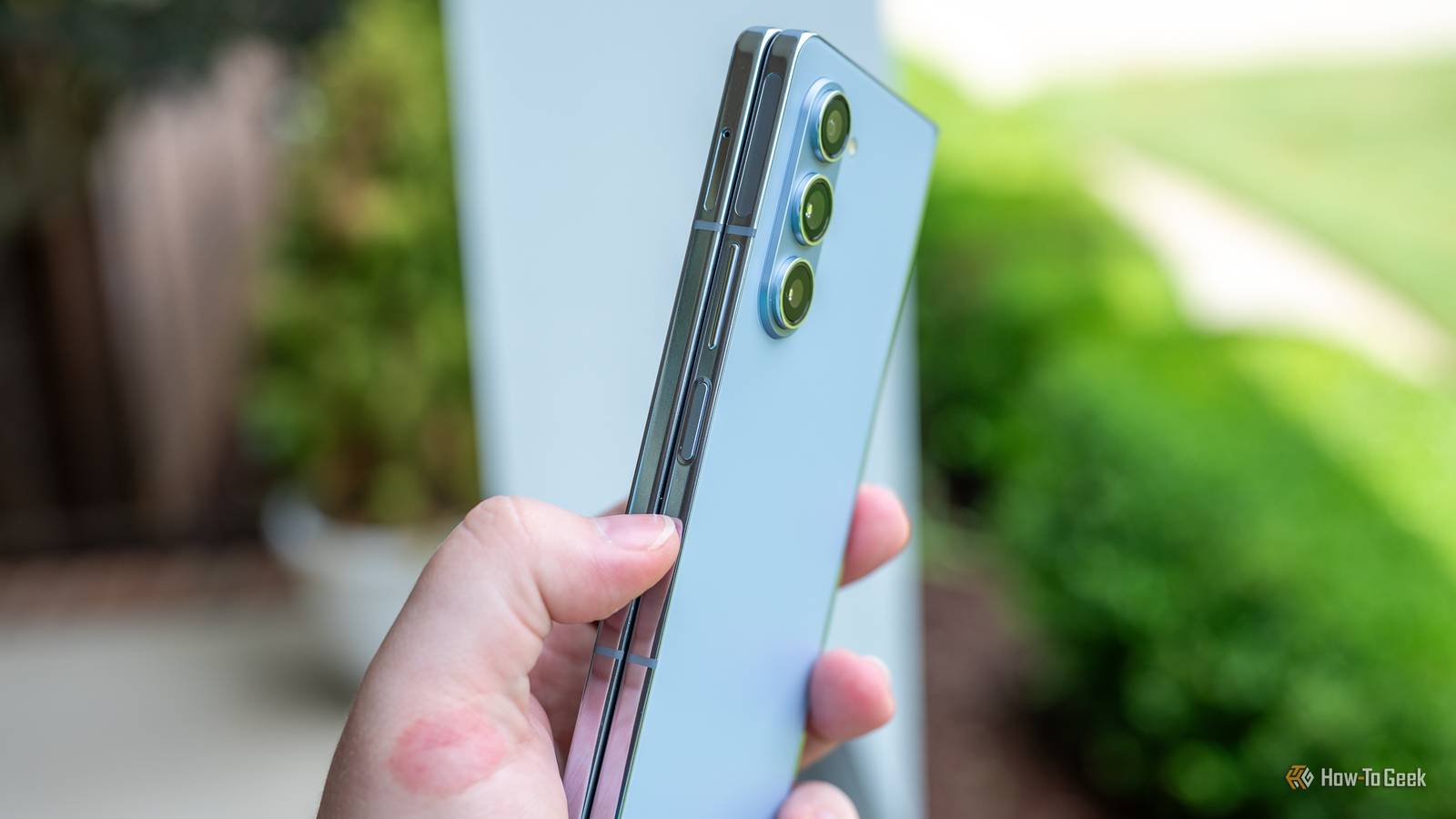
Most of us use our Android phone’s side buttons only to adjust the volume or lock the screen—but that barely scratches the surface of what they can do. With the right setup, those side buttons can launch your digital assistant, activate Emergency SOS, and perform other useful tasks.
Launch your digital assistant
Summon your assistant in seconds
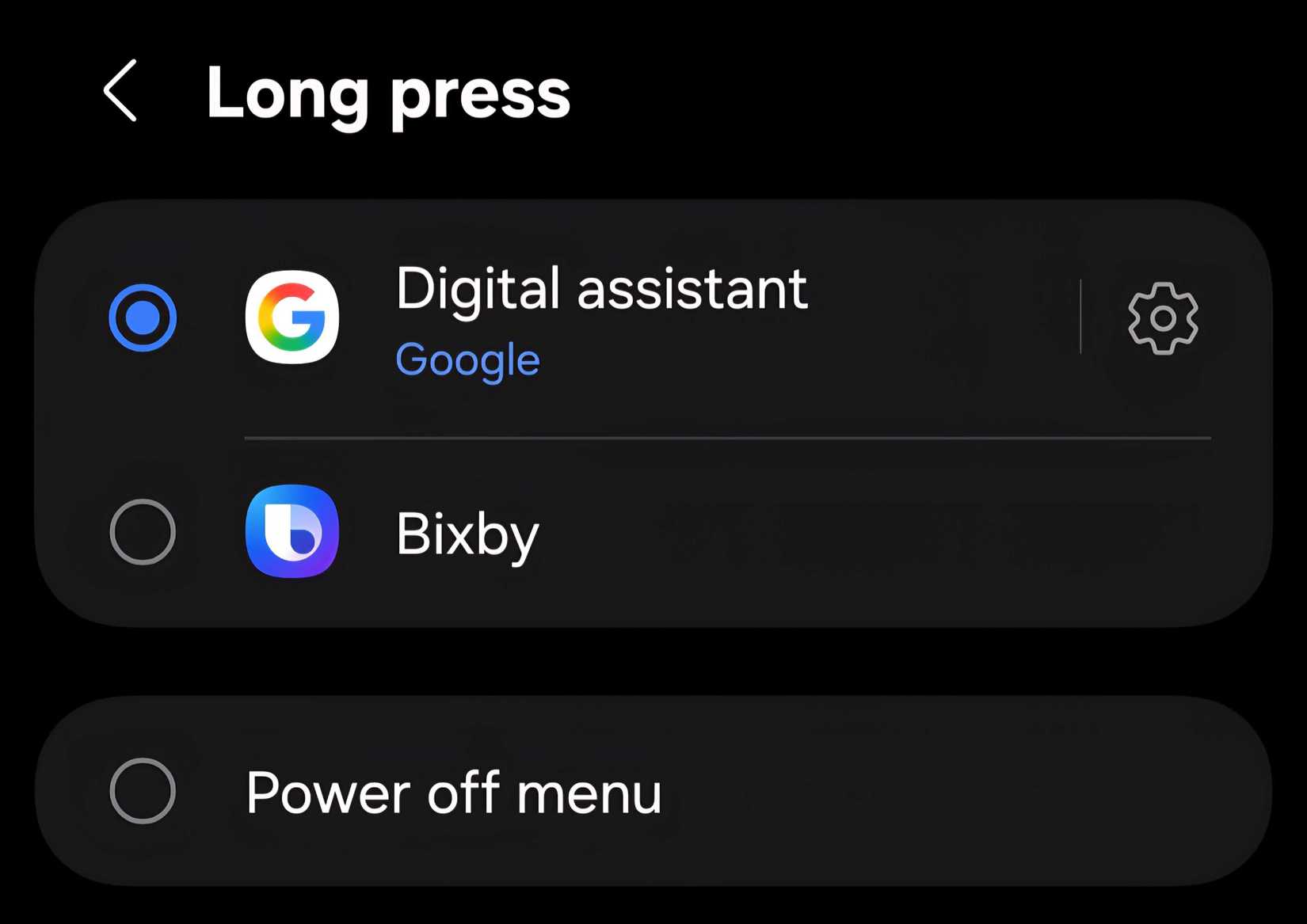
By default, most of us use the power button only to turn the phone on or off or to lock and unlock it. What many people don’t realize is that it can also instantly launch your digital assistant. Simply long-press the power button, and your default assistant—whether it’s Google Gemini, Bixby, or another option—will open instantly.
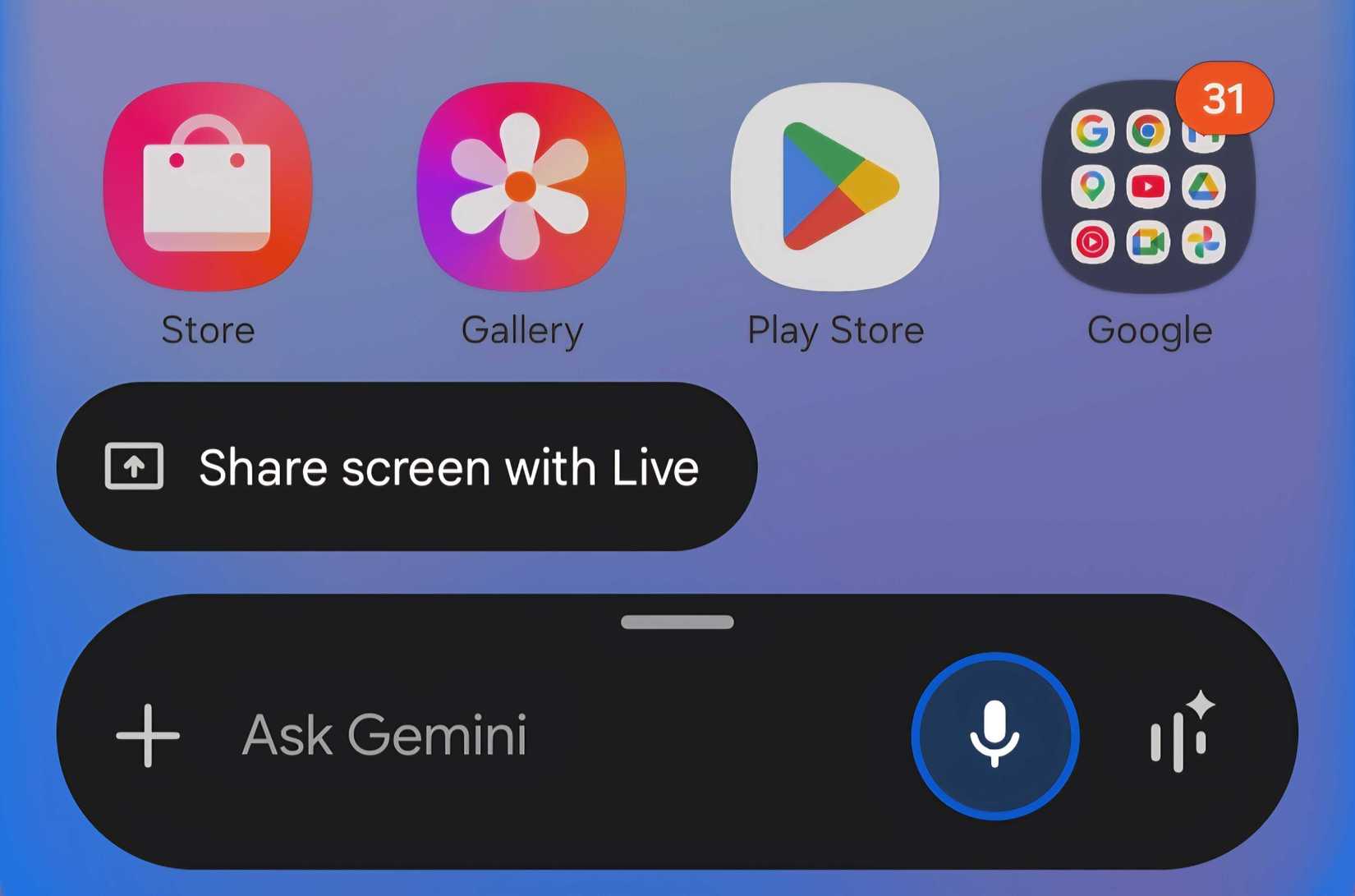
While there are other ways to access the assistant, this shortcut is useful when you can’t use voice commands or need quick access. If the assistant that opens isn’t the one you prefer, Android lets you change it. Open the Settings app, go to “Advanced Features,” tap “Side Button,” and select “Long Press.” From there, just choose your preferred digital assistant.
Call for help in an emergency
Your phone has a built-in panic mode
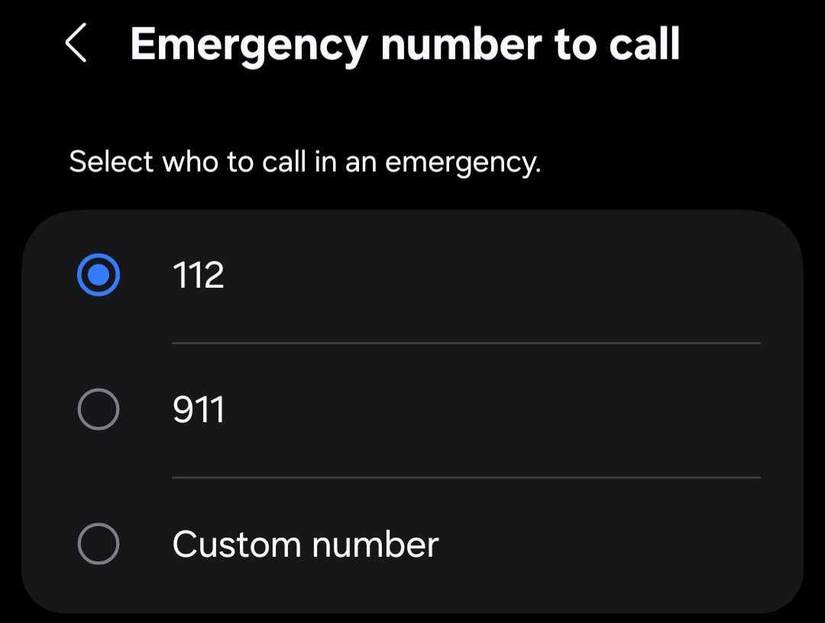
One of the most overlooked uses of the side buttons is asking for help in an emergency. Many Android users aren’t even aware that this feature exists. On most Android smartphones, the Emergency SOS feature lets you press the power button 5 times to automatically call a preset emergency number.
If the default number isn’t suitable for your location, you can change it in Settings > Safety & Emergency > Emergency SOS.
By default, you may need to swipe the screen to confirm the call, but you can turn off “Require Swipe to Call” to place it instantly.
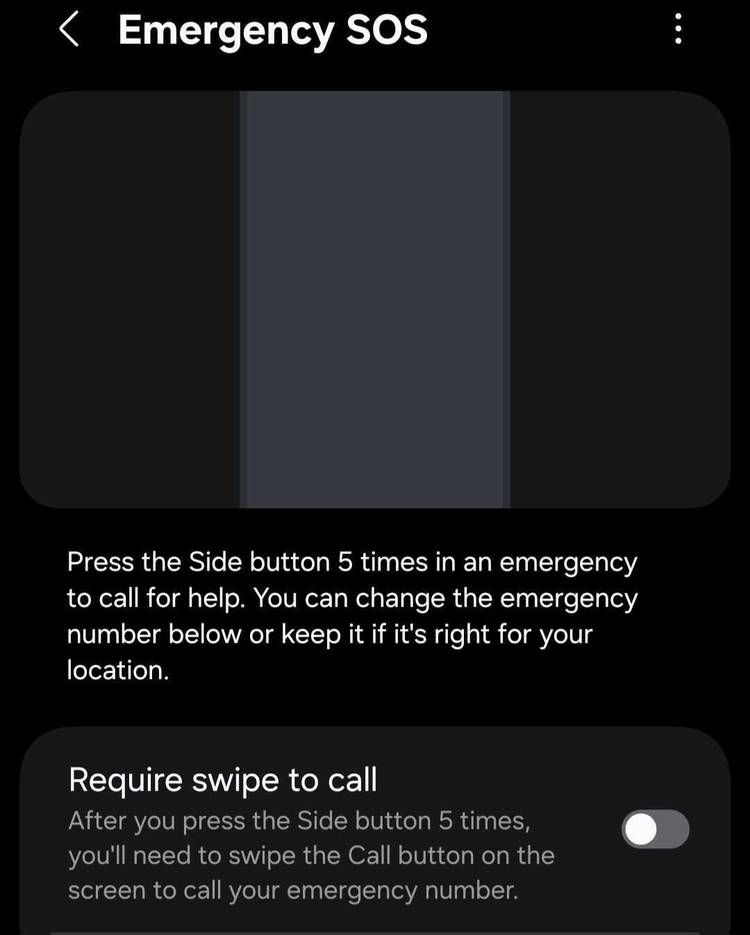
To prevent accidental calls, you can enable a countdown timer, giving you time to cancel the call before it goes through. You can also choose to play a warning sound during the countdown for added awareness.
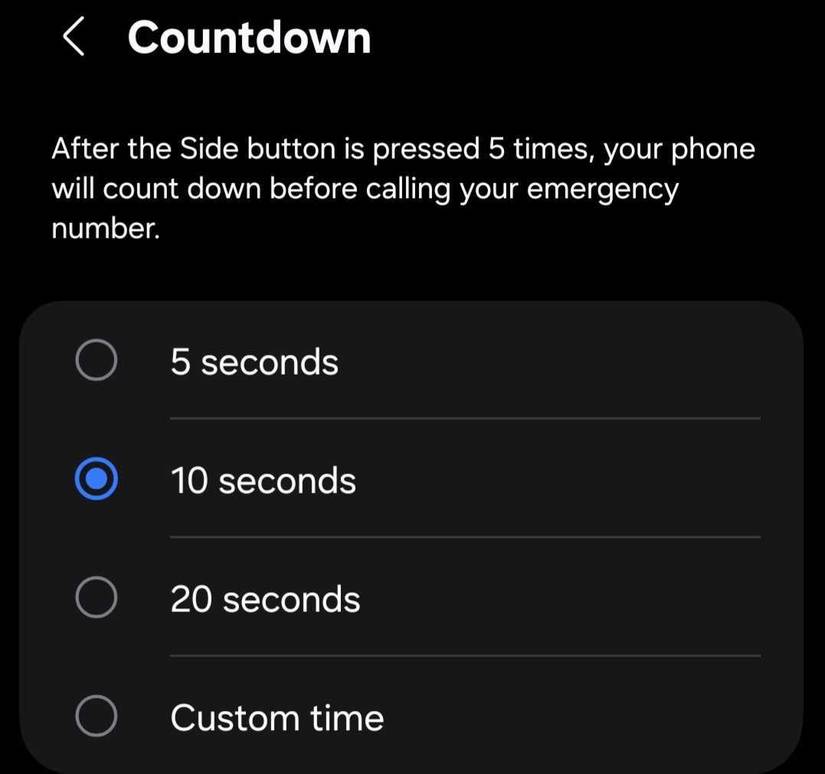
Since every Android phone from a different manufacturer has its own layout and feature set, your device might not support all the features mentioned here, as I’m demonstrating on a Samsung Galaxy phone. Some features may still be available or usable via the side buttons, but their locations in the Settings app may vary.
Take photos instantly
Snap the moment before it’s gone
Have you ever tried to capture a perfect moment, only to miss it because you couldn’t open the Camera app in time? You can avoid that by using a simple power button shortcut. Just double-press the power button to launch the Camera app instantly. You don’t even need to tap the shutter on the screen—press either volume button to take the shot right away.
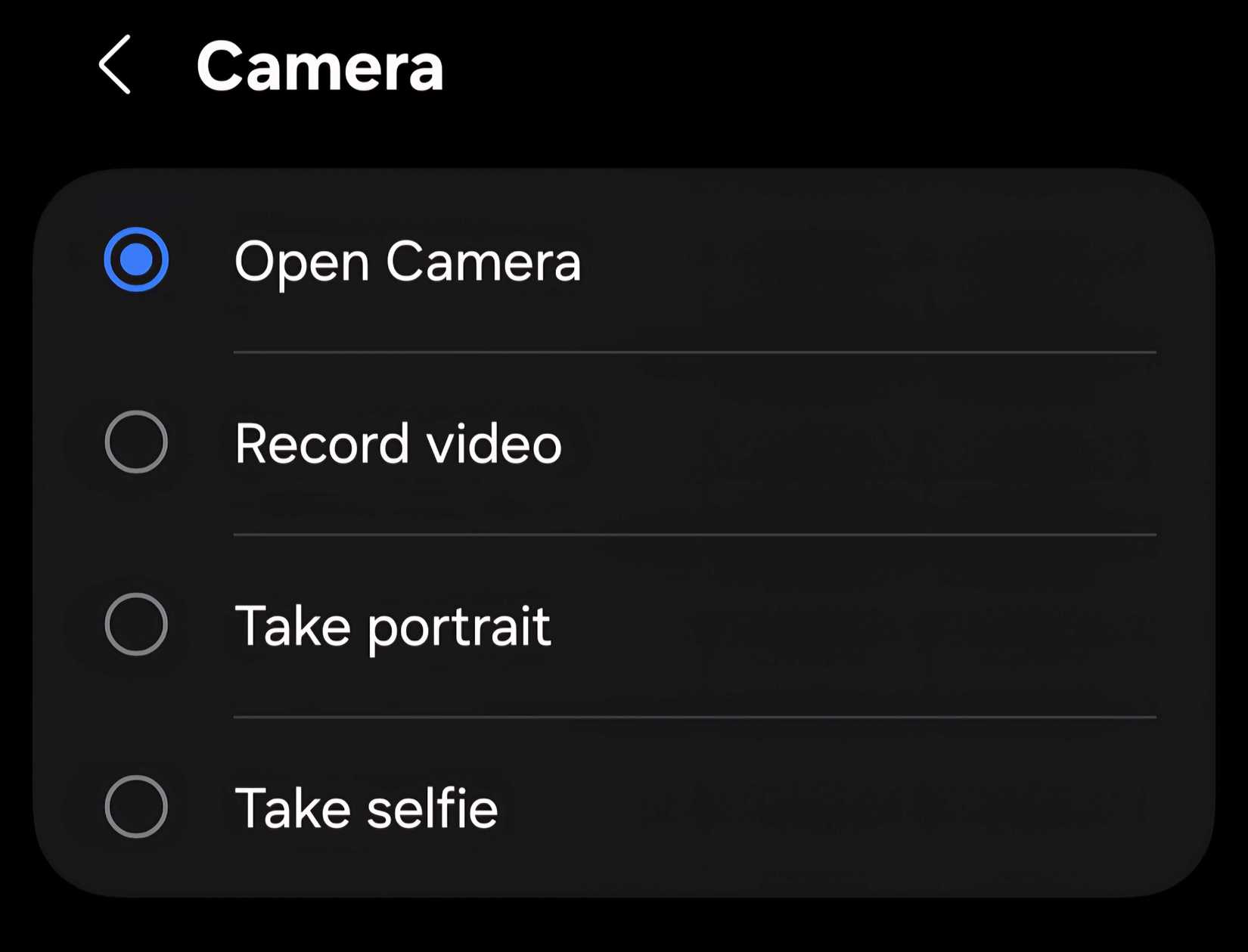
By default, this shortcut opens your phone’s rear camera. But if you’d rather record a video, take a selfie, or shoot in Portrait mode, you can customize it. Open the Settings app, go to “Advanced Features,” tap Side Button > Double Press, then tap the gear icon next to Camera and select your preferred action.
Quickly turn on the flashlight, record voice, and more
Fast access to handy features
The same double-press shortcut that quickly launches the Camera app can also be customized to perform other tasks you use frequently. For example, you can turn on the flashlight without opening the Quick Settings panel, launch the magnifier, record voice notes, open Samsung Notes, trigger Modes and Routines, or even open your favorite app.
To customize it, open the Settings app, go to Advanced Features > Side Button > Double Press, and select your preferred action. Just as you can adjust the Camera shortcut to launch selfie mode or start recording instantly, you can also control how other features function. For example, you can set Voice Recorder to either open the app or begin recording right away.
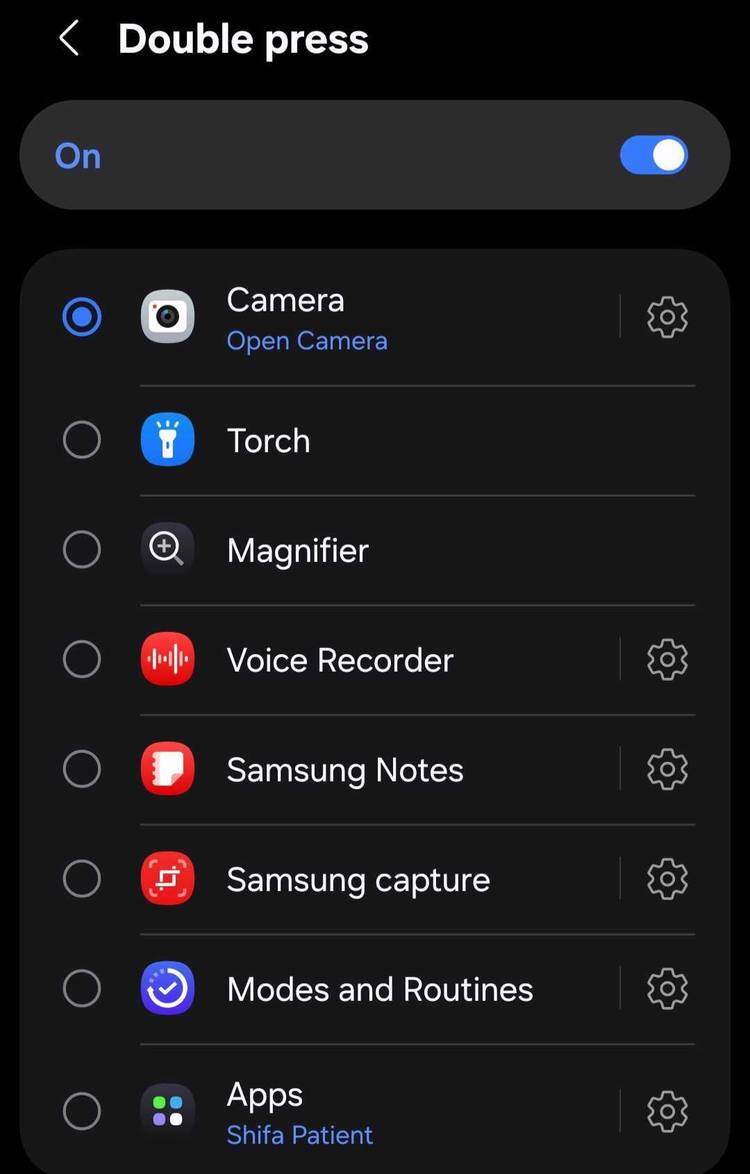
Similarly, you can configure Samsung Notes to open a blank note, start typing, or jump straight into drawing mode. Tap the gear icon next to a feature to fine-tune its behavior.
Access hidden accessibility shortcuts
Navigate your phone like a pro
Android phones include several powerful accessibility features—such as Magnifier, Color Inversion, Extra Dim, Mute All Sounds, and Voice Access—that many users never explore or even realize exist. One reason is that these options are often buried deep within the Settings app. But the good news is that you can trigger them directly using your side buttons.
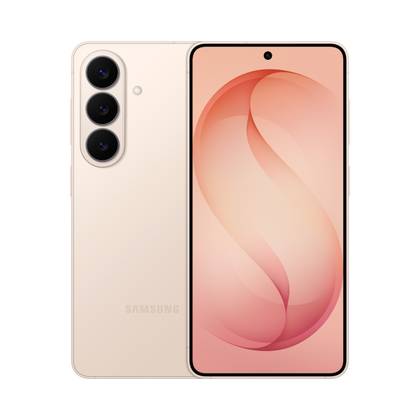
SoC
Snapdragon 8 Elite Gen 5
Display
6.3-inch Dynamic AMOLED 2x
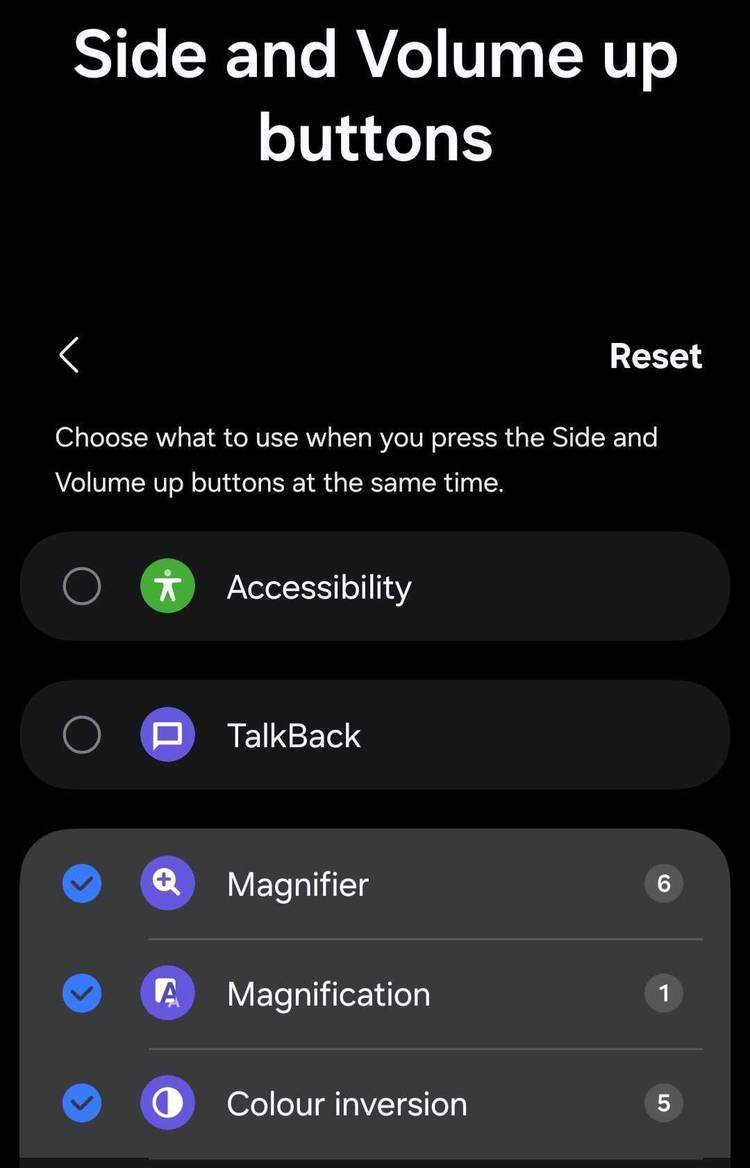
To set this up, go to Settings > Accessibility > Advanced Settings, then tap “Side and Volume Up Buttons” or “Volume Up and Down Buttons.” From there, select your preferred accessibility feature. Once configured, pressing the chosen button combination will activate it instantly. If you enable multiple features, you’ll see a list appear, allowing you to choose which one to launch.
Use those side buttons
By now, you should have a clearer understanding of how your smartphone’s side buttons can help you capture moments with the camera, call for help with just a few presses, record voice notes, or launch your AI assistant. And that’s just the beginning—using apps like Button Mapper, you can unlock even more customization options beyond what your phone allows by default.