
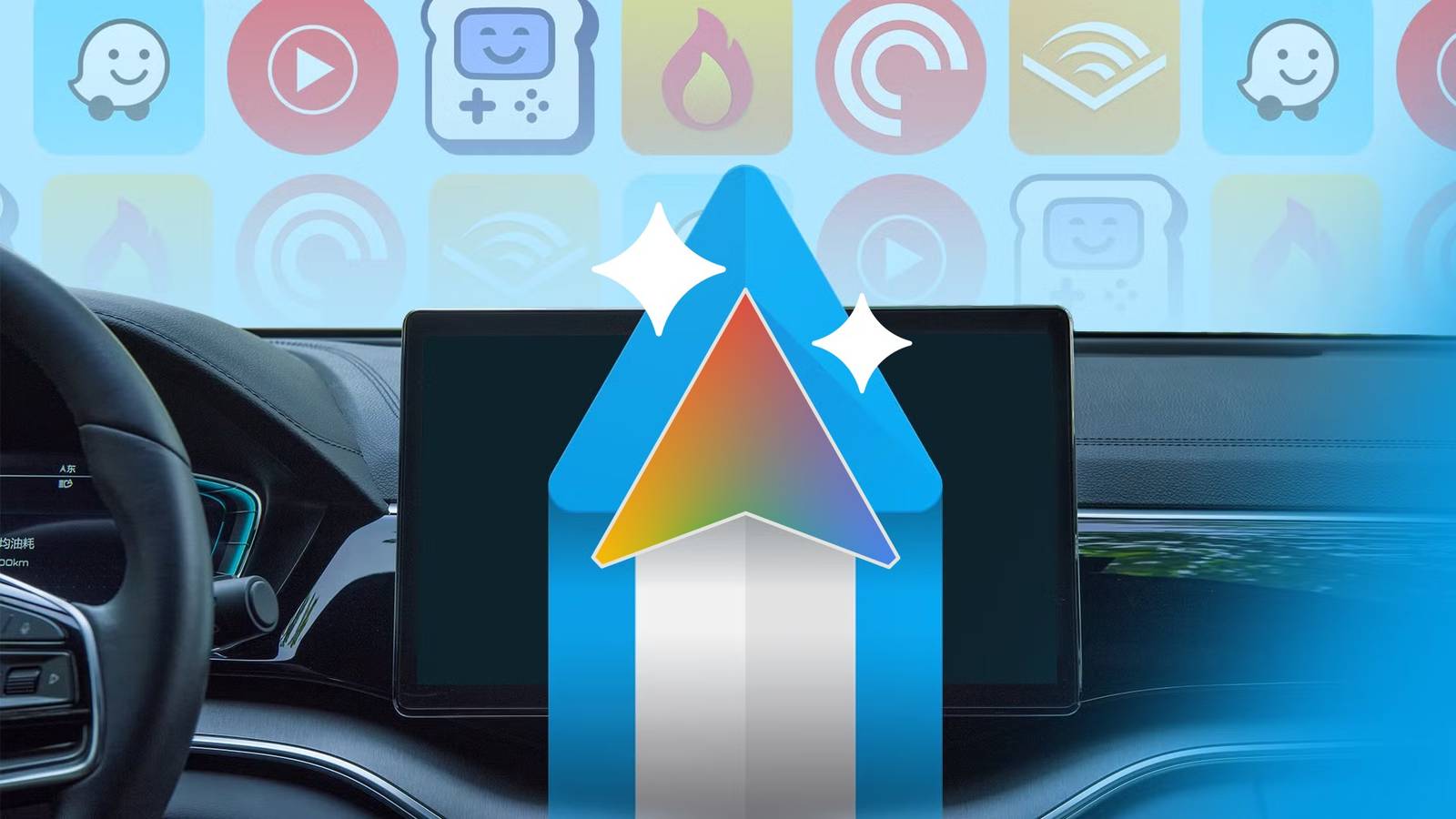
Whether you’re commuting to work or heading on a cross-country road trip, your car’s infotainment system is vital. For years, I settled for the average Android Auto experience that’s often laggy, cluttered, and tethered to a USB cable, but not anymore. I recently made several changes and now have the ultimate Android Auto setup, and here’s how.
For whatever reason, a lot of people still don’t use Android Auto. And for those who do, the experience is “good enough” that they don’t try new things. If you’re looking to actually enjoy all it has to offer, you’ll want to stop dealing with glitches, optimize the experience, get some good apps, clean up notifications, and make Android Auto shine.
Get better apps and do more with Android Auto
Make your drive safe and fun
For starters, Android Auto is only as good as your apps. And while a few basics come pre-installed or pop up automatically within the system, I recently downloaded several apps that make Android Auto better, and the difference is night and day.
You can download or enable several useful or entertaining Android Auto apps to make your time in the car a little less stressful and a lot more enjoyable. And don’t forget to take advantage of Google Gemini.
Related
5 unique Android Auto apps that’ll actually improve your driving experience
Supercharge your driving while keeping your eyes on the road.
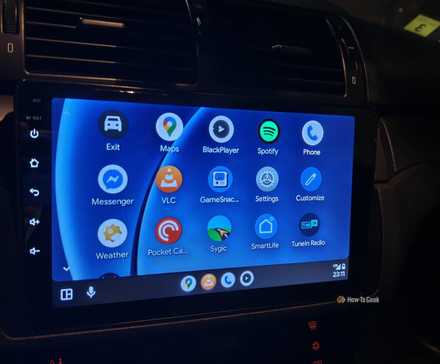
Instead of being a somewhat useful screen that shows maps and navigation, I now use Android Auto to do a little bit of everything. I have the exact music playlists and algorithms I want, Pocket Casts for all my favorite podcasts, and even a few games.
If you’re looking to supercharge Android Auto, download apps like YouTube Music, Pocket Casts, the GameSnacks app for playing games while you’re parked, or the SmartLife app for controlling your home as you approach. There’s even a Car Fireplace app to set the mood. These apps put the “tainment” in my infotainment system.
Ditch the USB cable and go wireless
The AAWireless dongle is amazing
If you’re looking for ultimate convenience and a better overall experience, it’s time to stop plugging your phone into the vehicle via USB and upgrade to a wireless Android Auto setup. I don’t know why I went the wired route for so long, with cables in my center console and in the way of my gear-shifter, but now that I have a wireless setup, I’ll never go back.
Wired Android Auto uses up precious USB ports in the car, makes things messy, and can occasionally cause issues or bugs. For a while, a bunch of specific USB cables stopped working with Android Auto, and it took an update to fix it. Weird.
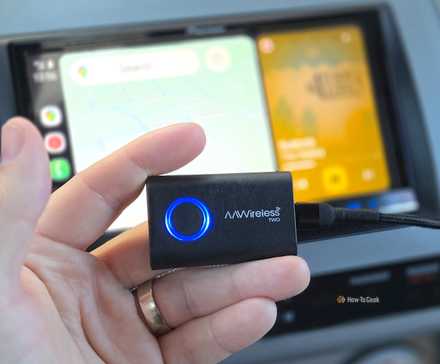
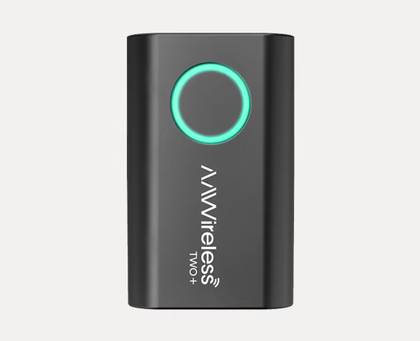
You’re better off going wireless. This can be done by buying an aftermarket stereo with wireless AA/CarPlay support, or you can simply do what I did and get the AAWireless TWO+ dongle. I actually tested four different Android Auto wireless adapters, and it’s the only one I recommend.
Related
Here’s an Android Auto adapter that’s actually worth buying
Wireless Android Auto made easy.
A wireless Android Auto dongle can be plugged in with a short 12-inch USB-C cable, or even better, put in the glove box, so it’s out of the way. The experience is the same, if not better, and now you’re not tethered to your vehicle.
With the AAWireless TWO+ specifically, your phone instantly pairs with it when you turn on the car, and Android Auto starts up within a matter of seconds. Then, it’s the interface you know and love. However, the AAWireless TWO+ works on both Android Auto and CarPlay, and even has a button to quickly swap between devices—and that’s key!
If you have multiple family members who drive the same vehicle, go on road trips, or often drive with a significant other, you don’t have to fumble through the infotainment display’s settings. Just tap the button on the AAWireless dongle, and it’ll switch to the next saved phone. It sounds small, but it’s a game-changer.
A dongle is also a good way to bypass the built-in, often inferior Android Auto experience from the automaker.
Type
Android Auto & Apple Carplay adapter
What’s Included
Adapter, USB-C to USB-A cable
Easily add wireless Android Auto or CarPlay to your vehicle with this capable dongle that works with both platforms.
Customize all your Android Auto settings
Change these settings before your next trip
Credit: Lucas Gouveia / How-To Geek | kungfu01/Shutterstock
Have you ever been frustrated by a retina-burning bright screen at night, huge notifications, the wrong map app launching, or other controls? If so, take the time to explore and adjust all the different Android Auto settings, including those hidden in the developer menu.
Android Auto used to be a dedicated app you’d find in the application tray, making it easy to adjust settings. But now everything is in the settings menu, and most people forget that it’s extremely customizable.
On your phone, head to Settings > Connected devices > tap Android Auto, then start changing settings to fit your desired style, dark theme, and more. Below, you’ll see five different screenshots inside the Android Auto setting menu that you’ll benefit from the most.
In the Android Auto settings menu, change the Start Android Auto automatically from Default to “Always,” and allow it to start even when your phone is locked. That way, you can get in the car and go without touching your phone. I’d also recommend changing the Day/Night mode for maps to Night, although some may prefer it to switch automatically.
Next, scroll up to the Display section and select Customize Launcher. This lets you organize the home screen with the apps you use most, declutter all the junk, and even remove apps from the launcher entirely to keep things simple. Overall, this delivers a simple, fast, and safer experience.
And finally, go in and tweak or turn off specific notifications, like group chats, so you’re not getting blown up by a conversation when you should be focusing on the road.
You can also scroll to the bottom and tap on Version multiple times to unlock the secret developer options menu. Here, you can adjust video and notification resolutions, save and take screenshots, tweak audio Codecs, or install apps from unknown sources.
Making Android Auto great
Android Auto is full of potential, as long as you take advantage of all that it has to offer. Stop just using the default controls, apps, or options. Instead, fine-tune every setting and preference to fit your needs.
When you combine all these tips and changes, you’ll have the ultimate driving experience: fun, easy to use, customized to you, and safe.