
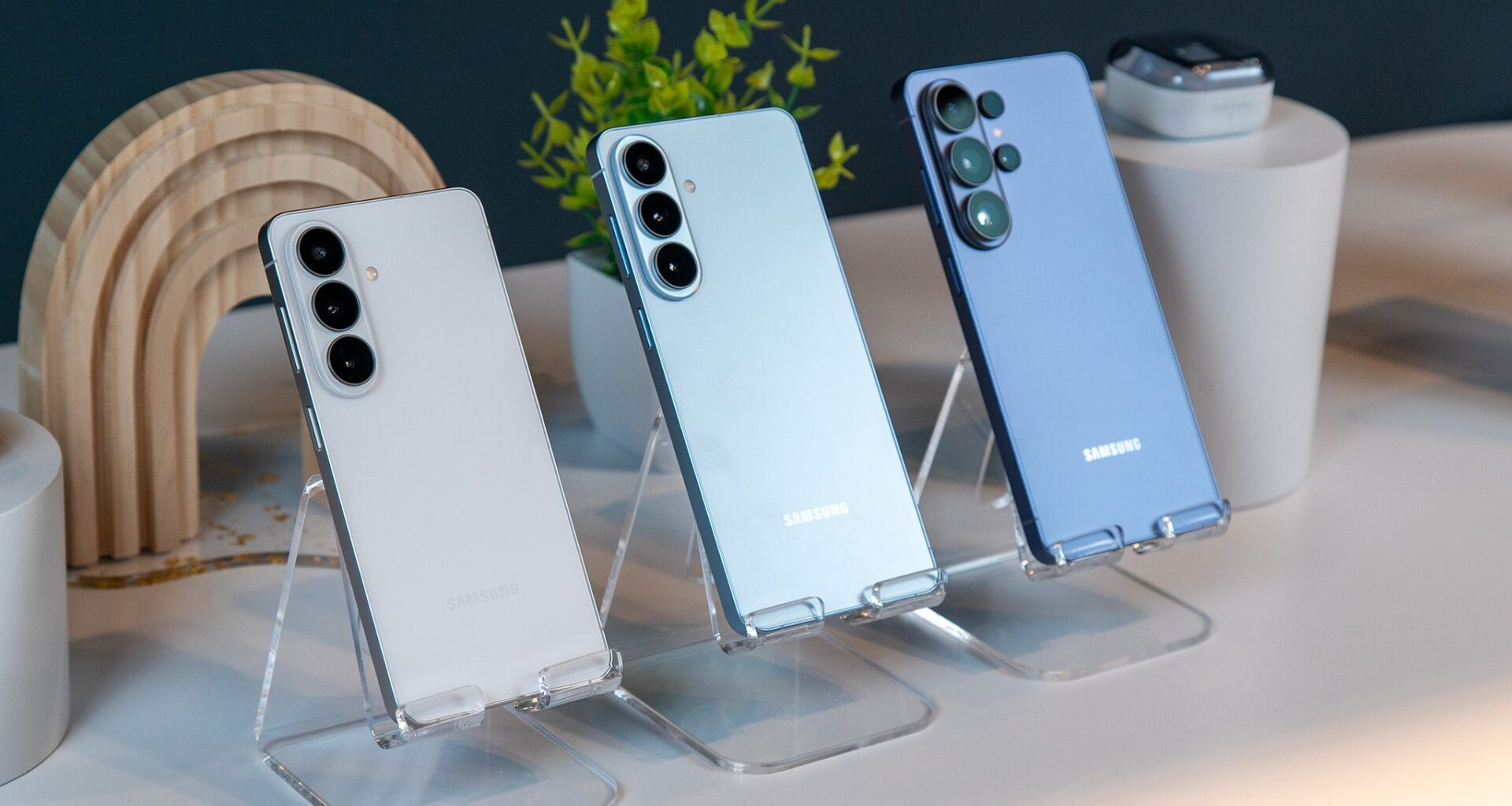
So, you just purchased yourself a brand-new Galaxy S26. The phones may not seem too different from the Galaxy S25 series, but Samsung’s latest flagships come with a heap of new features, some of which may trickle down to previous models.
Of course, we encourage you to explore your new phone and check out all that it has to offer, but these are some of the first things we think you should change or check out after setting up the phone. Whether you have the Galaxy S26, S26 Plus, or S26 Ultra, here are some early tips and tricks.
Today’s best Samsung Galaxy S26 deals
Set up your Privacy Display to hide your screen
(Image credit: Derrek Lee / Android Central)
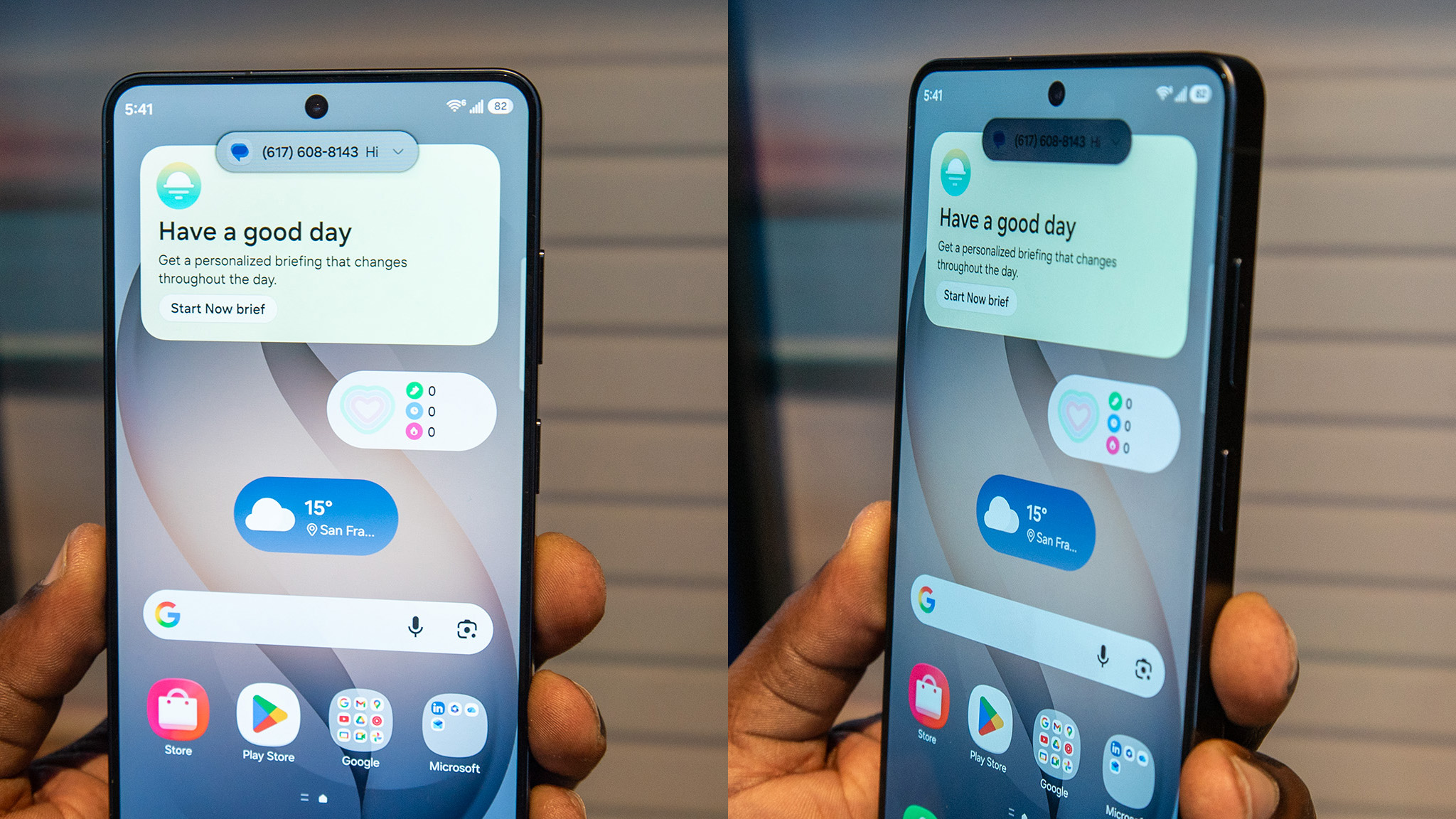
One of the biggest hardware features on the Galaxy S26 series is the Privacy Display. Unfortunately, limited to the Galaxy S26 Ultra, this feature uses a unique pixel structure and effectively hides the contents of your screen from anyone looking from an angle by turning some of those pixels off. The result is that you can still see your display, but someone trying to sneak a peek shouldn’t be able to.
Article continues below
You may like
The effect is surprisingly effective, and Samsung even lets you customize the Privacy Display so that it only activates when you open certain apps or when you receive notifications.
(Image credit: Derrek Lee / Android Central)
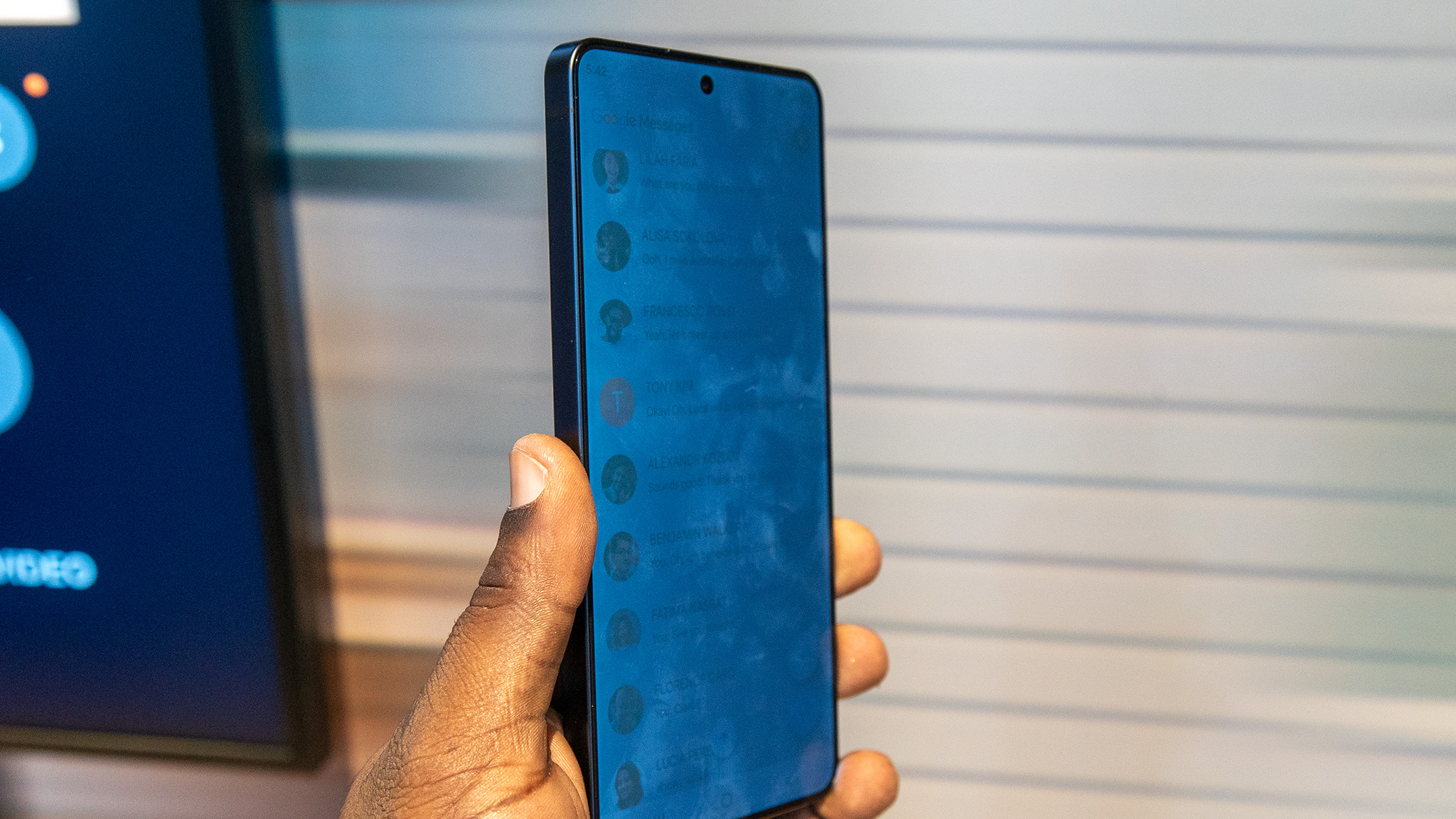
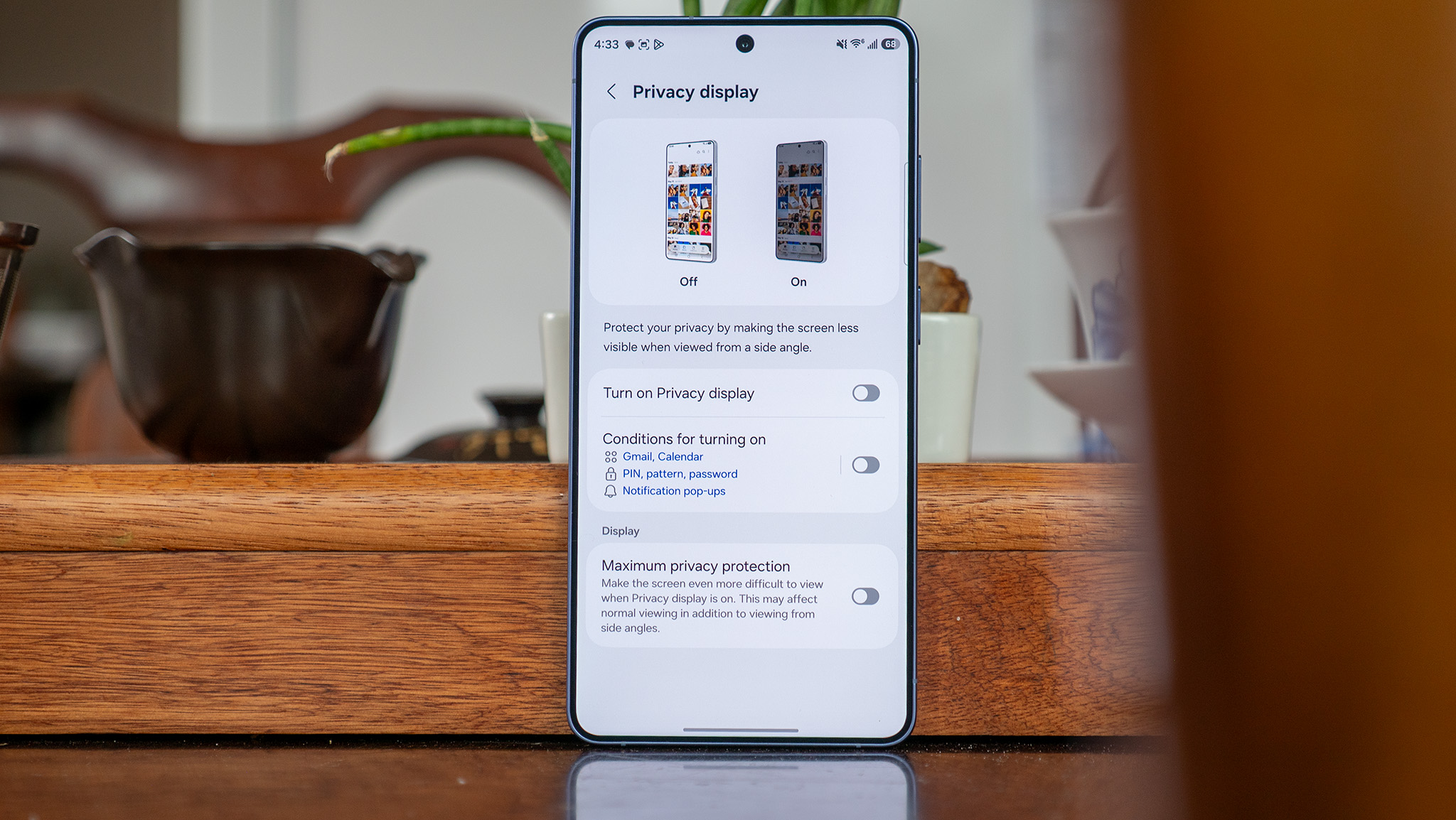
To activate the Privacy Display on your Galaxy S26 Ultra, head to Settings > Display > Privacy Display and toggle the feature on. Then, tap the option to dig deeper into the various customizations.
Once you enable the Conditions for turning on, you will find the following options:
Apps: Enables the Privacy Display when opening certain appsPin, pattern, password: Hides the screen when you enter sensitive information, although only works in the Settings app, lock screen, and Secure Folder.Notification pop-ups: Partially enables the Privacy Display so that it hides only notifications, although the rest of the display is visible to others.
(Image credit: Nicholas Sutrich / Android Central)
You also have the option to enable a Maximum privacy display, which will change how the display appears when viewed straight on. This will further block others from viewing the display and will also change your viewing experience.
It should be noted that there are some trade-offs when it comes to the overall display experience, as noted in our Galaxy S26 Ultra display review. However, the feature is an incredible feat on a smartphone overall, and we wish it would come to other Samsung phones besides the Ultra.
A new way to voicemail
(Image credit: Derrek Lee / Android Central)
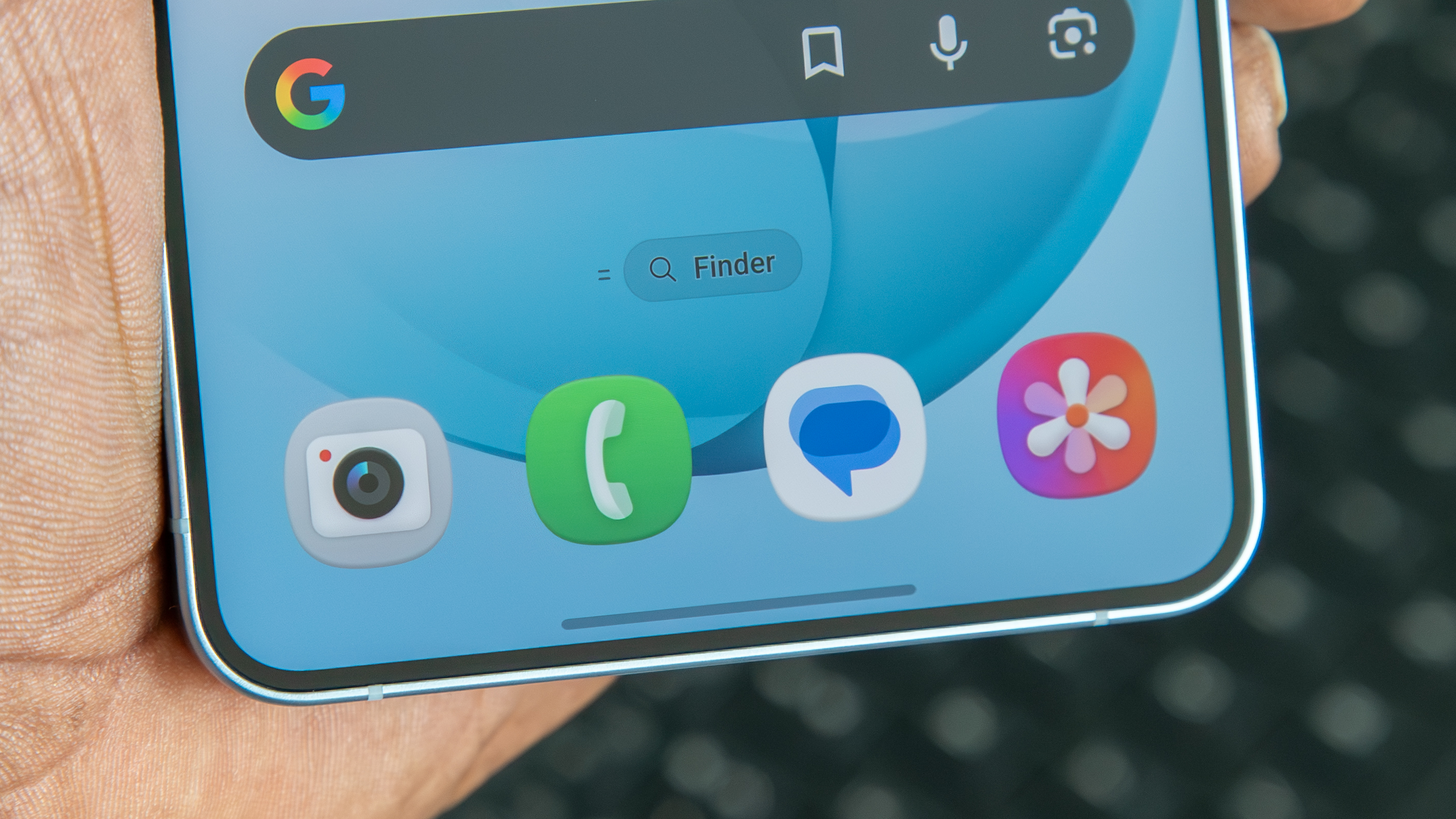
Voicemails are normally handled by carriers or apps, such as the T-Mobile Visual Voicemail app. However, Samsung is taking things into its own hands with Direct Voicemail, a feature that essentially upgrades your voicemail experience at no extra cost.
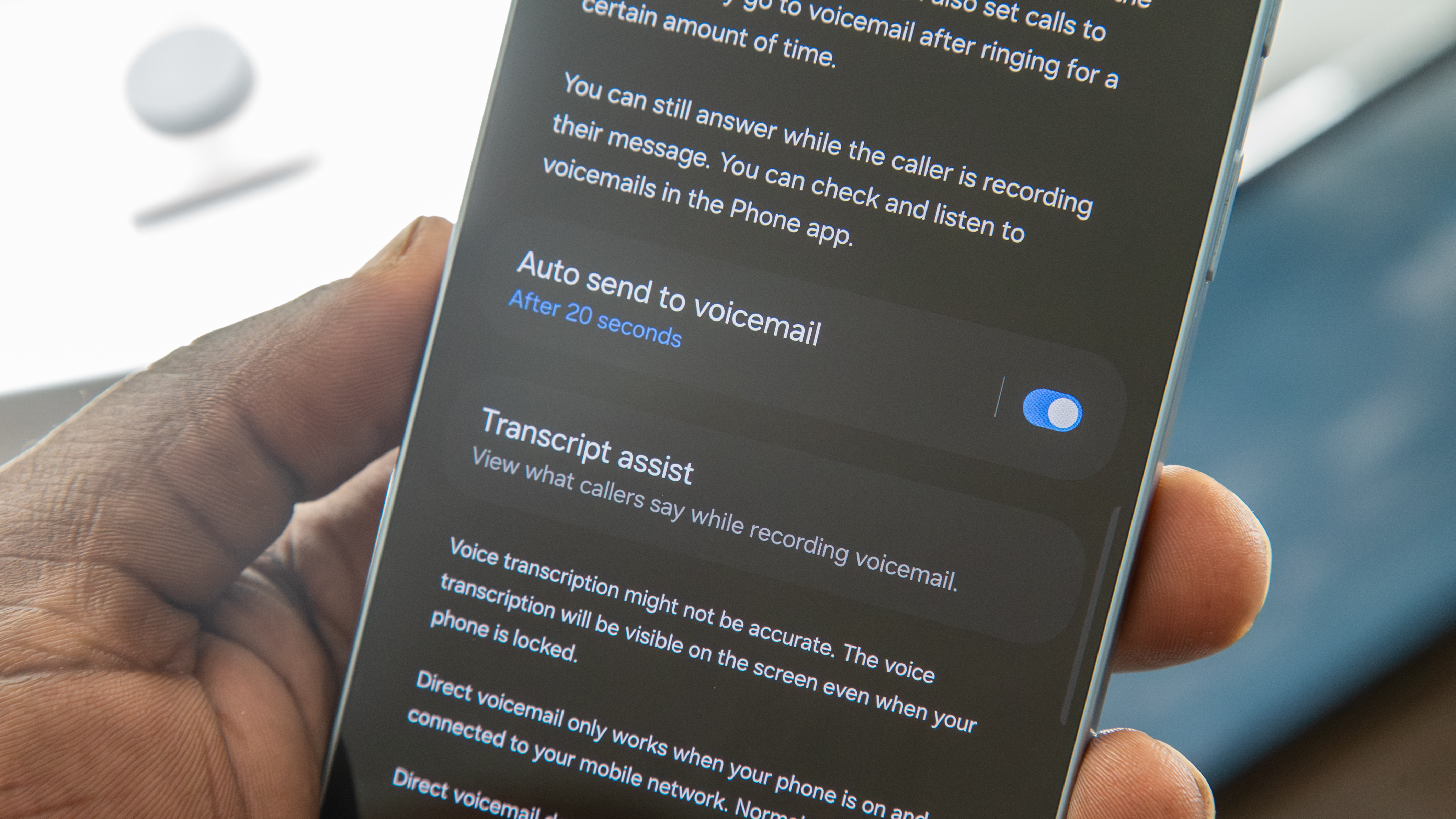
With Direct Voicemail, Samsung gives you more control over your experience. For example, when you receive a call, you can select to send it to voicemail, send it to voicemail immediately, or set it to go to voicemail after a certain amount of time.
What to read next
You can access and set up Direct Voicemail by navigating to the Phone app > three-button menu > Settings > Direct voicemail and toggling it on. Then toggle on whether you want the app to automatically send calls to voicemail and set the time to do so.
(Image credit: Derrek Lee / Android Central)
Where Direct Voicemail has an advantage over other alternatives is its ability to transcribe voicemails when they come in, something that T-Mobile makes you pay extra for. And like the old-school voicemail recorders that play the message as it’s coming in, you can answer the call while they’re leaving a message if you decide it’s something you should actually address in the moment.
Voicemails are also saved on-device, so you can easily access them from the call log in your phone app. You can also use the upgraded Audio Eraser to clean up the audio if you can’t clearly hear the main speaker because of background noise.
Or you can screen your calls
(Image credit: Derrek Lee / Android Central)
Call Screen on the Pixel is one of our favorite features, allowing the phone to use AI to answer the phone on your behalf. The idea is to answer calls from unknown numbers so the assistant can figure out the reason for the call, so you can know if it’s really worth answering.
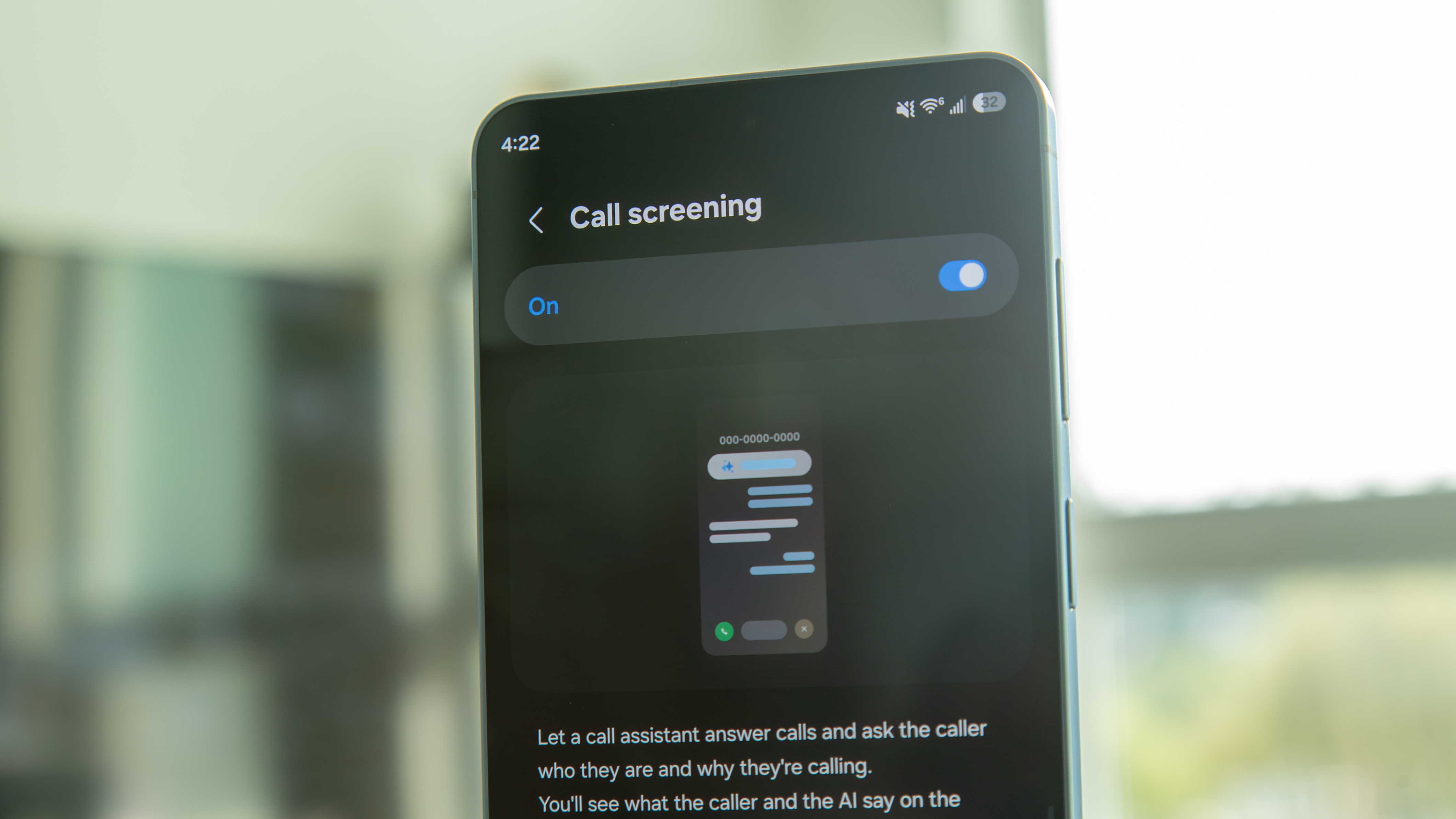
Samsung finally has a similar feature: the aptly named Call Screening. Like on the Pixel, you won’t need to answer the call, but you’ll still be able to see a live transcription of what’s being said. The AI will ask who is calling and the reason for the call, and you can either wait for the caller to hang up or you can answer the call if you think there’s a reason to.
(Image credit: Derrek Lee / Android Central)
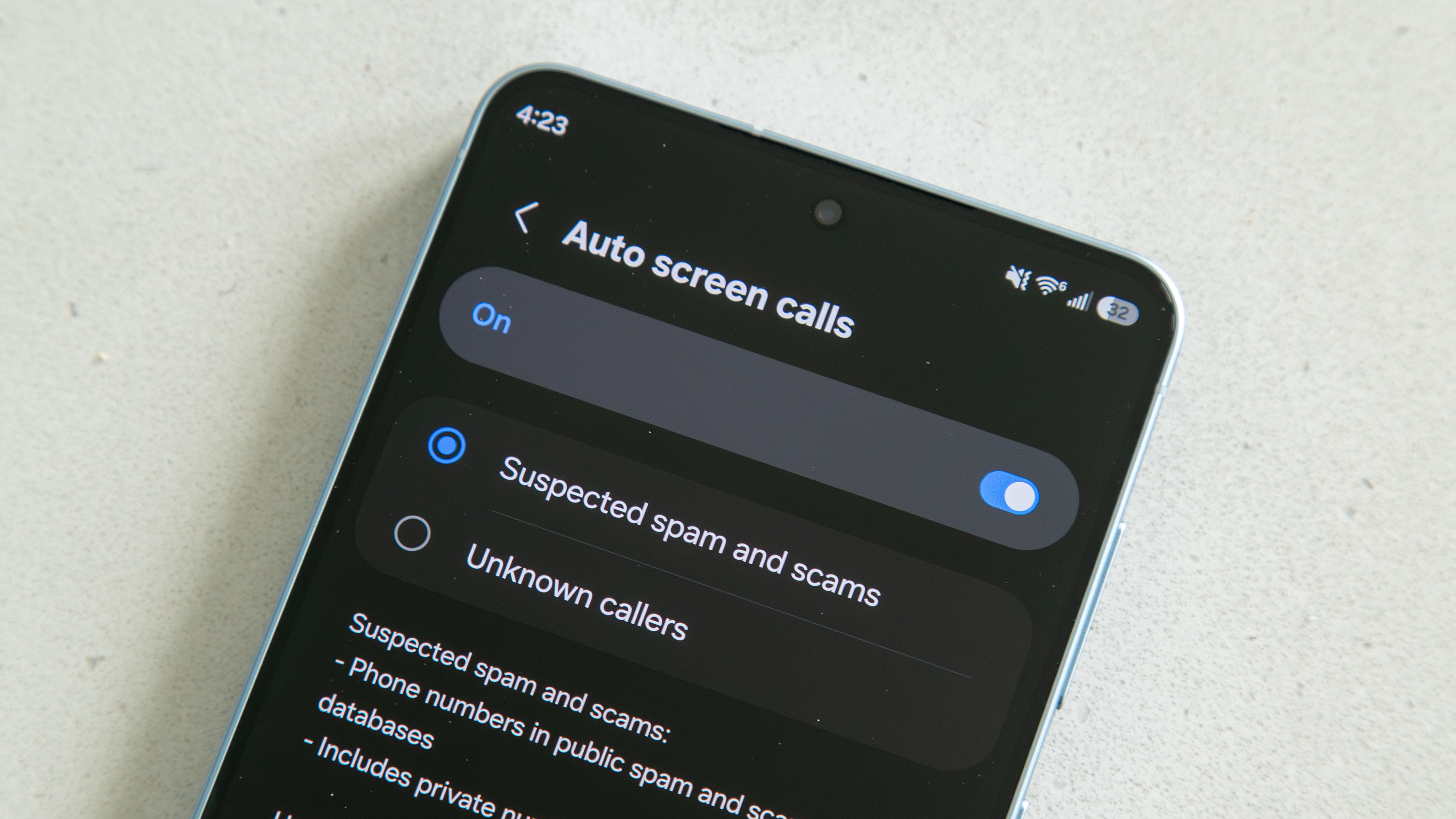
Access this feature by navigating to the Phone app > three-dot menu > Settings > Call screening. Once you toggle the feature on, you can also toggle on the Auto screen calls and set it to either Suspected spam and scams or Unknown callers. You can cover all the bases by selecting the latter option and turning on Caller ID and spam protection in the main Call settings.
(Image credit: Derrek Lee / Android Central)
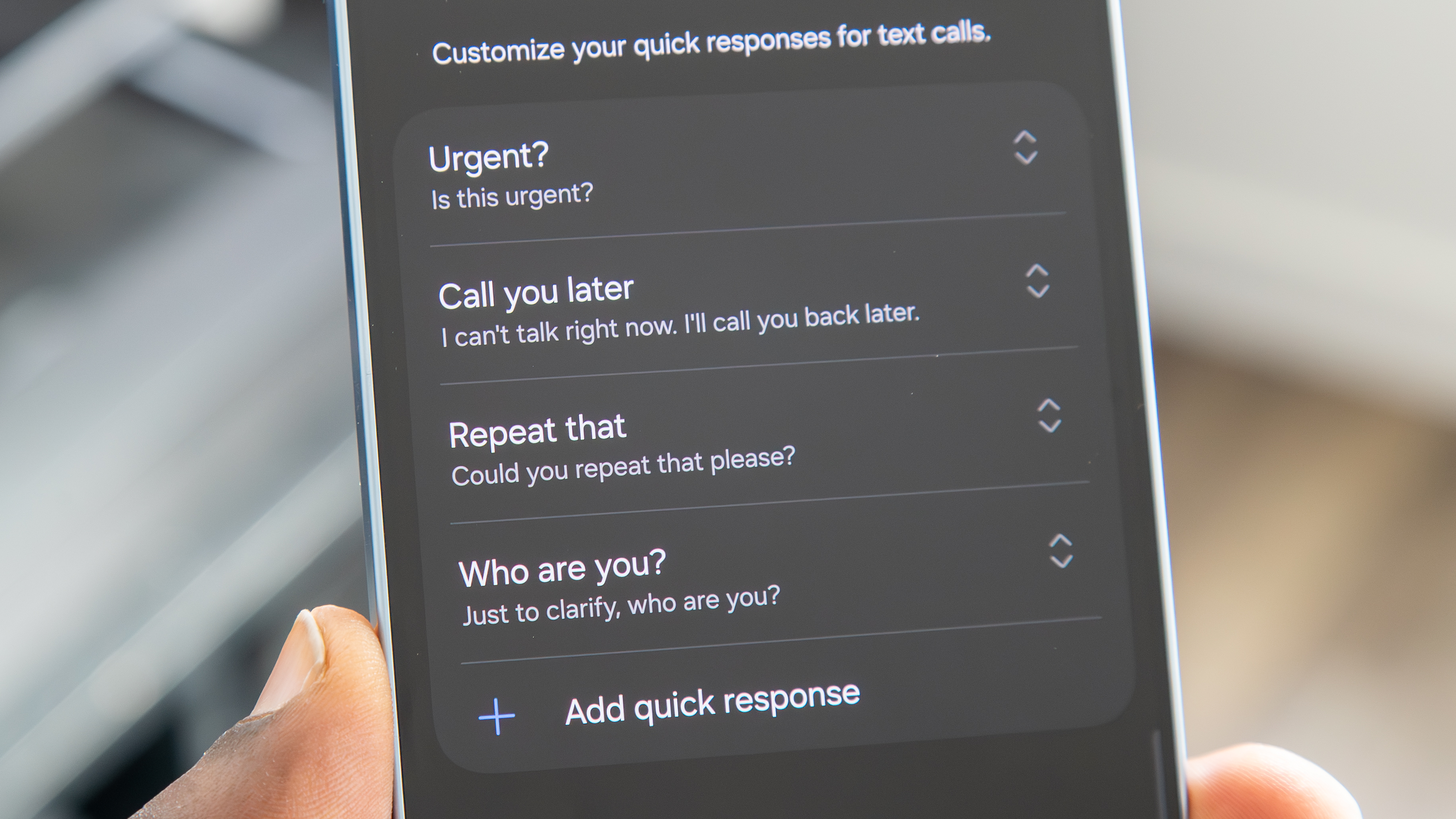
In addition to Call screening, other Call Assist features include Text call and Live translate. Similar to Call screening, an AI assistant will answer, but you can type or select responses yourself. Fortunately, this feature ties directly into Call Screening, so you can always switch to this method if you want to take control of the conversation. You can also change how the voice sounds, customize Quick responses, and opt to play the other persons voice in addition to the on-screen text.
24MP: The Goldilocks camera mode?
(Image credit: Derrek Lee / Android Central)
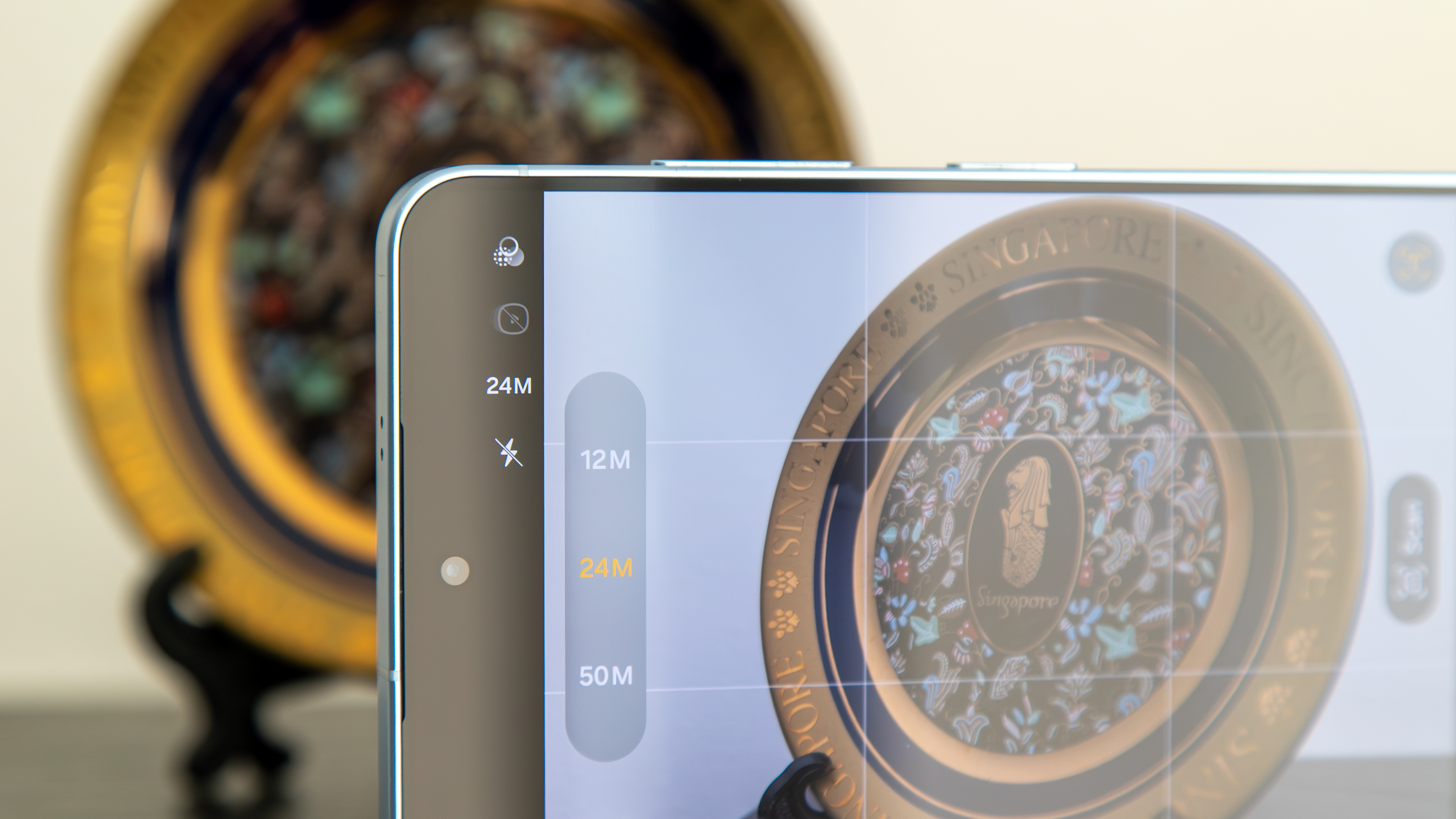
Samsung has offered a 24MP mode on its cameras for some time, but it’s only accessible via the Expert RAW app, which is aimed at more experienced photographers. However, with the Galaxy S26 series, you can now access a 24MP mode within the regular camera app.
You must first have the Camera Assistant app, which you can download from the Galaxy Store. Once installed, open the Camera app > tap the Quick controls button > tap the Settings icon > scroll down and tap Camera Assistant > tap Advanced resolution options. Toggle on 24 MP resolution, then tap the option to enable Keep 24 MP resolution to maintain your resolution selection.
After that, you can return to the camera viewfinder to switch the resolution to 24MP.
The benefit of a 24MP resolution option is that it lets you capture sharper images than the 12MP option. While processing will take a little longer, it won’t take as long as it would with the full 50MP or 200MP options, giving users a nice medium option. The differences won’t be night and day, but you’ll get more resolution to work with, with some added detail.
Samsung warns that zoom and certain camera settings may reduce resolution. You can offset this by enabling the Upscale digital zoom option, which aims to keep photos at their original resolution even when you zoom in.
Let Gemini do it for you
(Image credit: Nicholas Sutrich / Android Central)
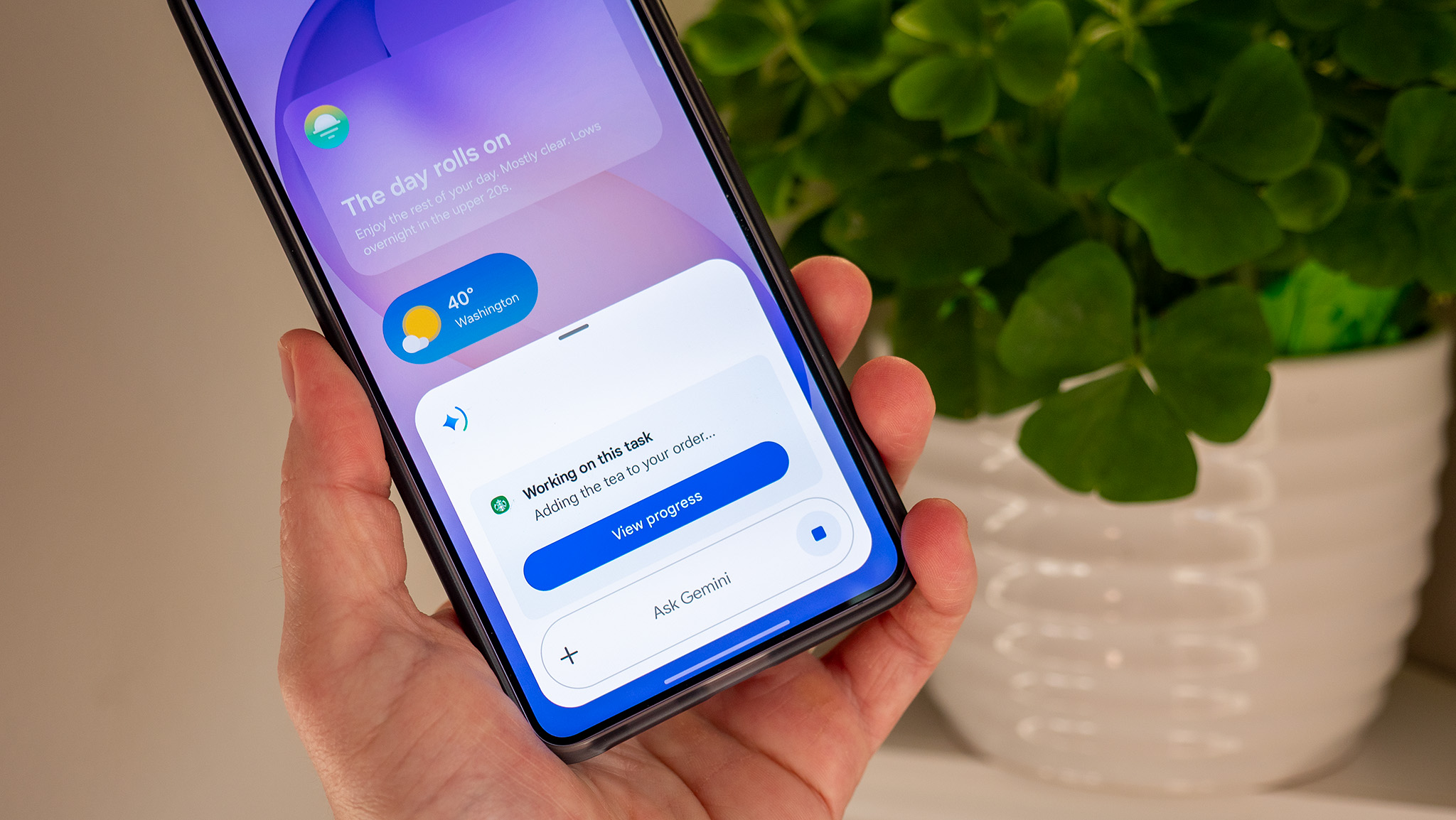
Gemini is an impressive AI assistant, but Google has given it even more superpowers. Launched alongside the Galaxy S26 series, Gemini screen automation can now handle tasks in select apps with minimal input from you. For example, you can ask Gemini to request an Uber or order food from select restaurants.
It’s a neat feature, but to use it, you have to enable it. You can do so by opening Gemini, tapping your Google account icon, then navigating to Settings and Screen automation. Here, you can decide to always allow screen automation, never allow it, or to have Gemini ask every time.
This is also where you can see the supported apps that you have installed on your phone. These include (but aren’t limited to):
UberLyftStarbucksMcDonald’sUber EatsDoordash
What’s great about this feature is that you hardly have to lift a finger. Gemini will open the app and navigate it as if you’re the one doing it. You can even watch Gemini as it dismisses in-app ads, finds the items you’re looking for, sifts through your recent orders, adds the items to your cart, and removes anything that might no longer be available at the location.
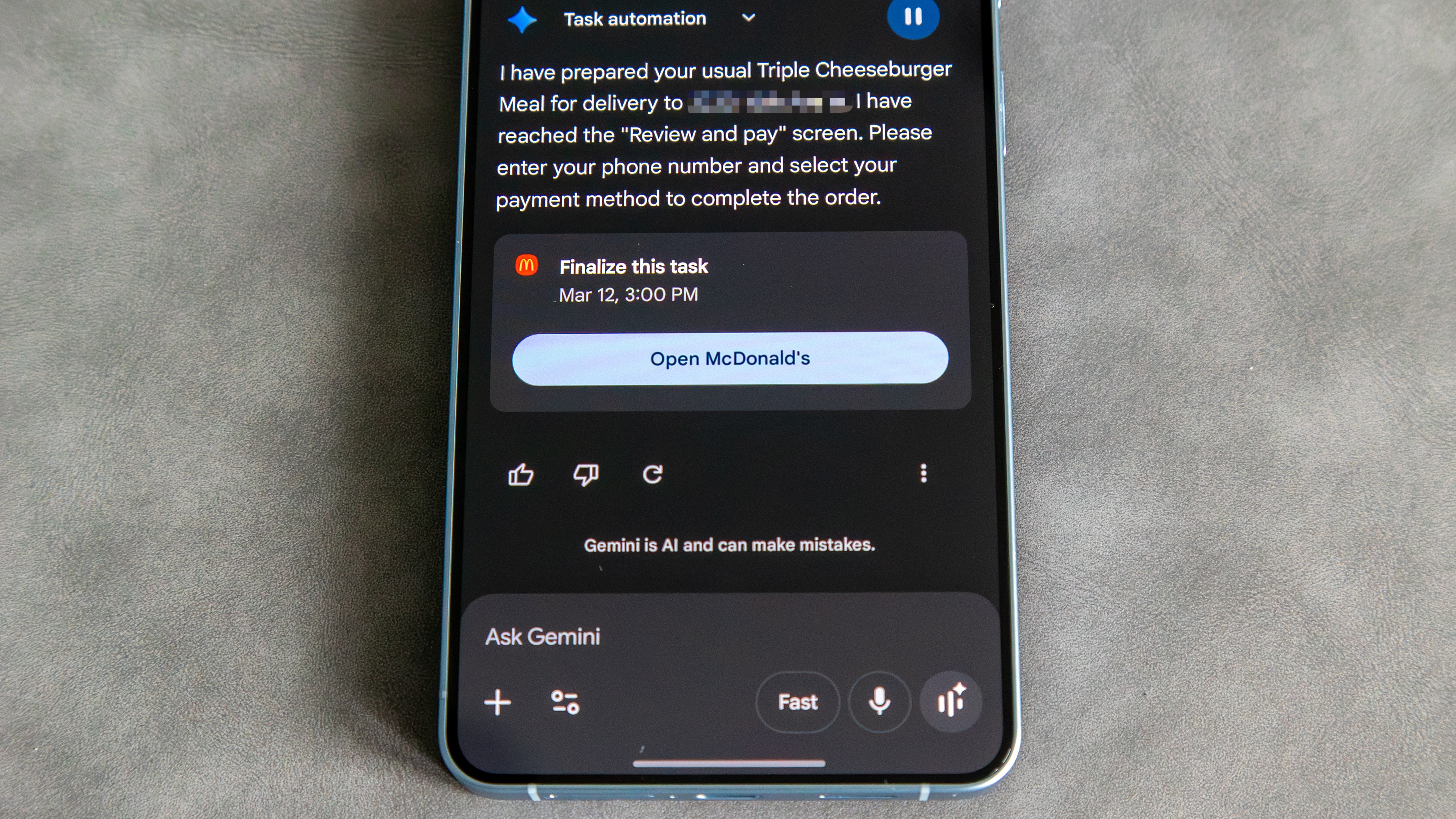
You can stop the automation at any time if you need to make adjustments, or Gemini may pause itself if it needs clarification on an order, such as your desired drink size. The automation will end once the items are added to the cart and payment has to be made. Gemini will then inform you that the order is ready for you to make the final confirmation, after which you will enter or confirm your payment details and place the order.
(Image credit: Derrek Lee / Android Central)
Gemini Screen automation is surprisingly capable, and we can’t wait to see it expand with more capabilities and to more apps.
Get even more personal with your Galaxy S26

(Image credit: Derrek Lee / Android Central)
Samsung introduced a ton of new and upgraded AI features with the Galaxy S26 series (like Gemini screen automation). Still, part of what makes a lot of these features work so well is Personal Data Intelligence. This is what Samsung uses to enable apps to provide useful information and suggestions based on on-device data and your phone use. Essentially, it’s the backbone of features like Now Brief and Now Nudge.
Personal Data Intelligence was available on the Galaxy S25 series; however, it’s been expanded on the Galaxy S26 series to include more apps and features. So, to make sure you’re getting the most out of your Galaxy S26 and AI features like Now Nudge, you’ll want to ensure that Personal Data Intelligence is enabled.
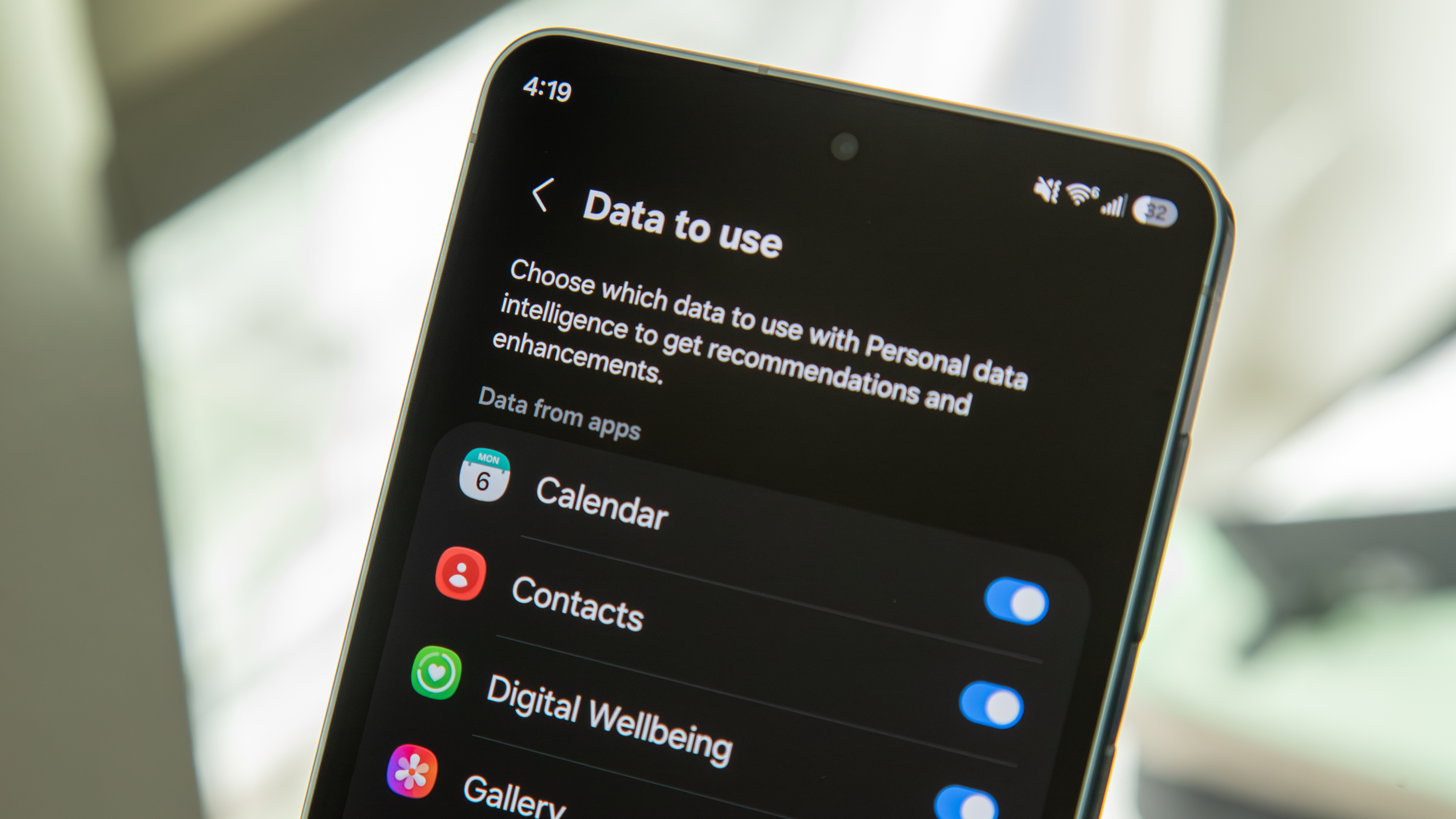
Navigate to Settings > Security and privacy > More privacy settings > Personal data intelligence. It may already be toggled on, but in case it’s not, do so. Below, you can review the apps that you want to enhance with Personal data intelligence. When compared to the Galaxy S25 series, the new apps on this list include:
Now NudgeFinderPhoneContactsReminderQuick ShareNotificationsBixby
Toggling these on will enable additional features, such as Quick Share recommending photos to share based on the people in said photos or Bixby providing more personal responses based on how you use various apps and services.
You can also manage your personal data from the Personal Data Intelligence menu, including your name, phone number, email address, passport information, and more. According to Samsung, this data is used “to provide relevant content in your Now brief and to help autofill information in forms.”
Lastly, Samsung makes it easy to manage which data you allow apps and services to use, which includes Samsung’s built-in apps like Gallery and Samsung Health, as well as Google apps like Messages and Gmail.
(Image credit: Derrek Lee / Android Central)
This is all powered by Samsung’s Personal Data Engine (PDE), which the company says processes data on-device to protect privacy when dealing with things like photos or contacts. This, along with Knox Enhanced Encrypted Protection (KEEP), allows Samsung’s AI services to work seamlessly in the background while keeping your data safe.