

Enough is enough. That’s the key takeaway from the FBI’s warning to iPhone and Android users that apps on their smartphones are harvesting their data and tracking their devices. The bureau’s focus is Chinese apps, but the risk is widespread, and you need stop this tracking now.
“Disable unnecessary data sharing,” the FBI warns in its new guidance to citizens. “Data security risks are not specific to only mobile apps or those which are foreign-developed. Good cyber hygiene is crucial to protecting your digital identity.”
MORE FROM FORBESMicrosoft Now Forces Windows Upgrade On Millions Of PCsBy Zak Doffman
If you own an iPhone, go to Settings > Privacy & Security. You’ll find three tracking settings to check and change. First is Location Services. This lists every app that has permission to track you and your device. Disable or change permissions for any apps you don’t need to have always-on location access. “While Using the App” or “Ask Next Time” are benign. Be careful with apps asking for “Always.”
You should also ensure that under Settings > Privacy & Security > Tracking, you do not “Allow Apps to Request to Track,” by disabling the setting. I can think of no good reason why anyone would leave this enabled.
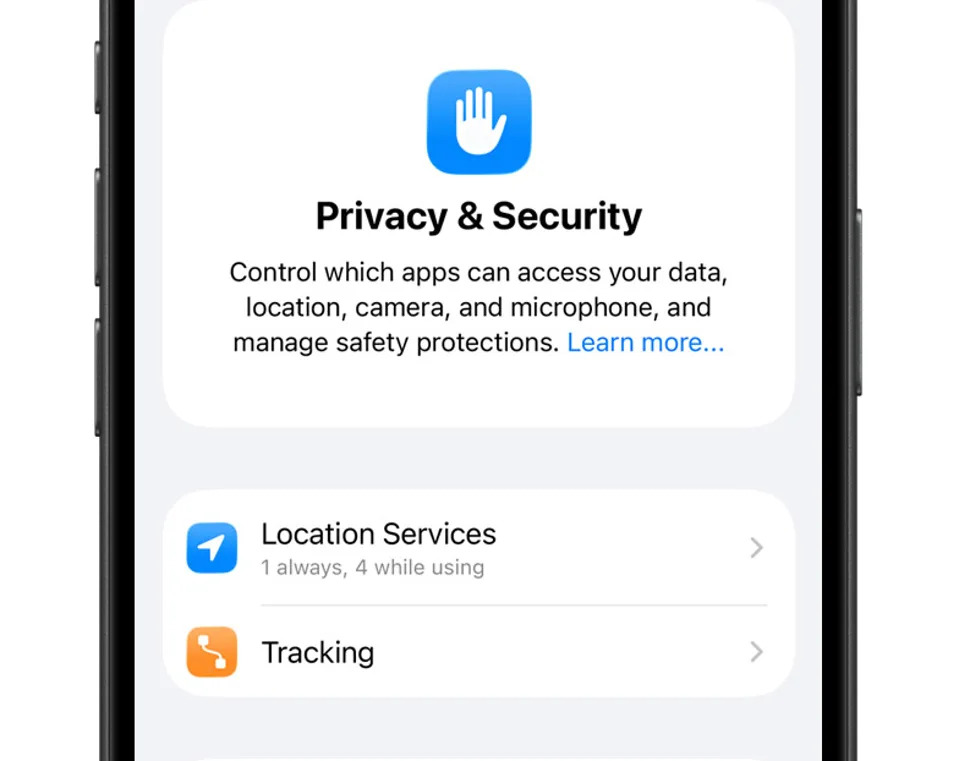
iPhone privacy settings.
Apple
Finally, look through the wider permission settings listed app-by-app under Settings > Privacy & Security, focusing on sensitivities such as Contacts, Health and Photos, as well as your Camera and Microphone. Don’t be afraid to disable permissions. If you’re using an app and it needs a permission, it will prompt you.
If you’re on Android, you can use the Privacy Dashboard. Search for it on your phone. From there, Google explains, “you can see which apps are accessing data, which permissions apps are using, and when that access is happening. You can also manage permissions for camera, microphone, calendar, and more.”
Permission management isn’t as easy as on iPhone, but Google has made huge improvements in the last two years, introducing much more robust user controls and protections. You can find details here, albeit the actual UX may vary by Android version and manufacturer, with Samsung offering even better options.
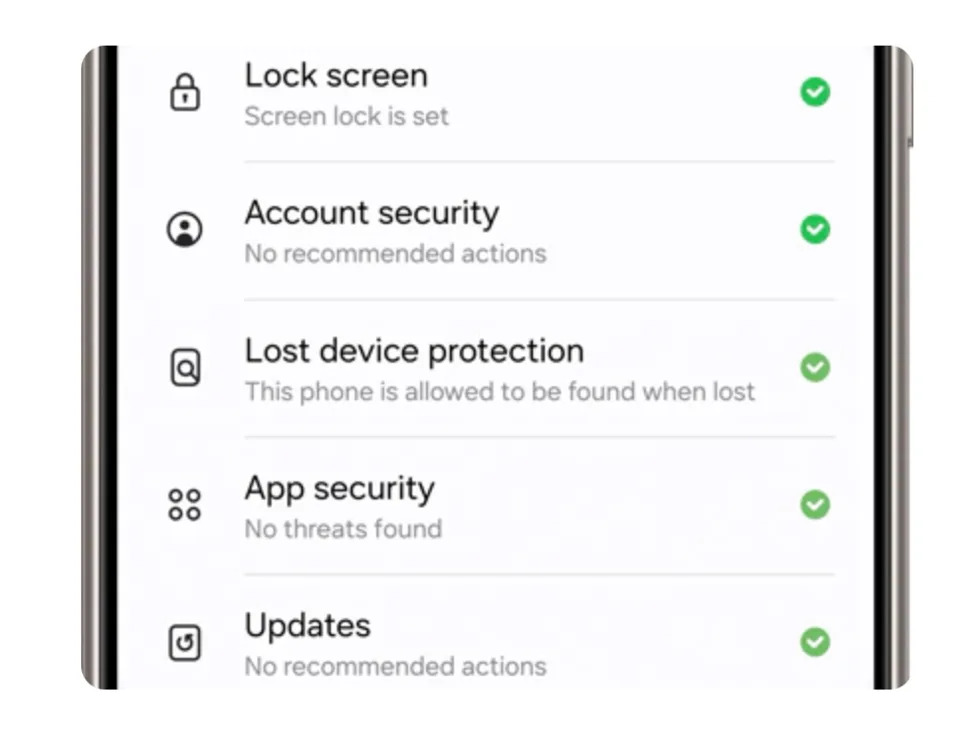
Galaxy Privacy Settings.
Samsung
“You can scan your device for threats and resolve any issues right from the Security and privacy screen,” Samsung says. “Navigate to and open Settings, then tap Security and privacy, and your device will automatically be scanned. The first time you visit this feature, you may need to tap Dismiss on the notification. Then, tap the results to resolve any issues if necessary.”
Again, just as with iPhones, you’re looking for location settings and access to sensitive data (health, contacts, messages) and functions (phone, microphone, camera). Don’t be afraid to stop anything that concerns you.
The FBI’s warning is to be very robust when it comes to sharing data with foreign-owned apps, especially from China. But you should also err on the side of caution when it comes to any app from any country tracking you and your phone.
“Users should be aware of what user data these apps request access to upon download,” the bureau says. “When access is permitted by the user, the app can persistently collect data and users’ private information throughout the device, not just within the app or while the app is active.”
You have been warned — check and change your settings now.
This article was originally published on Forbes.com