
Claude Code is the feature that everyone has been praising lately. You’ll see people raving on and on about all the ways the tool has enhanced their workflow, and XDA is certainly not an exception to that. We’ve written plenty about Claude Code’s setup, new features, tools we’ve vibe-coded using it, comparisons against competitors like Codex and Replit, and even pairings with other tools like Obsidian and NotebookLM.
Now, if you’ve never looked at a single line of code, you might be feeling a bit left out. After all, Claude Code’s name itself includes the word Code, so it’s fair to assume the tool has nothing to offer you. But that’s exactly the misconception I want to push back on. Claude Code might be built primarily for developers, but some of its best use cases have nothing to do with writing a single line of code. Here are a few ways I’ve been using the tool that have nothing to do with coding.
Organizing my computer
The digital assistant I’ve been waiting for
When it comes to my digital life, I’m extremely unorganized. My desktop is the perfect example of that. It’s always filled with folders and files, screenshots I take for random articles, random PDFs I downloaded once and never opened again, images I saved once and immediately forgot about, and more. Every week, I promise myself that I’ll organize it “later.” Spoiler alert: that later never comes.
The best case scenario is that my desktop terrifies me so much that I finally sit down to organize it, and I make separate folders for everything I need (like Screenshots, Projects, University, Work, etc). I use it for a week, and then promptly forget those folders even exist. New files start landing directly on the desktop, old files never make it into the folders I made for them, and within a couple of weeks, I’m right back where I started.
Want to stay in the loop with the latest in AI? The XDA AI Insider newsletter drops weekly with deep dives, tool recommendations, and hands-on coverage you won’t find anywhere else on the site. Subscribe by modifying your newsletter preferences!
Claude Code (and by extension Cowork) is a godsend for this. Though I do admittedly use Claude Cowork for this, it’s something people have been using Claude Code to do for a fair bit longer. The process is essentially the same: you point Claude Code at your desktop, tell it how you want things sorted, and it takes care of the rest. The difference is just that you’re working from the terminal instead of Cowork’s chat interface.
That said, this workflow has been incredibly helpful for me. Before a new work week begins, I have it add everything scattered on my desktop to the relevant folders I have already created and leave everything else as-is. It’s such a simple task, yet one that saves me so much time.
Voice mode brain dumps that turn into daily briefings
The only productive thing I do before coffee
My brain is genuinely at its most chaotic first thing in the morning, and by the time I sit down at my desk to finally work, half the things I needed to remember are already gone. I’ve tried creating organized to-do lists beforehand, sitting down first thing in the morning and putting all the chaos to rest before having breakfast, and even sending myself texts and voice messages. Unfortunately though, nothing stuck because the problem was never really the tool. Instead, it was the friction of having to sit down and organize my thoughts before I could actually begin my day. Claude Code’s voice mode removed that friction entirely.
Every single morning, the first thing I do is open Claude Code, hit my spacebar, and begin rambling about everything I have on my mind. Work deadlines, college assignments, emails I need to respond to, calls I need to schedule, random errands. All of it, in whatever order it comes out. When I’m done, Claude takes that entire mess and turns it into an interactive HTML page with my tasks sorted into categories, priority-tagged, and ready to check off as I go through my day. Sure, Claude Code is pulling this off by writing HTML, which is obviously coding. But I’m not the one writing it. I’m just talking about my day, and Claude handles the rest.
Setting up MCP servers and Skills
The setup that sets itself up
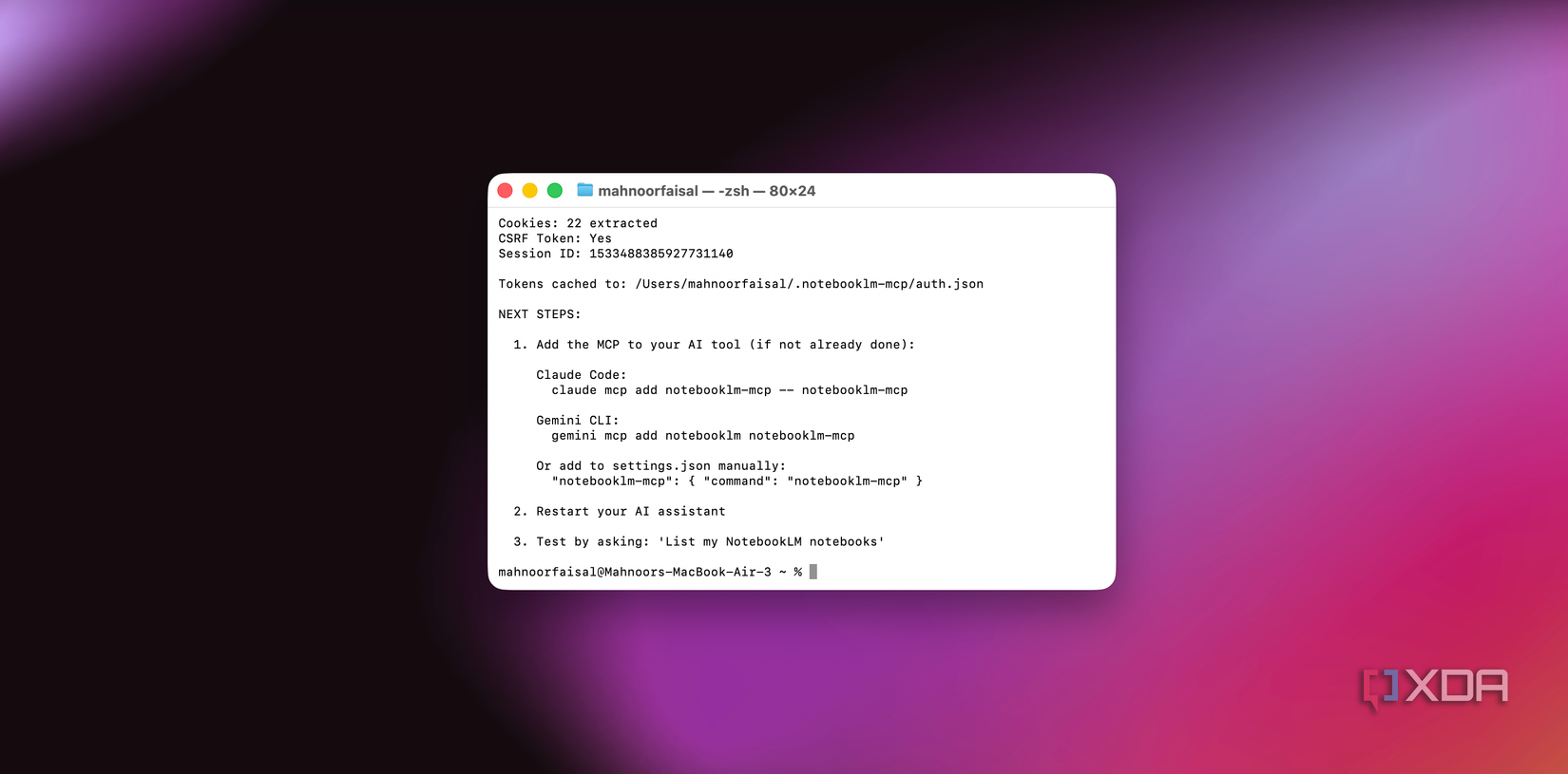
If you think Claude and Claude Code (or any AI tool really) are powerful, just wait until you create custom Skills that teach it exactly how to do the things you do or pair it with third-party tools using MCP servers. That’s where the real magic happens! While creating your own Skills isn’t too difficult and Claude, funnily enough, has a pre-built Skill to help you create new Skills, the easier route is usually just installing one that someone else has already built. The Claude community on GitHub and X is full of people sharing Skills for everything.
With pre-built Skills though, you typically need to download the files, place them in the right directory on your system, and sometimes even edit a config file to make sure Claude actually picks them up. I’m not saying it’s technical or rocket science, but it’s also a fair bit of friction and a task that can be much easier. With Claude Code though, you can simply drop the GitHub repo or a link to the files, and it’ll handle the entire setup for you. It’ll clone the repo (or download the files), figure out where they need to go on your system, place them in the right directory, and handle any config changes along the way. If something goes wrong, it’ll read the error, diagnose the issue, and fix it on its own.
The same applies to MCP servers, too. If you aren’t familiar with MCP servers, they’re an open protocol that lets AI tools like Claude connect directly to external apps and connectors. The difference between Claude’s native connectors and an MCP server is that MCP servers can be built by anyone. That means the list of available MCP servers is constantly growing. So, if there’s a service you want Claude connected to, there’s a good chance an MCP server already exists for it. And if it doesn’t, you can absolutely build one yourself. However, that’s a story for another article. For most people, including myself, the goal is just to get an existing MCP server connected without having to do much tinkering.
Just as with Skills, Claude Code makes that so easy. All you need to do is ask Claude Code to set up xyz tool’s MCP server, and it takes care of the rest. It’ll find the relevant repo, run the installation commands, place everything in the right spot, and update your config file, so Claude actually recognizes the new MCP server.
Making interactive presentations
PowerPoint could never
If you’ve ever used an AI presentation generator, you know the drill: you describe what you want, get a deck that’s 70% of the way there, and then spend an hour tweaking every slide manually. A while ago, I came across a Claude Code Skill created by Zara Zhang called Frontend Slides that completely changed how I think about presentations. Instead of generating static PowerPoint or PDF files, it creates fully interactive web presentations using HTML, CSS, and JavaScript.
You describe the kind of deck you want (topic, style, structure), and Claude builds it slide by slide. The best part is that since the output is code, every single element is fully customizable. Want to change a font on slide three, swap a color, or add an interactive chart? You just tell Claude in plain English, and it edits the code directly. If you’re familiar with HTML, you can even go in and make the changes yourself. What I love most though is that the presentations don’t look like your generic AI slides. They’re incredibly well-designed. You’d never guess they were made by someone rambling into a terminal.
Fixing the small annoyances in my workflow
Automations I didn’t need a subscription for
Now, this section might technically count as coding. However, I really do want to mention this since I think non-developers are missing out big time. The best thing you can do with Claude Code is build tools that simplify your workflow and automate redundant tasks. It’s genuinely the best possible thing you can do with it. And before you say “but that’s coding” — think of it this way. Nobody calls themselves a coder for setting up a Zapier automation, even though automations are technically code under the hood. This is the same idea. You describe a problem, Claude Code builds the fix, and you never look at what’s underneath.
Now, I’m not talking about building full-fledged apps or websites. Instead, I’m talking about the tiny, annoying, five-minute problems that aren’t worth downloading an app for but are just annoying enough to bug you every single day. Claude Code lets you fix those in a single conversation. For instance, I built a tool that’s connected to Claude’s API using Claude Code within 15 minutes, I tested it out, and it worked incredibly well.
I then decided to host it on Vercel, and I’m not kidding when I say this, it saves me over five hours weekly. It uses Anthropic’s Haiku model, and it costs close to nothing to run. We’re talking cents per week. I won’t go into exactly what this tool does since that’s a whole article on its own, but the point is: I described a problem, Claude Code built the solution, and it’s been running on autopilot ever since.
Please don’t sleep on Claude Code
I’ve been telling people left and right to try out Claude Code. Yes, the name says Code. Yes, it runs in a terminal. But as I hope this article has shown, some of the most useful things it can do have nothing to do with writing code.