
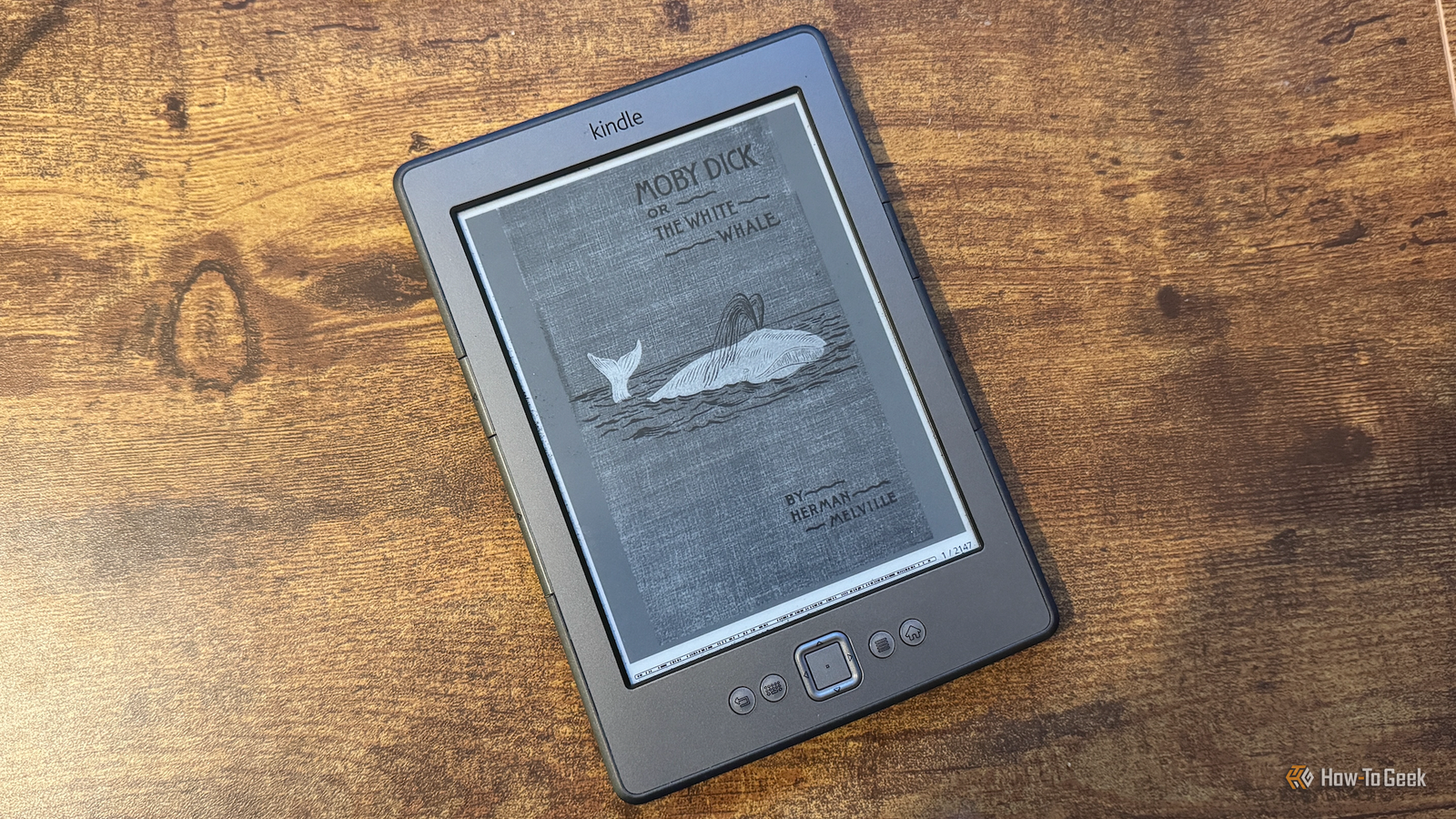
I’ve had my Kindle for more than a decade, and it’s served me well during that time. That’s why I was disappointed to learn that Amazon was going to be ending support for my model. I decided to remove Amazon from my Kindle, and I wish I’d done it sooner.
Related
Kindle Is Making It Harder to Switch to Rival eReader Brands
Need to download and transfer those old Kindle purchases? Tough luck.
Amazon’s decision was the push I needed
Older Kindles are losing support
Credit: Adam Davidson / How-To Geek
Amazon has announced that on May 20, 2026, it is officially ending support for the Kindle Store on all Kindles and Fire tablets released in 2012 or earlier. It means that people with older Kindles will no longer be able to buy, borrow, or download new books, and the Send to Kindle feature will no longer be available.
It’s also the case that if you have to factory reset your Kindle after that date, you won’t be able to sign back in again with your Amazon account. The device will still function, but only for your existing library or books that you sideload via USB.
I’d been meaning to jailbreak my Kindle for a while just to see what it had to offer, but I had never gotten around to it. Now that Amazon was going to make the experience of using my Kindle worse, there was no longer anything to stop me.
Storage
16GB
Weight
7.6oz (215g)
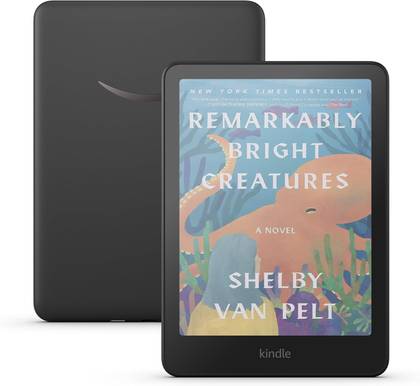
Amazon’s 16GB Kindle Colorsoft eReader offers a 300 PPI full-color display with an adjustable frontlight and a waterproof design. It’s excellent for readers who love comics, manga, or any other books that contain colorful images.
Jailbreaking a Kindle can be frustrating
It’s not always easy
My Kindle is a Kindle 4 from 2011, and I have to be honest here: the process of jailbreaking was not a fun one. There are some useful resources online that can walk you through the process, but with so many models available, not every instruction applies to every device, as I found to my cost.
It took me several hours and multiple aborted attempts to finally jailbreak my Kindle and install an alternative eReader, and I tore a fair amount of my hair out during the process. I ended up having to completely factory reset the device, which caused me to lose all the books that were already uploaded to it.
After I’d finally gotten things working, I then made the mistake of turning the Wi-Fi connection back on, at which point Amazon locked me out of the newly installed apps, and I had to backtrack and repeat a lot of the process. Eventually, however, I got things up and running.
KOReader made it worth the effort
Better PDF handling and native EPUB support
Credit: Adam Davidson / How-To Geek
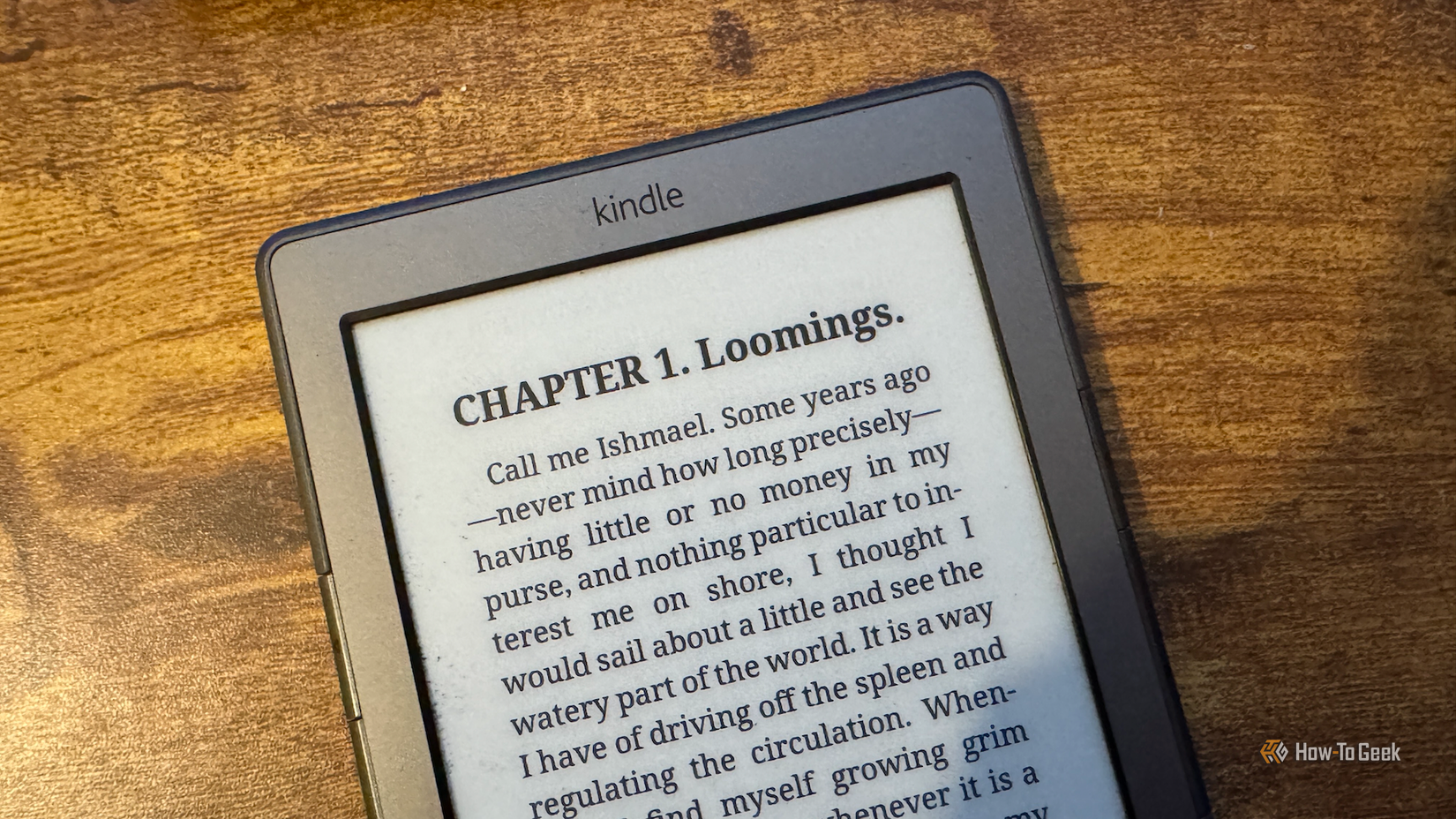
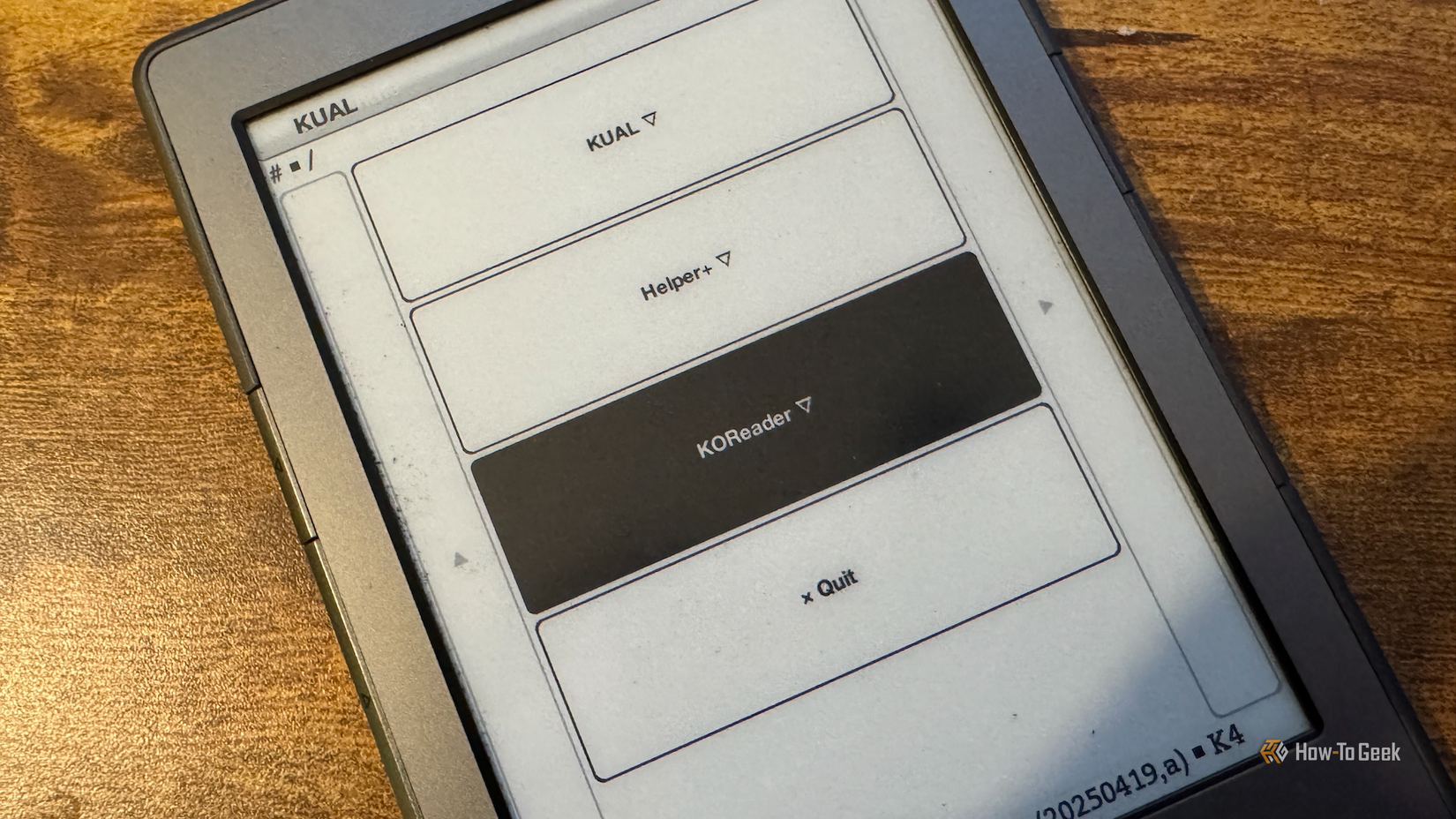
The first app that I installed was KOReader, a free and open-source document viewer for e-ink devices. It can be used instead of the default Kindle software for reading books and other documents.
The UI takes some getting used to at first, but it doesn’t take too long to get the hang of it. You can access any books stored on your Kindle and read them just as you would on a standard Kindle. The beauty of KOReader is that it can handle multiple different formats natively, including EPUB, PDF, CBZ, and MOBI.
You also have more control over how your eBooks look. You can change the contrast of the text to make it stand out more on the screen, changing the kerning and hinting, and even override the publisher’s styles and replace them with your own.
If you use your Kindle to read PDFs, KOReader is even more useful. Trying to read a PDF on a standard Kindle is a nightmare, with the text often so small as to be unreadable, forcing you to zoom and scroll to try to read the text.
With KOReader, you can use the Reflow feature to pull the text from the PDF and fit it to your screen so that you can read the document as if it had been formatted as a perfect Kindle eBook. It makes reading PDFs a delight instead of a hideous nightmare.
Jailbreaking my Kindle gave me access to far more than just a superior eReader. I was able to add a battery status app to provide detailed information about the Kindle’s battery, a screensaver app to add my own images for the screensaver, and a font packager so that I could override system fonts and use high-quality fonts when reading.
Jailbreaking may not be right for you
Newer Kindles aren’t affected yet
Credit: Alexandra Ramos
Jailbreaking a Kindle is not without its risks, although the chances of completely bricking your Kindle are fairly slim. I did end up losing all of the content saved on my Kindle, and although it was probably avoidable, it’s still something to bear in mind before you try it.
Jailbreaking may also void your warranty, although for my 15-year-old Kindle, that wasn’t really an issue. Since Amazon is discontinuing support for my model, it’s unlikely that they will take offense at me jailbreaking the device.
If you have a newer model of Kindle that isn’t affected by Amazon’s announcement, however, then you might prefer to just stick with what you’ve got, at least until Amazon comes for your model, too.
My Kindle is better than ever
Apathy was the biggest factor in my never having tried to jailbreak my Kindle before, but Amazon gave me the nudge I needed. The process was frustrating, but now that I have it working, I wish I’d done it much sooner.