
I love Android Auto. But I don’t love it when it’s slow, laggy, and stuttering. A touch of lag is often forgivable in most tech. An annoyance, sure, but not a deal-breaker.
But when you’re driving at high speeds, you need responses from your infotainment right at that very second, because you can only afford to take your eyes off the road for a moment.
So when my Android Auto started stuttering and lagging, I knew I needed to fix it immediately. If you’re experiencing the same problems, the problems I fixed may help ease your issues.

Related
My ultimate Android Auto setup for a distraction-free drive
The minimalist’s guide to Android Auto
Chuck away those old cables and embrace wireless
When I first experienced issues with my Android Auto, my first area to investigate was the cable I used to connect my phone to my car.
It’s easy to forget that not all cables are created equal. Some have more capacity than others and can handle more data as a result. If you’re using a cable for Android Auto, make sure your cable is capable of handling it.
Make sure it’s not old and ragged, first. A worn-out cable probably isn’t working as well as it once did, so give it a physical inspection.
Then, try another cable and see if it works better. A shorter cable, around three to six feet or so, is better to ensure quick data transfer, and make sure it’s a cable marked for power and data transfer. A charge-only cable won’t work.
My approach was to ditch the cable entirely, though. While some aren’t fans of it, I’ve found wireless Android Auto to work extremely well.
If your car supports it, then setting it up is as easy as pairing your phone to your car through your car’s settings and triggering Android Auto while it’s connected.
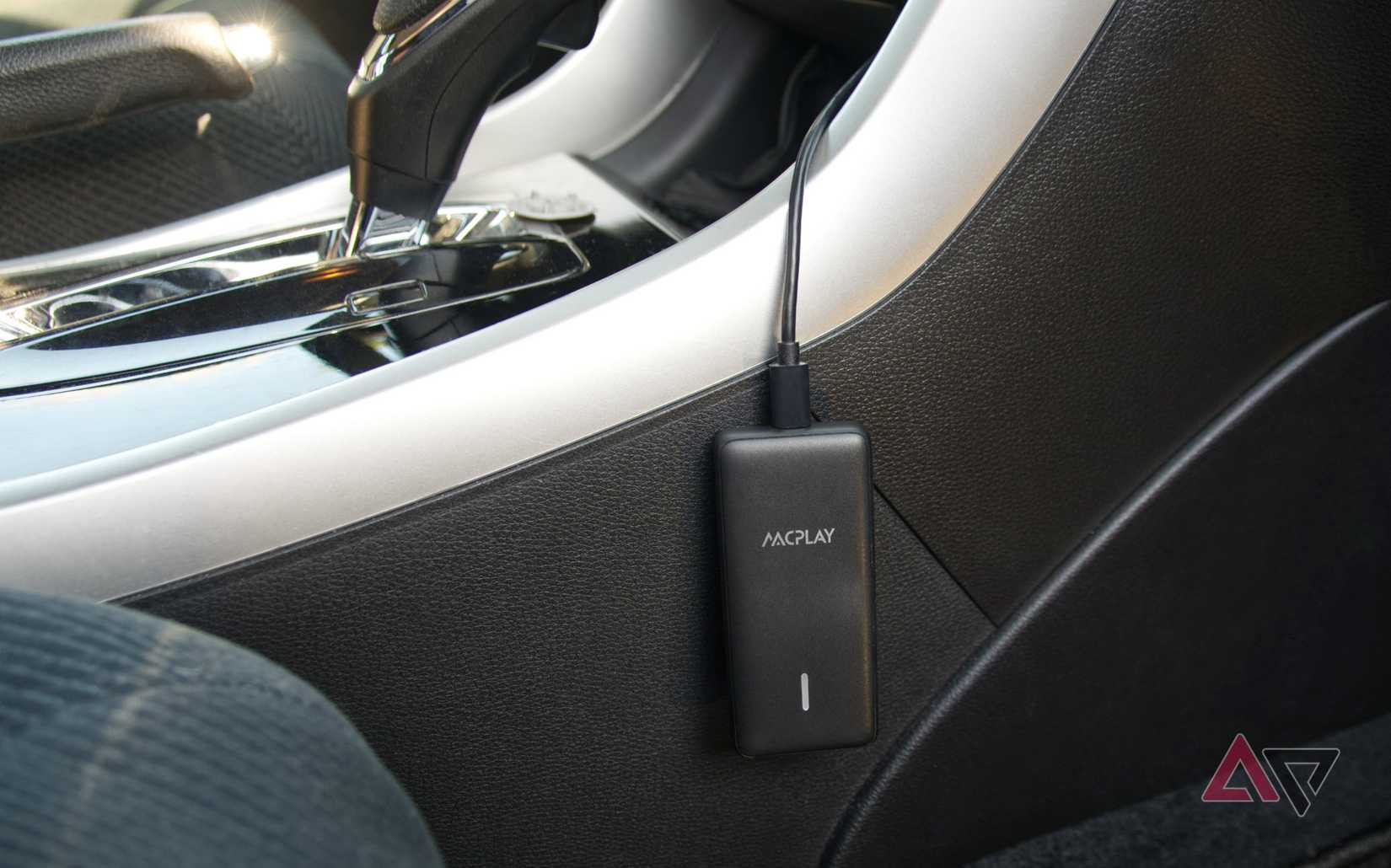
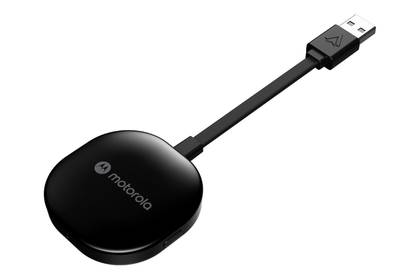
However, if your car, like mine, only supports wired Android Auto, you’ll need a workaround: an adapter. These work by wirelessly connecting to your phone by Bluetooth and sitting in the same USB port you’d normally connect your phone to.
It’s a way of tricking your car into thinking it still has a wired connection. In my experience, they work very well and avoid the faff that comes with cables.
Brand
Motorola
Connectivity
5 Ghz WiFi
Check your resolution settings
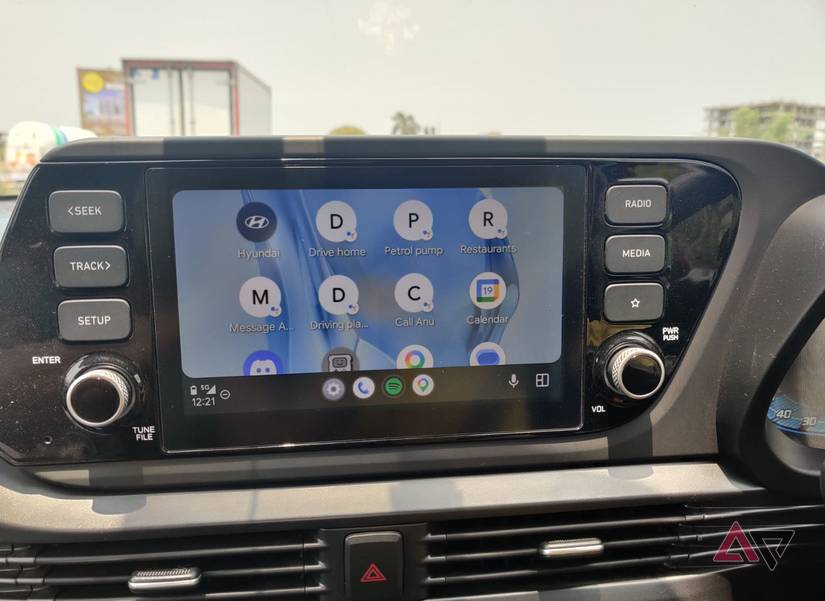
Another one of the first areas I checked was the resolution of my car’s screen. As any gaming fan knows, higher video resolutions are more demanding to run due to the larger pixel count.
This element is often handled fine by Android Auto, but sometimes it may try to force a larger resolution than your phone can handle.
This is an especially prominent problem on larger displays, and you’ll want to make sure it’s not causing your Android Auto to slow down, stutter, and lag. For this, you’ll need to access your Android Auto Developer Settings.
Don’t worry, that’s not as intimidating as it initially sounds. Find your Android Auto settings through the search bar in the Settings app, then tap the Version and permission info section ten times in a row until you get a pop-up.
Then you can access Developer settings through the three-dot menu in the upper-right corner. When you’re in that menu, scroll down until you find Video resolution.
Usually Allow car and phone to negotiate works fine, but have a fiddle with this and see if setting lower resolutions fixes your lag and stuttering.
Also, take a moment to check the resolution your display can handle. If a bug is pushing the resolution above that, you’re likely not seeing any benefit.
Keep your phone cool
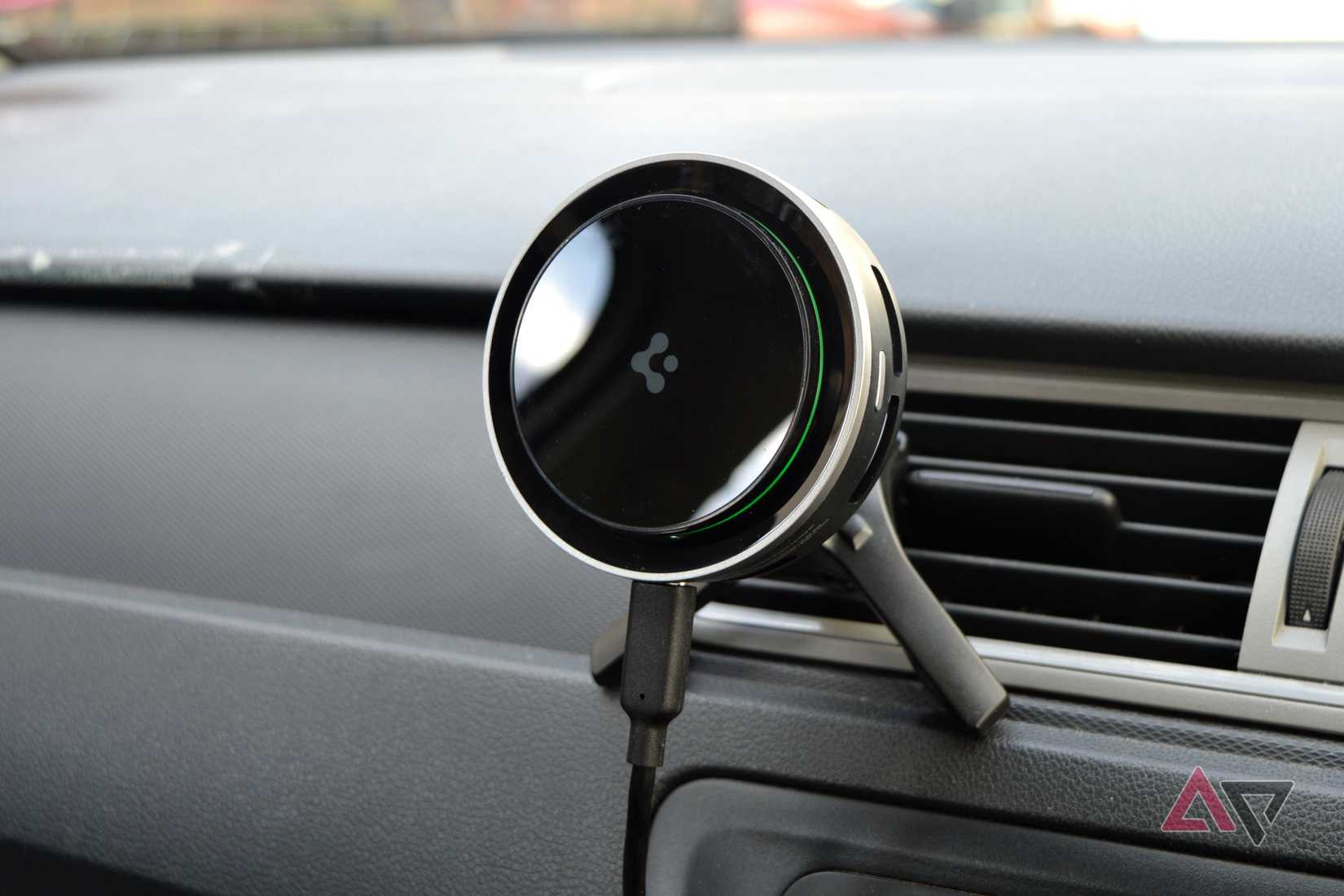
The final area I checked was my phone. Running Android Auto can be hard work, and that generates heat. If that heat builds up, your phone won’t run as well as it should.
When hot, a phone will try to reduce heat by throttling performance, which means Android Auto won’t run anywhere near as well as it might at peak.
This was a big worry for me. I use a Google Pixel 10 Pro, and Google’s hardware has a history of overheating. So I knew I wanted to make sure that didn’t happen.
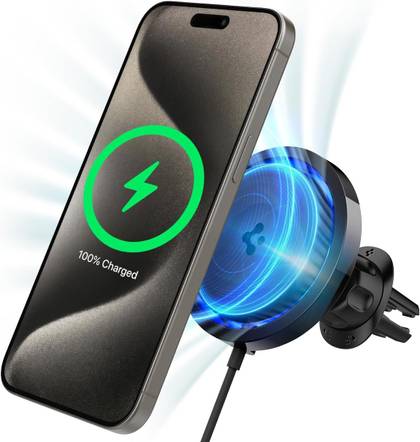
My solution was to buy a Spigen Cryomax car charger. This cradle keeps me topped up through wireless charging. It also includes a built-in fan that keeps my phone cool, even while it’s running Android Auto.
Still, you don’t need to rush out and buy a similar product, even though I recommend it quite heavily. No, a simple car cradle that attaches to an air vent will work in a similar fashion, as long as your AC is on. Keep cool AC air blowing past it, and it should do something similar.
However, that leaves you in a stickier situation if you live in a colder area, or during winter, when you’d prefer heat from your blowers. In which case, something like the Spigen Cryomax is definitely worth buying.
Weight
151g
Compatible Devices
MagSafe and PixelSnap devices