
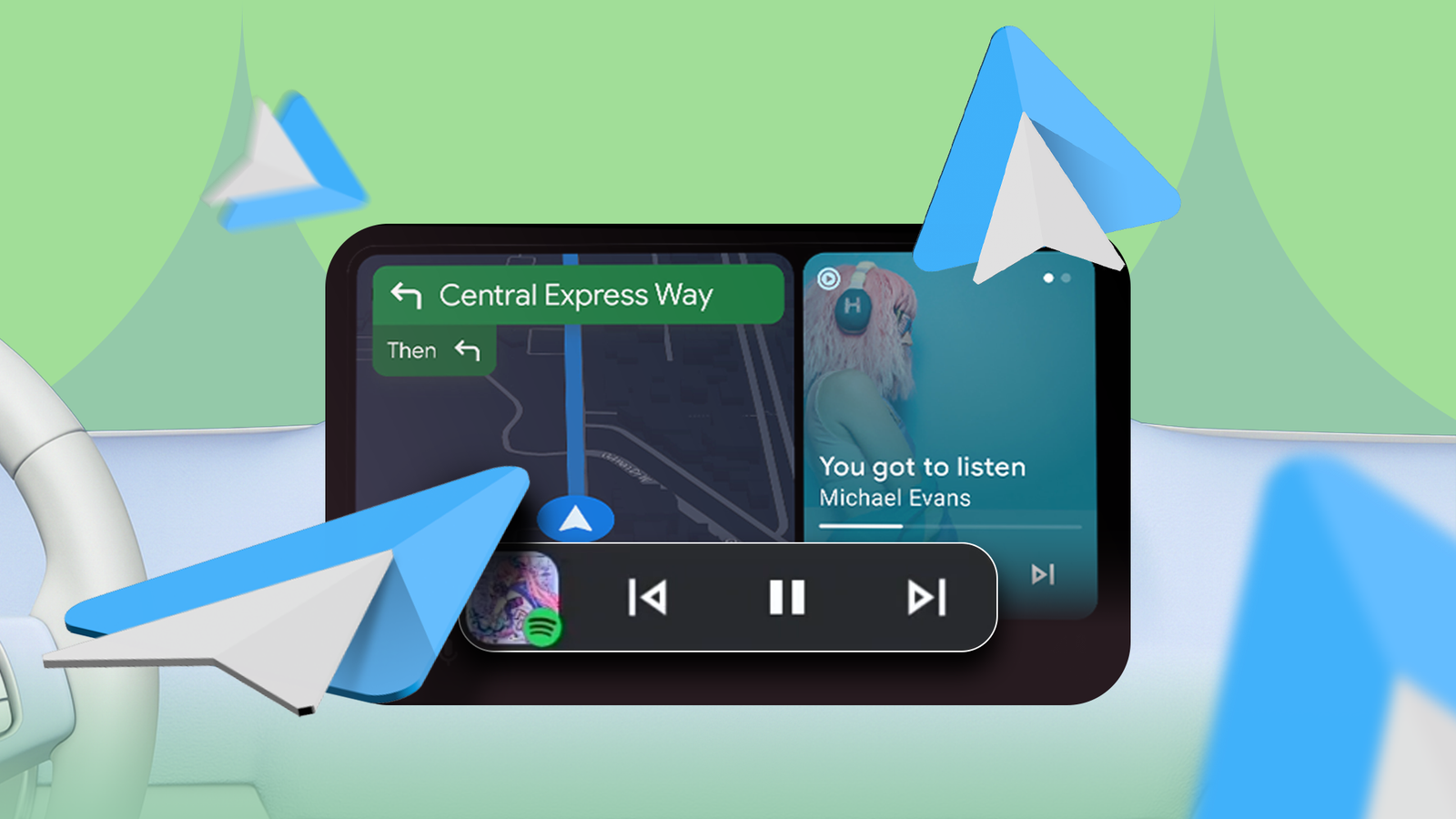
Having only been driving for just over a year, I’m still relatively new to Android Auto.
After spending several hundred miles as my ride-or-die, I’m confident in stating that it’s really a very good piece of technology.
That’s not to say it’s perfect, because there is definite room for improvement.
I love the split-screen mode, it gives access to my directions and playing media at the same time, and as a relative newbie, I can’t fathom how people coped before.
But there’s one feature I discovered that, when enabled, completely changed how I used Android Auto, cutting through the split-screen chaos with an incredibly useful function that helps to keep my mind on the road.
Related
5 underrated Android Auto features that make long trips not just bearable, but enjoyable
You must use these Android Auto features to enjoy long drives

You likely know what a widget is, though in this case, it’s not one of those little plastic balls found in some beer cans.
A taskbar widget in Android Auto is basically the same as most widgets you’ll find on your phone. It’s an app or feature in a smaller space, essentially.
You’ll usually find them on your phone’s home screen or notification drawer, and they allow you to control an app without opening it.
Media apps like Spotify and Audible probably have the most familiar widgets, since they contain the player controls in your pull-down notification drawer.
You’ve probably used them without even thinking about it.
Credit: Lucas Gouveia / Android Police
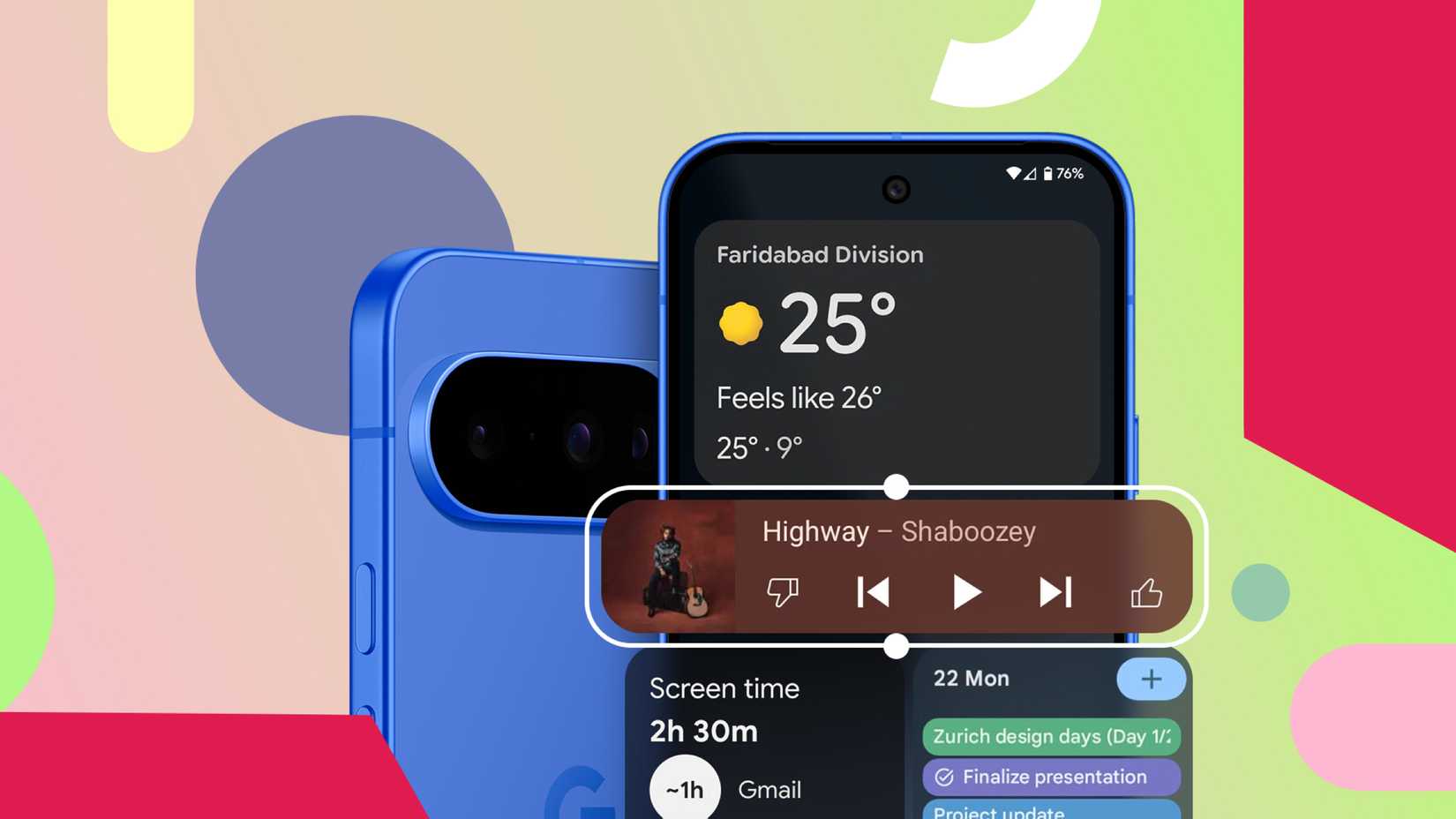
Android Auto has a taskbar along the bottom of the screen. It normally holds a small selection of apps, but when you turn on the taskbar widgets feature, it becomes an extra home for your running apps.
It’s easy to miss this feature, and you have to look to find it. If you’re interested, tap your phone’s Settings app, then tap Connected devices > Connection preferences > Android Auto. Then toggle Taskbar widgets on, and it’s good to go.
It’s somewhat similar to your existing split-screen mode, but with a smaller area. So why use Taskbar Widgets at all?
But you already have split-screen mode, why should you care?
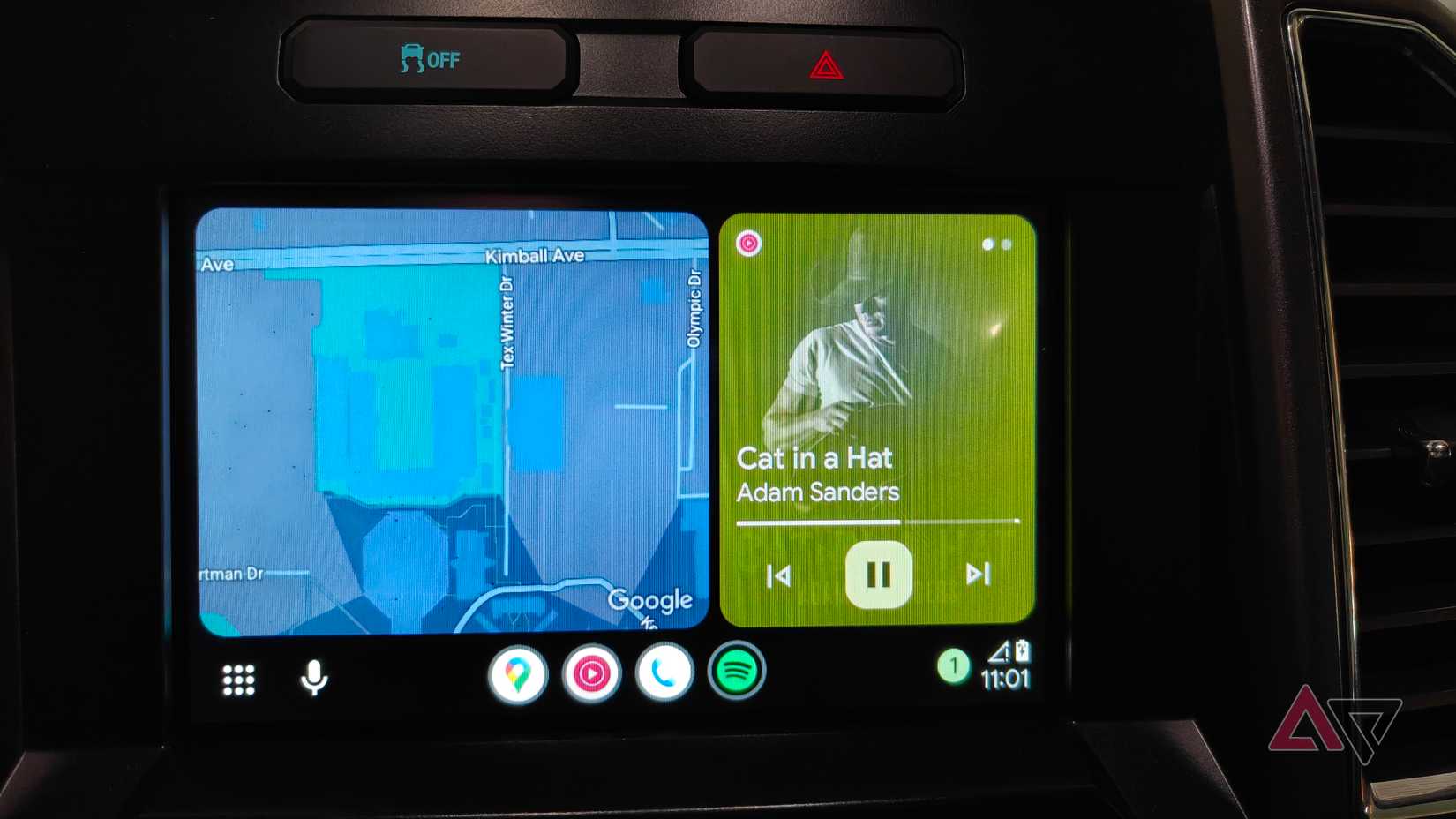
At first glance, taskbar widgets are less useful than your split-screen view.
Instead of a full half of your screen, it takes up a small part of your taskbar. There’s just enough room for some player controls and an option to open the playing app.
So split-screen is better, right? I would argue not.
What happens when you tap your map to make some changes? Your map becomes full-screen, and you lose your media player entirely.
The same happens when you open Spotify — all of a sudden, you no longer have a map. Where’s your turn? No idea, mate, but you’d best hope it’s not soon.

But if you’re using taskbar widgets? When you open your map, your Spotify squishes down into the taskbar. Still accessible, still helpful.
The same happens if you open Spotify. Now your map directions can be seen in the taskbar. Sure, it’s small, but it’s way more helpful than not having them at all.
And think about it. How much room do you actually need for an app like Spotify?
All you need is access to pause/play, skip forward, and skip backward. Anything else, and you need the full-screen app anyway.
And in exchange? I get full-screen access to my driving maps and navigation. The widget’s simplicity lets me focus on my driving without losing my media player controls.
My mind is on where I am, not what I’m listening to
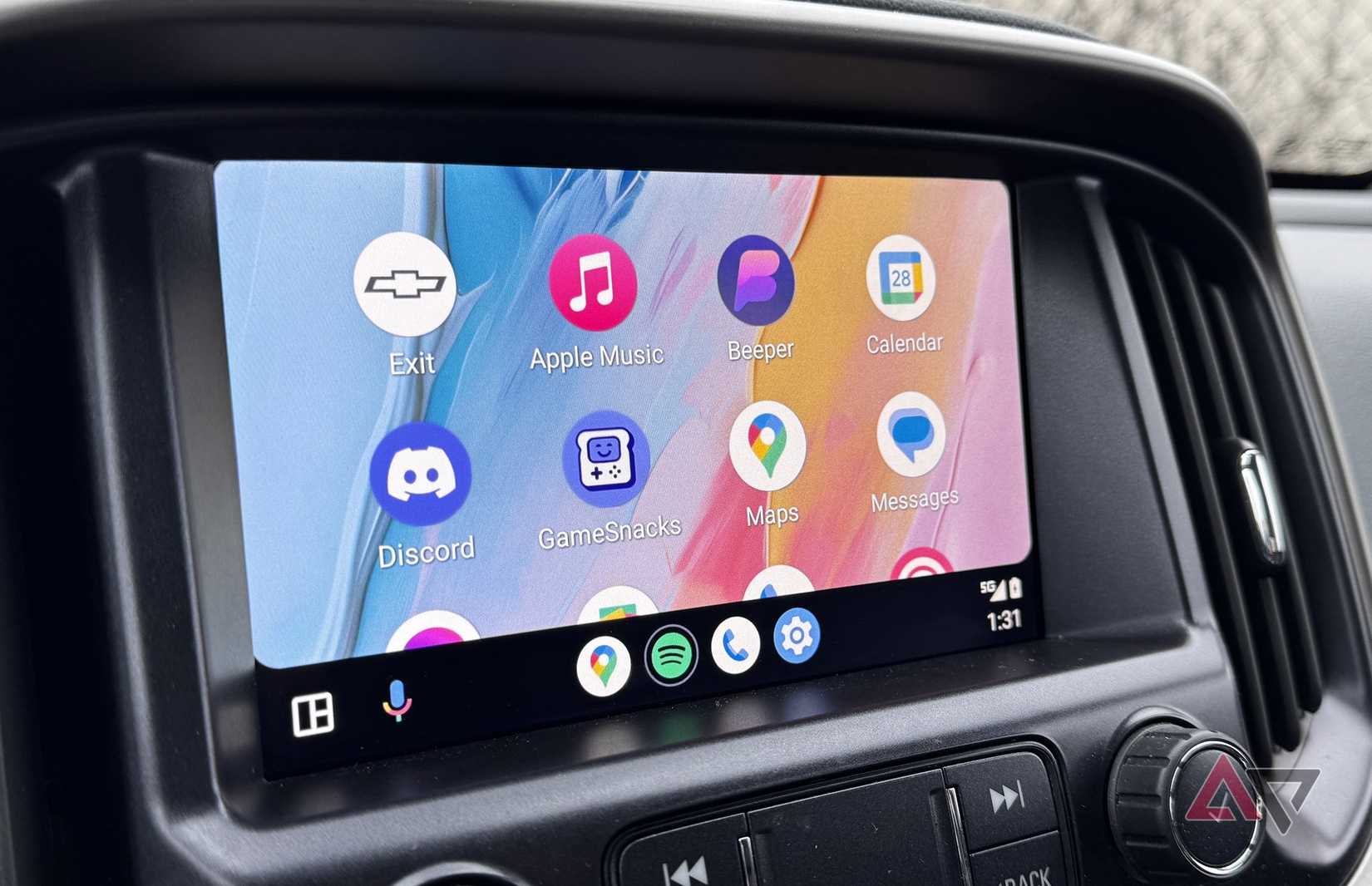
Android Auto is there to facilitate driving and make it easier, and taskbar widgets are a further evolution of that.
Despite being smaller and less useful than split-screen mode, in strict terms, it allows Android Auto to be better at what it’s supposed to do: help me drive.
Without having a big ol’ distraction in the form of Spotify, Audible, or whatever else, I can really focus on driving.
When I need it, there’s a full-screen map right there, and if I really need to access my entertainment app, it’s one touch away from taking over the full screen.
And you don’t even lose your driving directions, thanks to the navigation widget.
Credit: Lucas Gouveia / Android Police | Natdanai99 / Shutterstock
This feature is best used in conjunction with other features.
Sometimes, split-screen really is the best way — and then the widget can kick in when you move to full-screening an app.
But more often than not, I now find myself foregoing split-screen in favor of simply letting the widget sit at the bottom of the screen and keeping my map on the full screen.
It’s clean, it’s efficient, and it’s by far the better way of using Android Auto for me. And I almost completely missed it. Make sure you don’t.