
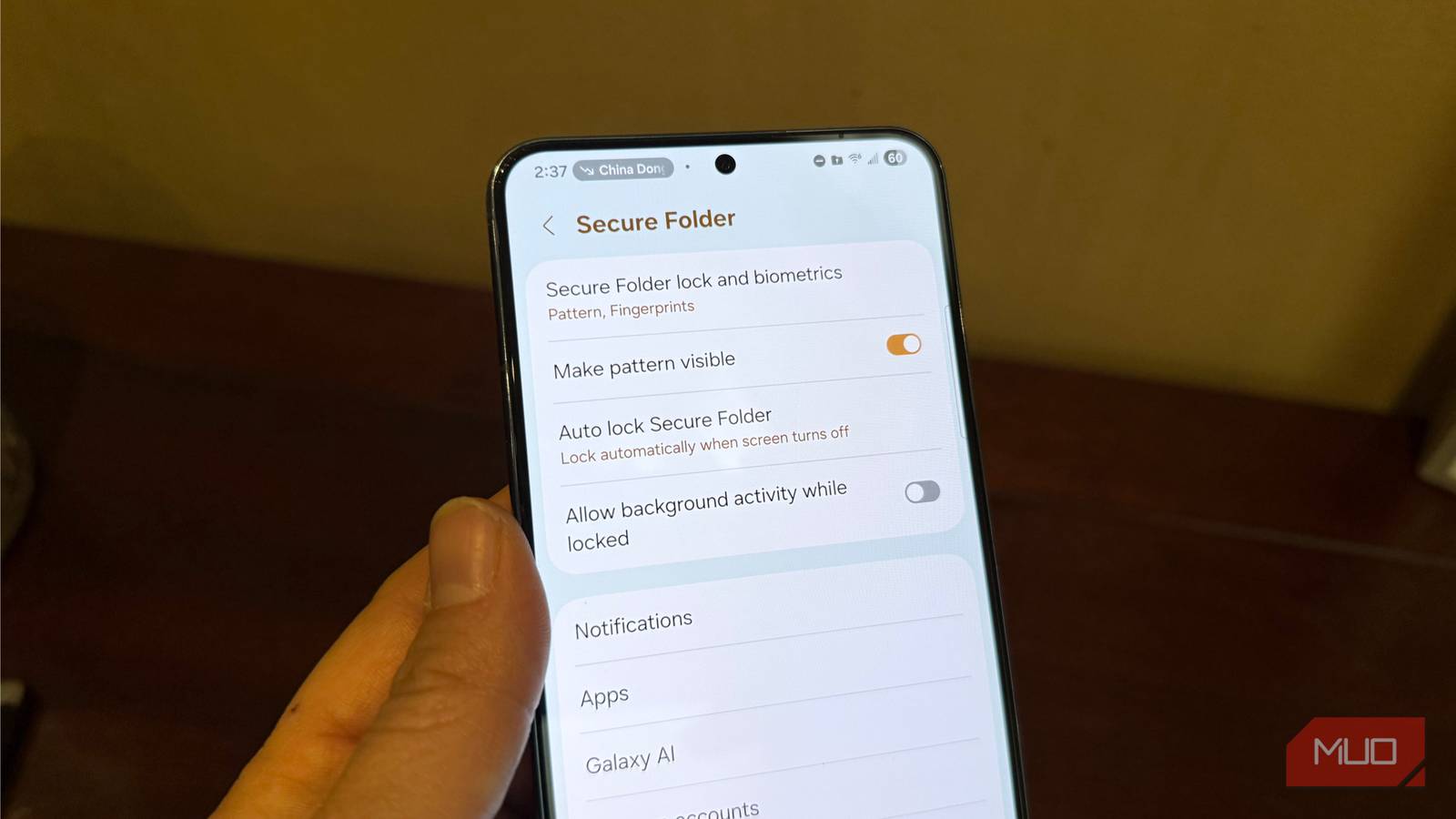
Setting a biometric to unlock your lock screen only keeps strangers from accessing your phone. But it can’t protect you when you hand over your unlocked phone to someone. Samsung’s Secure Folder fixes that. It’s a separate, encrypted space on your Galaxy phone that has its own lock. It’s one of the best privacy features that you can use on your Galaxy phone. The most interesting part is that most people never open it, including me (not now, though). In this guide, we’ll share with you how Secure Folder works, how to set it up, and the best ways to use it.
Related
8 Secure Folder Tips Every Samsung Galaxy User Should Know
Do more with your Secure Folder.
Secure Folder is a locked room
It’s a phone inside your phone
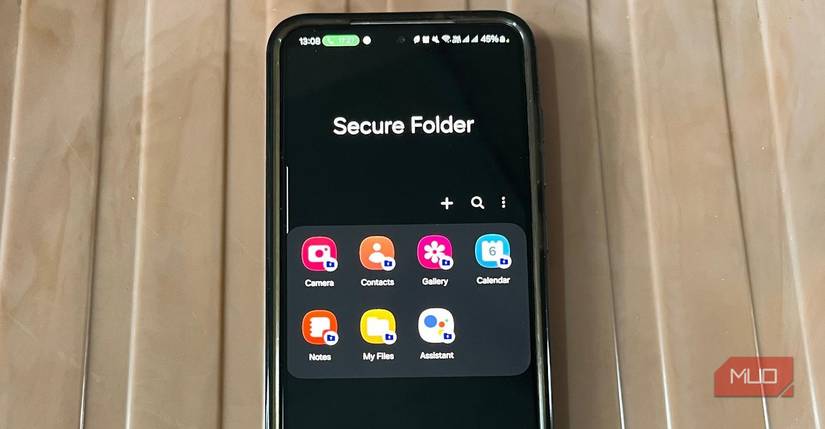
Image taken by Digvijay Kumar – No attribution required
Secure Folder’s like a locked room inside your Galaxy smartphone. It’s protected by the Samsung Knox security platform, which basically encrypts everything you store inside the Secure Folder. Whatever you put inside is kept separate from the rest of your phone. That means anyone without access to the Secure Folder can’t see your stuff. Your gallery, app drawer, and main storage won’t show it, and you can only open it after unlocking the folder.
That’s very different from how most of us protect private stuff. We either use an app lock and lock the apps that we don’t want anyone to access, or we rely on one lock screen and hope for the best. You can also use Samsung’s “Hide apps” option, but it’s basic. It only hides the app from the launcher. The app’s still on your phone, and anyone who knows where to look can access and open it.
Secure Folder, on the other hand, works differently. You can store things in it using independent credentials. This means that even if someone gets past your lock screen, they still need a second key to see things that you’ve hidden. That extra layer’s the whole point.
Setting up Secure Folder is easy
It can be done in under 2 minutes
All you need to have is a Samsung Galaxy phone to set up Secure Folder. Do note that it is available on some A-series models, all S-series models, and foldables.
Open Settings.
Tap on Security and privacy.
Select More security settings, then Secure Folder.
Sign in to your Samsung account if it asks.
Pick a lock type and choose Allow when asked whether you would like to reset your Samsung account.
Tap on Next.
In the Choose what happens when Secure Folder is locked prompt, you can select either:
Close all apps while locked
Allow background activity while locked
Tap Next and then Done.
Your phone will take some time to create your Secure Folder. You can also search for Secure Folder if you are unable to find it inside the Settings menu. If you wish to uninstall Secure Folder, you can navigate to Settings > Security and privacy > More security settings > Secure Folder > More settings > Uninstall.
Related
How to Back Up Secure Folder Data on Your Samsung Phone
A secure backup for your most sensitive data.
Smart ways to use Secure Folder
Run a second copy of any app
One of the best tips I can give you after years of using Secure Folder is that you should choose a lock that’s different from your lock screen. Don’t reuse your screen PIN because if someone watches you unlock your phone or knows your PIN, then they can get inside the Secure Folder without breaking a sweat. Pick a different password, PIN, or pattern. Then turn on Reset with Samsung account when it asks, because it’ll help you get back in if you forget your password.
Inside Secure Folder, you can run a second copy or clone of any app on your phone. Notably, when you move an app inside the Secure Folder, it makes a copy. You can then log in with a different account than the one you’re using on the main app. This way, you can separate your work and private profiles on social media apps.
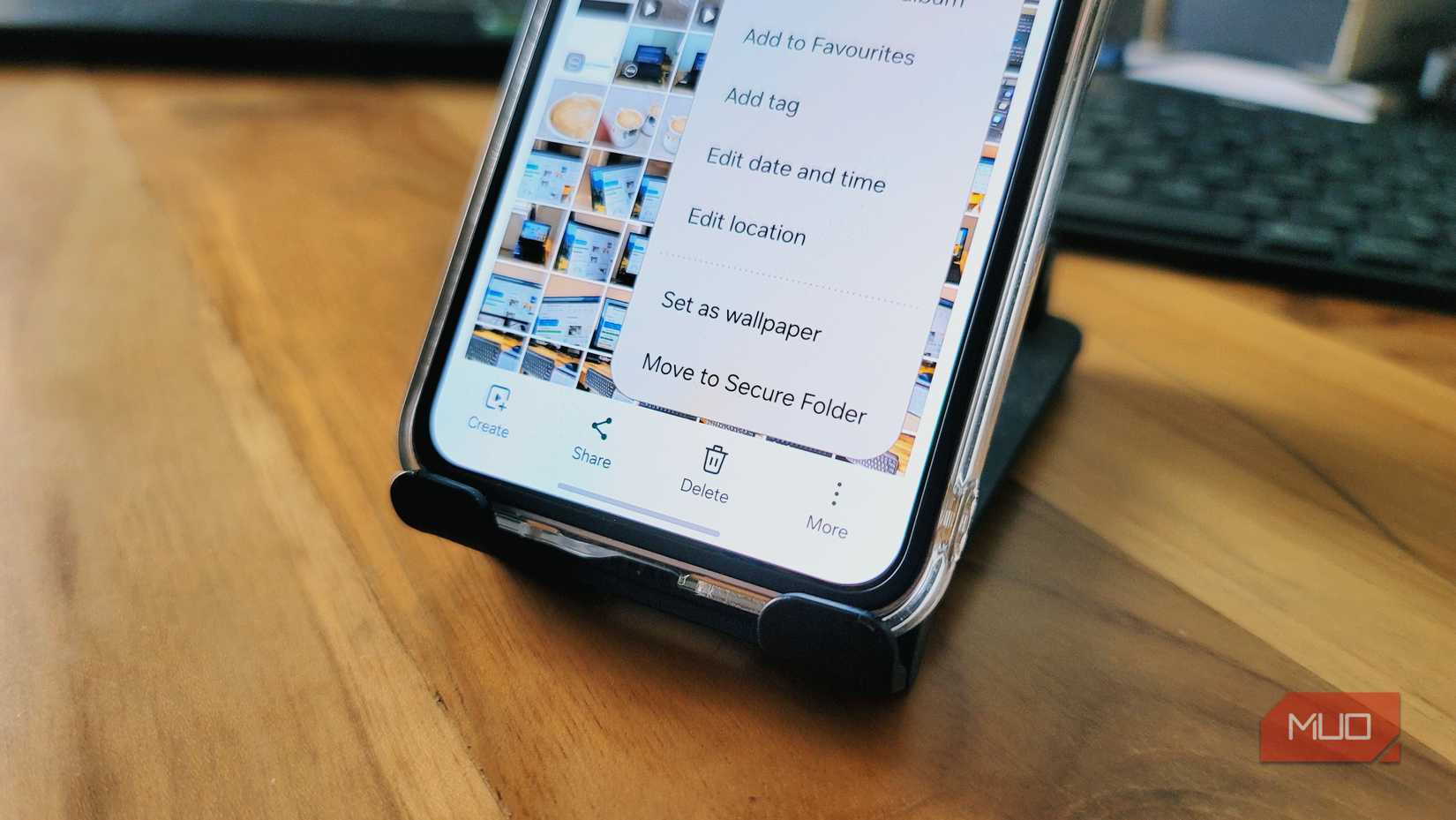
The best part is that apps from the Secure Folder remain separate. They never show up in the app drawer. You can also keep your scanned IDs, like passports, driving licenses, medical reports, and other stuff that you’d rather not scroll through in a crowded space, inside a Secure Folder. All you need to do is open Gallery, choose the images, and select Move to Secure Folder.
Another tip that I’d like to share is that you should make Secure Folder completely disappear from your phone. To do that, open Secure Folder, go to its Settings, and switch off the Add Secure Folder to the Apps screen. There’s also an option to encrypt Secure Folder contents.
Know the limits before you rely on it
It isn’t a magic shield
Keep in mind that while you don’t need a Samsung account to run your Galaxy phone, you do need it to reset the password for Secure Folder. If you lose both your Secure Folder lock and Samsung account password, then you’ll need to contact Samsung support for resolution. Also note that when you reset your phone, the content inside the Secure Folder also gets erased. You should take a backup of anything important stored inside the Secure Folder to avoid such situations.
You shouldn’t treat it as a magic shield. It’s just one layer. You should also focus on keeping your phone up to date. You can also check Auto Blocker and the Security and privacy dashboard for more protection.
Brand
Samsung
Battery
4,800 mAh silicon-carbon
Weight
201g
IP Rating
IP48
Processor
Qualcomm Snapdragon Elite Gen 5 for Galaxy
Cover screen
5.5-inch