
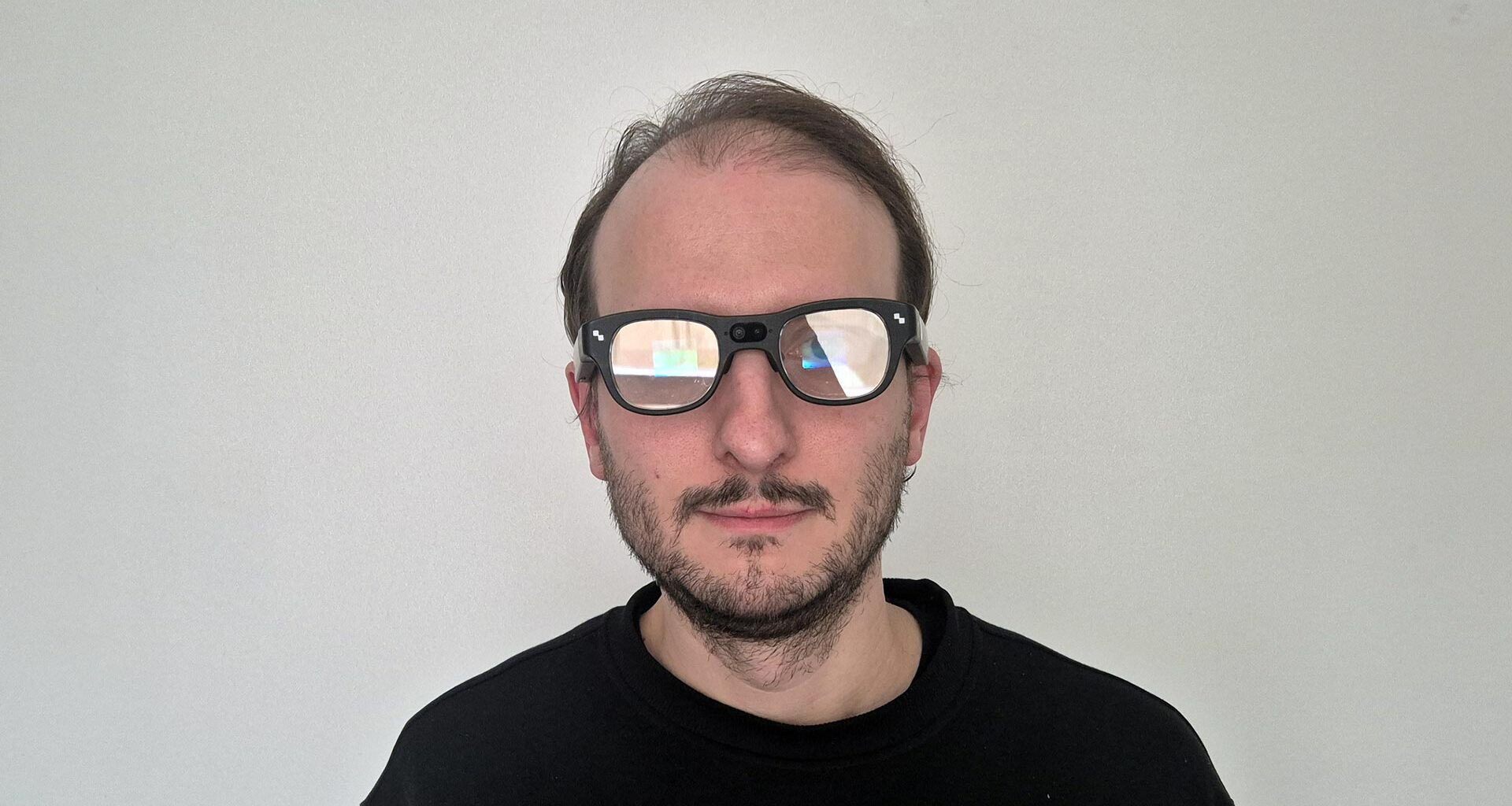
In the past few weeks, I’ve had the opportunity to test the TCL RayNeo X3 Pro smartglasses, and I’ve been positively impressed by them. There is a lot of talk about the Meta Ray-Ban Display, but these glasses on some sides are better than it. Please keep reading to discover everything about this super-interesting device!
I’m too swamped with work to also make a video review, so I’m linking here to Tyriel Wood’s one, in case you don’t want to read a wall of text and you just want to watch a video!
Specifications
Display Technology: Binocular Diffractive Waveguide
Display Resolution: 640 x 480
FOV: 30 degrees
Brightness: 3500 nits avg, 6000 nits peak
Refresh rate: Adaptive
Chipset: Qualcomm Snapdragon AR1 Gen 1
RAM: 4GB
Storage: 32 GB
Battery: 245 mAh
Camera Resolution: 12MP
Connectivity: USB 2, Wi-Fi 6, Bluetooth
Weight: 76g
Unboxing
I was sent a dev device and didn’t have the real package to unbox, so I can not comment on the actual unboxing experience. I can still show you my personal unboxing experience, though, if you’re interested in that:
If you want to discover more about the official content of the box, instead, you can refer to this official picture on the RayNeo website:
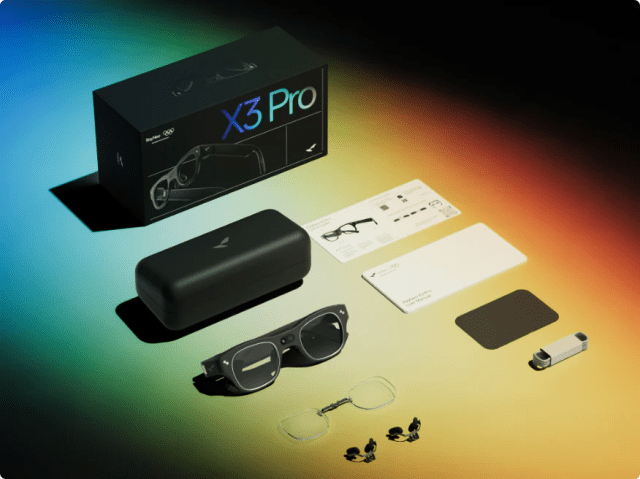 The content of the box of the glasses (Image by RayNeo)
Design
RayNeo’s glasses look like bulky standard glasses. The shape reminds one of normal glasses, but:
They are definitely too thick to be normal glasses. And the frames are also taller than the usual
They are a bit more distant from the eyes than usual. Not at the same level as the XREAL 6DOF glasses, but still noticeable
Their design is very simple: TCL didn’t partner with Luxottica or any other eyewear brand, so the X3 Pro doesn’t look very fashionable.
The result is basically a pair of ok-looking, bulky glasses. More on how it is wearing them in the streets in the next section.
If you’re curious about seeing what the glasses look like, here you are, a set of pictures I took of them from all the points of view.
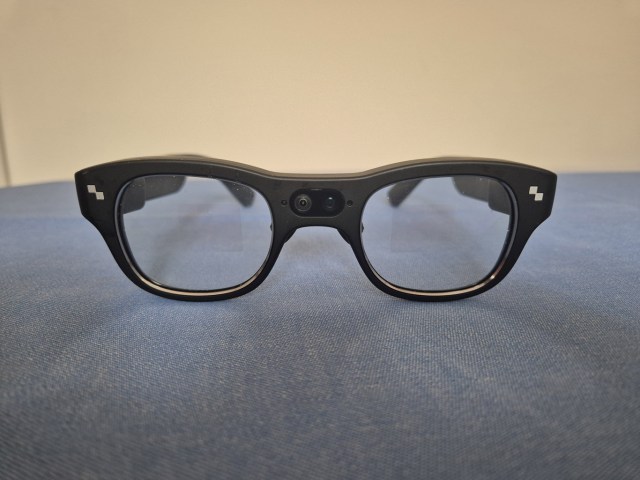 Front view: you can clearly see the camera in the middle of the glasses
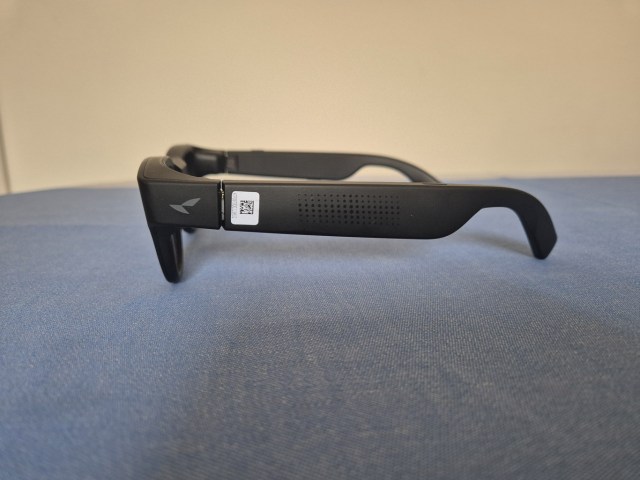 Left view: here you can see how the frames are a bit thick. At the center of the temple, there is a touchpad you can use to interact with the device
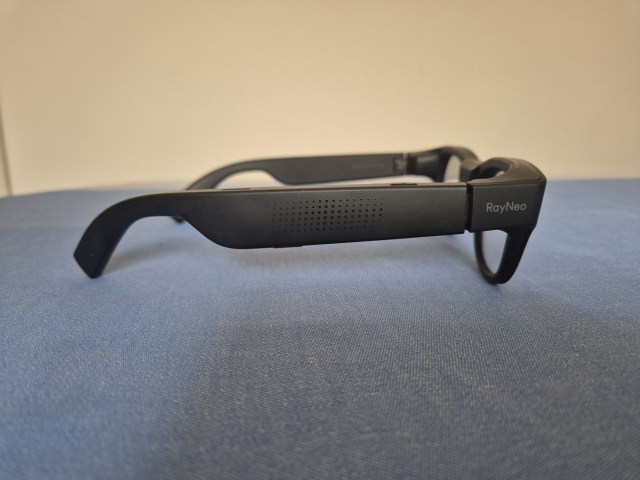 On the right, you can see a touchpad, too. If you look closely, on top, you can see a bit of the button you can use to shoot pictures
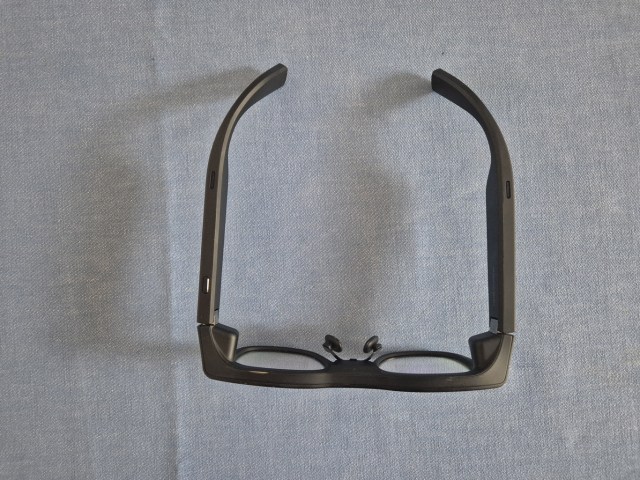 Top view. On the right temple (on the left of this image), you can clearly see the button to take pictures. Both on the left and the right, you can see a hole of the speakers
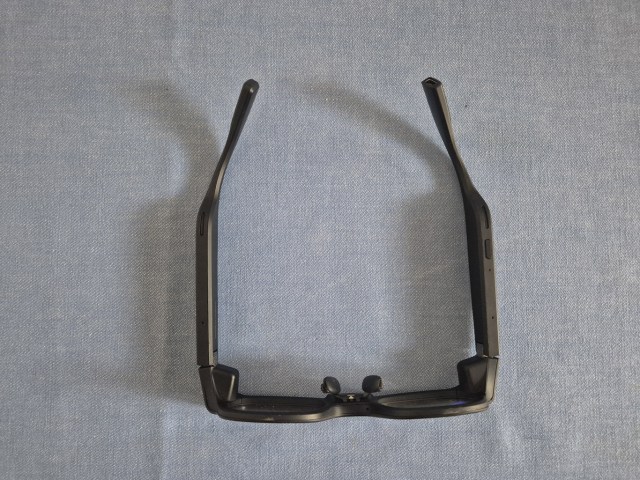 Bottom view. On the right, there is another button, which is the one to turn on/off the glasses. Both temples have another hole for the speakers here. You can also see some holes for the microphones
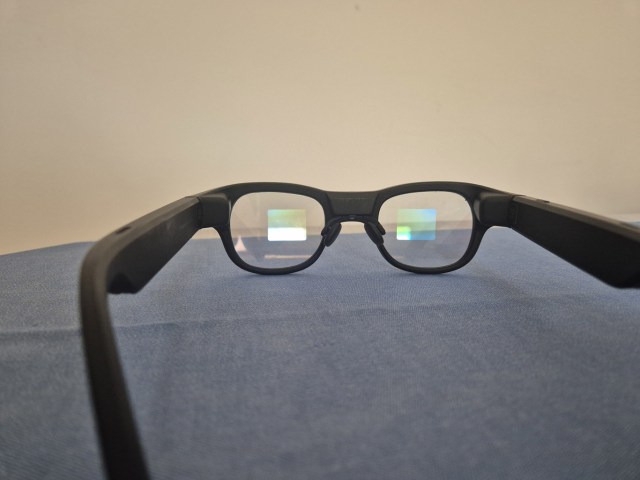 Inside view: from here you can see what the displays look like
Wearability
I usually don’t have this section when reviewing VR glasses, but considering that AR glasses have to be worn on the street, it is important to know what you look like while wearing them.
In the paragraph above, I defined the X3 Pro as “ok-looking bulky glasses”. Basically, it means that you don’t look like a weirdo while wearing them, but at the same time, it is not the glasses that make you look cool when walking in the streets.
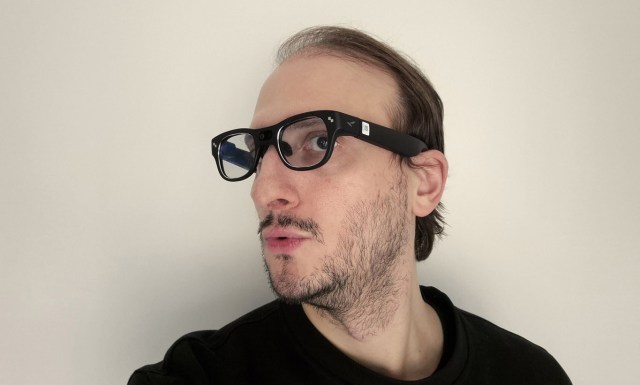 Looking ok with the glasses on my face
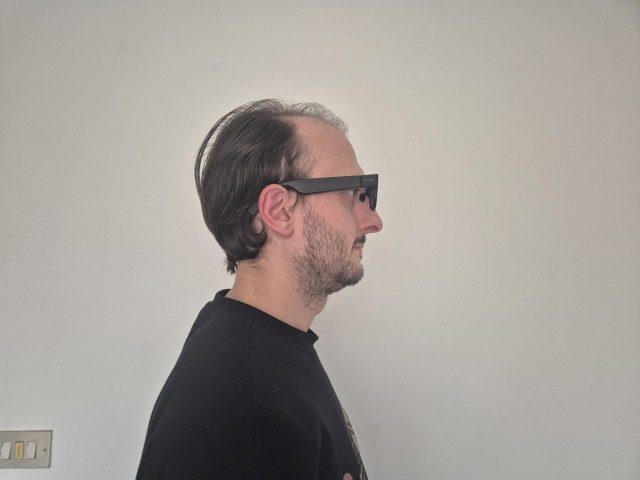 Lateral view
And I have actually walked in the streets with them. While I was at Slush, I wore the device (turned off) on the conference floor, hoping that it could be a conversation starter: I hoped that people could stop me and ask me what it was. The interesting thing is that no one actually stopped me for the whole duration of the conference. I didn’t even have some weird stares. Nothing. And one day, I took my lunch break at a nearby commercial center (the Mall of Tripla, if you’re from Helsinki, you know it for sure), and even in the streets or in the commercial center, no one gave a single f*ck about me wearing the RayNeo X3 Pro glasses. This is great news, it means that even if bulky, they are “glasses enough” for people not to notice them, and just think you’re a guy with some bulky glasses.
 Walking around Helsinki with my RayNeo X3 Pro glasses on
You may just look like one of the stereotypical nerds of the movies with the thick lenses… and if you wear smartglasses in the streets, you’re actually a nerd, so this makes totally sense in the end. But again, this means that you’re not going to look cool, and this is a bit of a concern if you plan to wear them every day.
The glasses also work via a Bluetooth connection, so you don’t even have the cable that may make you look strange. The only thing that can betray you is when the device is on: in this case, in front of your eyes, you may have a very noticeable screen light. The more the environment around you is dark, the more this light is visible, and the more you’ll look like a cyborg to the people around you. On this side, the Ray-Ban Meta Display is much better, because it almost completely covers the fact that you have a display in front of your eyes. But this is the only side of the display in which the Meta Glasses had an edge over these, in my opinion.
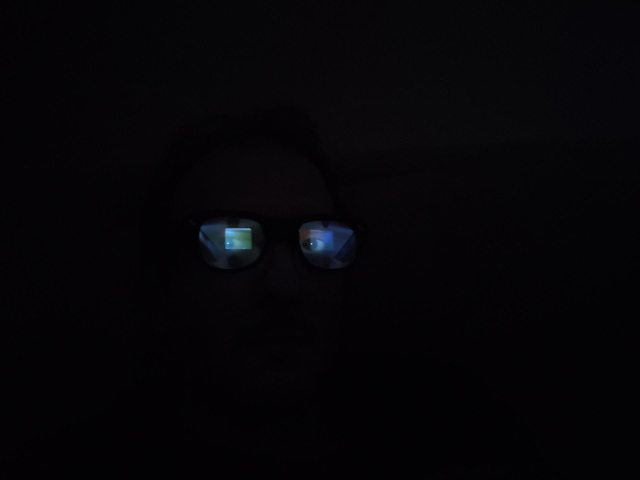 Alone in the dark with the X3 glasses on
Visuals
The visuals of these glasses are what impressed me the most, since the first moment I turned them on. Ray-Ban Meta Display is nice, but it is monocular, inobtrusive, and with colors that are a bit washed out. This one is the total opposite. First of all, it is bright, and when I say bright, I mean really bright. When I turned on the device, I was loving how its colors looked vivid and the image clear in my eyes, when I noticed that the brightness was actually still set at minimum! Setting the brightness at maximum allowed me to use my glasses even when looking at a standard lamp on my ceiling during the evening. This is hardly thinkable with many other AR or smartglasses out there. The reported brightness is 3500 nits with a peak of up to 6000, which is enough even for outdoor usage. Outside your house, you can still see the virtual information and use it, even if not as well as indoors.
Visuals are binocular, so there is no eye strain while looking at content, like on Meta’s glasses or the old Google Glass. The reported FOV is 30°: I admit I was surprised to read this number, because I thought it was much more than that. Probably the UX of the glasses has been studied well to fit that FOV, and most of the time I felt ok with the small field of view I had. For most activities, 30° is ok, but when you have to play games or watch a video on them, it starts to feel a bit small.
Regarding the colors, the display feels pretty bright and vivid. I like how the content feels alive. And the text is very readable, even when it is small. Of course, sometimes you would like to have a bit more resolution to enjoy the tiniest details of the images in front of you, but most of the time, resolution feels ok.
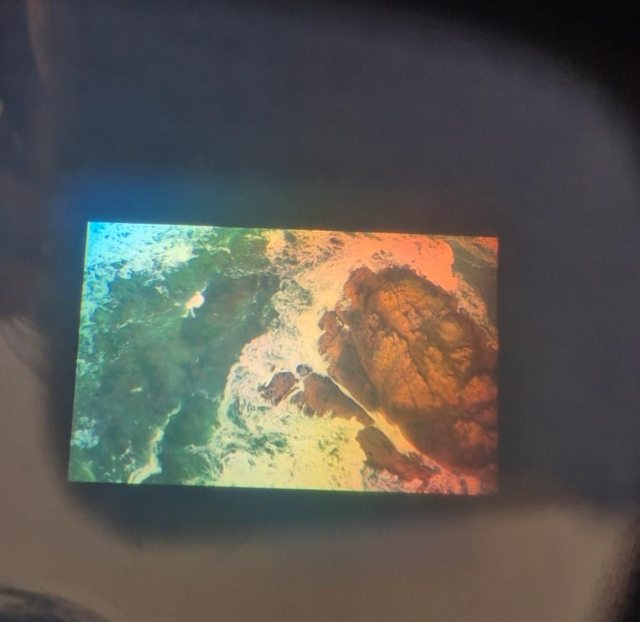 Through the lens shot: ignore the big color variation that is due to me not having a proper setup for this shot, and appreciate the screen definition
In general, the waveguide co-developed with Applied Materials, together with the microdisplays by JBD, does a great job. I’ve read on Reddit that the “rainbow effect” is reduced by 95%, and I can confirm that I didn’t have the impression of seeing many “rainbows” as it happened with Snap Spectacles, for instance. I just saw something in the left corner of my vision, but nothing that could disturb me much.
During my tests, I noticed an artifact that annoyed me, and gave me the sensation that I was looking at an “old-school display” sometimes. Since I’m not a display expert, I decided to use some help from the favorite display expert of us all: Karl Guttag. I downloaded some of his test patterns and tried them on the glasses. The test patterns confirmed that the colors are great and the text is readable, but they also unveiled a very visible “grainy” pattern on the visuals. I don’t even know the name of this problem (Gemini suggested something like “laser speckle”), but I can tell you what it does look like: you are looking at a white square with red text in the center, and the square actually looks white, but some pixels inside it have a different color, like pink. Not many, but enough to make you see the square as “grainy white” instead of just plain white. It is not super annoying, but it affects how certain images are perceived.
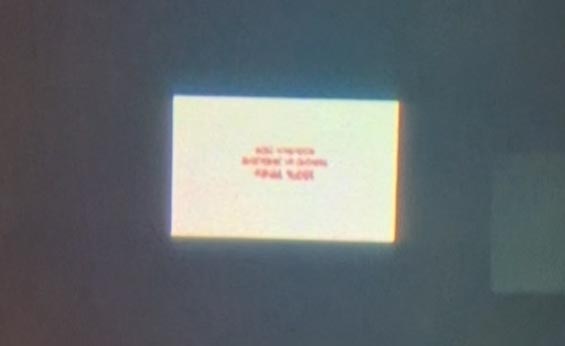 The white square does not look completely white, but you can see some light red areas. If you saw this at high resolution, you would see that those areas contain some red pixels
The other problem for me is the resolution. 640 x 480, even across 30° FOV, is simply too little for 2025. I know microdisplays are expensive, so this may have been a trade-off about price… but in some contexts, I really felt the need to have more pixels. The good news is that most of the time, resolution is fine for what you have to do (you don’t need a 4K display for teleprompting). But in some moments, like when you launch an Android app you sideloaded, or you watch a video, or you play a game, you notice that there should be more pixels to have an optimal experience.
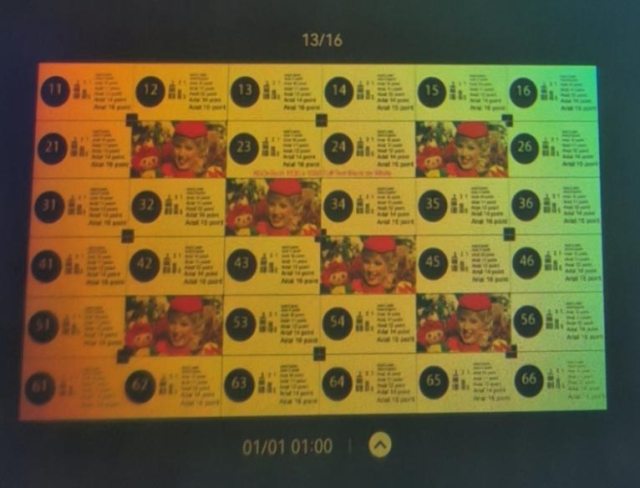 This is a famous test pattern by Karl Guttag. Again, ignore the big rainbow; the rectangle appears with a more uniform white inside the headset. But the text is so small that it is not readable at such a low resolution
Comfort
Even if they are bulky, I have to saythese glasses are quite ok comfort wise if you have to wear them for a limited time. They weigh 78g on my Kitchen scale, which is much more than the advised 40g for daily usage of glasses. In fact, when I tried to put them on my face for the whole time of my Slush experience, after some hours, I felt the need to take a break from having them on my face. But if I keep them on my face for a more limited time, I just feel some discomfort on the point where they rest on my nose and some “clenching” where the frames close around my head. The nose thing is the one that creates a bit more of a problem for me, maybe also because my nose is not exactly the smallest out there.
In general, I don’t consider them uncomfortable. They are also quite stable on the head, so even if you move your head up and down or left and right, they don’t move, which is great.
 It wouldn’t be a review of mine without this picture
Talking about the “visual comfort”, I have a couple of considerations to make. First of all, the visuals are straight in front of you. This is pretty obtrusive: you can not wear these glasses while you’re doing something else, because the bright content on the screens is going to block your vision. This is why Meta put the screen of the Meta Ray-Ban Display on the lower-right corner of your vision. So theRayNeo X3 Pro is more suited for activities where you actually dedicate yourself to the AR content, while Meta Ray-Ban is more suited to have some contextual info while you are doing something else in the real world.
What about keeping the display off? Well, this is what I did at Slush most of the time (not to drain the battery of the device), and the good news is that the lenses have a good transparency, so you don’t feel like having sunglasses always on, like with other smartglasses, but it’s more like having a slightly darker world. Also, you have some visible reflections on the side of the lenses, and sometimes some blueish or redish halos appear. In general, this is not a big deal, though.
Audio
The headset features some integrated microphones and two speakers close to the user’s ears.
The microphones work pretty well: I had a few phone calls with them, both as a speaker and as a receiver, and I have to say that when someone is speaking through these glasses, you receive the voice crystal clear. No one notices that you are speaking through glasses and not through your phone.
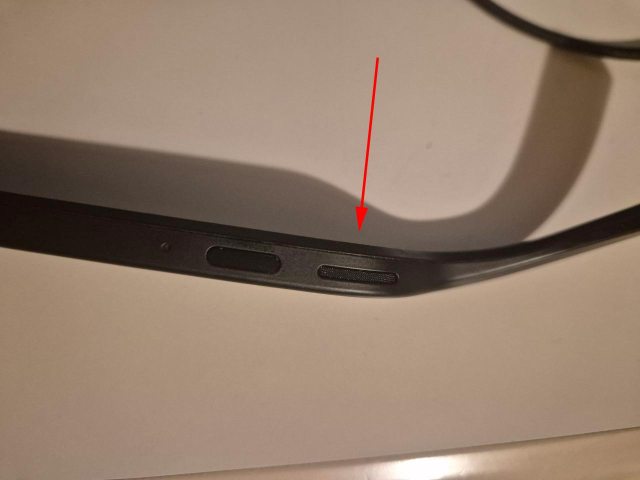 One of the integrated speakers on the glasses
The speakers are clear and loud, too. When put at maximum, people around you can kinda listen to what you are listening to, so don’t use these glasses to watch “some specific type of content” when other people are around you :). While I think the speakers work well, I’ve also noticed they have some unusual responses to some frequencies. When I was having my phone calls with the glasses, I was hearing the person on the other side in a different way than on the phone or on Microsoft Teams. I’m not an audio expert, so I don’t know how to say it, but it was like the voice was very slightly muffled. Even when I tried to play a song that I like, I heard it being slightly different from what I usually hear with my earphones. I’m not saying it was bad, but it was different.
Tracking
Currently, TCL RayNeo X3 Pro only works with 3DOF. Most apps are 2D, but when I tried the 3D ones, they couldn’t keep a stable position in the world. I also tried to sideload an app that uses ARCore, and it didn’t work because the OS doesn’t have Google AR Services. Considering it has a front camera, some sort of SLAM tracking may be possible in the future (XREAL is already doing that), but today you can not build proper AR applications with it. Eye and hand tracking are also not supported.
Interactions
You interact with the RayNeo X3 Pro mostly using the touchpads on the temples. You can swipe up-down-left-right, and you can also tap to click or double-tap to double-click. As you can guess, usually the swipe is to scroll through elements, the tap is to select, and the double-tap is to undo/return. The right temple touchpad is used for navigating through menus, while the left one has special functions, like you can swipe it left-right to change the volume during a call. Navigation works pretty well, but sometimes it is a bit too sensitive… like you are just adjusting the glasses on your head, touching the frame, and that is taken as an input. Or yesterday I was swiping through the previous calls, and I accidentally started a new one.
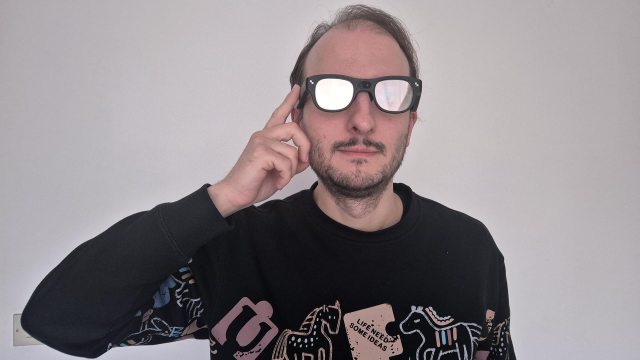 Touching the temple to interact
You can also have another interaction by tapping and keeping the finger pressed for about 1s. If you do that on the right temple, you open a quick-actions menu (similar to swiping down from the top on your Android phone), while if you do that on the left temple, you start a conversation with the AI assistant.
You can also summon the AI with a specific wake-up phrase like “Hello, RayNeo”.
Another interaction mechanic is triggering the camera for photos and videos using the button on the top, of course.
Battery
The battery is probably the Achilles’ heel of this device. When in use, the battery drains very fast: while I was doing my mixed tests, it went out in a bit more than one hour. Some specific features drain it even faster, and I’ve read some reviewers depleting the battery in like 40 minutes! These are not glasses you can keep on your face for long tasks, but more for shorter ones, like maybe having a teleprompter for a 30min speech, or using them for navigation from point A to point B, etc…
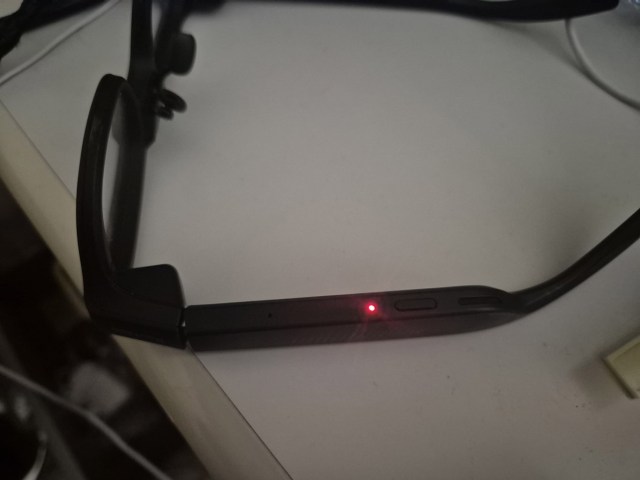 The red light you see when you charge your glasses via USB
The case does not provide charging features, so if you want to use the glasses when you’re outside, you had better bring your battery pack.
The good news is that charging them is also very fast, and in around 40 minutes, you can get a full charge.
Computational Power
RayNeo X3 Pro mounts a Qualcomm Snapdragon AR1 chipset, like many other smartglasses. It works fairly well for most of the applications I tried and the videos I played. The only moment I saw the glasses having some difficulties was when:
I tried the demo games provided with the glasses
I tried to sideload some Unity applications I have developed.
In general, AR1 is good unless you ask it to perform resource-intensive applications.
Photos and videos
Like all other smartglasses, the TCL RayNeo X3 Pro can shoot photos and videos. It can actually also record audio files that you can use as is, or you can ask the AI to transcribe.
The quality of the photos and videos is okay. The camera is a 12MP one, which is not bad, but the number of pixels is not the only thing that matters when talking about recording media. You can have a look at a sample photo and video below.
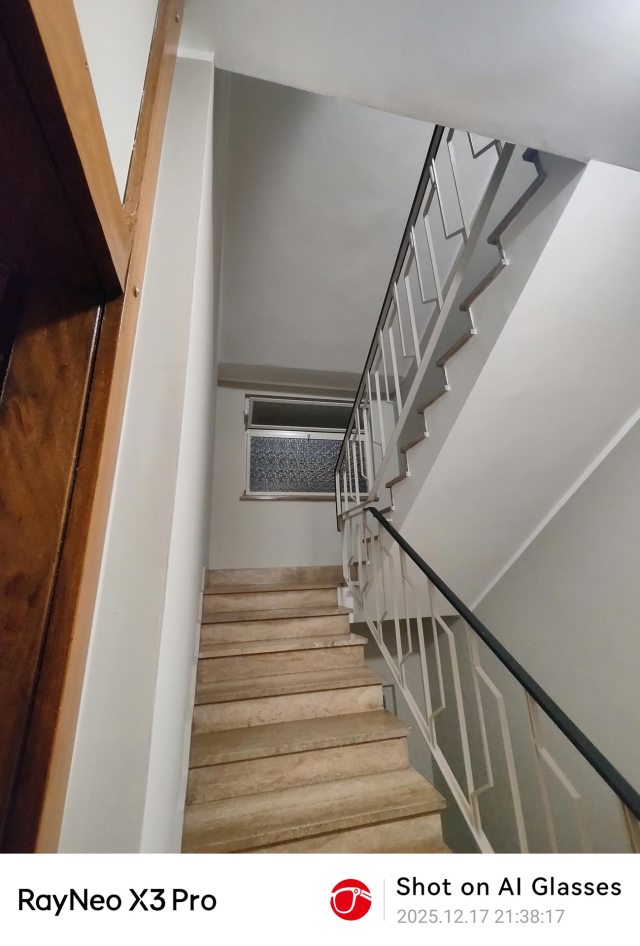 A not so sexy photo of some stairs, shot through the glasses
Other stairs…
As you can see, the colors and the definition of the images are not top-notch, but they are still acceptable. Photos are saved directly on the device, and then you can move them to your phone’s gallery through the companion app. When you shoot media content, on the screen, you can see a preview of what is being captured, so you don’t risk making mistakes.
Privacy-wise, it is important to know that when you’re shooting a video, there is a white front LED that blinks.
Phone Connection
The RayNeo X3 Pro is a standalone device. It can work with limited functionalities even if you don’t have a nearby phone. For instance, it can shoot photos and videos independently. Of course, to have most of the features, you must connect it to your smartphone.
Smartphone connection is via Bluetooth (and sometimes via Wi-Fi for some operations), and this lets you have a tetherless experience. I hated the first generation of glasses that required a USB cable from the phone to the glasses: it was weird to see, and it was also uncomfortable, with the wire unbalancing the glasses on one side. Having wireless glasses is very liberating.
There is a companion app that you have to install on your phone to do a few things, like:
Connect the glasses to Wi-Fi
Configure a few settings on the glasses
Launch applications
Transfer photos
Launch the teleprompter or the map navigation
Trigger the “AR recording on the glasses.”
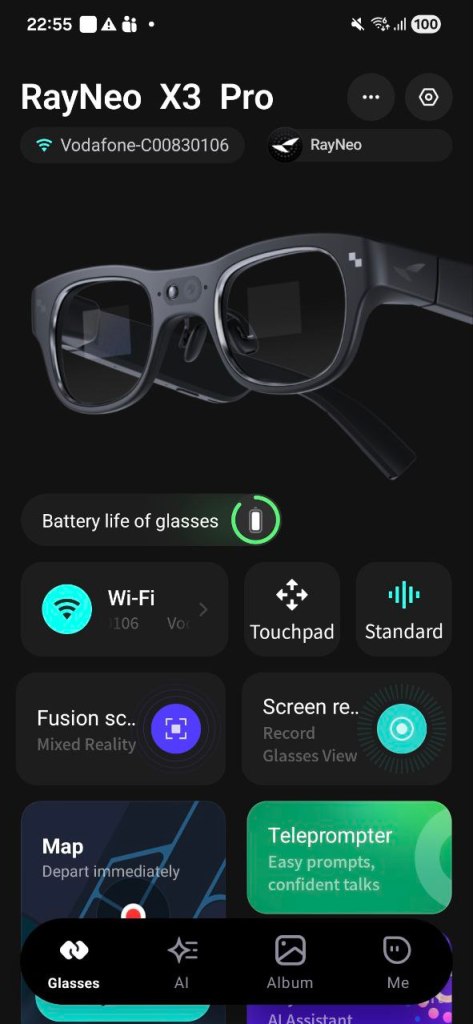 A screenshot of the companion app
The phone can also act as a touchpad that substitutes the physically swiping on the frame. This is very useful if you need to swipe a lot, which can be tiring because it requires you to keep your hand raised close to your head for a long time.
The phone can actually also become a 3DOF controller in some contexts, like when you’re launching an Android app you sideloaded. When you launch an Android 2D app that has to react to touch input, you would have no way to “touch the screen” on the glasses, so your phone becomes the controller, and using it, you can “point and click” on the section of the screen you want to interact with.
AI Assistant
RayNeo X3 Pro has an AI assistant that, in the West, is powered by Google Gemini. You can open it either by keeping touching the left temple or by saying a wake-up expression like “Hello RayNeo”. I guess that I don’t have to explain to you what an AI assistant is and how it works, so I’ll just go straight to telling you about its performance.
I had a few conversations with it, and it can understand my English pretty well, even if I’m not a native speaker. It is aware of something about my context (e.g., my time and my location), and it can provide good answers. The answering voice is also crystal clear.
It is advertised that it is possible for the AI to see what I’m seeing through the camera so that it can provide me with contextual suggestions. Various people managed to do that, but I was not able to activate it. I thought I was stupid, so I asked my friend Tyriel Wood about that, and he didn’t manage either. So either both of us are stupid, or in some territories with strong privacy laws like Italy, some AI features are still disabled. I’m still unsure which one of the two options is right, but I hope for the latter 😀
One thing that is a bit disappointing about the AI conversations is that every chat is currently independent from the others. I tried to ask in a chat about the weather in my city, then I closed it by double-tapping, then started another AI chat and asked what was my last question. In the new chat, the AI had no idea. It would be great if in the future some “history” feature for the AI were added.
Operating System
The glasses come with an operating system whose interface has been studied to work with a limited FOV. It has four main screens:
A home screen with the time and a few info icons (e.g., the battery indicator, Wi-Fi indicator)
A quick-actions screen, which is the equivalent of what you obtain in Android when you swipe down from the top of the screen. From here, you can configure the Wi-Fi, start recording, etc.
An App screen, through which you can launch an app or launch the settings configuration
A notification screen, with all the latest notifications
Every time you launch an app for the first time, you get a mini-tutorial of a few “slides” on how to use it.
Most of the interactions in the operating system are about swiping through various options, tapping to select something, and then double-tapping to exit from your current application. I’ve found the navigation easy and intuitive most of the time.
There is an integrated feature in the OS that is worth mentioning, and it is the “AR Recording”. Basically, it lets you record a video of what you are seeing on the screen, including both the real world in front of you and the virtual elements projected on the glasses. This is great to showcase footage of the glasses on social media, or to make people see what your experience with the glasses is like, or to make demo videos of your applications. The only caveat is that there are a few applications for which the recording does not work. For instance, I wanted to record the Map Navigation for you, but I was not allowed to do that, and that’s why below you just find a crappy picture I made through the lens and not a beautiful screenshot.
I recorded some sections of the OS using the AR recording feature
One thing that surprised me is that I found no native feature to mirror the screen of the phone onto the glasses, as it happens with many smartglasses (e.g., the ones made by XREAL). I think this is a feature the RayNeo team should add soon, because it allows people, for instance, to watch Netflix on their smartglasses.
In general, everything worked, but I sometimes had a few glitches here and there. For instance, while typing these words, I asked the system to remove all the app notifications, and some of them remained. There are no major bugs, but a few little glitches that can be solved in future updates.
Applications
My glasses came with some pre-installed applications. I’ll briefly describe them:
Map Navigation. It allows you to select an address, either by saying it or by typing it on the phone, and then it can provide live directions to tell you how to reach your destination. Live directions have an arrow, some indication of the distance until the next instruction, and a little 2D view of the map around you. It’s super cool that it works everywhere, even in my city, Turin (Italy), which is not exactly San Francisco. This is a pro over the Ray-Ban Meta. The con is that my experience with it was not perfect: for instance, sometimes when I had to go straight, it suddenly said I had to turn, and then corrected itself, saying that I should keep going straight. It kinda works, though, which is still good
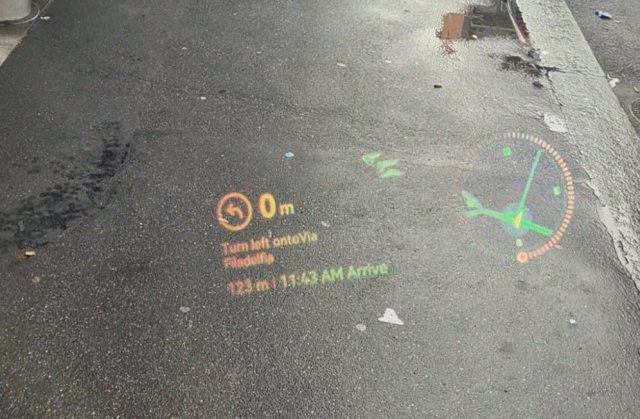 Through-the-lens picture of the navigation instructions
Translation. The usual use case you have already seen one million times. You are speaking with a foreigner, and the system can live translate what the other person is saying into your language. This works pretty well, and it also includes Italian. I was able to have a conversation mixing Italian, English, and Chinese, and the translation was quite good
Media playback. You can play some audio on your phone and hear it through the glasses, also controlling its playback. It’s nice to listen to some music
Teleprompter. It allows you to write/load a text and then see it in front of your eyes. You can use your phone to scroll the text at the speed that you want. This is very useful for presentations, for instance. The text is very readable, so it can come in handy
To-Do. You can create a to-do list of items and have reminders about them
AI Recorder. It listens to a conversation of yours (e.g., in a meeting), transcribes it, and then summarizes it and extrapolates action points. I briefly tried it, and it works quite well
GlassPay. It allows you to pay with AliPay, but only in Hong Kong for now. Paying for a plane ticket to HongKong just to try this feature seemed like overkill to me, so sorry, but I can’t tell you if it works. Feel free to donate me a few thousand euros via Patreon so I can go testing it
Beat Space / Dragon Master. Small games with 3D elements around you and that showcase some interactions (head tracking for Beat Space and voice interaction for Dragon Master). They’re just some tech demos and nothing more
Phone. It lets you have phone calls via your phone
Album. It lets you see the photos and videos you have on the device
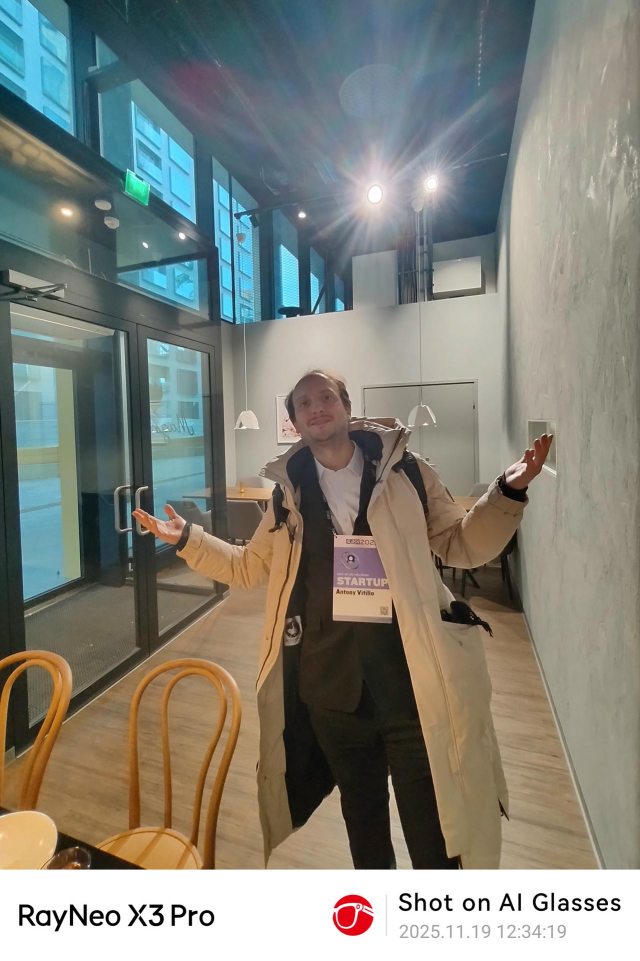 A photo of friend of mine took of me when I was in Helsinki
Sideloading
The glasses also have a “App Lab” section (a very original name…) where you can find the apps you sideload to the device. You can perform Sideloading via SideQuest once you understand how it works. I did not until I watched this YouTube video:
Whoever you are, thanks for this video…
The first tricky part is activating developer mode, which requires you to go to the settings and “hit the wall 10 times”. When I read this expression, I thought I had to smash my head against the wall 10 times, which wouldn’t even be so absurd considering the frustrations we developers undergo every day. Anyway, the actual meaning is that you must go to the settings, and then swipe left 10 times.
Once developer mode is activated, if you connect the glasses to your Windows 11 PC, it most probably won’t be detected by adb because Windows 11 has some “drivers that are too new”. Now… I don’t want to sound mean… but Windows 11 came out in 2021… how the hell is it possible that the glasses can’t connect because it is too new??? The solution to this absurdity is to install on your PC a tool coming from uncertain sources and use it to downgrade your ADB drivers and make them return to prehistory. This procedure is so safe that the first time I did it, I made a mistake (my fault), and my wireless mouse stopped working. Luckily, I’m a tech guy and managed to solve this, but I honestly think all of this procedure makes no sense at all. Probably I should go to the basement and recover my old PC running Windows 95 to properly sideload on these glasses…
 Probably I should call Windows95man to help me… (Image by EurovisionFun)
Anyway, once you survive this procedure, sideloading via SideQuest works like a charm, and it is possible to install many Android apps. I even tried some Unity apps that I made myself, and they were working.
Carrying Case
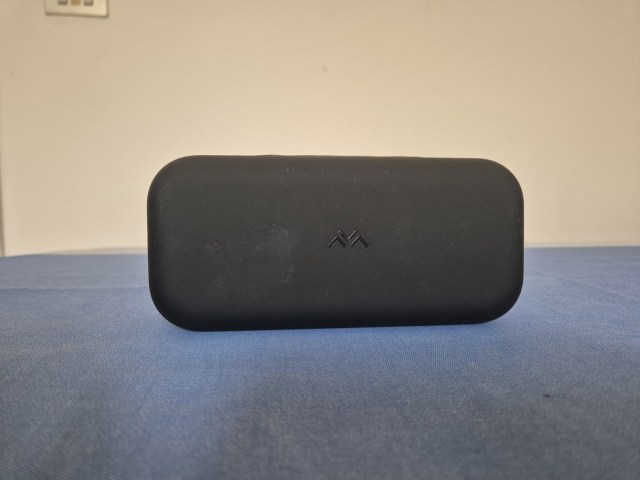
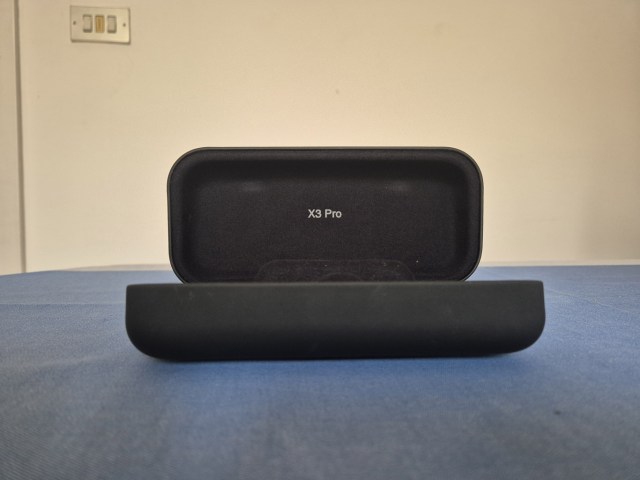
The glasses come with a case that has no special feature, but it is quite elegant and it is pretty sturdy. I took the glasses with me in Finland and the case protected them very well during the whole trip.
Price and availability
The TCL RayNeo X3 Pro is now finally available outside of China, and today, it has just been launched worldwide. The price in Europe is €1400, but for the next 20 days, there is a €200 discount. In the US, the currently discounted price is $1100. You can buy them on this website: https://www.rayneo.com/products/x3-pro-ai-display-glasses
The price is pretty steep if compared to many other smartglasses, but these are also much more advanced than most of the smartglasses out there.
Final considerations
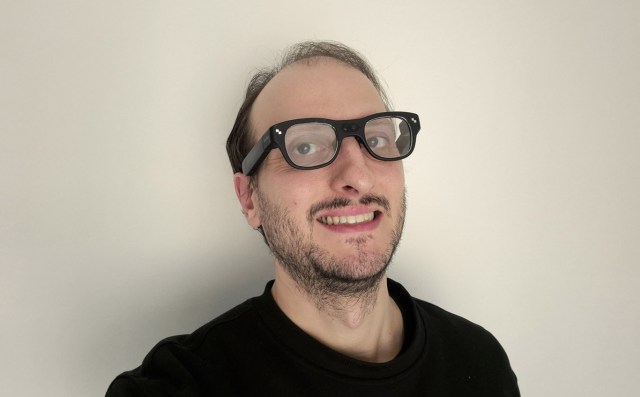 Selfie time!
The RayNeo X3 Pro are probably the best smartglasses I’ve tried until now. The Meta Ray-Ban Display is nice, but I’ve not been impressed in my hands-on with them: in my opinion, their killer feature is the wristband. If we consider only the glasses, I think Ray-Neo has a much better display and a more usable interface. The vivid colors, the clarity of use outdoors, the functional AI, and the possibility of using the map navigation even in Italy made me appreciate these glasses a lot.
Of course, there is no free lunch, and the RayNeo X3 Pro is paying for all these features with a bulky design and a short battery duration. The price is also very high and very distant from any chances of mainstream adoption. To me, this seems like a first edition launched for early adopters and prosumers, to enter the market and prepare the next versions, which may have a more mainstream appeal.
Should you buy it?
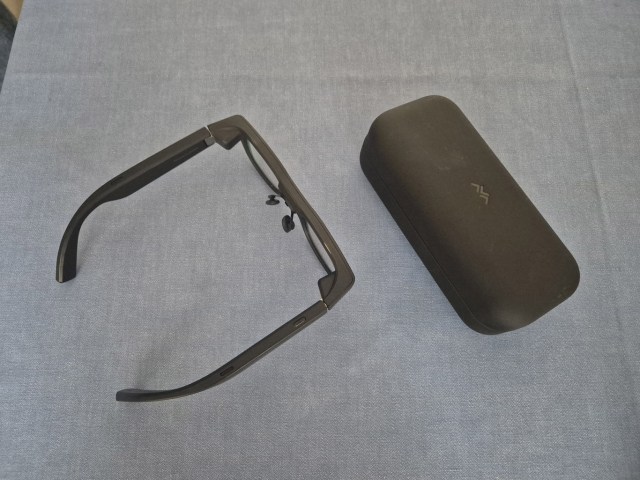 The glasses and the case
If you are looking for AR glasses to wear every day on the streets, probably not. If you are looking for glasses that you can use for many hours a day, no. If you are on a budget, definitely no.
If you are looking for some smartglasses to experiment with AI and visuals on the screen, then yes. If you are a prosumer and want to try some high-end smartglasses and have the budget, then yes. If you have a use case for which you need glasses with a bright display that can also be used outdoors, then yes. If you are a developer and want to create an app for smart glasses with a display for an enterprise customer, then yes.
This ends this monster review about the RayNeo X3 Pro! Thanks for having read it until the end! I would appreciate it if you could let me know your considerations in the comments and if you could share this article with your peers to also inform them about this interesting device… thank you!
Disclaimer: this blog contains advertisement and affiliate links to sustain itself. If you click on an affiliate link, I’ll be very happy because I’ll earn a small commission on your purchase. You can find my boring full disclosure here.
Share this with other innovators
Related