
If it feels like there’s a new AI model, feature or update every day, you’re not imagining things. Even for someone who covers AI for a living, it can be hard to keep up with the pace of change.
Figuring out which chatbot does what — and how to actually use it — can quickly become confusing. And if you’ve tried switching from ChatGPT to Claude only to get hit-or-miss responses, you’re definitely not alone.
Article continues below
You may like
To help you get better results right away, here’s a Claude cheat sheet with the most useful prompt techniques, common mistakes and example prompts you can start using immediately.
1. The golden rule: Be specific
(Image credit: Anthropic)
Claude performs dramatically better when you give it clear context. You may have noticed that the model will often ask for clarity before immediately responding. Like most AI assistants, it isn’t great at guessing what you mean — but it excels when you explain exactly what you want.
Instead of using vague prompts, tell Claude your goal and what format you want. It can deliver responses directly in the chat or even in a Google or Word doc. These small details help the model understand the task and produce something far closer to what you actually need.
Weak prompt: Write me an email.
Better prompt: Write a professional but friendly email to a client explaining that the project deadline is moving by two weeks. Keep it under 150 words.
You’d be surprised how many users will give minimal details, hit enter and hope for the best. But although AI is smart, it’s only has smart as what you give it. The more you can prompt it in the way of tone, purpose and constraint, the better the outcome. Those elements give Claude clear boundaries to work within, which usually results in a more polished and useful response.
2. Tell Claude about your audience

(Image credit: Lepow)
Whether you’re using Claude to create a presentation for a small group meeting or to write a speech to a stadium full of people, one of the simplest ways to improve responses is to specify who the explanation is for.
What to read next
Claude automatically adjusts vocabulary, tone and complexity based on the audience.
Prompts to try:
Explain quantum entanglement to a curious 12-year-old.
I’m a marketing manager with no coding background. Explain what an API is.
Assume I’m an unexperienced lawyer. Review this contract clause for risks.
This technique is especially helpful when learning complex topics or writing content for a specific group. Of course, Claude can make mistakes and it is important to cross check the information. Sometimes the mistakes are glaring; other times you simply have to do a gut check. I’ve even asked Claude, “Are you sure this is correct?” or “Please double check your work.” Often, the chatbot will apologize for mistakes.
3. Assign Claude a role
(Image credit: Anthropic/Claude)
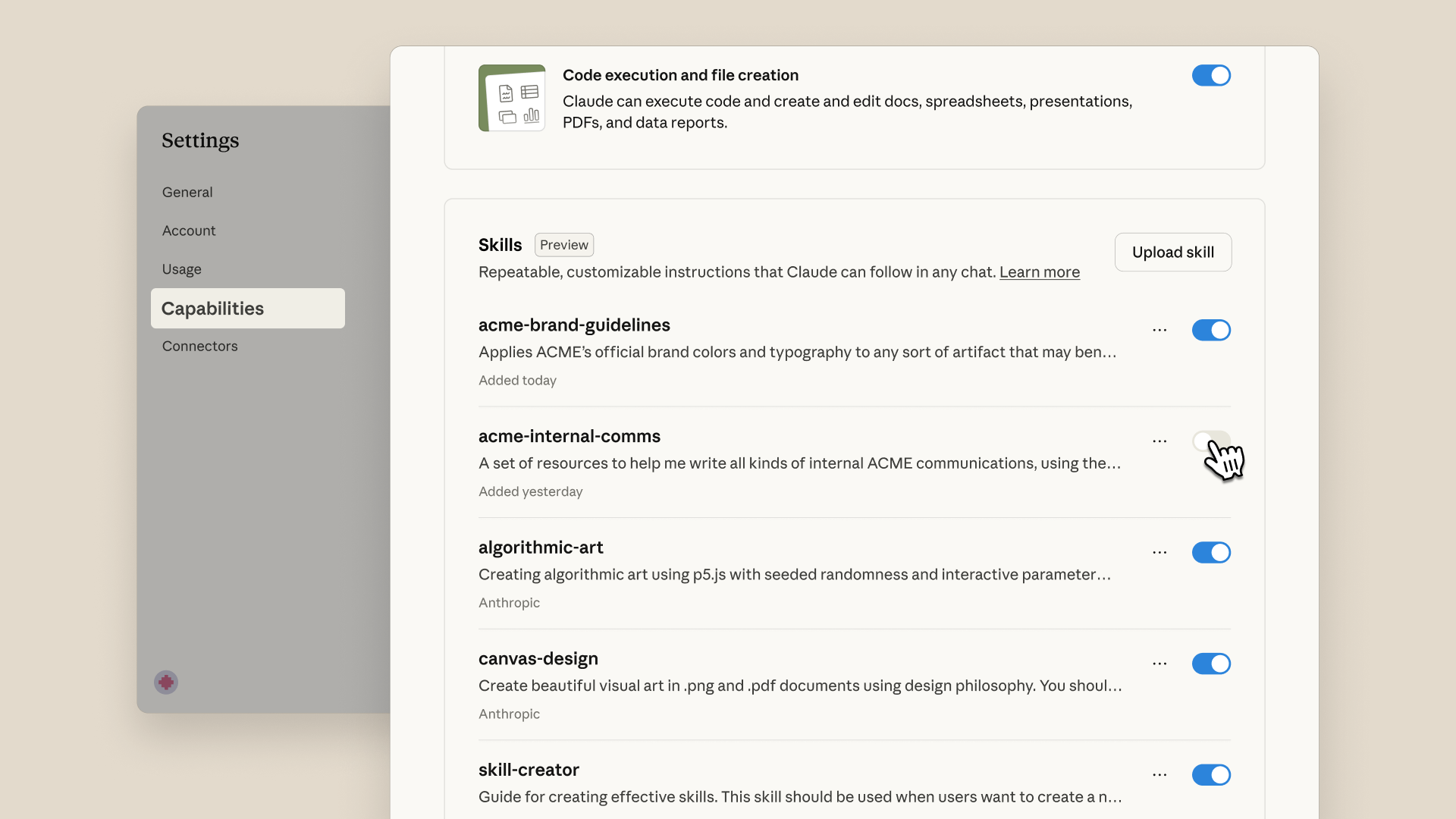
Use Claude Skills to give Claude a persona or professional role. Doing so often produces sharper responses. Now, instead of asking a general question, tell Claude who it should pretend to be. This works because Claude begins responding from the perspective of that role.
Example prompts:
Act as an experienced UX designer and critique my app’s onboarding flow.
You are a skeptical editor. Find weaknesses in my argument.
Pretend you’re a financial advisor explaining Roth IRAs to a beginner.
4. Use constraints to shape the output

(Image credit: Anthropic)
Adding constraints helps the AI deliver exactly what you need. The more specific you can get with AI, the higher the quality of the output. Many new users prompt with the bare minimum. But you can specify:
word countreading levelformattonenumber of options
Sometimes I have to remind myself that AI doesn’t get annoyed. This is what makes specifics so incredible. You can ask for something under 100 words and in bullet points only. Or, ask for 25 variations of a different recipe. It won’t sigh or judge you for your over-the-top requests.
5. Show Claude an example

(Image credit: Anthropic)
Like taking an image of your favorite celebrity to your hairstylist, Claude works best when given an example. This technique — often called few-shot prompting — is one of the most powerful ways to guide AI output.
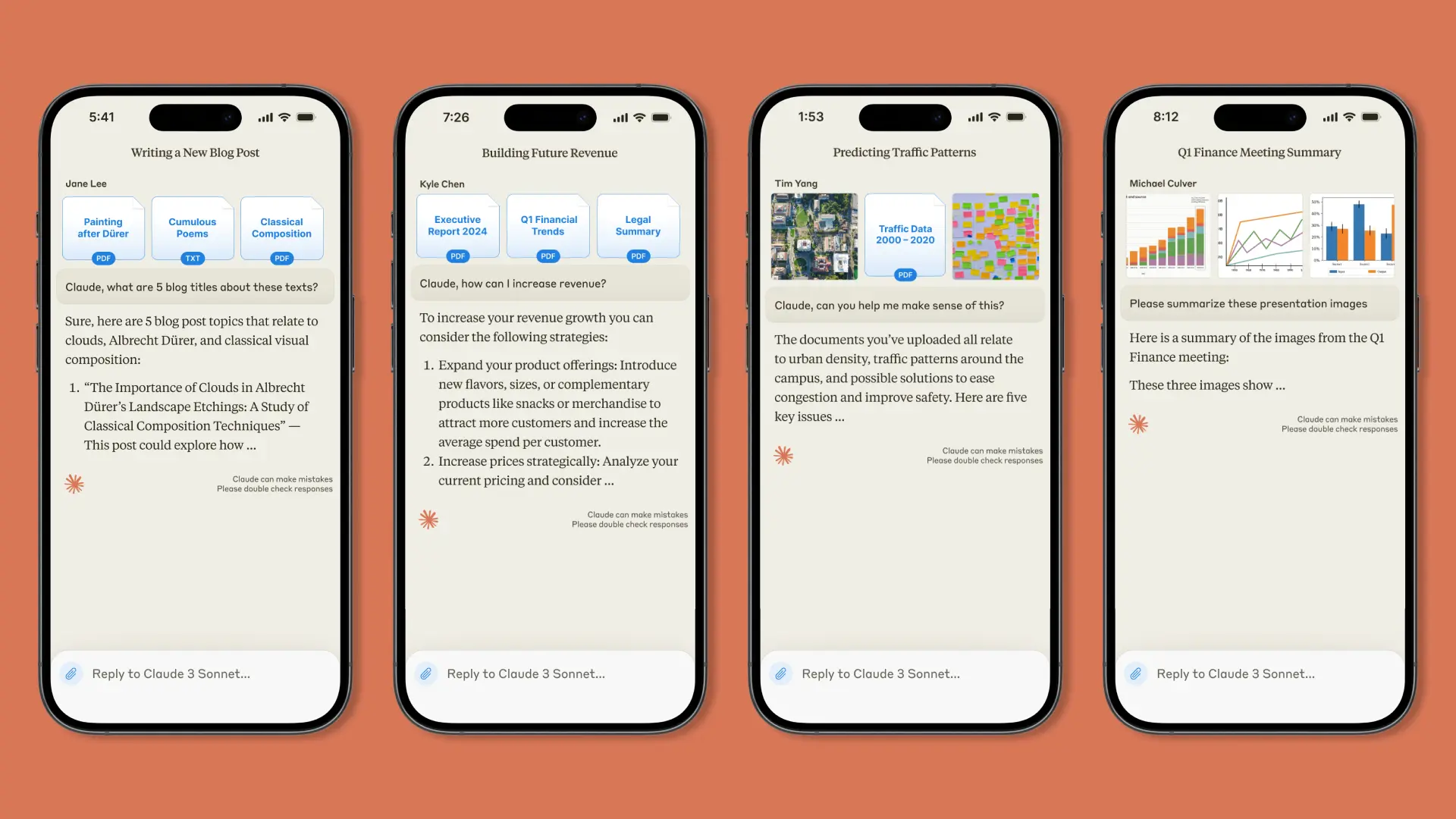
Simply show Claude an example of what you want (just upload an image or document) and ask it to follow the same pattern.
Example prompt: Here’s a product description I like. Now write three similar descriptions for a leather wallet, a travel mug and wireless headphones.
Claude will replicate the tone and structure of the example.
6. Ask Claude to reason step-by-step
(Image credit: Anthropic)
For complex problems, ask the AI to think through the problem before answering. This often leads to more accurate and thoughtful responses.
Prompts to try:
Think through this step by step before giving your recommendation.
Walk me through your reasoning.
List the pros and cons before making a final suggestion.
7. Iterate instead of starting over

(Image credit: Anthropic/Claude)
Just like with the “3-prompt-rule,” one of Claude’s biggest strengths is its ability to refine responses through conversation. You can chat with it like a human until you resolve your issue and get the results you really want. Think of Claude as a collaborator rather than a one-shot tool.
Instead of rewriting your prompt, simply ask the AI to adjust its answer.
Helpful follow-ups
Make it shorter.
Make it more casual.
Give me another version of option two.
Change this section but keep the rest.
Make it punchier.
8. What Claude does best
(Image credit: Anthropic)
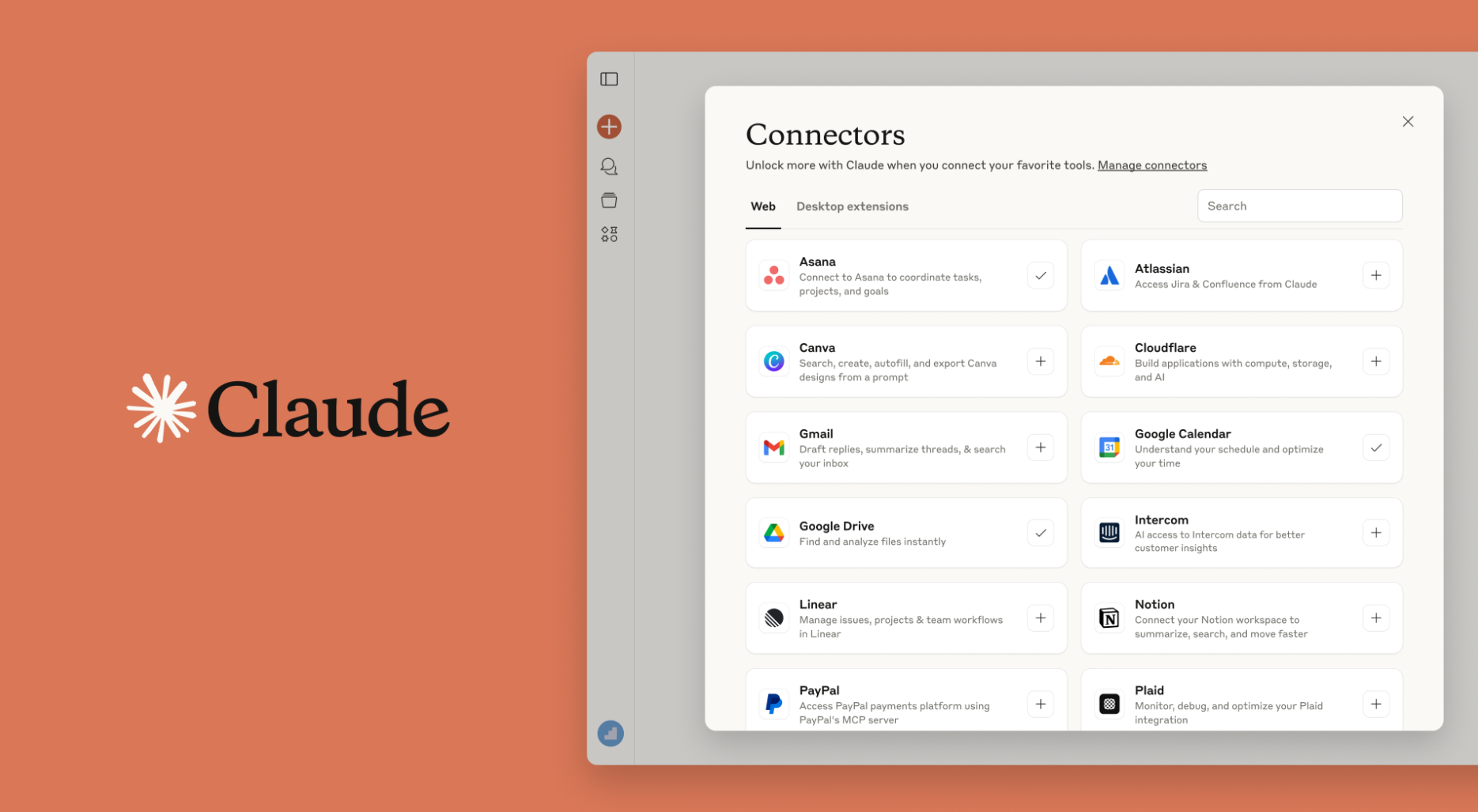
Claude performs particularly well in several areas including writing and editing. It’s arguably the best of the chatbots for this. To make the most of this particular area of excellence, make sure you start by pasting or uploading your draft and asking for feedback on tone, clarity or structure. This also works for research summaries. Upload the article and ask Claude to summarize it or use the “reverse brief” prompt for even deeper results.
Similarly, it can help you brainstorm ideas, so ask for more ideas than you need and then refine the best ones. Try it with coding help and planning, too. Claude can uncover errors you aren’t seeing and guide you with better suggestions.
9. Common mistakes to avoid

(Image credit: Shutterstock)
Even experienced AI users run into these problems. If you’re using the free tier of Claude, know that there are a limited amount of prompts in a specific amount of time. Typically it’s 2-5 per hour and you only have access to Sonnet 4.6.
This is far less than what ChatGPT offers per hour and sometimes new users to Claude make the mistake of being too vague with a prompt such as “help me with my project,” which leaves the AI guessing, and by the time the user explains fully, they have to wait for their hourly limit to reload.
At the same time, you don’t want to combine unrelated questions. From my experience, Claude will actually call you out on this! Instead, split complex requests into separate prompts. The best answers usually come after a few refinements, so just be aware and budget your prompts accordingly.
10. Ask Claude to visualize complex ideas
Claude can now show you – YouTube

Sometimes the fastest way to understand something isn’t a paragraph — it’s a picture. Although Claude cannot generate images like ChatGPT or Gemini’s Nano Banana, it can now generate charts, diagrams and visualizations directly inside the conversation. These visuals appear inline and can change dynamically as you continue asking questions.
This is especially useful when you’re learning a concept, analyzing data or trying to explain an idea to someone else.
Example prompts:
Explain compound interest and show a chart of how $1,000 grows over 20 years.
Create a diagram showing how a neural network processes an image.
Visualize how global temperatures have changed over the last century.
Once Claude generates the visual, you can ask it to modify or expand it
The takeaway
Starting with a new AI model can be intimidating, especially when you don’t know where to start. But the biggest secret to using AI tools like Claude effectively is simple: give the model better instructions.
Adding context, roles and constraints can dramatically improve the quality of the responses you get.
Start with a clear prompt, refine the output and treat the AI like a collaborator — and you’ll unlock far more value from Claude.

Follow Tom’s Guide on Google News and add us as a preferred source to get our up-to-date news, analysis, and reviews in your feeds.
More from Tom’s Guide