
Android Auto is surprisingly customizable, yet most people never touch the settings once they connect their phone to their car. However, even though most of us never use Android Auto for anything other than Google Maps and Spotify, you should still tweak some settings to enhance your driving experience.
Once you take the time to explore and adjust your Android Auto settings, you’ll find yourself wanting to use it far more often. The options can feel overwhelming at first, and not all are worth your attention, so I’ve singled out five of the most significant ones that you should change immediately.
Let Android Auto start without taking your phone out of your pocket
Make the experience a lot more seamless
You get into your car, switch the ignition on, put it into drive (or first gear), and just as you’re about to roll out of your driveway, you realize your phone hasn’t even connected to your car yet.
So you take it out of your pocket while keeping your foot on the brake and fumble with the fingerprint to get the maps to show up.
Whether you use Android Auto wirelessly or via a USB cable, there’s a whole new layer of convenience you can unlock by simply allowing Android Auto to start automatically when you enter your car.
Brand
UGREEN
Cable Type
USB-C
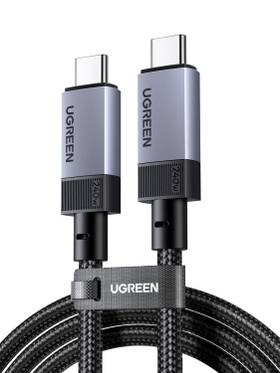
This UGREEN USB 3.2 Gen2 cable provides a massive 10Gbps bandwidth that handles high-resolution maps and music streaming simultaneously. Its 3.3ft length and 56KΩ resistor ensure a stable connection that works flawlessly with Android Auto.
Head over to your phone’s settings, search for Android Auto, and tap on it. Scroll down to Startup and set Start Android Auto automatically to Always, and also enable Start Android Auto while locked.
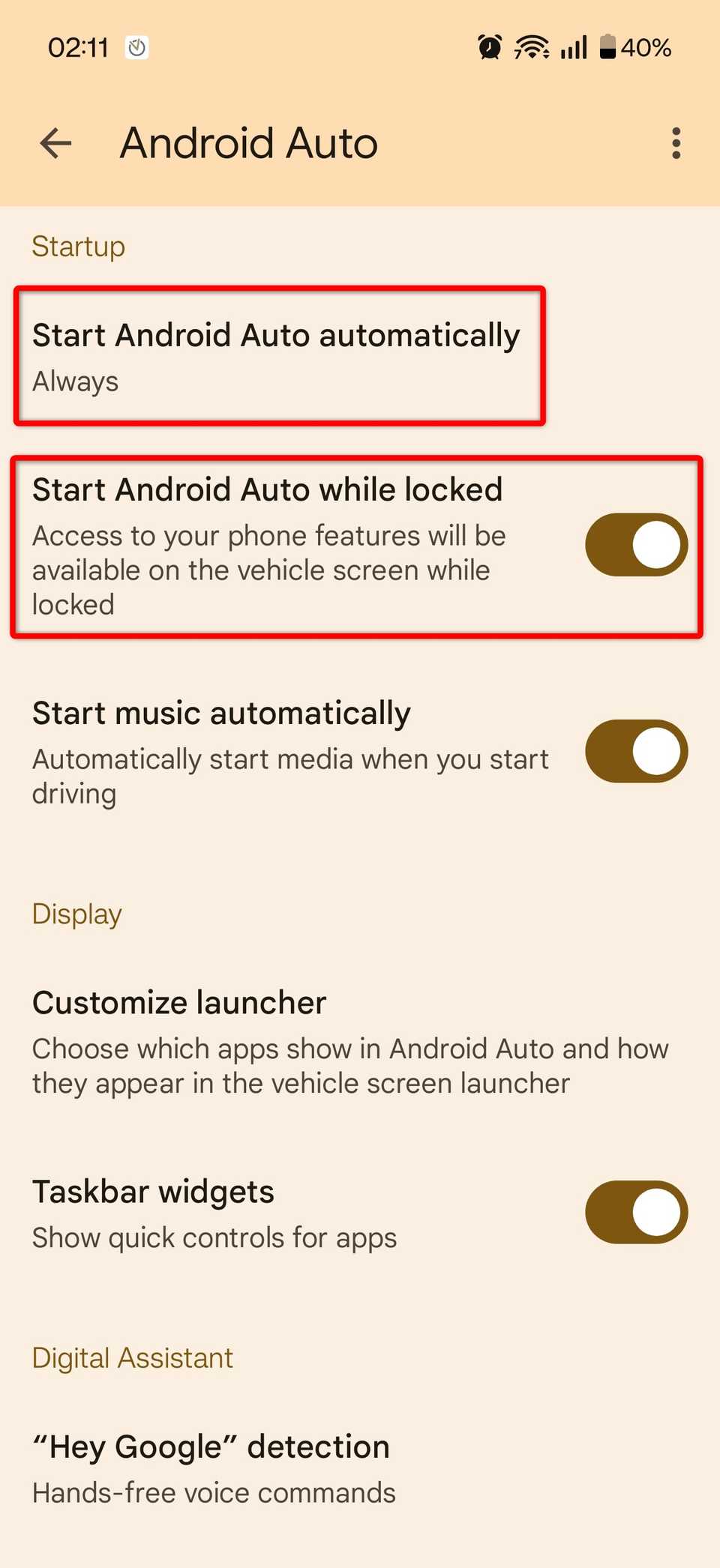
The latter option gives your car permission to bypass the lock screen and actually fixed an issue where all apps would pause updating in Android Auto (including navigation) while my screen was locked.
Related
I tried a wireless Android Auto adapter—here’s 5 reasons I want back to wired
Convenience comes with compromises — and they add up fast.
Fine-tune how your navigation app looks and functions
Dark mode ensures your eyes will never get burned at night again
If you’ve ever opened a bright map while trying to find a place in the dark, you’re aware of just how painfully blinding the experience can be.
Fortunately, Android Auto has a special setting just for that—it includes an option that overrides your preferred map app’s settings by forcing it to dark, light, or automatic based on the time of day. You can enable it by heading into your Android Auto settings, scrolling down to Maps, and setting Day/Night mode for maps to Automatic.
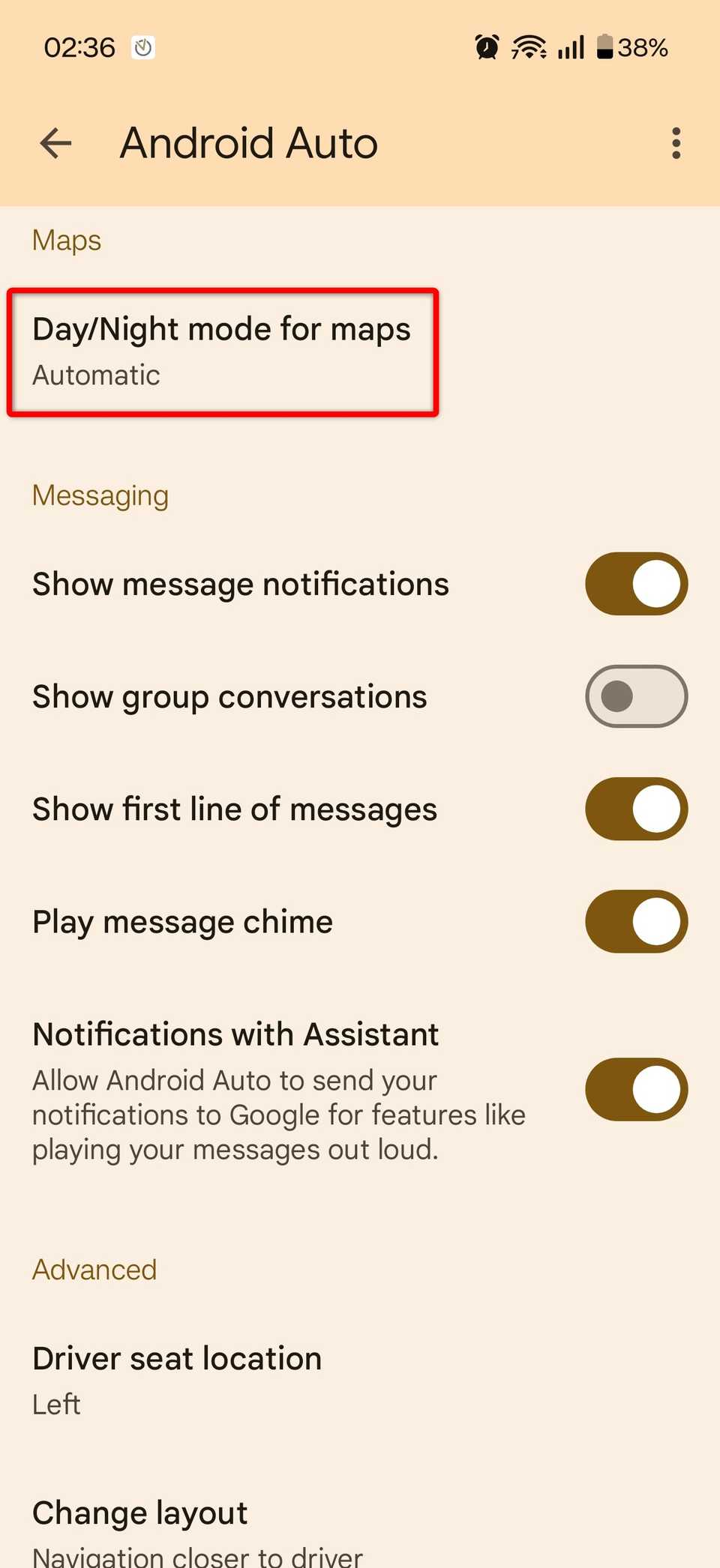
Customizing your map experience doesn’t end there, though. Many navigation apps like Google Maps and Waze also have a bunch of other settings that can improve your overall Android Auto experience.
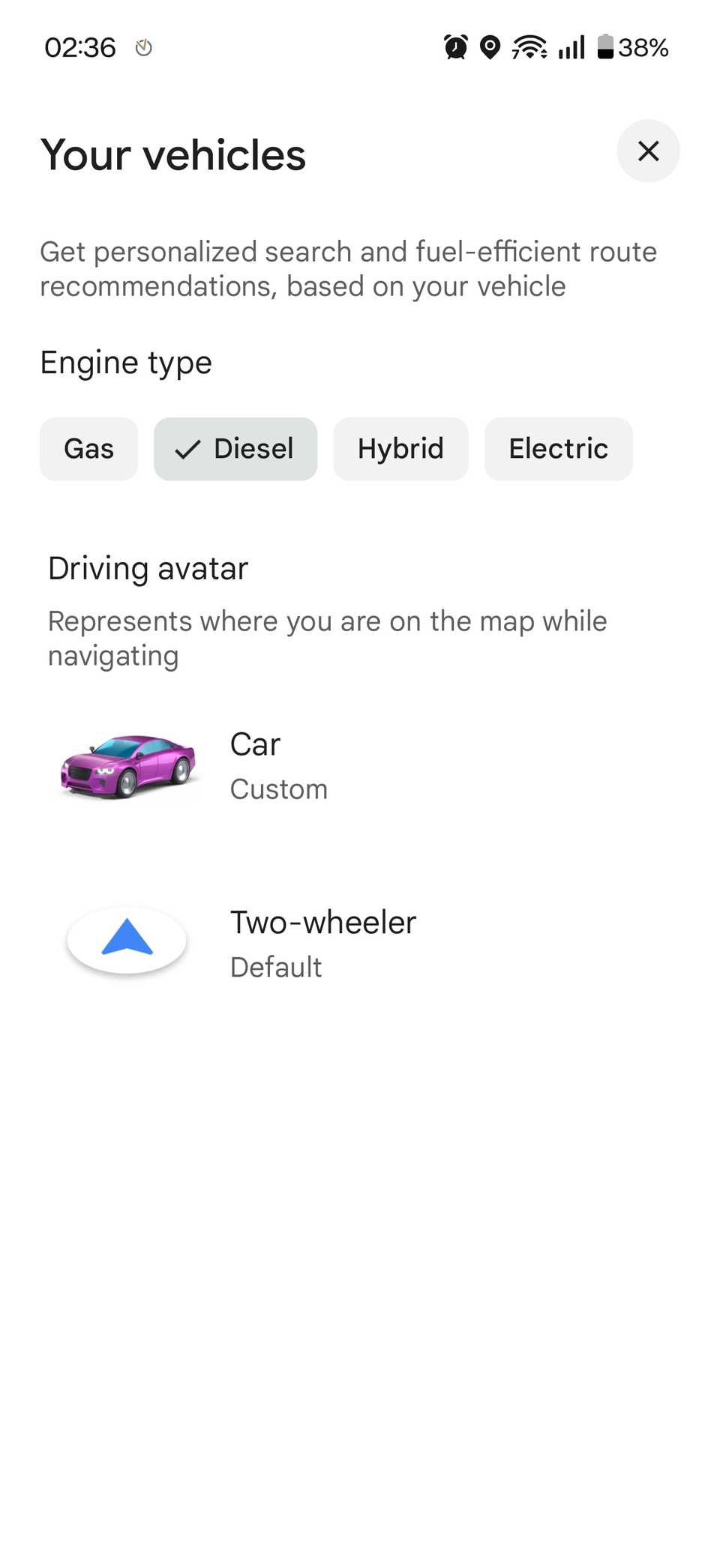
Google Maps, in particular, has several car-centric options in its app settings that you might not even be aware of. Under Your vehicles, you can set your engine type for personalized route recommendations based on gas or charging station availability, along with a custom driving avatar.
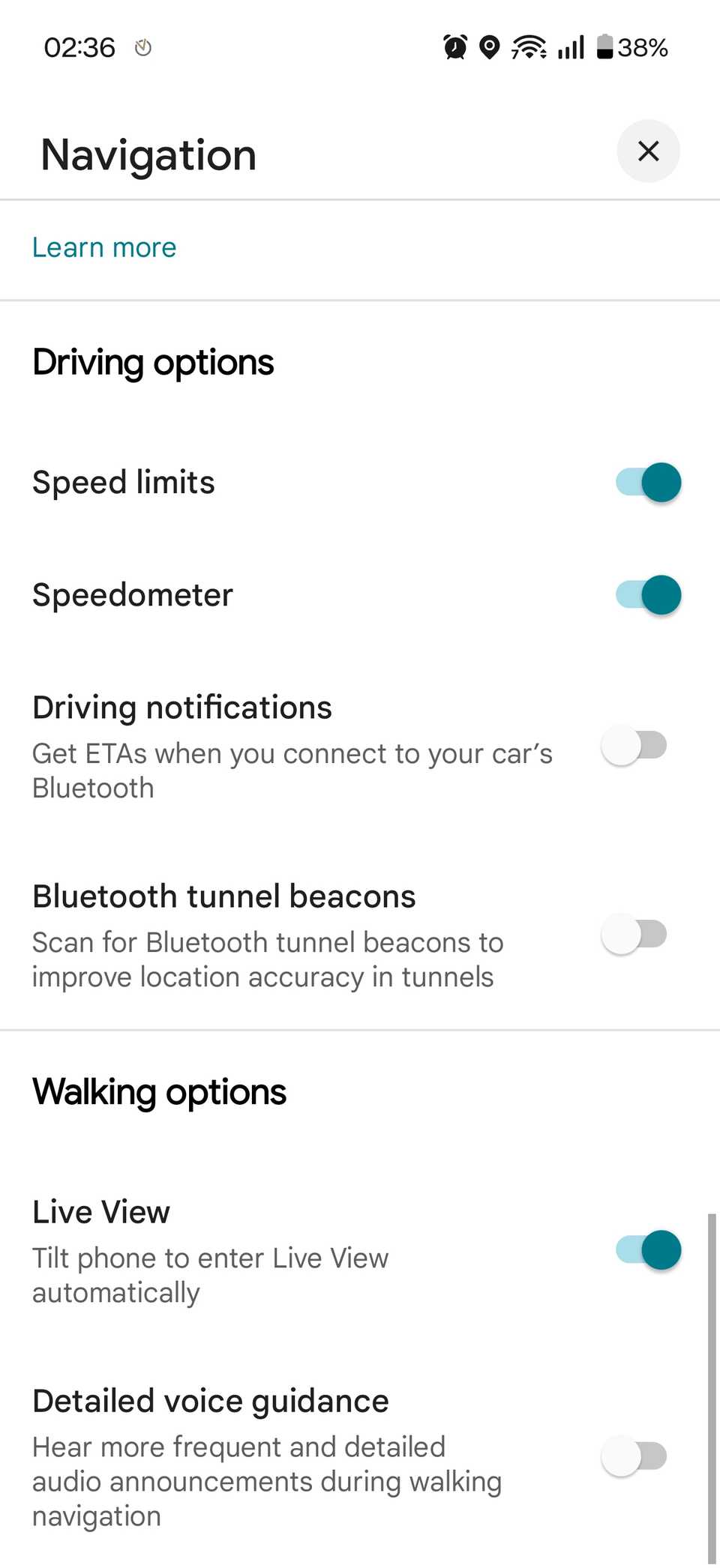
If you head over to Navigation, you can fine-tune several preferences, particularly under the Driving options section. Maps is your most essential Android Auto app, so make sure it looks and works the way you want it.
Reduce clutter by hiding the apps you never use
Less clutter equals a more functional screen
Credit: Ismar Hrnjicevic / How-To Geek
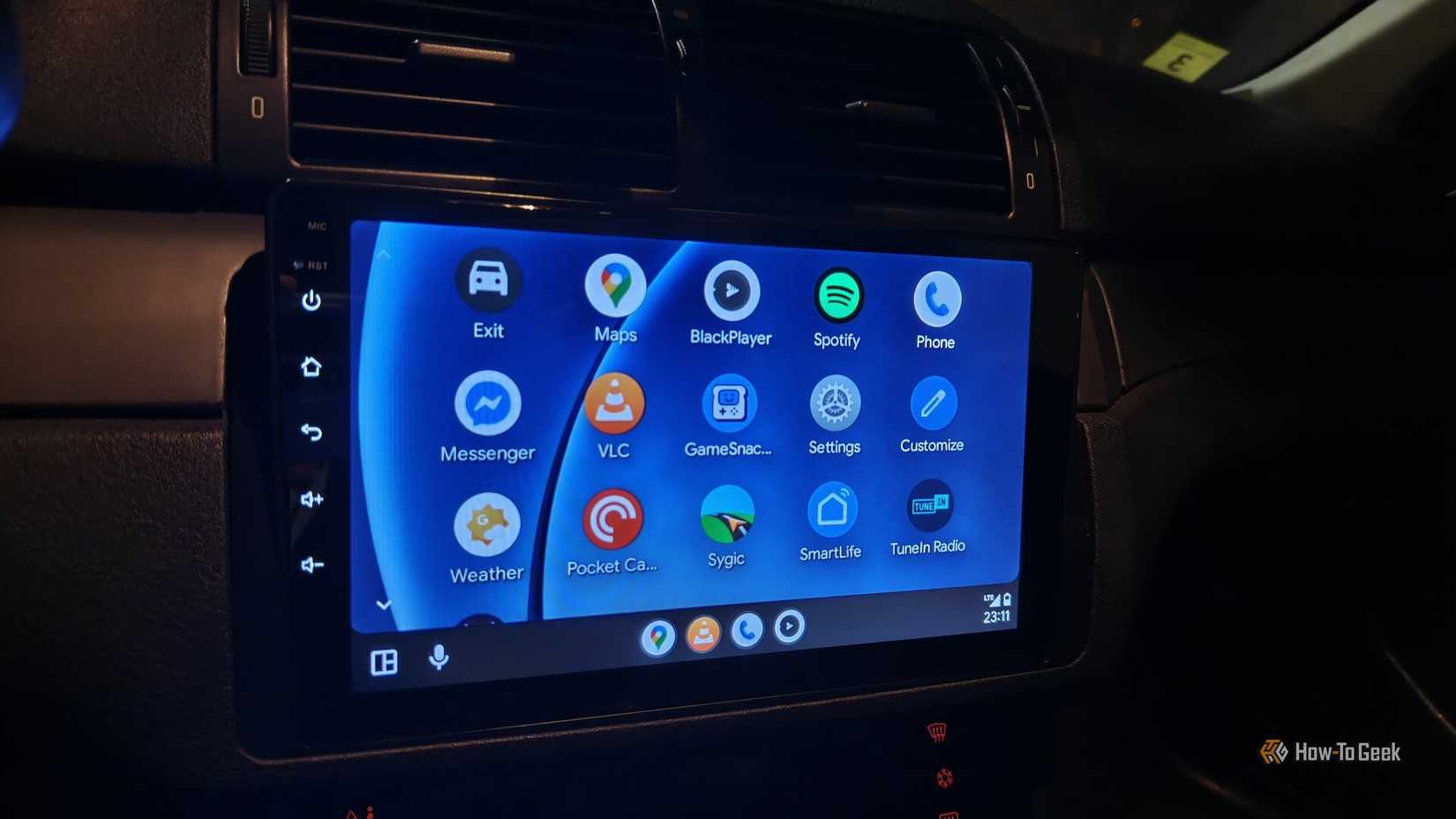
The Android Auto app drawer can quickly turn into a cluttered mess if you have a ton of apps on your phone that integrate with it. It’s especially frustrating if your car’s head unit screen is small, since that makes the drawer even less usable.
For that reason, you should remove any app from the Android Auto drawer that you’re not certain you’ll use. It’s fine to keep a few you’re on the fence about, but if you haven’t touched them after two weeks, remove them too—the less clutter, the better.
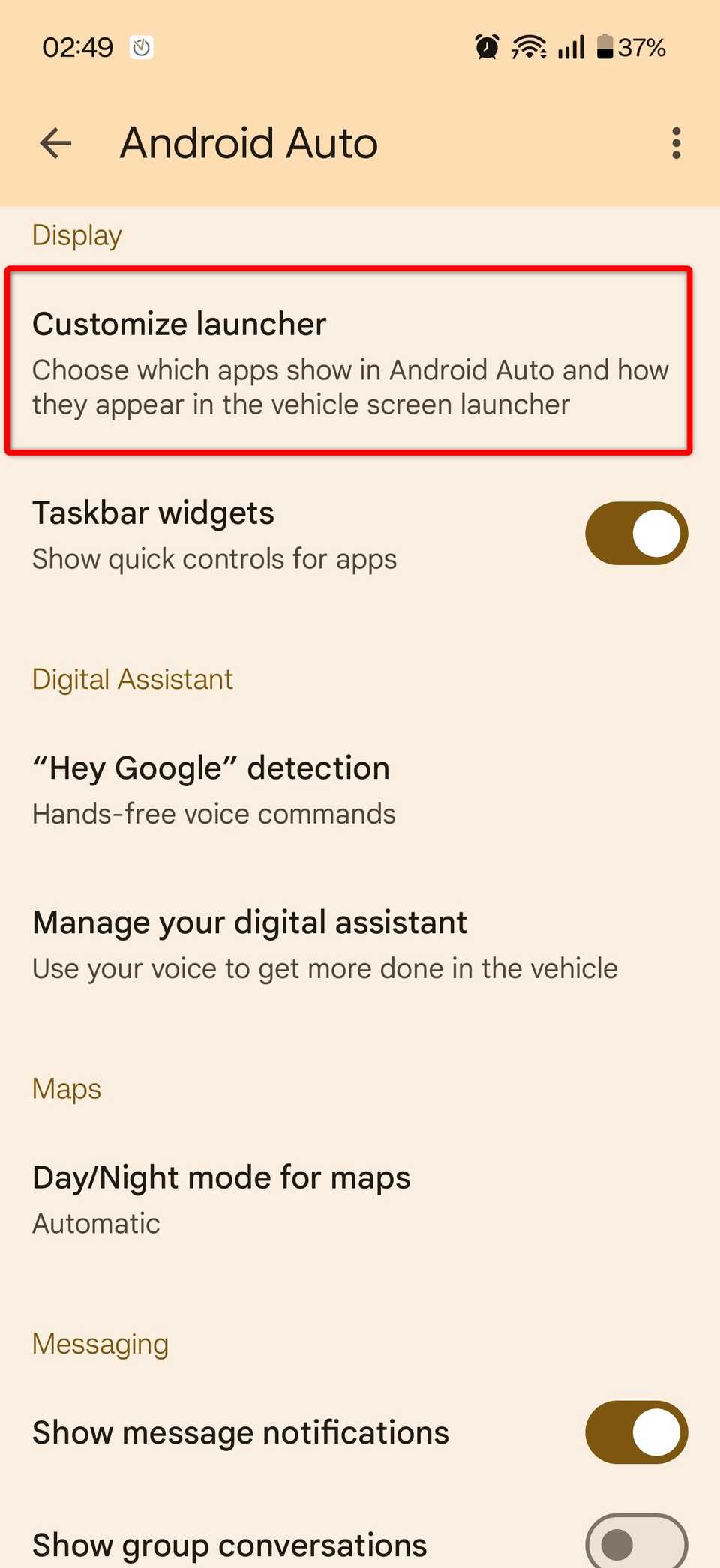
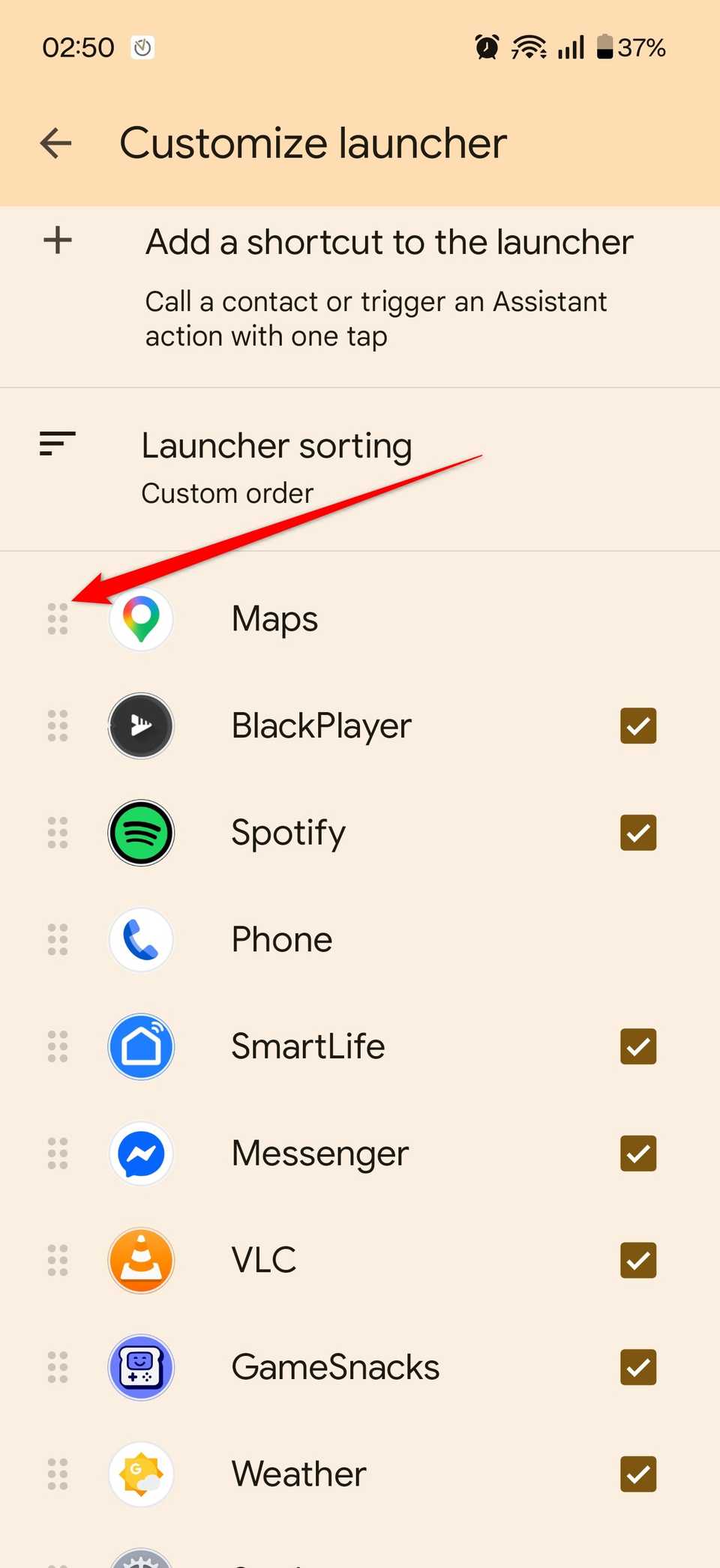
To choose which apps appear in your Android Auto app drawer, open your Android Auto settings, scroll down to Display, and tap Customize launcher. From there, uncheck any app you don’t actively use.
Don’t forget to use the opportunity to reorder shortcuts and apps by holding and dragging the six-dot handle on the left side of each item.
Minimize distractions by tweaking how and which notifications appear
Hide your private messages from the passengers
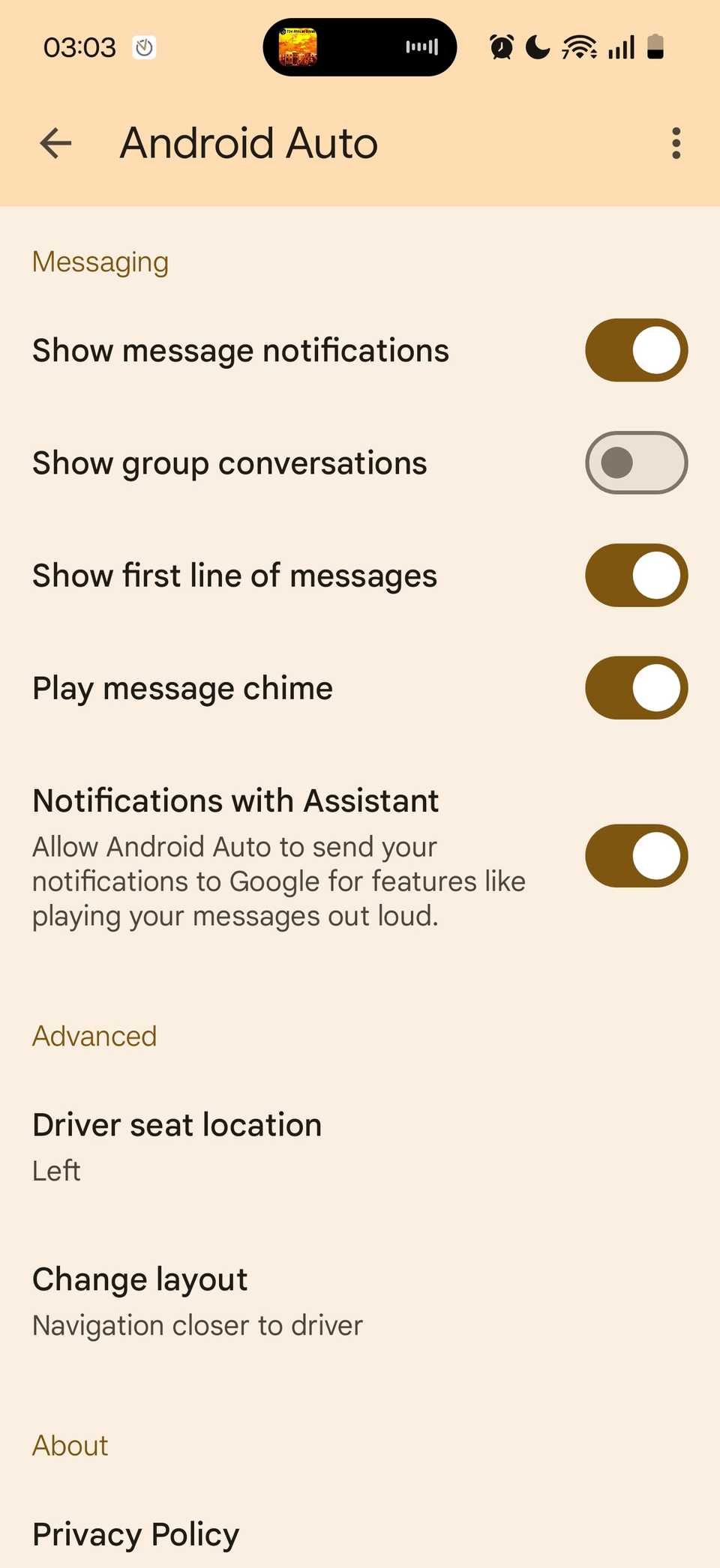
Android Auto provides several options for configuring how messages appear on your car’s dashboard. They’re fairly self-explanatory, and you can find them by opening Android Auto settings and scrolling down to the Messaging section. If you don’t want your private messages to appear on your car’s screen at all, simply uncheck the Show message notifications option.
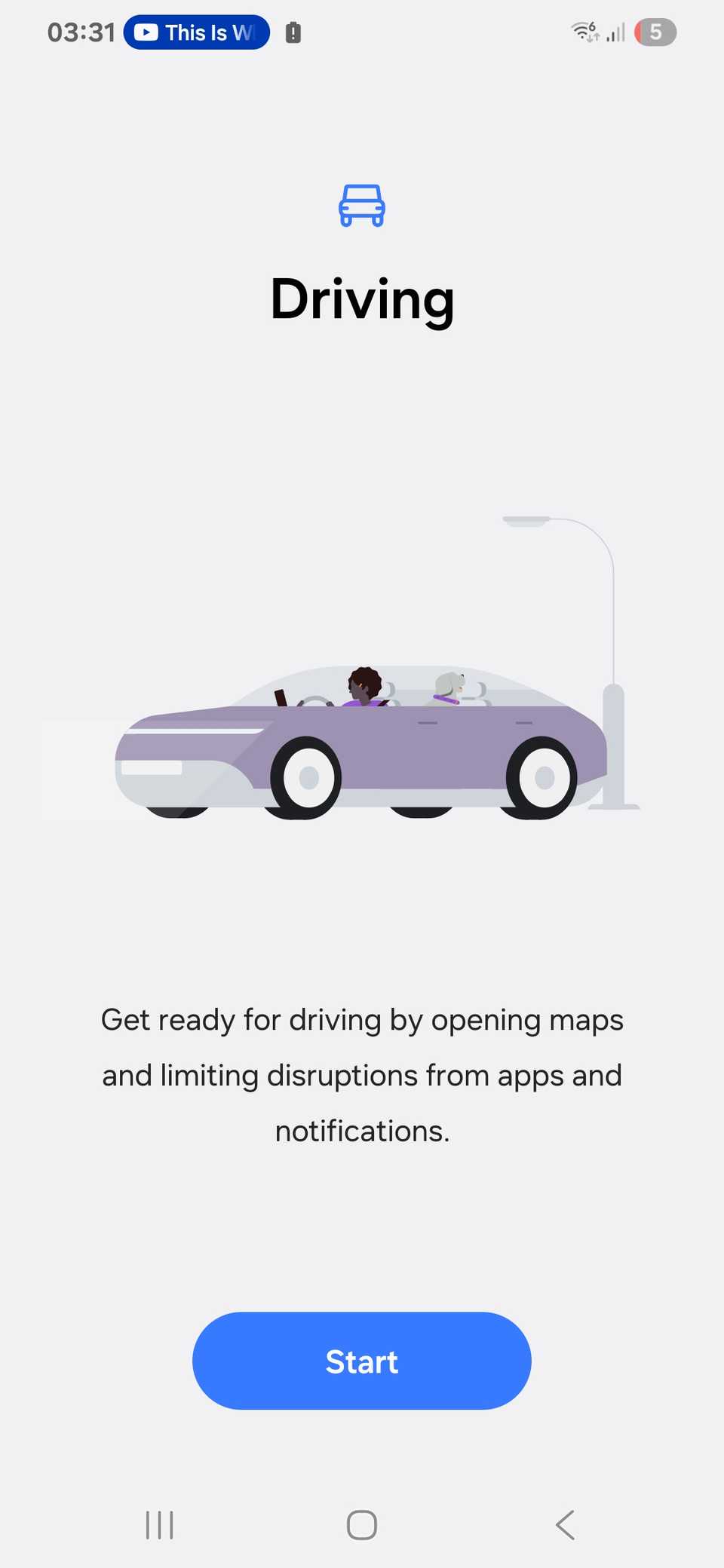
If you have a newer phone, there’s a good chance it also offers additional notification controls outside of Android Auto’s settings—in other words, your phone can automatically enable Do Not Disturb when it connects to your car or detects motion. This gives you even greater control, since you can fine-tune which apps and contacts are allowed to bypass Do Not Disturb.
The exact wording and functionality differ between manufacturers. On Samsung phones, it’s called Driving Mode. On my OnePlus 15, it’s Do Not Disturb while driving.
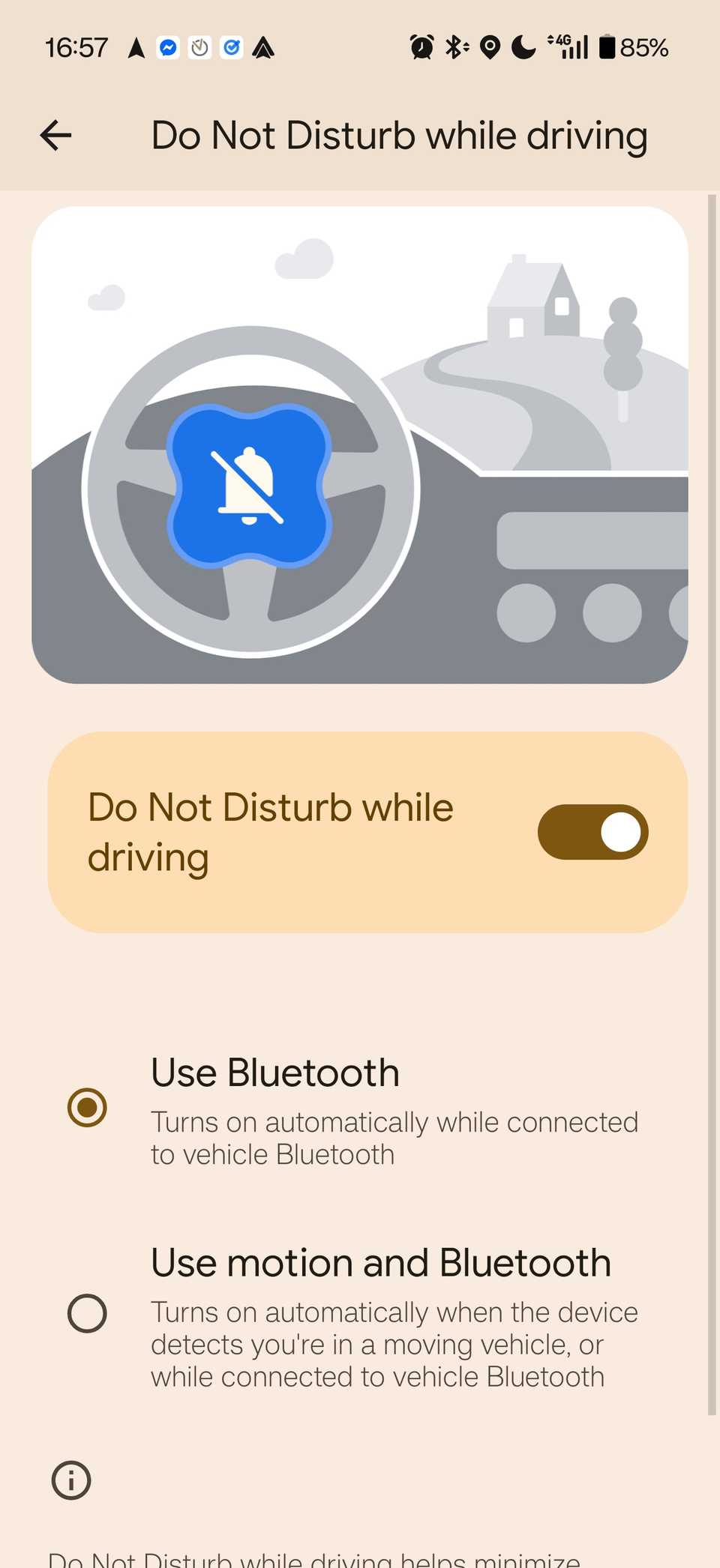
Android Auto has several cool options you aren’t aware of
If you came here to learn some real Android Auto hacks, I’ve got you. Did you know that Android Auto has an entire hidden set of configurations tucked away in the Developer settings?
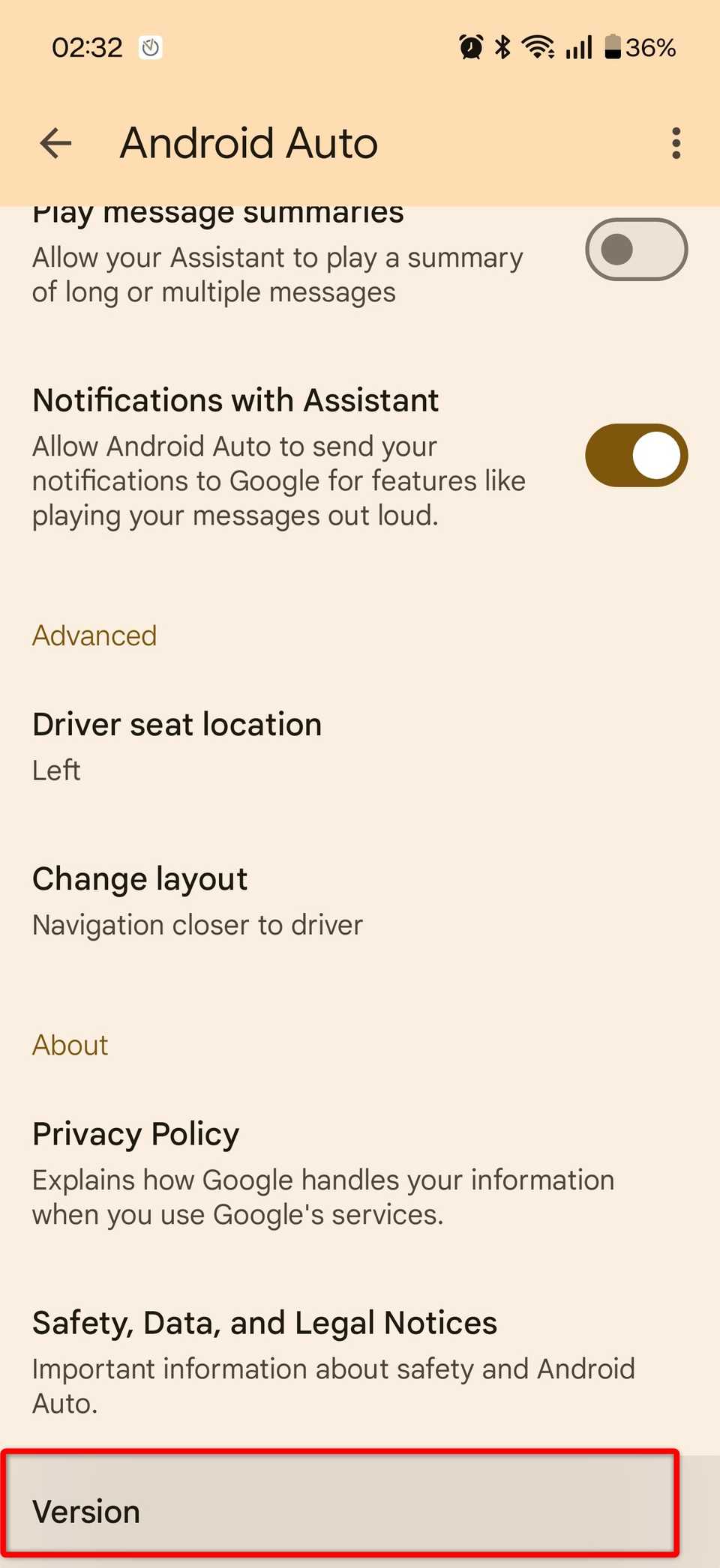
To access the hidden Developer settings menu, open Android Auto settings, scroll down to Version, and tap it a few times until a pop-up appears asking if you’d like to enable them. Accept it, then tap the three-dot menu in the top-right corner, and you’ll see Developer settings appear.
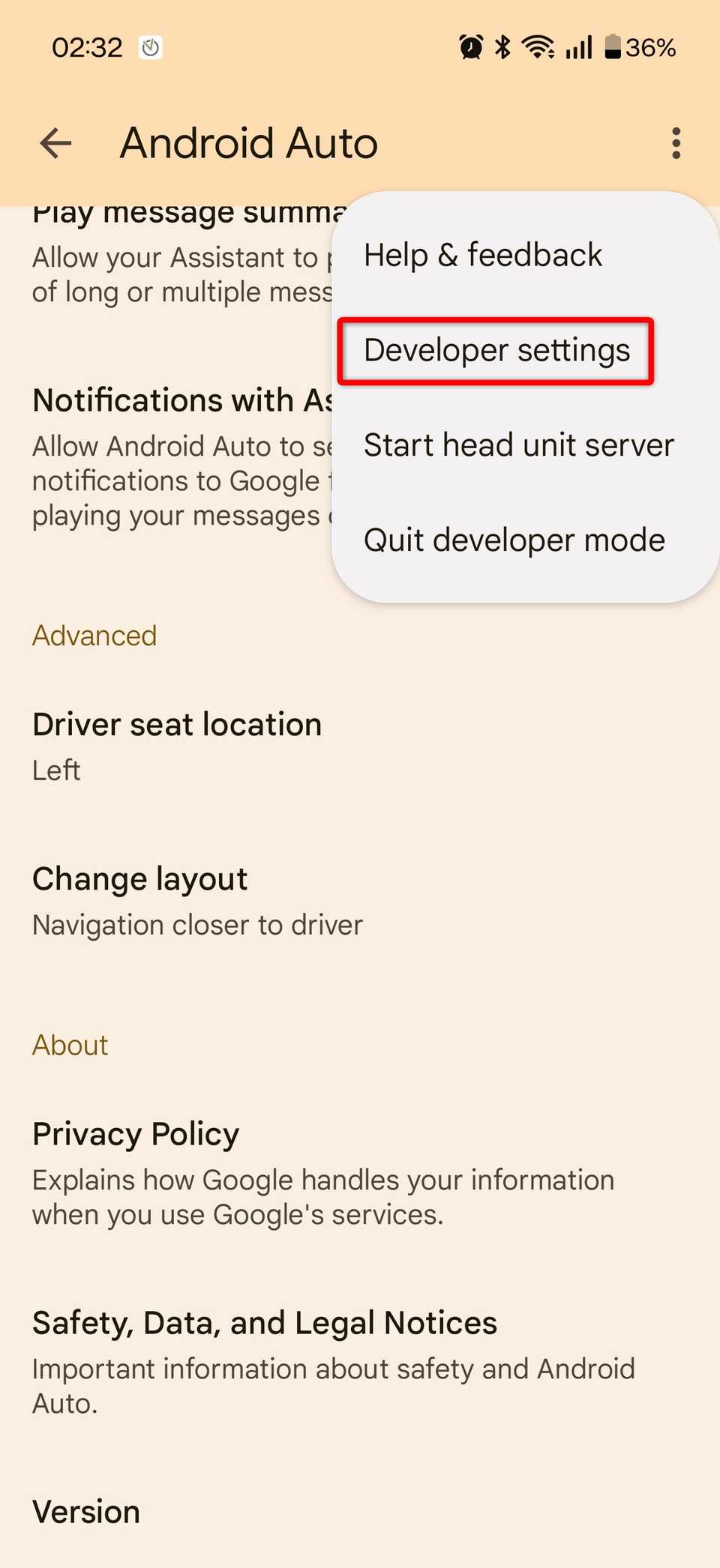
This menu includes several advanced tweaks you can experiment with. For instance, you can disable Wireless Android Auto if you want your phone to connect only when you plug it in.
However, the most popular option you’ll want to check out is Video Resolution, which changes the scaling on your dashboard and can dramatically improve how notifications appear in Android Auto.
A few simple tweaks can make Android Auto great
Android Auto has the potential to transform your driving experience, but you have to fine-tune its settings to get the most out of it. Once you do, it’ll be a lot more enjoyable and, most importantly, safer to use!
Related
I wish Android Auto had these 4 CarPlay features
CarPlay is still the best way to use your phone in the car.