
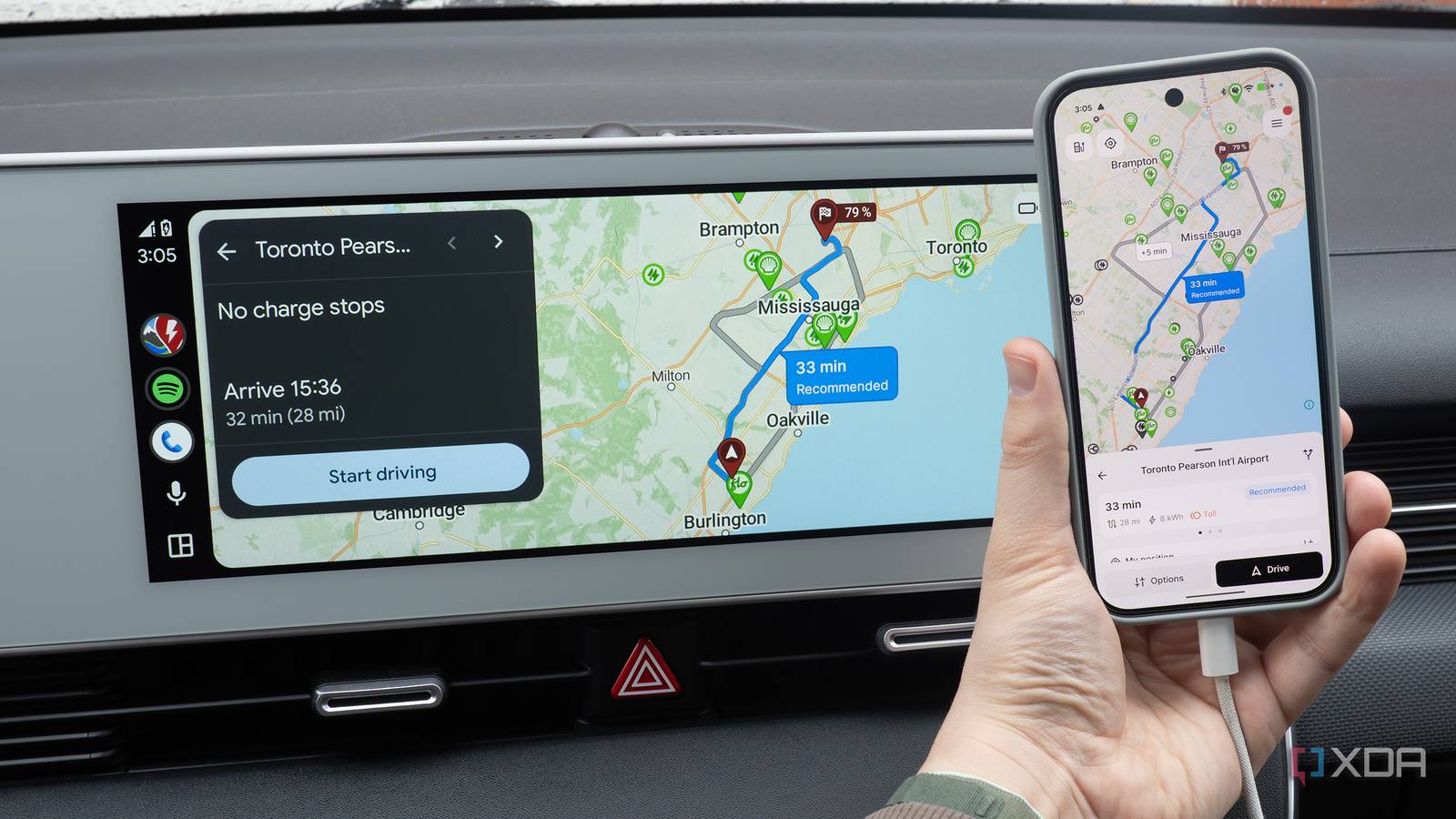
I’ve been using Android Auto a lot over the past few weeks. While the platform is solid and generally comparable to CarPlay, I’ve encountered a key issue somewhat frequently regardless of the smartphone I’m using, whether it’s my Pixel 10 Pro or Galaxy S26 Ultra: random disconnections.
It doesn’t happen every time I’m driving, but it’s still annoying, and not something I want to deal with while I’m behind the wheel, especially when I’m relying on Waze and Android Auto to tell me where to go. The entire screen goes black, the music disconnects, and I’m left with a useless blank screen.
Sometimes my phone reconnects automatically, but in other situations, I need to unplug the device and reconnect it to my car to get Android Auto working again (sometimes I even need to unplug the cable from my vehicle’s USB port and then plug it back in again). At first, I thought it was my USB-C cable, and then I assumed it was related to my Ioniq 5’s USB port, especially since I encountered this issue a few years ago with both CarPlay and Android Auto. However, after some experimentation, changing my phone’s default USB configuration solved the issue.
Related
4 Android Auto settings I changed to make it feel truly mine
Night Mode, setting a custom wallpaper, shifting media controls, and more.
Why is my phone disconnecting from Android Auto?
It’s exactly what I suspected
After troubleshooting my car’s USB port and my USB-C cable, I started searching online for a fix. Unsurprisingly, there are a lot of people out there running into similar problems. Suggested fixes include restarting your device, restarting your vehicle’s infotainment system, clearing your phone’s cache, and more. None of these solutions solved the issue for me, unfortunately.
This is when I landed on Android’s default USB configuration options. Before I get to how to change these settings, here’s why I think the problem is happening based on some research. When you connect your phone to your car via USB, there’s a handshake process where both devices establish the connection.

Quiz
8 Questions · Test Your KnowledgeAndroid Auto history and functionality
Trivia challenge
From navigation to voice commands — find out how much you really know about Android Auto.
NavigationConnectivityVoiceAppsSafety
Begin
Which wireless standard does Android Auto use when connecting without a USB cable?
ABluetooth 5.0 onlyBWi-Fi Direct via the 5 GHz bandCNFC pairing with automatic handoffDZigbee over a local hotspot
That’s right! Wireless Android Auto uses Wi-Fi Direct over the 5 GHz band for a fast, low-latency connection. Bluetooth is still used in the background, but only to initiate and manage the pairing handshake.
Not quite. Wireless Android Auto relies on Wi-Fi Direct over the 5 GHz band for its main data connection. Bluetooth plays a supporting role in establishing the initial pairing, but the heavy lifting is done over Wi-Fi.
Continue
Which voice assistant is natively built into Android Auto for hands-free control?
AAmazon AlexaBSamsung BixbyCGoogle AssistantDCortana
Correct! Google Assistant is the heart of Android Auto’s voice control system. You can use it to send messages, make calls, get directions, and play media — all without taking your hands off the wheel.
Not quite. Google Assistant is the built-in voice assistant for Android Auto. While Amazon Alexa has its own in-car experiences, it is not natively integrated into Android Auto the way Google Assistant is.
Continue
Which of the following app categories is NOT officially supported on Android Auto?
ANavigation appsBSocial media browsing appsCMessaging appsDAudio and podcast apps
Spot on! Android Auto deliberately blocks general social media browsing to minimize driver distraction. Google’s design philosophy for the platform prioritizes safety, limiting apps to navigation, audio, and communication categories.
Actually, social media browsing apps are the ones NOT supported on Android Auto. Google intentionally restricts the platform to navigation, audio, and messaging apps to keep drivers focused on the road.
Continue
Which navigation app was among the first third-party apps officially supported on Android Auto at launch?
AApple MapsBTomTom GOCWazeDHERE WeGo
Correct! Waze, which Google acquired in 2013, was one of the earliest third-party navigation apps to gain official Android Auto support. Its community-driven traffic data made it a popular alternative to Google Maps on the platform.
Not quite. Waze was among the first third-party navigation apps supported on Android Auto. Since Google owns Waze, it made sense for it to be an early addition alongside Google Maps when the platform launched.
Continue
In what year was Android Auto officially launched to the public?
A2012B2013C2015D2017
That’s right! Android Auto officially launched in 2015, following its announcement at Google I/O 2014. It debuted as part of the Open Automotive Alliance, a collaboration between Google and major automakers.
Not quite. Android Auto was officially launched in 2015, after being unveiled at Google I/O in 2014. It was a cornerstone of the Open Automotive Alliance initiative that brought together Google and car manufacturers.
Continue
What is the minimum Android version required to run Android Auto on a phone as of recent updates?
AAndroid 6.0 MarshmallowBAndroid 8.0 OreoCAndroid 9.0 PieDAndroid 11
Correct! Android 8.0 Oreo is the minimum Android version required to run Android Auto. Google periodically updates these requirements, so keeping your phone’s software current ensures you get the best Android Auto experience.
Not quite. Android 8.0 Oreo is the minimum version needed to run Android Auto. Google raised the minimum requirements over time as the app took advantage of newer Android features and security improvements.
Continue
Which music streaming service was among the launch partners for Android Auto’s audio app support?
ATidalBSpotifyCApple MusicDDeezer
Exactly right! Spotify was a launch partner for Android Auto and remains one of its most popular audio apps. Its deep integration allows drivers to browse playlists, switch tracks, and control playback entirely through the Android Auto interface.
Not quite. Spotify was actually one of the original launch partners for Android Auto’s audio support. Apple Music, as you might expect, is not available on Android Auto since it is tied to Apple’s ecosystem.
Continue
What feature allows Android Auto to be used directly on a phone’s screen without a car display, introduced in 2019?
AAndroid Auto Mirror ModeBAndroid Auto Desktop ModeCAndroid Auto phone screen modeDAndroid Auto Standalone
That’s correct! Google introduced the Android Auto phone screen mode in 2019, letting users access the Android Auto interface directly on their phone even without a compatible head unit. It was later replaced by Google Assistant Driving Mode in newer Android versions.
Not quite. The feature was called Android Auto phone screen mode, and it launched in 2019. It gave drivers access to the simplified Android Auto interface on their phone screen, which was useful for cars that lacked a compatible infotainment display.
See My Score
Challenge CompleteYour Score
/ 8
Thanks for playing!
Try Again
Is your phone just being charged by your car? Should your vehicle use your phone as a USB car? Or, does Android Auto need to boot up? As far as I can tell, Android’s battery management and security protocols are messing with this USB handshake process, causing my phone to switch to charging only in the middle of a drive and resulting in what seems to be random disconnections.
All you need to do is change the default USB configuration
It’s time to dive into Developer Options
To change this setting, you need to access a hidden Android menu under Developer Options. To unlock Developer options, follow the following steps:
Open the Settings app on your Android device.
Tap About Phone.
Open Software Information (with my Pixel 10 Pro, this option is on the main About Phone screen).
Find your phone’s Build Number, and tap it seven times in a row.
If you’ve done this correctly, you’ll see a message stating Developer Mode Enabled.
After you’ve enabled Developer Mode, it’s time to change your phone’s USB settings:
Dive back into the Settings page. You’ll now see Developer Options (tap on it) (with my Pixel 10 Pro, I needed to search for Developer Options for it to appear).
Under Networking, tap Default USB Configuration.
You’ll likely see No Data Transfer turned on — change this setting to File Transfer (you also might see an Android Auto option).
After you’ve changed this setting, your phone should always default to Android Auto when you connect it to your car. This prevents your device from switching to charging mode while you’re driving, eliminating those pesky Android Auto connection issues. At least so far, this seems to have fixed my Android Auto disconnection problem (I’ll update this story if that changes).
If you’re still running into disconnection issues, there are a few other things you can try, like clearing your Android Auto cache by going to Settings > App > Android Auto > Storage > Clear Cache. You could also turn off Adaptive Battery by navigating to Settings > Battery > Battery Saver > then turn off Adaptive Battery.
Related
6 useful Android Auto apps that really improve my driving experience
I’ve never really enjoyed being behind the wheel, but these apps make the experience less painful and help pass the time.