
Nothing throws off a workday faster than my Wi-Fi acting up. Since I work from home full-time, a stable connection isn’t just convenient; it’s the backbone of everything I do. And yet, the moment things go wrong, I fall back on the same old habit: switch the router off, wait a few seconds, switch it back on. And to be fair, it works most of the time. The catch is that it’s also a temporary reset for the entire house. Every device goes offline for those few minutes. But when your work depends on staying connected and responsive, even that short disruption feels oddly disruptive.
That’s when it started to feel like I needed a better way than just “turn it off and hope for the best.” So I looked for an app that could actually diagnose what was going wrong with my Wi-Fi instead of forcing a blind reboot every time. Thankfully, I found one that does exactly that; it helps pinpoint the issue. If you deal with unstable Wi-Fi on a regular basis, this kind of tool can save you from a lot of unnecessary router restarts.

Related
I changed one 2.4GHz Wi-Fi setting and my connection got much more stable
A simple change in my Wi-Fi setting fixed the issue, and the connection has been consistent ever since.
My Wi-Fi is now telling me the truth
A real-time map of your internet’s mood swings
Yadullah Abidi / MakeUseOf
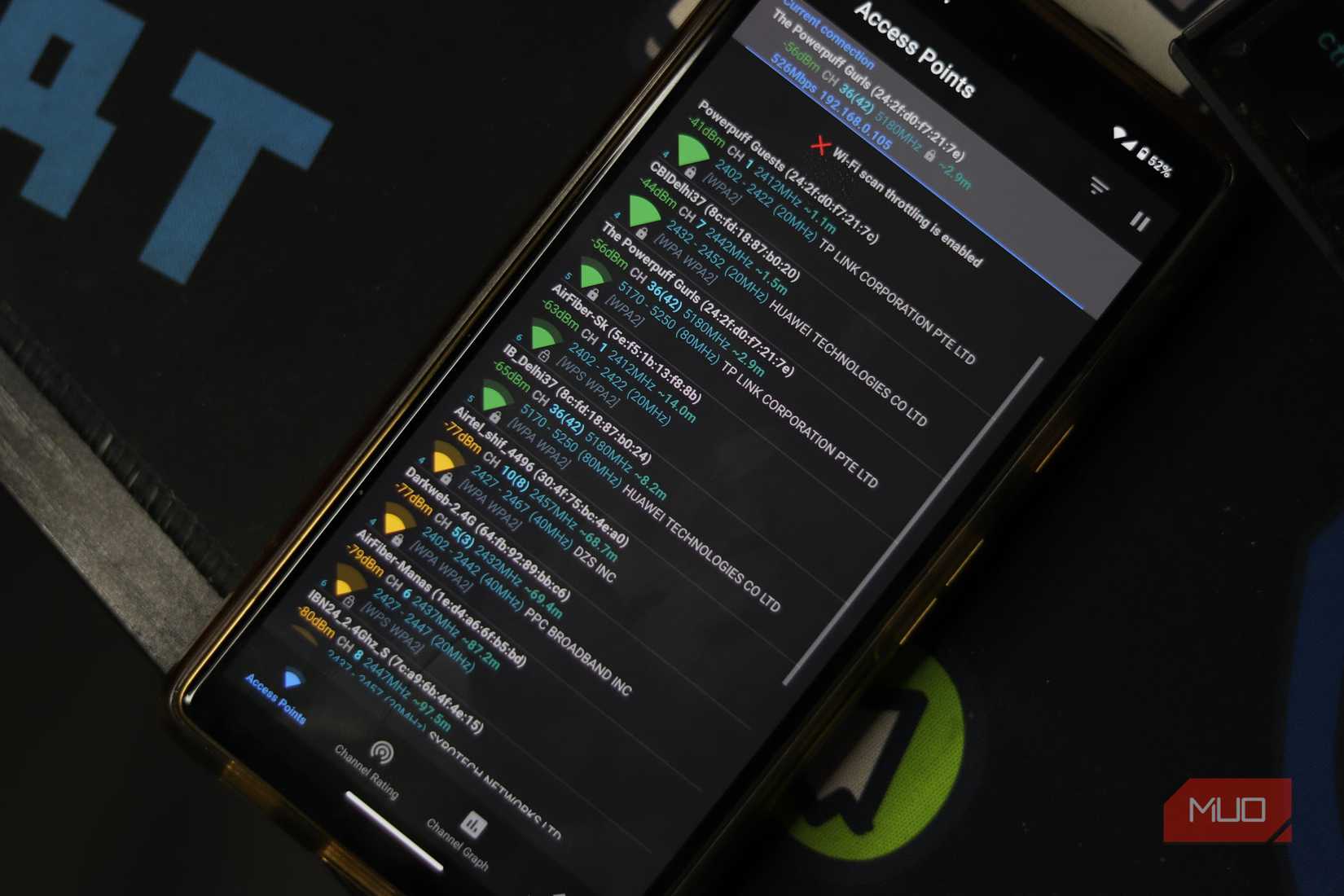
I’ve been using a Wi-Fi analyzer app that gives me a clearer picture of what my network is actually doing. It lets me scan and monitor wireless networks in detail — things like signal strength, channel interference, and network density around me. One of the most useful parts is how it maps signal strength across different corners of my home. So I can actually see where the Wi-Fi is strong and where it starts dropping, which makes it much easier to figure out whether I need to reposition the router or add an extender.
What I like is how visual everything feels. The channel graph updates in real time, showing not only my network but also the surrounding Wi-Fi networks and their current activity. When I tap my own network in the graph, a small pop-up shows key details like speed, WPS status, and the connection’s current health — all in one place. There’s also a time-based signal graph that tracks how network strength changes over a period. This is especially helpful when I’m walking around the house, because it makes it easy to spot weak zones, sudden drops, or unstable spots that you’d otherwise never notice.
Everything here updates in real time, which makes it easy to jump in whenever the Wi-Fi starts acting up and immediately understand what’s wrong, instead of guessing or rebooting out of habit.
The secret life of your Wi-Fi bands
A closer look at the invisible traffic slowing everything down
Robin John / MakeUseOf
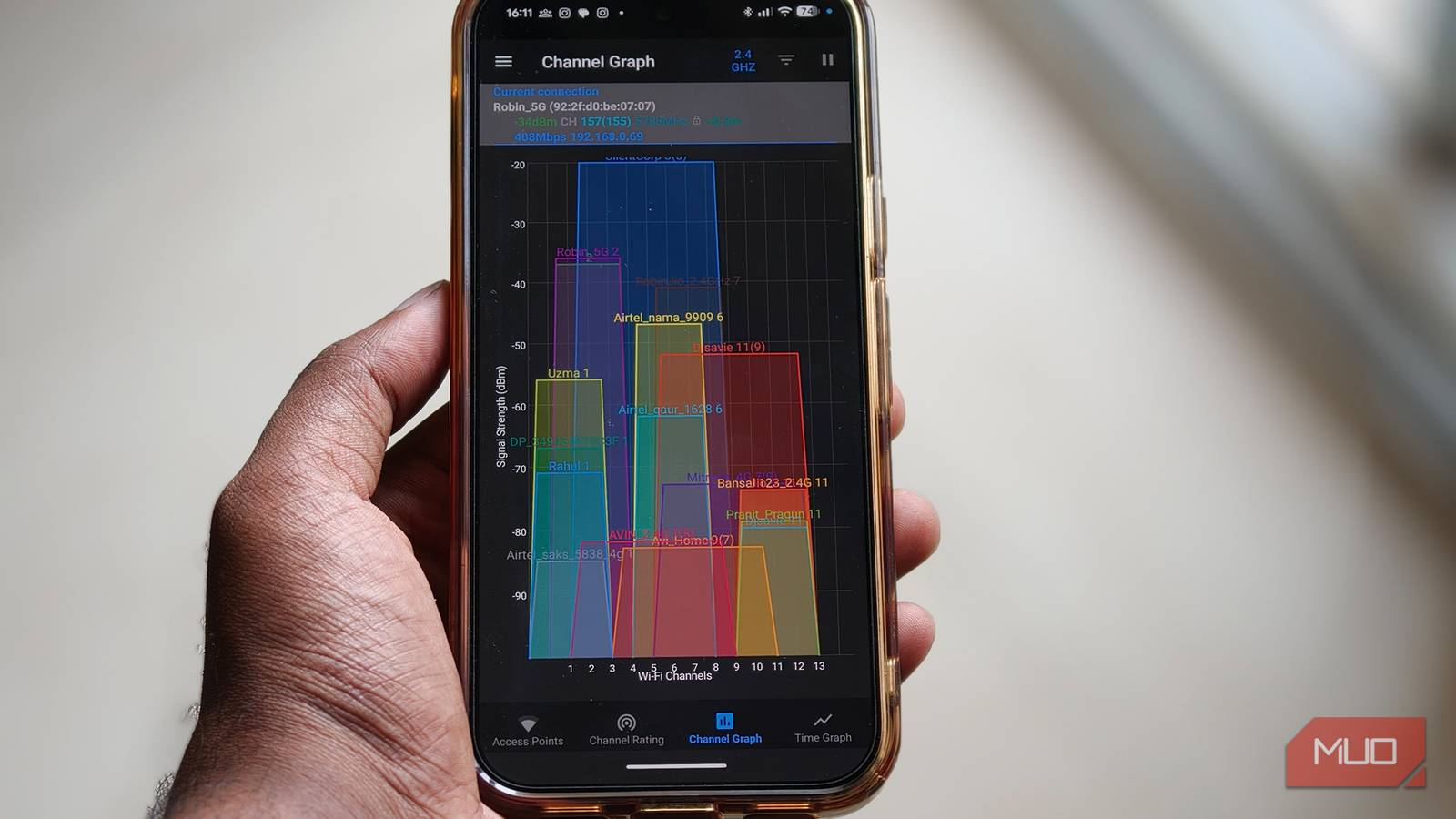
The channel view in this app is where things really start to make sense. Instead of just telling me “your Wi-Fi is weak,” it shows why. Take the 2.4GHz band, for example. The moment I switch to it in the app, it looks like a traffic jam. There are overlapping networks everywhere — which isn’t surprising since I live in an apartment complex. This band travels farther and easily passes through walls, so everyone ends up using it. The downside is that all those networks are starting to interfere with each other, which explains the slower speeds and random drops I’ve been dealing with.
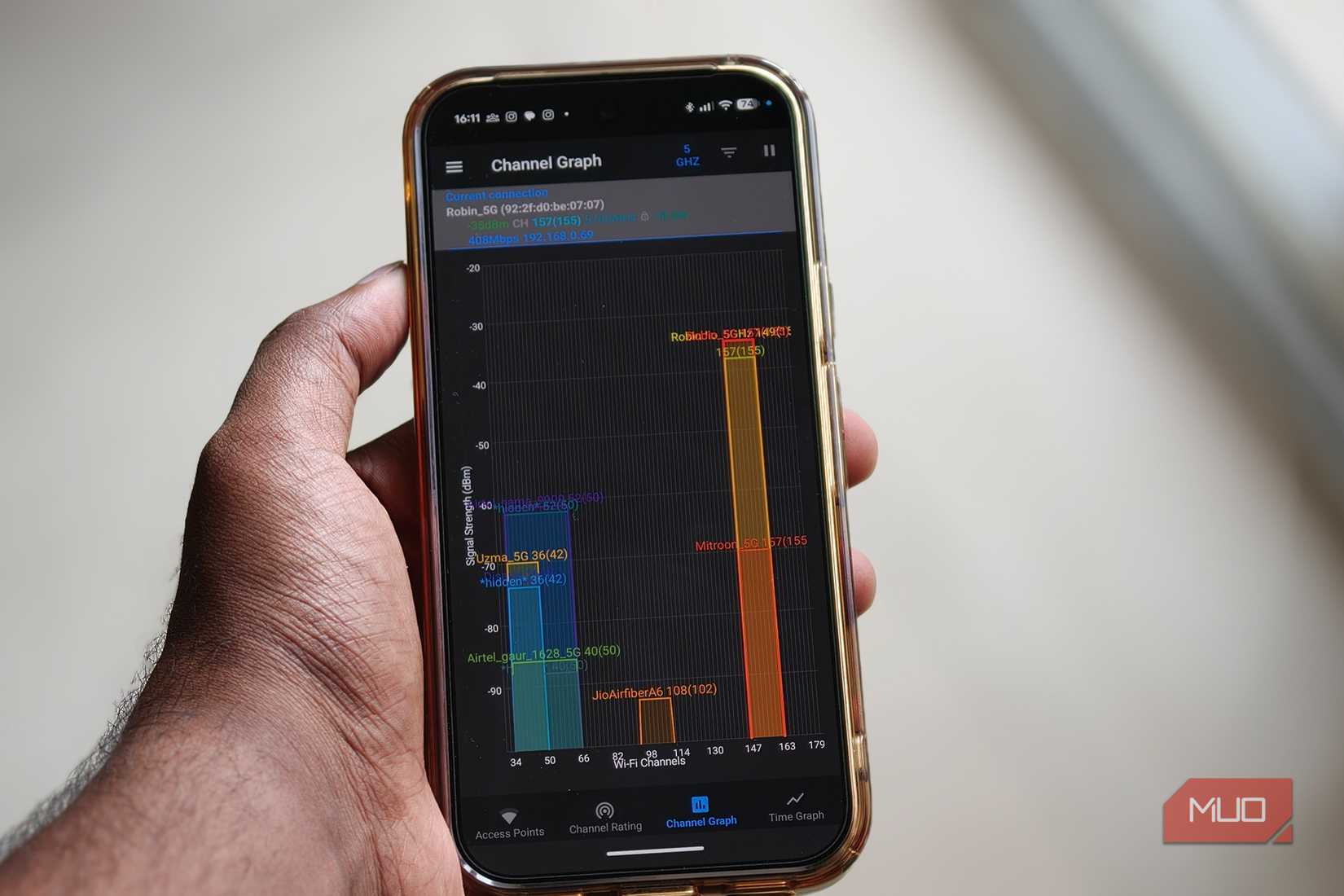
The 5GHz band feels much calmer by comparison. It’s still shared with nearby networks, but there’s noticeably less congestion. In my case, my Wi-Fi is on channel 149–155, and the app shows the signal strength hovering around -64 dBm. That number basically tells me how strong the connection is at my current spot — and right now, it’s on the weaker side, which makes sense since I’m sitting a bit far from the router. What’s interesting, though, is that the 6GHz band on the app is almost completely empty — no overlapping networks or interference. That essentially means no one around me is using that band yet. It might look uneventful, but it’s actually a huge opportunity. If I upgrade to a router and devices that support it, I’d be stepping into a space that’s faster, less crowded, and far more stable than what I’m dealing with right now.
Seeing all of this laid out visually makes a big difference. I can actually see the congestion, understand the limitations of each band, and figure out what needs fixing.
Related
I Use These Tricks to Get the Fastest Internet From My Router
This is how I get faster speeds without upgrading my internet plan.
Robin John / MakeUseOf
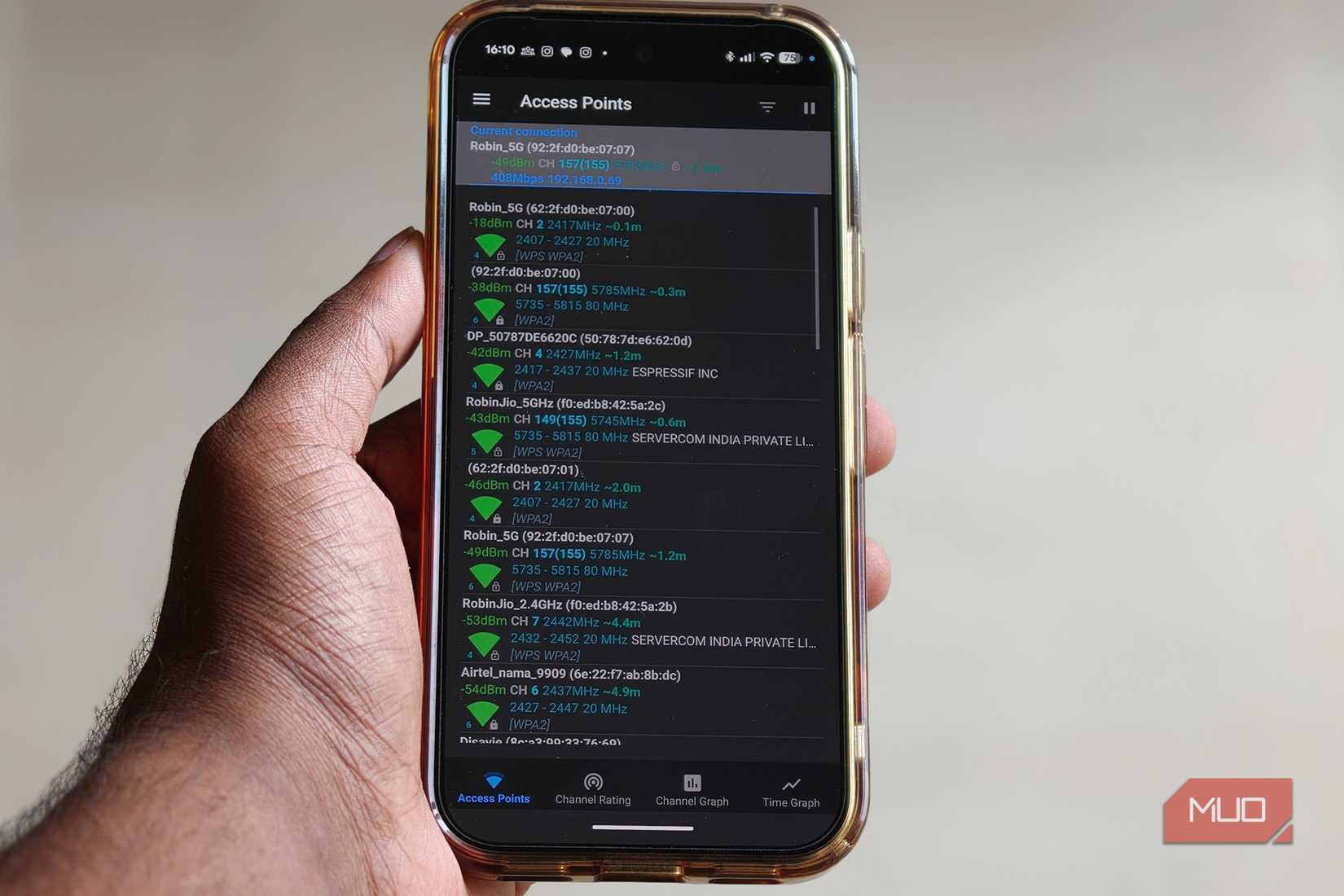
For all the things this app gets right, there is one thing you should know upfront. It’s an open-source tool that needs location permission to scan nearby Wi-Fi networks. That might sound a bit odd at first, but on Android,this is how Wi-Fi scanning works. The app isn’t tracking where you go — it just uses location access to detect and analyze the surrounding networks.
In my case, I’m okay with that trade-off. When my Wi-Fi starts acting up, understanding the problem matters more than anything else. And since the app simply won’t function without that permission, it feels like a fair exchange. As long as you’re aware of why it’s needed, it doesn’t feel intrusive.

OS
Android
Price model
Free (open source)
WiFi Analyzer (open‑source) is a free Android app that helps you analyze and optimize nearby Wi‑Fi networks by showing signal strength, channel usage, and interference from surrounding access points.
Your Wi-Fi finally stops gaslighting you
I’ve more or less stopped treating Wi-Fi problems like a shot in the dark. Instead of instinctively reaching for the router switch, I now have a way to actually understand what’s going wrong — whether it’s congestion, distance, or just a bad channel choice. That shift alone makes a big difference. I’m no longer cutting off the internet for every device in the house, and I’m definitely not relying on a restart to magically fix everything.