
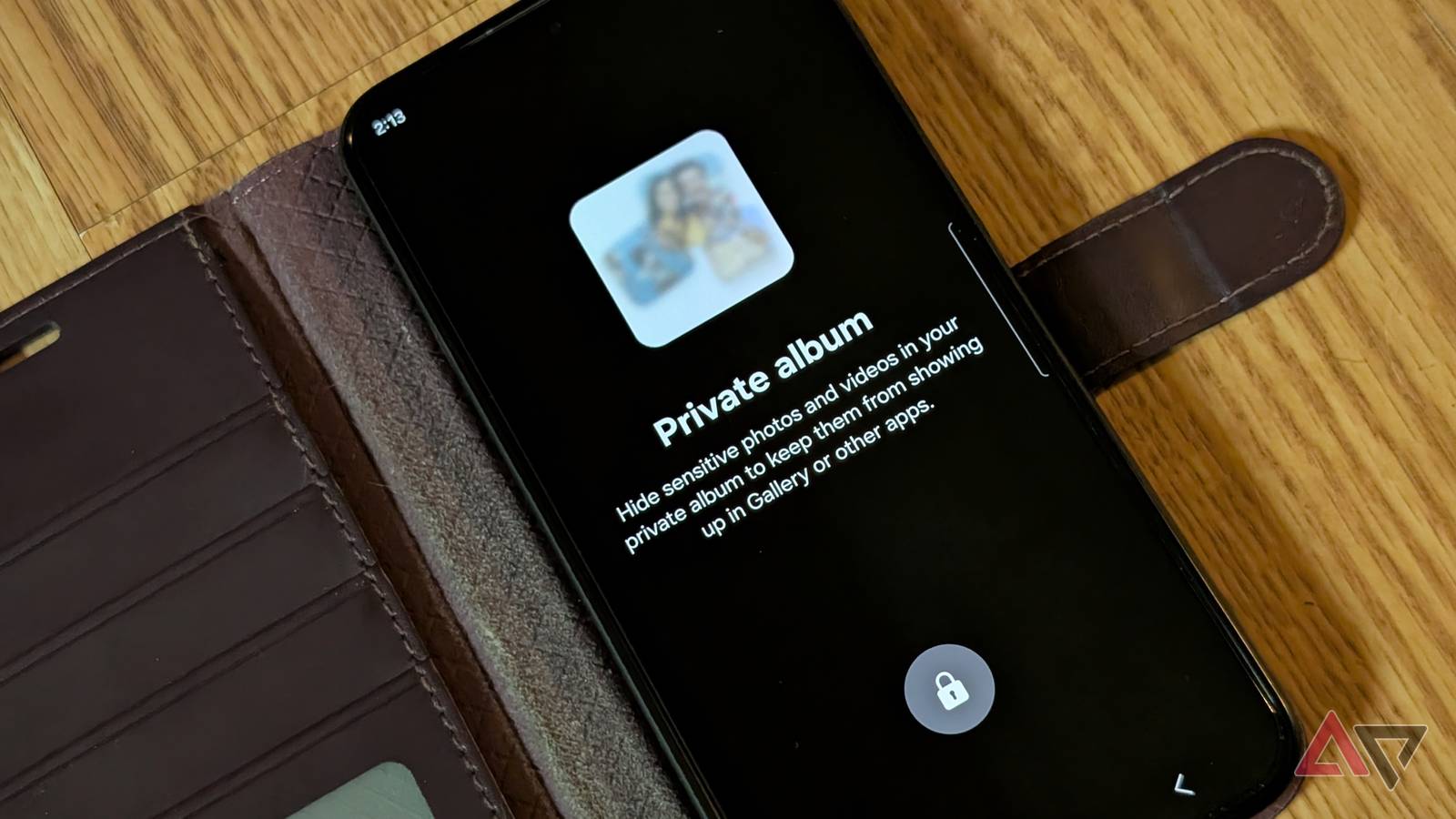
Mobile photography is a fun pastime. But sometimes the photos I take feel deeply intimate to my hobbies.
I have pictures lying in the albums that are for me, and I don’t appreciate it when others snoop through my phone.
That worry happens a lot: that someone will accidentally swipe too far back and see all my pictures.
Moreover, I didn’t want to set up Private Space (just for this) or lock those images in Samsung Folders, since they were personal but not highly sensitive.
Samsung, thankfully, streamlined this for my Samsung Galaxy S25+ by introducing a very quick Private Album feature in its One UI 8.5 update.
It’s relatively simple to use, plus, if you want to use other secure and private options like Private Space and Samsung’s Secure Folder, you still can.
 Quiz
Quiz
8 Questions · Test Your Knowledge
Samsung Gallery and Private Album
Trivia challenge
Think you know Samsung’s photo app inside out? Put your knowledge of Gallery
and Private Album to the test.
GalleryPrivacyFeaturesSecuritySamsung
Begin
What is the primary purpose of Samsung Gallery’s Private Album feature?
ATo automatically back up photos to Samsung CloudBTo store selected photos and videos in a hidden, protected space away from the main galleryCTo compress large image files to save storage spaceDTo organize photos into auto-generated highlight reels
Correct! Private Album acts as a secure vault within Samsung Gallery,
hiding sensitive photos and videos from the main view. Content stored there won’t appear in regular
browsing, search results, or third-party app access.
Not quite. Private Album is a hidden, protected space for sensitive
media — it keeps selected photos and videos out of the main gallery view and away from prying eyes, not
a backup or compression tool.
Continue
Which Samsung security framework is Private Album typically integrated with on
supported devices?
ASamsung DeXBSamsung PassCSamsung KnoxDSamsung Bixby Routines
Correct! Private Album is backed by Samsung Knox, the company’s
enterprise-grade security platform. Knox uses hardware-level encryption to ensure your hidden media is
genuinely protected, not just tucked away in a folder.
Not quite. The answer is Samsung Knox. Knox is Samsung’s multilayer
security platform that underpins Private Album, using hardware-based encryption to keep your hidden
content truly secure rather than simply out of sight.
Continue
How do you typically move a photo into Private Album within Samsung Gallery?
ALong-press the photo, tap the share icon, then select Private AlbumBLong-press the photo, tap More, then select Move to PrivateCOpen the photo, swipe left, and tap the lock iconDDrag the photo to the Private Album folder in the sidebar
Correct! Long-pressing a photo in Samsung Gallery enters selection mode,
and tapping More reveals the Move to Private option. This workflow keeps the feature discreet while
still being accessible to those who know where to look.
Not quite. The standard method is to long-press the photo to select it,
tap More in the toolbar, then choose Move to Private. Samsung designed the path to be functional but not
immediately obvious to casual users browsing your phone.
Continue
What happens to photos stored in Private Album if Samsung Gallery is uninstalled or
data is cleared?
AThey are automatically synced to Samsung Cloud before deletionBThey are moved to the device’s Downloads folder for safekeepingCThey may be permanently lost, as Private Album data is tied to the app’s secure storageDThey are transferred to Google Photos as a backup measure
Correct! Because Private Album uses secure, encrypted storage tied to
Samsung Gallery’s data partition, clearing the app’s data or uninstalling it can result in permanent
loss of those files. Samsung recommends moving content out before any such action.
Not quite. Photos in Private Album are stored in encrypted, app-bound
storage. If you clear Samsung Gallery’s data or uninstall it, that content can be permanently deleted —
there’s no automatic safety net to another app or cloud service.
Continue
Which of the following can Samsung Gallery’s Private Album store?
APhotos onlyBPhotos and videosCPhotos, videos, and documentsDPhotos, videos, and audio files
Correct! Samsung Gallery’s Private Album supports both photos and
videos, making it a practical vault for all your visual media. It is not a general file manager though,
so documents and audio files are outside its scope.
Not quite. Private Album supports both photos and videos — but it stops
there. Since Samsung Gallery is a media viewer rather than a file manager, it doesn’t extend protection
to documents, audio files, or other file types.
Continue
On newer Samsung One UI devices, Private Album access is also tied to which broader
Samsung feature for app and content locking?
ASecure FolderBKids ModeCApp LockDMaintenance Mode
Correct! Secure Folder is Samsung’s broader Knox-powered private space
on One UI devices, and it overlaps in purpose with Private Album. Some users actually prefer keeping the
entire Gallery app inside Secure Folder for an even deeper layer of privacy.
Not quite. The answer is Secure Folder. This Knox-powered feature
creates a fully isolated environment on your Samsung device, and it complements Private Album by
offering a separate space where you can keep apps and files — including a whole second Gallery instance
— completely hidden.
Continue
When you view the Private Album section in Samsung Gallery, what authentication
method is NOT typically supported to unlock it?
AFingerprintBPINCPatternDVoice recognition
Correct! Private Album supports standard biometric and PIN/pattern
authentication tied to your device’s lock screen security — but voice recognition is not an unlock
option. Bixby’s voice features are separate from the device security layer.
Not quite. Voice recognition is the odd one out here. Samsung’s Private
Album relies on the same secure authentication methods as your device lock screen — fingerprint, PIN,
and pattern — but voice is not part of that security stack for Private Album access.
Continue
What happens to a photo’s visibility in Samsung Gallery’s main view immediately
after it is moved to Private Album?
AIt is replaced with a placeholder thumbnail showing a lock iconBIt disappears entirely from the main gallery, albums, and search resultsCIt remains visible but is blurred until the user authenticatesDIt is moved to a separate Recents folder with restricted access
Correct! Once moved to Private Album, a photo vanishes completely from
the main gallery, all albums, and even search results within Samsung Gallery. There’s no blurred
thumbnail or hint of its existence — it’s as if the photo was never there.
Not quite. Samsung designed Private Album to be genuinely discreet.
Moved photos disappear entirely — no placeholder, no blur, no trace in search. The only way to see them
again is to navigate directly into Private Album and authenticate.
See My Score
Challenge Complete
Your Score
/ 8
Thanks for playing!
Try Again
Samsung’s Private Album lets me hide my personal photos
It stays out of sight and out of mind
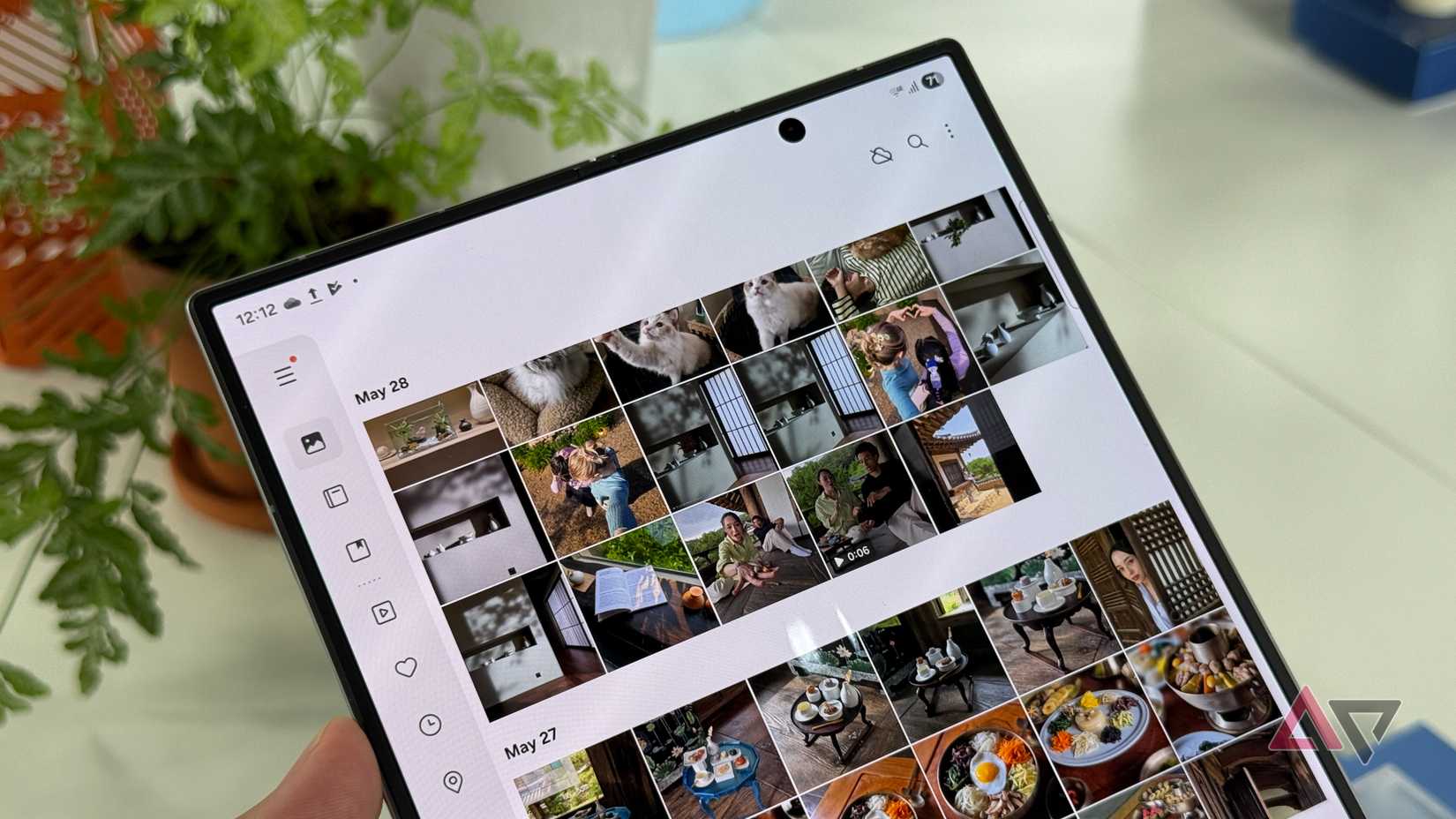
The images I don’t want people to see are my experimental food photos, gaming screenshots, and random fan art.
As someone who still has the heart of a chemist, I tend to try out some funky recipes that I am weirdly proud of, and I take step-by-step photos to document my technique and the final presentation.
I’ve been made fun of for doing this before, which has made me feel a lot more self-conscious about sharing these photos, so I like to keep them to myself now.
Many of these photos aren’t flattering, and I am not very proud of the quality.
This is where the One UI 8.5 Private Album feature comes in.
Technically, you can also use this for your saved videos. The feature isn’t limited to photos.
There’s little to no setup required, since the feature is baked into One UI 8.5. As long as your Galaxy phone is on that version, you can access it.
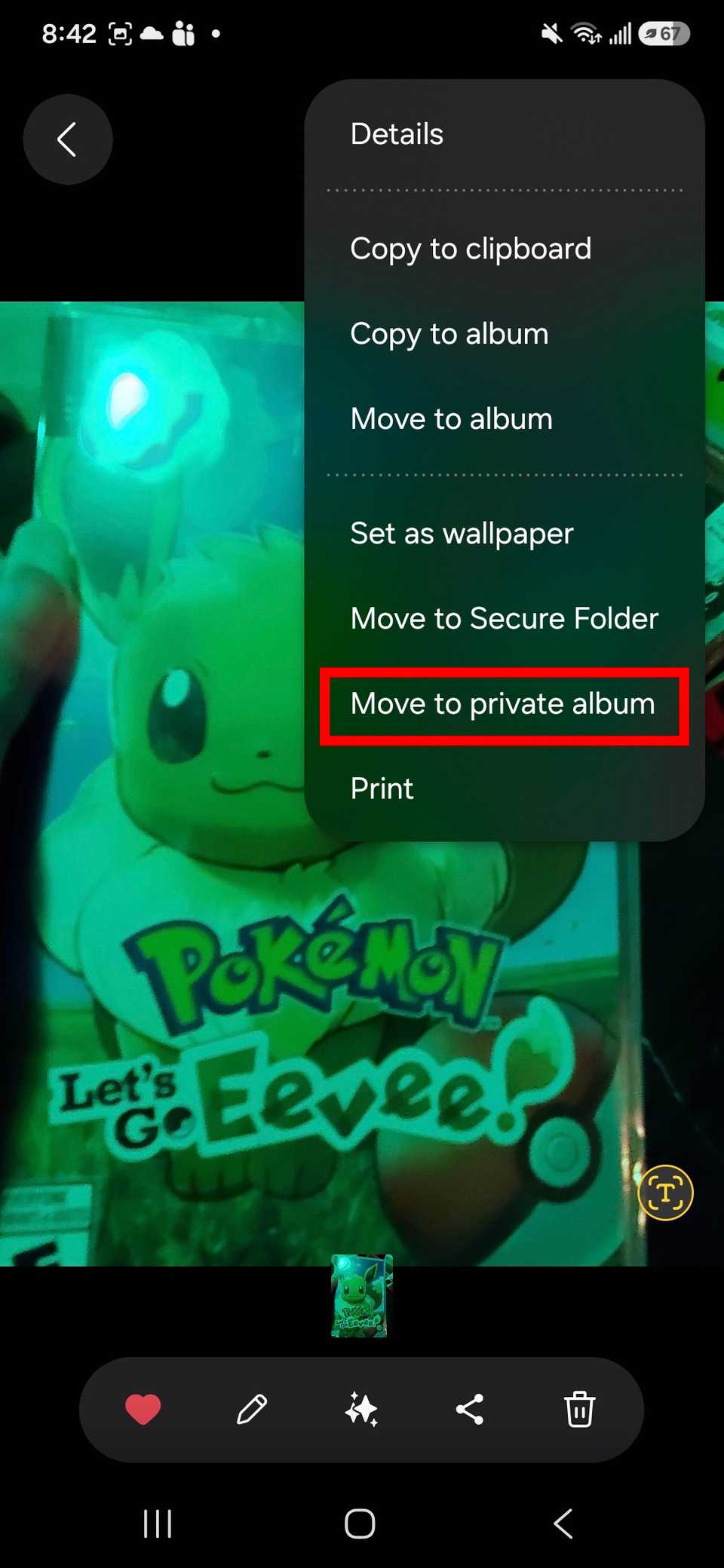
You just need to open the Samsung Gallery app. Look for the images or videos and select them, or open a specific one.
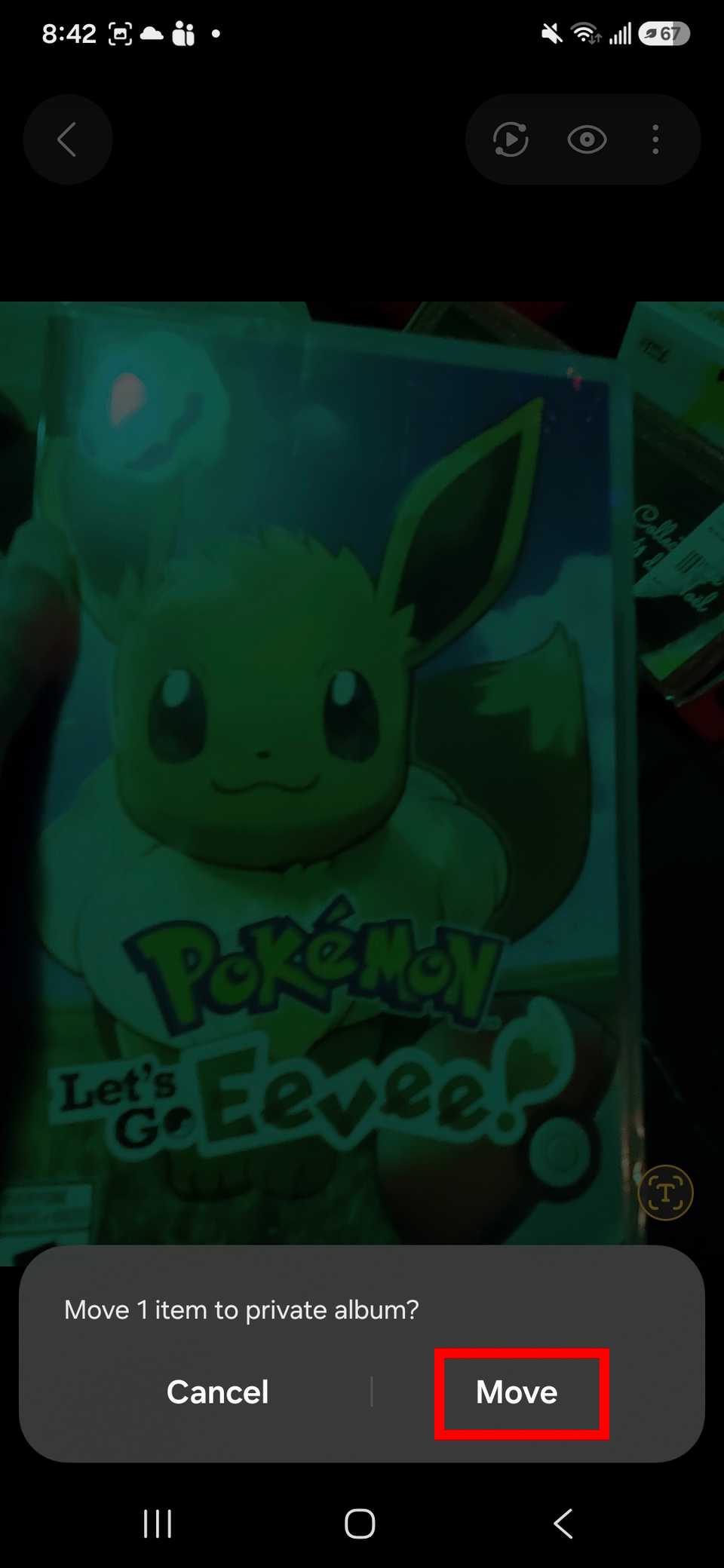
Then tap the three-dot icon to open the More menu, and choose Move to private album > Move.
After you’ve moved those items to your Private Album section, you can access them by tapping the three-line button (the Menu button) at the bottom of the Gallery app. From there, choose Private album.
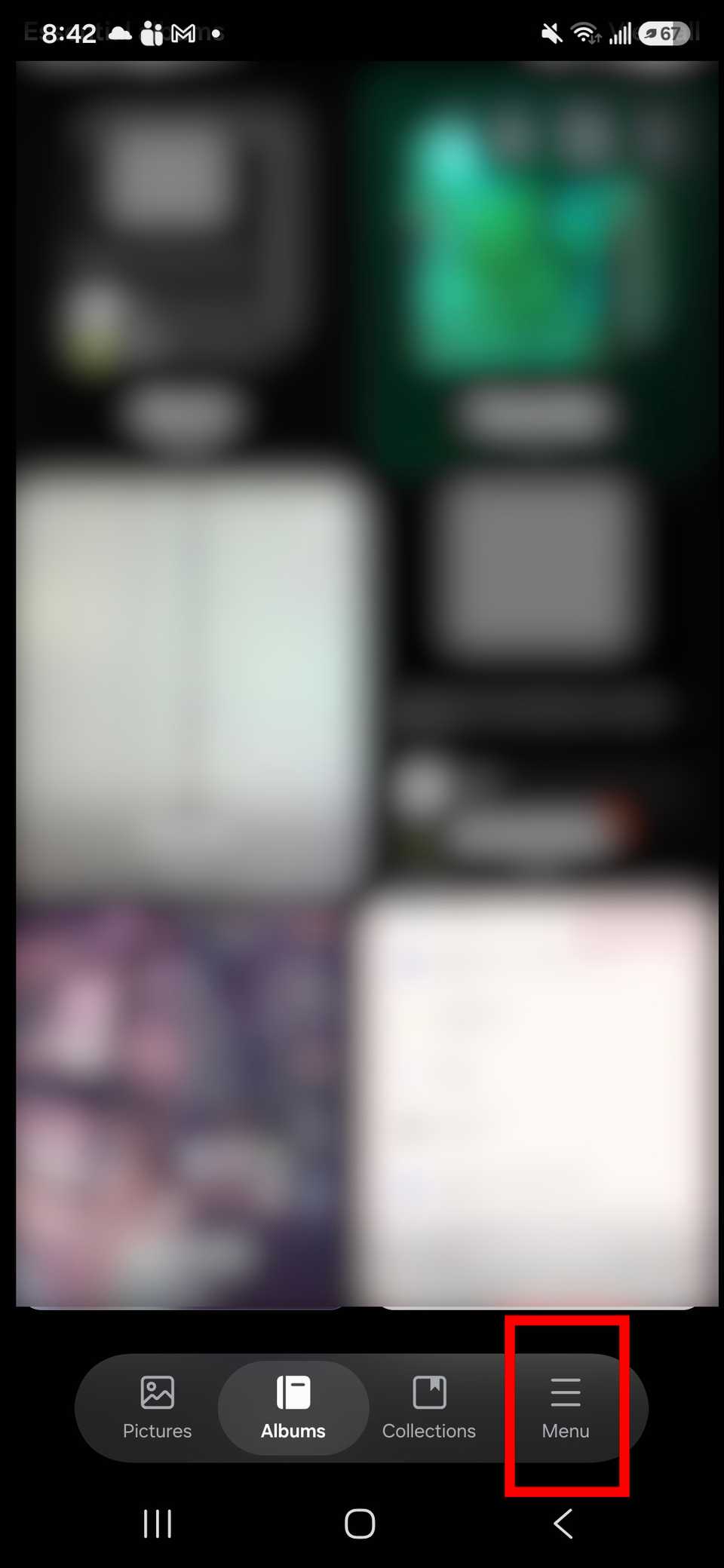
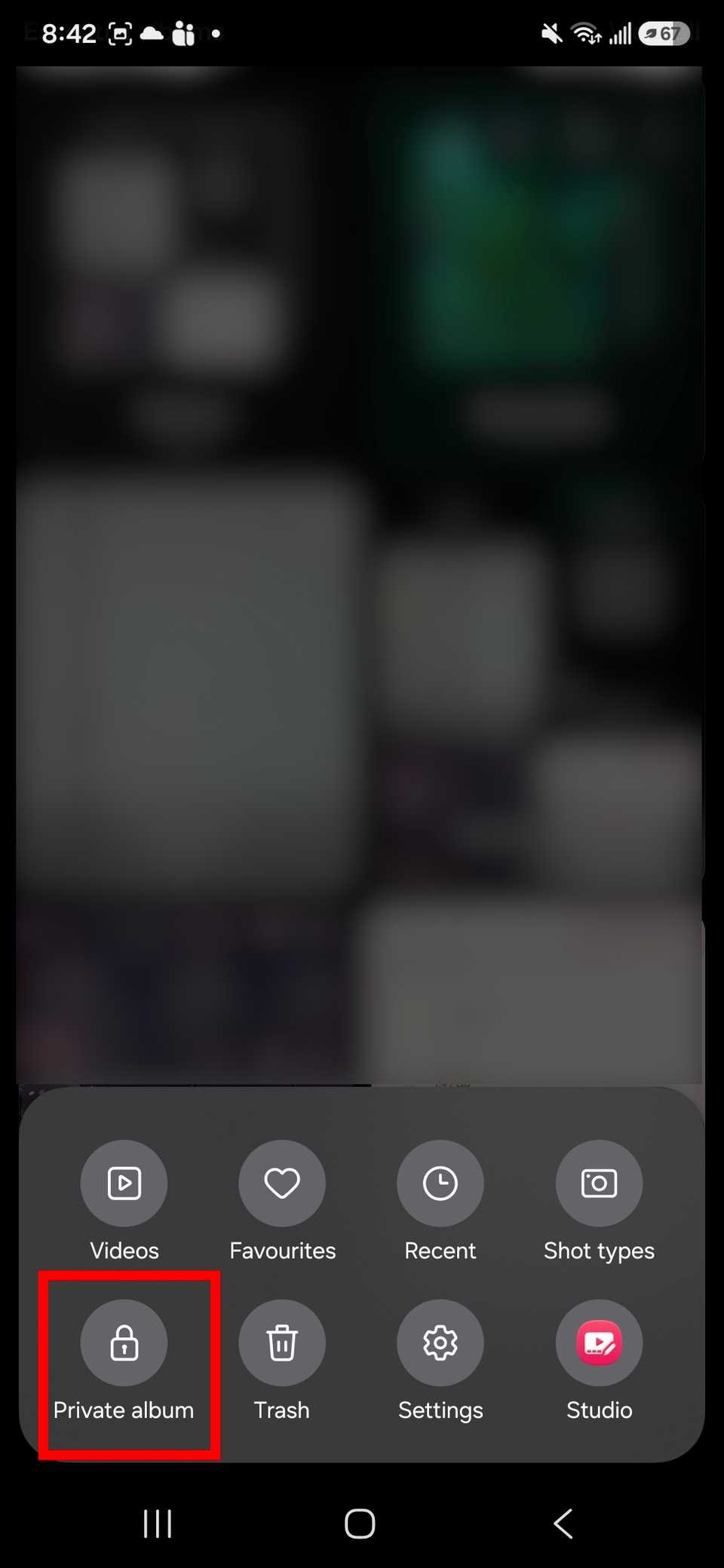
When you open the Private Album section, your device will prompt you to verify your identity using a fingerprint, PIN, or pattern.
You cannot take screenshots when you access your Private Album to prevent accidental leaks or breaches of your privacy.
By default, your Private Album is hidden. You can only see your Private Album in the menu. It will not show in your Gallery’s Album section, which is what I love.
So no one really knows if you have a hidden album unless they go looking for it in your menu, which means it won’t be accidentally swiped or listed (even if they check through your general collection).
This also works like Samsung’s Secure Folder, where if you decide to change your mind about showing certain images to someone, you can move them back to the Gallery app for public viewing.
Related
5 reasons I prefer Samsung Gallery over Google Photos
The gallery app that actually gets me
Using Private Space and Secure Folder
If you really need to lock everything down, use these tools
Credit: Lucas Gouveia / Android Police
I normally keep most of my sensitive information out of my phone if I can help it. But I have also guiltily placed private screenshots and sensitive information as photos.
That’s where you might still opt into separating that using either Private Space or Secure Folder.
If you prefer what you do — like your apps, files, and media — to be completely hidden or almost invisible, consider setting up Private Space. That way, everything feels isolated from your main phone use.
If you want extra security, Secure Folder is a great choice. You can also back up anything you store to Samsung Cloud in case you ever lose access to your device.
Plus, everything stored in Secure Folder is encrypted with Samsung’s security platform, Samsung Knox. In Private Space, only biometrics can protect your private content.
I am more partial to Secure Folder, mainly because it has been around longer since the Samsung Galaxy Note 7 was released. It later became available for Samsung Galaxy S7 and S7 Edge with Android 7.0.
Private Space was an Android 15 feature that came alongside the One UI 7 update.
Both features can be found in the Security and privacy section in the Settings app.
Stay private with photos even without a Samsung phone
Even if you don’t use Private Space and don’t have a Samsung phone to keep your images hidden, there are still a few tools you can use.
For example, Google Photos has a built-in lock feature that works similarly to Samsung’s Secure Folder, but only for what’s available in the app or in your Google Pixel camera.
It acts as a personal vault that prevents prying eyes from accessing your content, but it can also back up your private content, either automatically or manually.
Another example is Private Photo Vault (Keepsafe). It’s a trusted third-party app service that secures images with biometrics and military-grade encryption, while offering features such as break-in alerts and decoy PINs for added awareness and protection.