
When you purchase through links on our site, we may earn an affiliate commission. Here’s how it works.
You can use the combination of tools called DISM and pnputil to export your current drivers, and easily re-import them after a clean Windows install.
Neowin
@ivan_jenic ·
Jul 12, 2026 16:00 EDT
Microsoft recently revealed Cloud Rebuild, a Windows 11 recovery option that wipes a PC and reinstalls the OS along with all its drivers straight from Windows Update. It works even when Windows itself won’t boot, and it doesn’t need a USB stick. The new recovery feature is available for Insiders to test in the latest Experimental builds.
Although Cloud Rebuild already looks like a useful feature, it has one crucial limitation. You still need to be connected to the internet in order for it to work. That kind of defeats the purpose if your network drivers are out of place.
Luckily, Windows already offers a way to export every driver currently installed on a system into a folder. You can use that method to put your drivers on a USB stick, and then simply import them again once you do a clean reinstall.
You can do this using command-line tools called DISM and pnputil, and all it takes is a few simple commands. DISM, short for Deployment Image Servicing and Management, is a built-in Windows tool for managing system images and installed components; and pnputil is a built-in Windows tool for managing driver packages in the driver store. Both have existed in Windows for years.
Here is the full process:
Open Start, type powershell, then press Ctrl+Shift+Enter instead of Enter. This launches PowerShell elevated and triggers a UAC prompt, which you need to accept before either command below will work.
Create a destination folder before exporting anything. DISM throws an error and exports nothing if the folder doesn’t already exist: mkdir C:\DriverExport
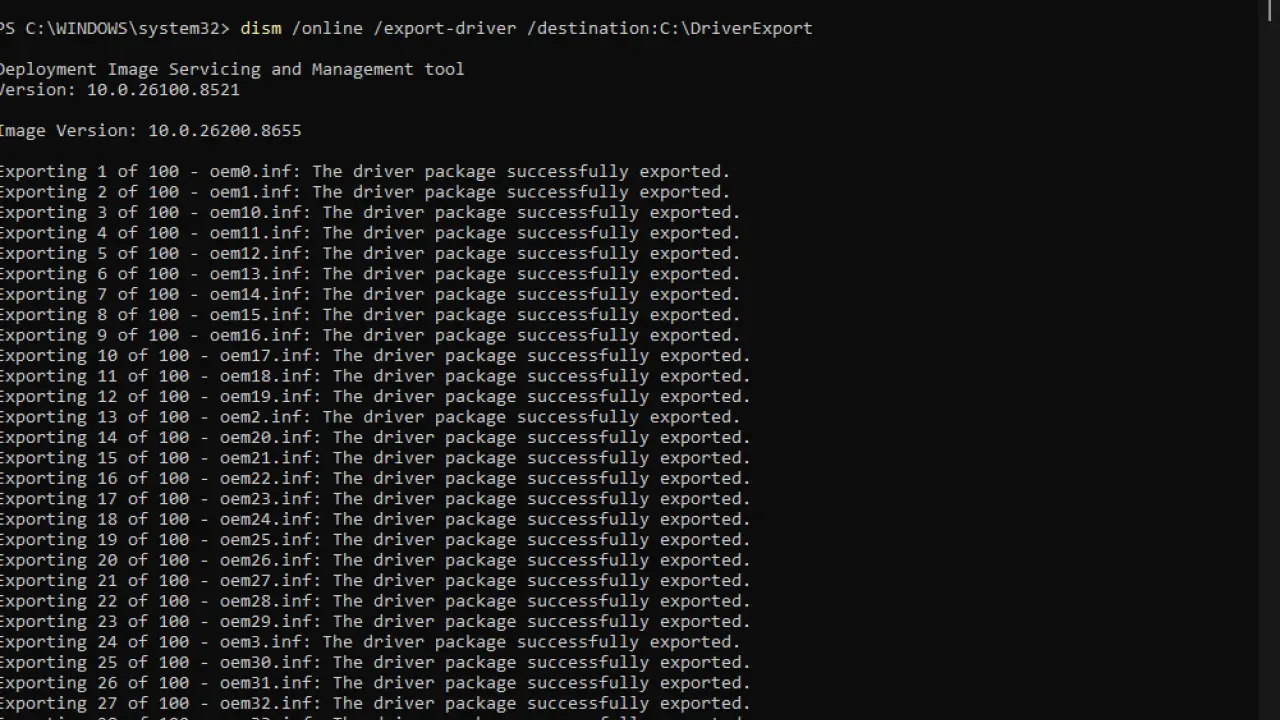
Export every third-party driver currently installed on the system: dism /online /export-driver /destination:C:\DriverExport
Copy the DriverExport folder to a USB stick or a second internal drive, one that won’t get wiped during the reinstall.
Wipe the drive and install a clean copy of Windows as usual.
On first boot, open an elevated PowerShell window again using the same Ctrl+Shift+Enter shortcut.
Point pnputil at the copied folder to bulk-import every driver that matches the current hardware: pnputil /add-driver C:\DriverExport\*.inf /subdirs /install
That’s it, after you’re done, you’ll have all your old drivers back like they never left. Windows will even skip drivers that don’t have any hardware associated with it, as well as old drivers if Windows Update already installed a newer driver.
The only tradeoff is that it only restores what was already installed on your computer, not any extra drivers that you also might be missing. Also, if any of your current drivers are causing issues, which NVIDIA’s drivers are notorious for, these problems are likely to return.