
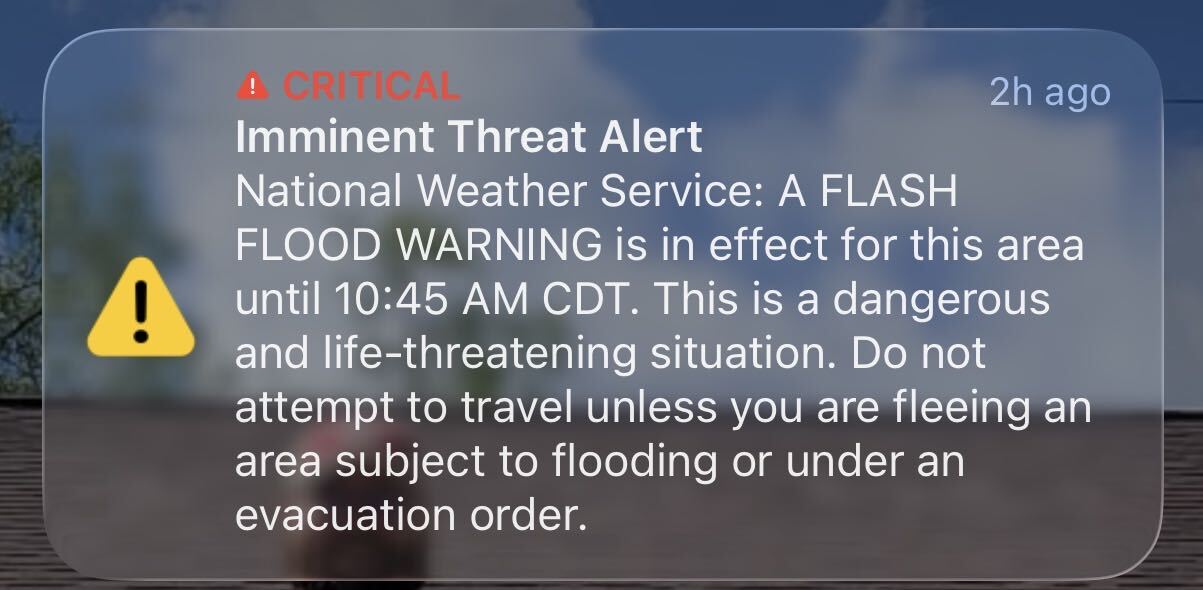
If the storm and flooding didn’t wake you up, more than likely the alert on your phone jolted you awake well before your scheduled wake-up time. That was the case on Monday, June 15, when an Imminent Threat Alert warned San Antonio residents of a Flash Flood Warning in effect until 10:45 a.m. While parts of the city have seen flooding and the National Weather Service warns of up to 8 inches of rain in isolated areas, many people are wondering how to get the shocking alerts off their phones.
IPhone users across San Antonio are searching for how to turn off weather alerts and how to turn off AMBER alerts, the child abduction alert system, in the wake of the storm. It seems enough people would rather sleep through the warnings than be alerted to oncoming dangers.
To be clear, we at MySA do not recommend turning off the alerts. As we saw in the July 4 floods at Camp Mystic, where numerous children lost their lives, the presence of an emergency alert system can be the difference between life and death, given how quickly weather conditions can change.
If you still want to turn off the alerts, here’s what to do.
To opt out of government emergency alerts on iPhone, go to Settings> Notifications, then scroll to the bottom and disable Enhanced Alerts and Government Alerts. By selecting Enhanced Alerts, they can toggle off Earthquake Alerts and Imminent Threat Alerts to avoid receiving them in the future. Under Government Alerts, they can toggle off AMBER Alerts and Public Safety Alerts, and turn off the sound for emergency alerts. Once those are turned off, all users need to do is select them again in order to turn them back on.
Stay safe out there, San Antonio.