
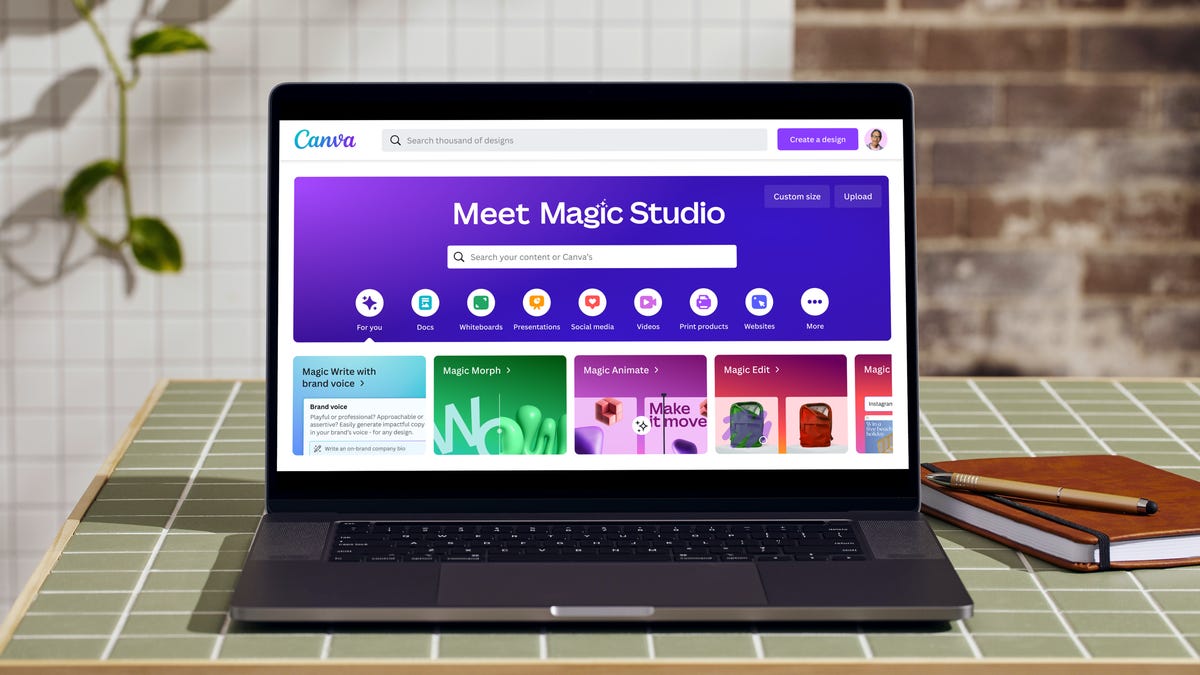
Canva has been one of my favorite graphic design programs for a reason. It’s user-friendly, even for those who aren’t artistically inclined, and offers a robust free plan that’s perfect for most projects and budgets.
Like a lot of digital creative services, Canva has upgraded its artificial intelligence tools over the past few years. It has a full suite of AI features that let you easily generate text, photos and videos. The company also recently added more AI support for document drafting, spreadsheet work and coding.
As CNET’s generative media expert, I’ve spent time with Magic Media, the company’s AI image generator. It’s the one I always recommend to beginner creators for the same reasons I love Canva for graphic designs: It’s creative, easy to use and accessible.
Another reason I recommend Canva is that it automatically opts you out of letting the company train its AI on your content, an important consideration if you’re using AI for professional work.
Read More: What Are AI Video Generators? Everything in OpenAI’s Sora, Midjourney and Google Veo 3
With Canva’s Magic Media, you get 50 photo and five video lifetime credits on the free plan. Each time you generate a batch of images, it will deduct a credit. While there’s a lot to like about Canva, it isn’t the most prompt-adherent program I’ve used. So you might need to upgrade to a paid plan like Canva Pro ($15 per month) at some point for more credits.
Here’s what you need to know about generating AI images in Canva.
How to create AI images in Canva
It’s easy to get started. From the Canva homepage, simply click “Canva AI” from the options above the search bar or from the left side menu. From there, you can enter your prompt to create an image, video or draft a document or sections of code.
If you’re in an existing Canva project, open the left side menu and select Magic Media. This is Canva’s in-house AI suite. From there, you’ll be able to enter a prompt to create AI images, graphics and videos. Canva also has a number of third-party AI models to choose from. To use those, select Apps from the left side menu and search for your favorite program like ProfilePhoto or LogoGen.
Don’t miss any of our unbiased tech content and lab-based reviews. Add CNET as a preferred Google source.
An example of an image I created with Canva AI.
Created by Katelyn Chedraoui using Canva AIHow to use Canva Magic Media
Magic Media is pretty self-explanatory and easy to use. Once you’ve opened the Magic Media window, there are a couple of things to keep an eye on. The first thing is the prompt box, where you’ll enter your descriptions of what you want to create. You can check out CNET’s image prompt writing guide for tips on how to write the best version. You can use the Inspire Me button to have Canva write a random prompt for you.
I highly recommend you take advantage of the ability to upload reference images and select artistic styles. Canva has a number of preset styles that are fun, including filmic, 3D and anime. But if you have a specific aesthetic you want your AI image to mimic, uploading it as a reference image is going to go a long way toward getting you what you want.
You’ll also want to monitor how many credits you have left by using the tracker at the bottom of the panel. Once you insert an AI image into your project, it’s added to your library and uploads tab so you can easily access it across different project files. Once an image is in your library, you can use it as many times as you like without consuming additional credits.
Canva images aren’t watermarked, so you’re going to want to take extra care to disclose that your projects have AI-generated content.
For more, check out the top AI chatbots and AI essentials.