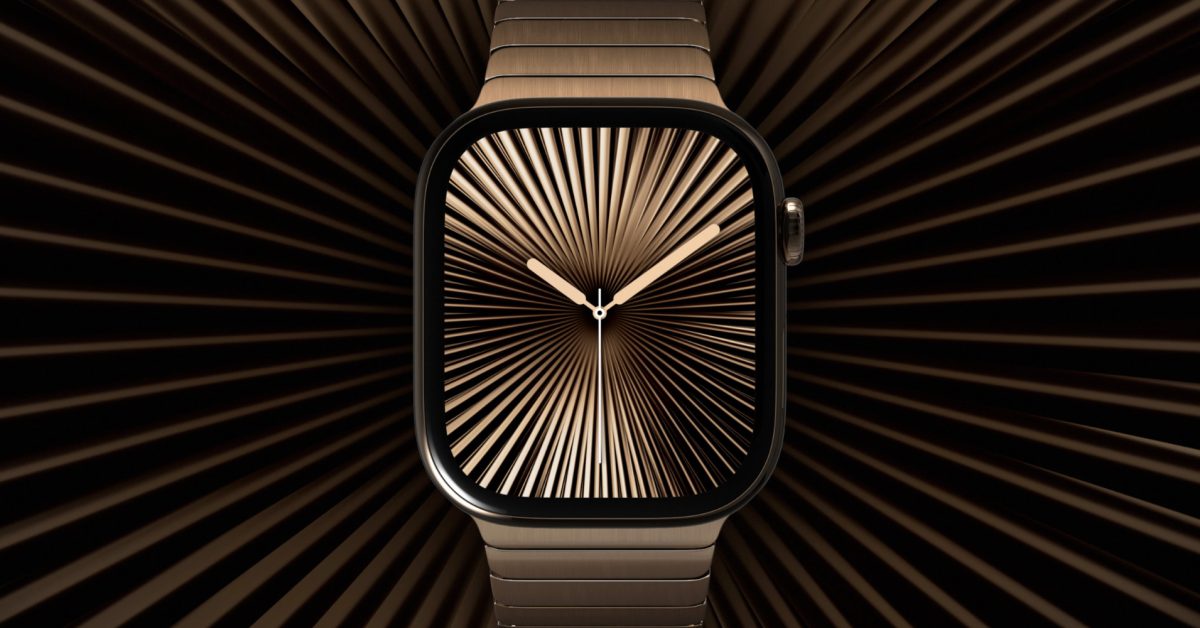
We mentioned last week that in iOS 26.1, Apple changed how the Clock app icon’s seconds hand moves in low power mode. Instead of continuously moving, the seconds hand ticks with each second like a quartz clock.
Analog faces on new Apple Watches have a similar behavior, using a sweeping seconds hand in active mode and a ticking seconds hand in always on mode. If you’re like me and prefer the quartz-like movement, there’s a workaround that can help.
Apple Watch has always used a continuously moving seconds hand on analog watch faces, like an automatic movement watch. That didn’t change until Apple Watch Series 10. The displays on Apple Watch Series 10/11 and Apple Watch Ultra 3 are capable of refreshing once per second.
This enabled the ability to always show the time with seconds, but the seconds hand on an analog face switches between the quartz-like movement to the automatic movement. I understand why Apple Watch works like this and prefer the ability to always see seconds, but I find the switch a bit jarring and unnatural.
If given the choice, I would set my seconds hand to always tick rather than continuously move. Maybe Apple will add an option in a future watchOS update, but I thought of a workaround for now.
Since the ticking seconds hand is only used in always on mode, changing one setting can show you always on mode most of the time: Settings app > Display & Brightness section > Toggle off Wake on Wrist Raise option.
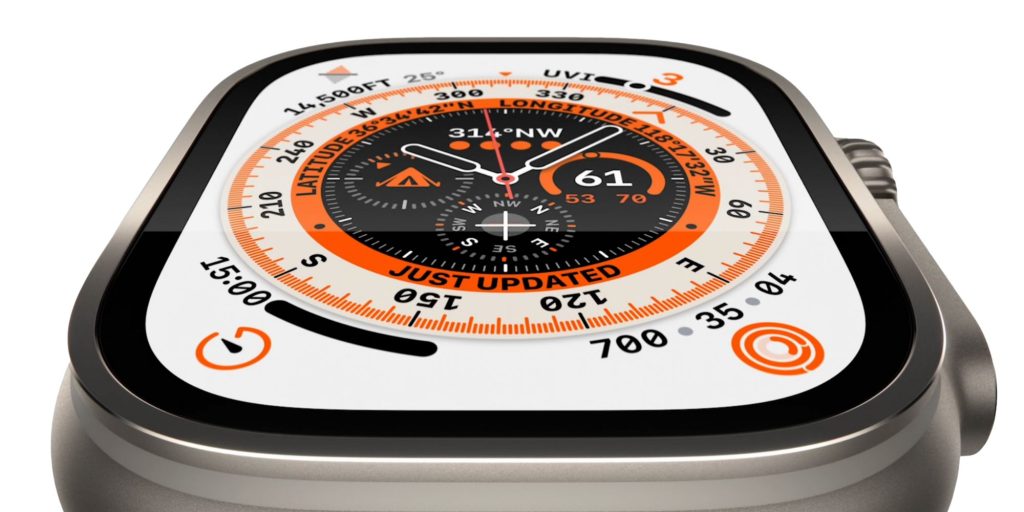
I wouldn’t recommend running your Apple Watch in this state full time. The biggest downside is the watch face significantly dimming in this inactive state. You also lose one-handed gestures like double tap for scrolling through the widget stack and interacting with notifications.
Still, it’s a neat mode to enter if you want your Apple Watch to feel more like a quartz analog watch. You can still wake the display with a tap, button click, or Digital Crown scroll too.
You can also swipe down for Notification Center, swipe up for widgets, and tap complications to launch apps without waking up the watch first. Always on mode didn’t always work that way, but Apple added instant responsiveness in a software update.
Note that this only works on Apple Watch Series 10/11 and Apple Watch Ultra 3. And without an always on display, disabling Wake on Wrist Raise just keeps the screen off.
I’ve been using this “just a watch” mode for a few days, with only a few notifications enabled and auto-launch Live Activities disabled. Try it out for yourself and see what you think. You can always toggle Wake on Wrist Raise back on to return to normal.


FTC: We use income earning auto affiliate links. More.