
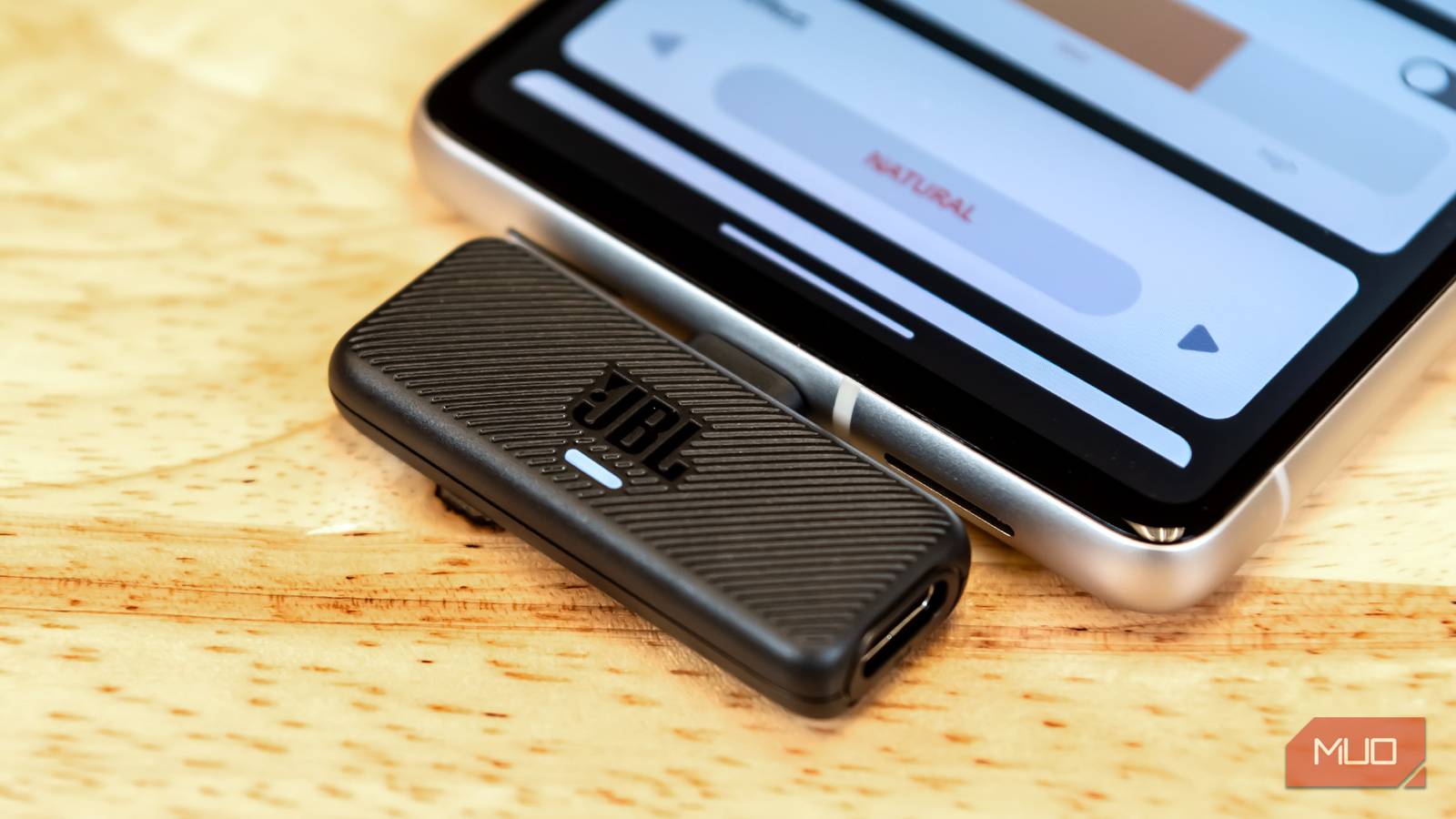
Most people never use their phone’s USB-C port for anything other than charging the device. At best, they might plug in a USB flash drive to move a few files and call it a day. But that small port at the bottom can handle far more than most of us give it credit for.
I use it for faster wired internet through a LAN connection, charging my accessories, mirroring my phone’s screen to a TV, and connecting external devices like a microphone, keyboard, mouse, and even a gaming controller. The best part is that you don’t need anything more than a cable and an adapter to turn your phone into a workstation, a media hub, a gaming console, or even a backup power source in a pinch.
Enjoy a wired LAN connection
Zero lag, zero drops, just pure speed
Pankil Shah / MakeUseOfCredit: Pankil Shah / MakeUseOf
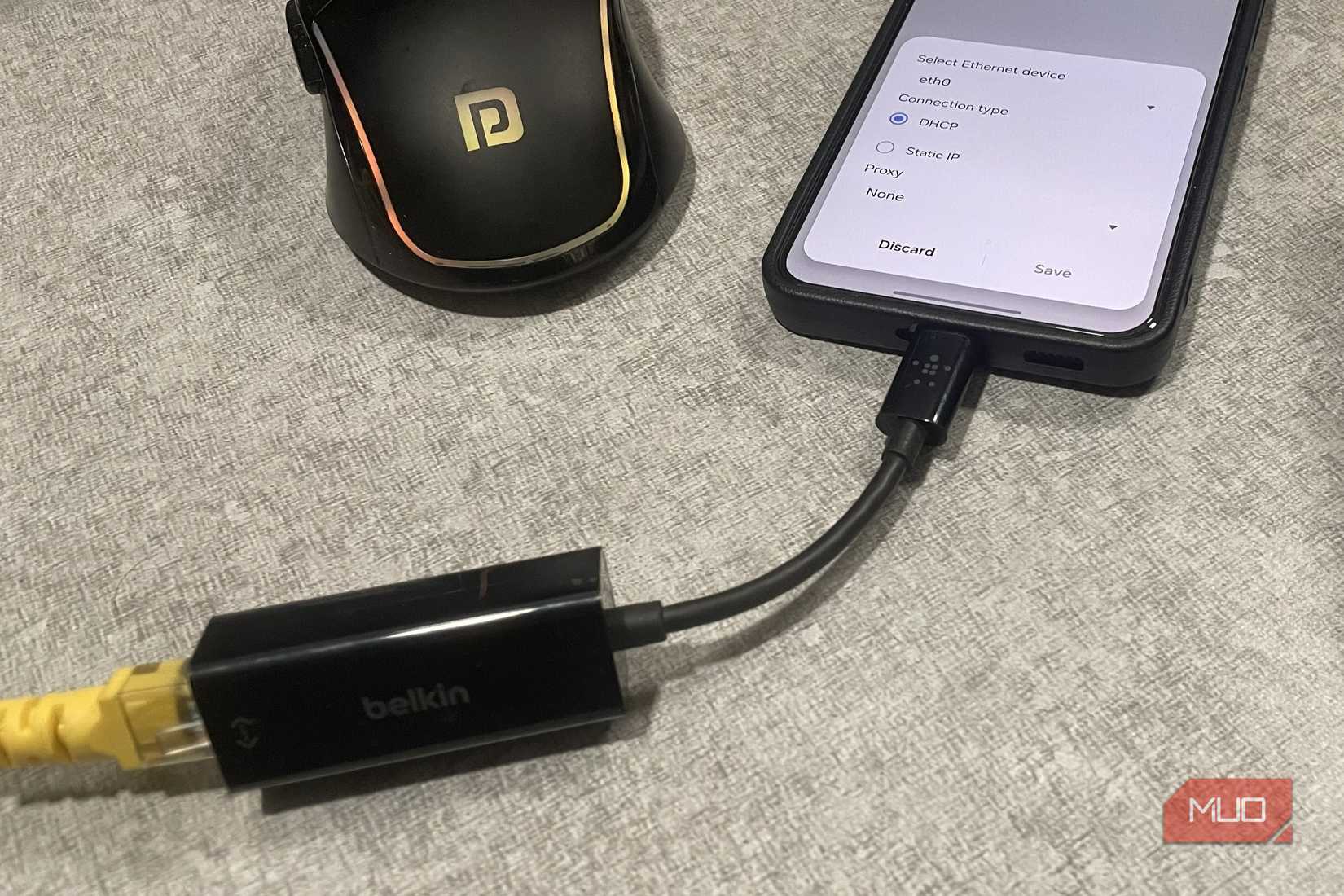
This one may sound a bit odd, but hear me out. Every so often, I connect my Android phone to my router with an Ethernet cable. For this, I use a USB-C to Ethernet adapter and a LAN cable that runs from the router to my PC.
Any time I need fast internet on my phone, I simply need to connect that LAN cable using the adapter. Once done, all that’s left to do is turn off Wi-Fi and mobile data from the Quick Settings panel, and I’m good.
Of course, this isn’t something that’s practical to do all day. But I find it especially useful when backing up large photos and videos to the cloud and gaming online. It saves me from longer wait times and those occasional backup errors.
Charging other phones and accessories
Nothing short of a portable power bank
Pankil Shah / MakeUseOfCredit: Pankil Shah / MakeUseOf
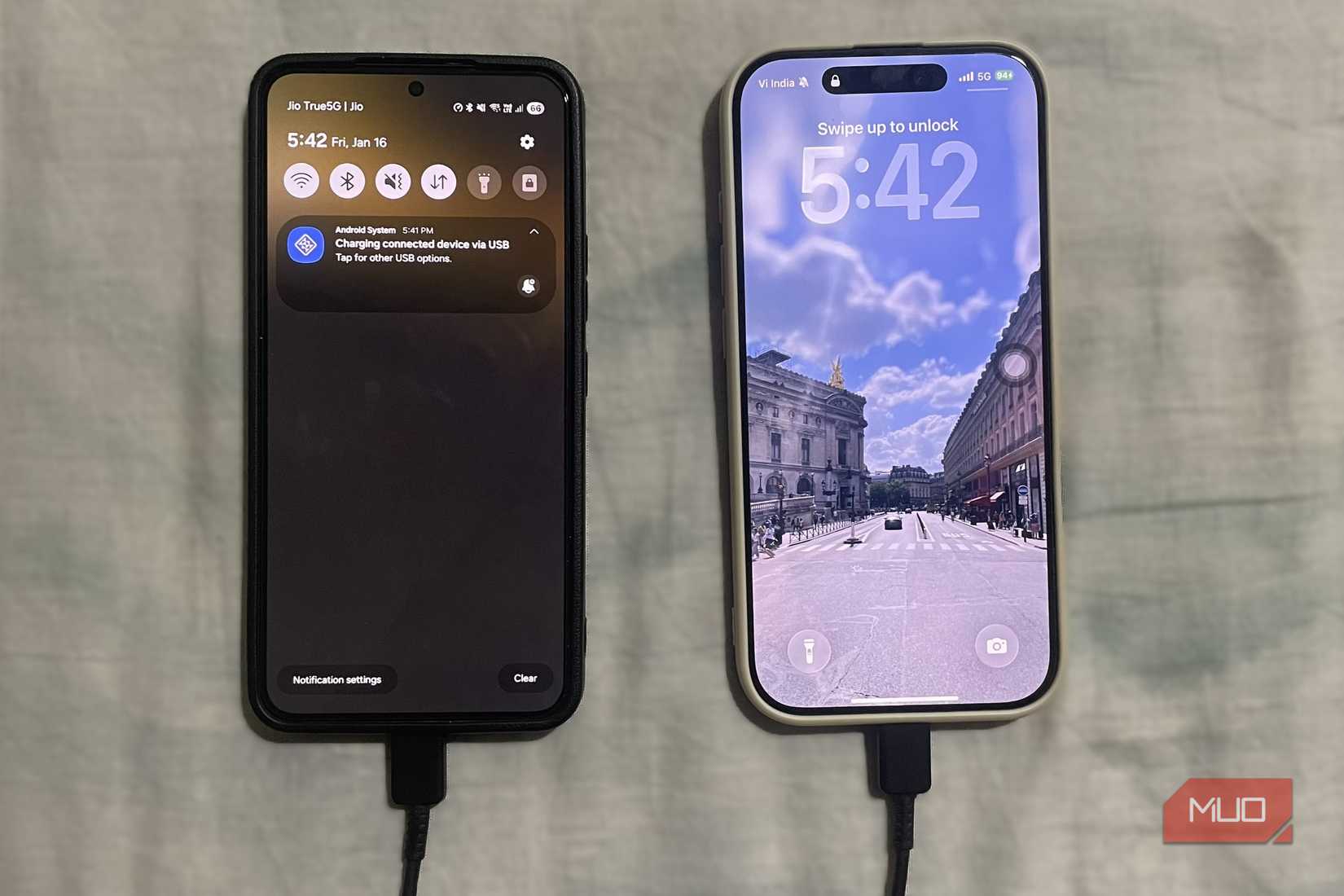
A phone’s USB-C port is not just taking in power. It can also send power out. In other words, your phone can act as an emergency power bank.
I find this extremely useful, especially now that newer iPhones also have a USB-C. With a USB-C to USB-C cable, I can plug my phone into another, and whichever one has more battery automatically becomes the charger. I’ve used this more than once to save a friend’s phone that was about to die.
The same also works for accessories. I can use my phone to power my wireless earbuds, smartwatches, fitness bands, and even a Bluetooth speaker.
This feature is called reverse charging, and most modern phones have it. My Samsung phone also has a wireless power-sharing option, which turns my phone into a wireless charger. Still, I prefer using a cable connection wherever possible because it’s faster, reliable, and also lets me transfer files.
External microphone
Professional audio with minimal setup
Pankil Shah / MakeUseOfCredit: Pankil Shah / MakeUseOf
My Samsung phone has a decent microphone that’s good enough for calls, notes, and voice typing, but it is nowhere near ideal for recording high-quality audio. It simply cannot compete with a real microphone.
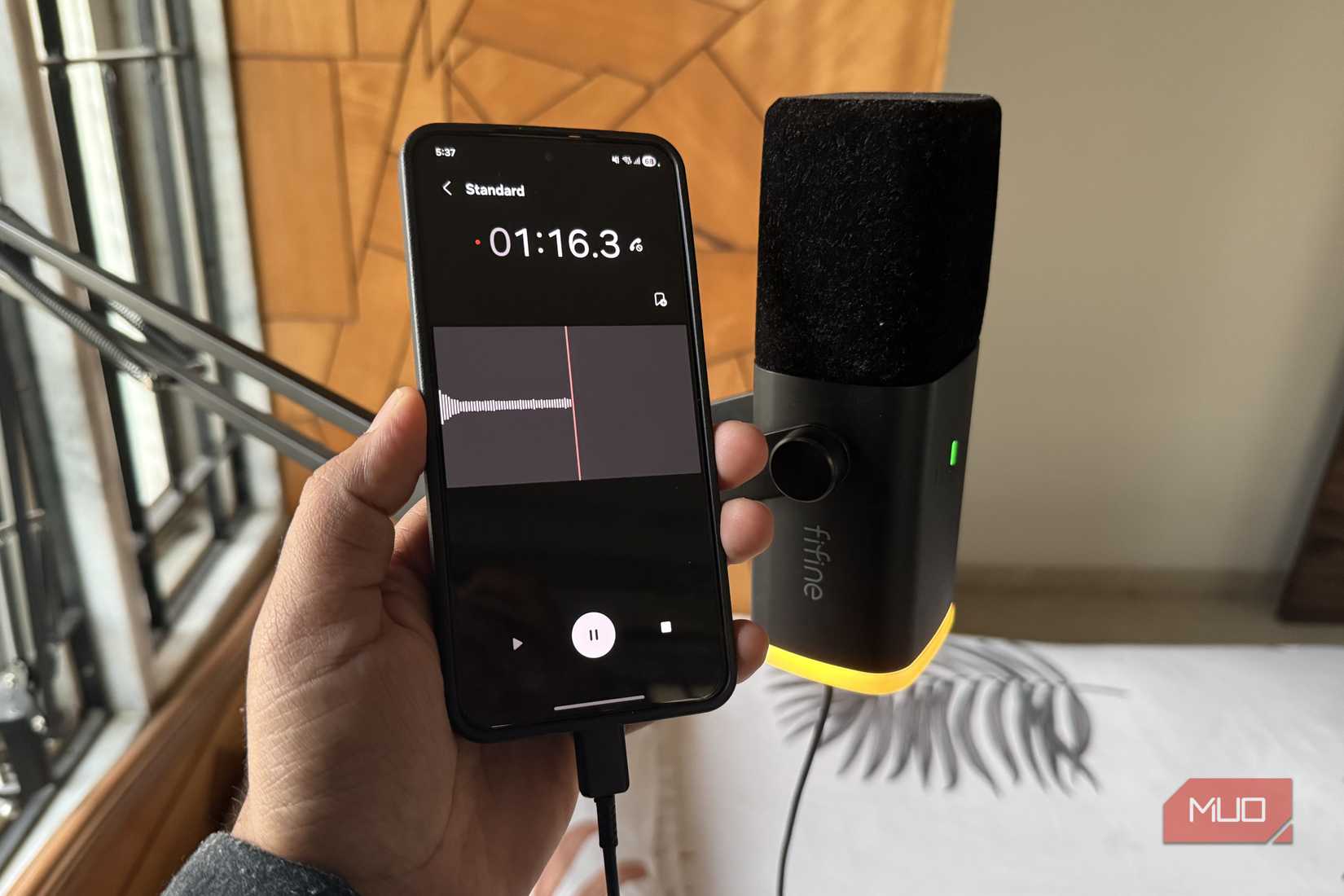
So any time I need to record a voiceover, I connect my Fifine microphone to my phone using a USB cable. It makes my voice sound fuller, clearer, and far more professional.
What I love most is how simple the setup is. All I need is a phone, a microphone, and a cable. I don’t need to use a laptop to record my voice in high quality. I can record narrations and voiceovers and get audio quality that requires almost no editing.
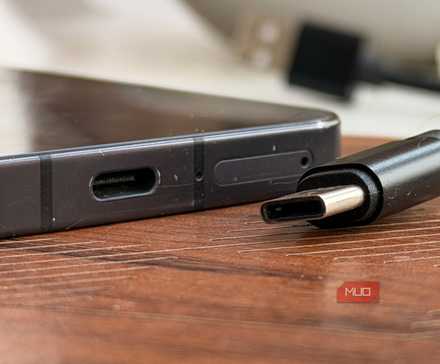
How USB-C reversibility actually works
Reversible doesn’t mean identical.
Mirror phone to a TV or monitor
Your phone, supersized
Digvijay Kumar / MakeUseOfCredit: Digvijay Kumar / MakeUseOf
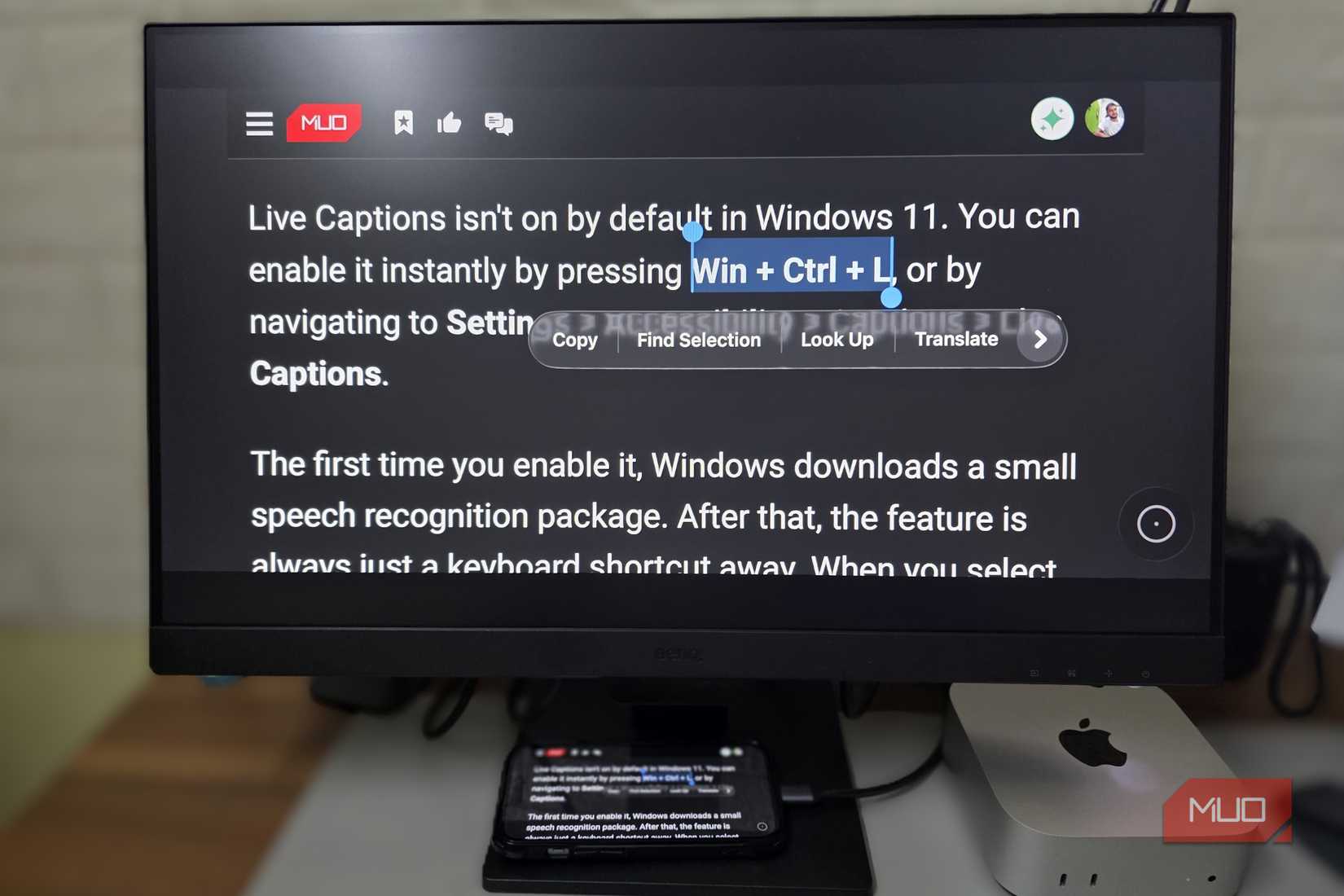
One thing that separates phones from PCs is the screen size you get. But with a USB-C cable and a TV or monitor that supports display over USB-C, that limitation disappears.
I can connect my phone to my monitor or TV and mirror everything to a bigger screen. This is great for watching photos and videos on a large screen and even doing a quick presentation. Yes, it’s possible to mirror my phone to a TV wirelessly too, but using a cable connection means I don’t have to worry about lag or having a Wi-Fi connection.
This setup even allows me to use my phone as a temporary workstation. I can pair it with a keyboard and mouse to answer emails, edit documents, or browse comfortably using Chrome’s desktop mode.
Mouse, keyboard, and game controllers
Ditch the touch, plug in precision
As someone who uses a mechanical keyboard all day, I find typing on a phone quite uncomfortable. For long writing sessions, I connect a wired keyboard to my phone using a USB-C cable or a USB-C to USB-A dongle. This makes typing long emails or editing documents feel more comfortable.
I can do the same with a mouse. This is especially handy when I’m recording my phone’s screen to demonstrate something, because a mouse gives me a visible cursor that makes it easier for others to follow what I am doing. Another possible use case for this is when a phone’s touchscreen stops working. Plugging in a mouse can help you navigate the interface and back up important data.
The peripheral I use the most, though, is a game controller. I find this handy in games that show on-screen buttons. With a controller, I can simply hide them and enjoy a clean view of the game. The overall gaming experience feels much more console-like.
It’s crazy how much of a difference a simple shift from old Micro USB and Lightning ports to USB-C on phones has made. And yet, it’s kind of sad that most people don’t get to enjoy these possibilities, simply because they are barely talked about or marketed.