
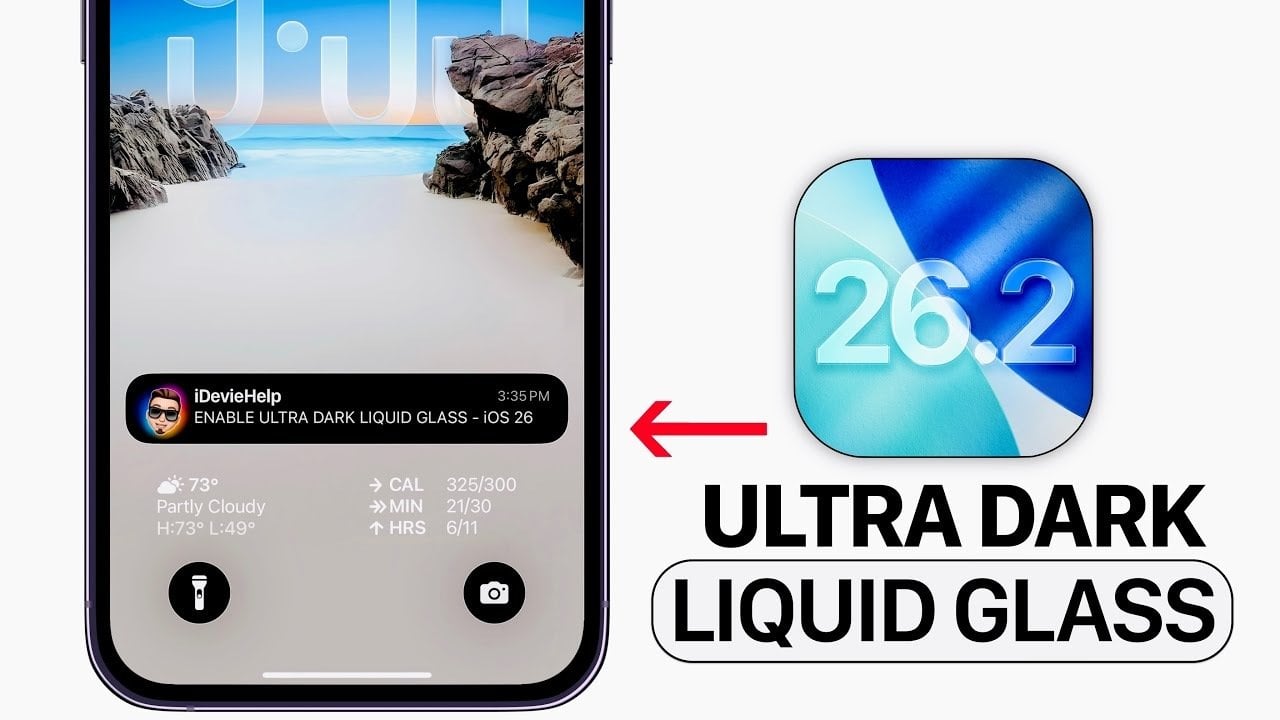
Apple’s iOS 26.2 introduces a visually striking feature: the ultradark liquid glass appearance. This enhancement redefines the traditional dark mode, offering a sleek, high-contrast interface that combines improved usability with a refined aesthetic. If your iPhone is running iOS 26.2 or later, you can activate this feature by adjusting a few settings. Follow this guide to transform your device into a more polished and functional experience. The video below from iDeviceHelp gives uis more details.
What You Need to Get Started
Before allowing the ultra dark liquid glass appearance, ensure your iPhone meets the necessary requirements:
iOS Version: Your device must be updated to iOS 26.2 or later. To confirm, go to Settings > General > Software Update and install the latest version if available.
Compatible Device: Ensure your iPhone model supports iOS 26.2. Devices released in the last five years are generally compatible.
Once your device is updated and verified, you’re ready to customize your interface.
Step-by-Step Guide to Enable Ultra Dark Liquid Glass
Activating the ultra dark liquid glass appearance involves configuring several settings. These adjustments work together to create a darker, more defined interface that enhances both visibility and style.
Enable Tinted Display: Open Settings > Display & Brightness > Liquid Glass and toggle on the “Tinted” option. This setting applies a subtle tint to your display, producing the signature liquid glass effect.
Show Borders: Navigate to Settings > Accessibility > Display & Text Size and enable “Show Borders.” This outlines interface elements, improving clarity and definition across the system.
Reduce Transparency: In the same menu, activate “Reduce Transparency.” This minimizes background blurring, making sure text and icons stand out more prominently.
Increase Contrast: Still under Display & Text Size, turn on “Increase Contrast.” This deepens the distinction between interface elements, enhancing visibility, especially in low-light conditions.
These settings collectively create the ultra dark liquid glass effect, offering a more immersive and visually appealing experience.
Where the Ultra Dark Liquid Glass Effect Applies
Once enabled, the ultra dark liquid glass appearance transforms various areas of your iPhone’s interface. Key elements that benefit from this feature include:
Notifications: Notifications adopt a sharper, high-contrast design, making them easier to read at a glance.
Lock Screen: The lock screen gains a darker, more refined aesthetic with improved text visibility and sharper contrasts.
Dock and Folders: The dock and app folders feature deeper contrasts and sharper borders, creating a cohesive and polished look.
Widgets: Widgets display darker backgrounds and more defined edges, enhancing usability and visual consistency.
Control Center: The Control Center adopts a sleek, high-contrast design, improving accessibility and ease of use.
This comprehensive customization ensures a consistent and polished appearance across your device, making every interaction visually seamless.
Why Ultra Dark Liquid Glass Enhances Usability
The ultra dark liquid glass appearance is more than just a visual upgrade—it significantly improves functionality. By reducing transparency and increasing contrast, this feature enhances the visibility of text, icons, and other interface elements. This is particularly beneficial in low-light environments, where traditional dark modes may lack sufficient clarity.
Whether you’re navigating your home screen, reading notifications, or using apps, the enhanced visibility reduces eye strain and provides a more comfortable user experience. Additionally, the tinted display and sharper borders contribute to a more intuitive and efficient interface, making sure that important information is always easy to locate.
Who Should Use Ultra Dark Liquid Glass?
The ultra dark liquid glass appearance is ideal for users who prioritize both style and functionality. It caters to individuals who prefer a darker theme for aesthetic reasons or require improved visibility for practical purposes. Key groups who may benefit from this feature include:
Nighttime Users: Those who frequently use their devices in low-light conditions will appreciate the enhanced contrast and reduced glare.
Accessibility-Focused Users: Individuals who rely on clearer text and defined interface elements for easier navigation will find this feature particularly helpful.
Customization Enthusiasts: Users who enjoy personalizing their devices will value the sleek and modern look of the ultra dark liquid glass appearance.
By balancing aesthetics with practicality, this feature reflects Apple’s commitment to user-centric design, offering a tailored experience for a wide range of preferences and needs.
How to Maximize the Ultra Dark Liquid Glass Experience
To fully enjoy the benefits of the ultra dark liquid glass appearance, consider pairing it with other iOS 26.2 features. For example:
Dynamic Wallpapers: Use dynamic wallpapers that complement the darker theme for a cohesive visual experience.
Focus Modes: Customize Focus Modes to match the ultra dark liquid glass aesthetic, creating a seamless transition between work and personal use.
App-Specific Settings: Adjust individual app settings to align with the darker theme, making sure consistency across all applications.
These additional customizations can further enhance your iPhone’s usability and aesthetic appeal, making it a truly personalized device.
Explore the Ultra Dark Liquid Glass Appearance Today
The ultra dark liquid glass appearance in iOS 26.2 represents a thoughtful evolution of dark mode, combining sleek design with practical enhancements. By allowing a few key settings, you can transform your iPhone’s interface into a high-contrast, visually refined environment that enhances both usability and aesthetics. Whether you’re drawn to its modern look or its functional benefits, this feature offers a compelling reason to explore the latest iOS update. Update your device, adjust the settings, and experience the next level of customization today.
Expand your understanding of iOS 26.2 features with additional resources from our extensive library of articles.
Source & Image Credit: iDeviceHelp
Filed Under: Apple, Apple iPhone, Guides, Top News
Latest Geeky Gadgets Deals
Disclosure: Some of our articles include affiliate links. If you buy something through one of these links, Geeky Gadgets may earn an affiliate commission. Learn about our Disclosure Policy.