
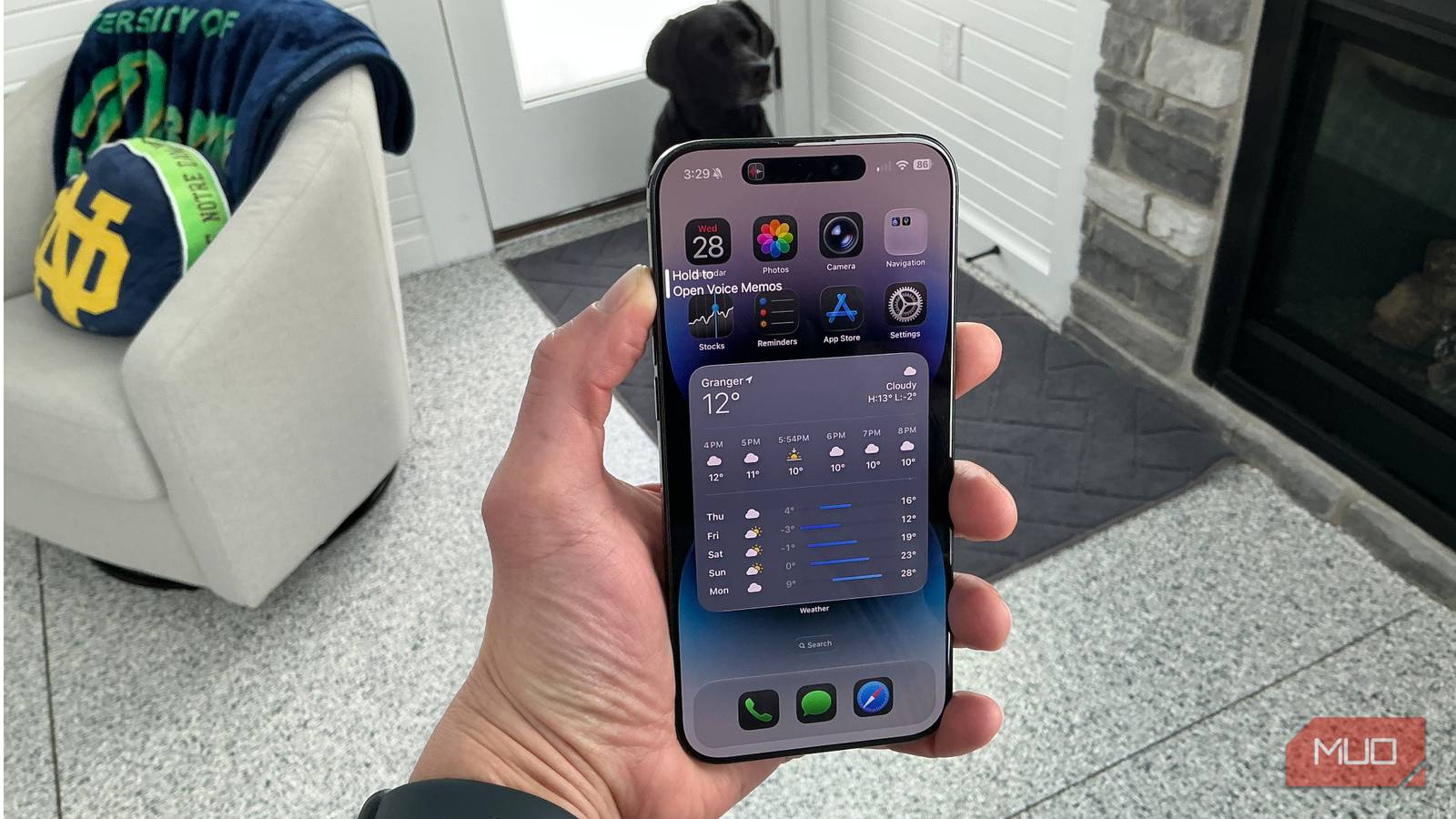
Most people leave their iPhone’s Action Button set to silent mode and forget it’s customizable (or aren’t aware you can change it in the first place). The default options aren’t exactly inspiring. But after building custom Shortcuts on my iPhone 16 Pro Max, I’ve turned that button into something I actually reach for every morning. My current setup cut the friction out of my pre-coffee routine. If you’ve got kids, a smart home, or just a hatred of fumbling with your phone while half-asleep, there are some hidden iOS settings here worth stealing.
Start your morning playlist or podcast instantly
Skip the app hunting and get audio playing fast
 Credit: Jonathon Jachura / MUO
 Credit: Jonathon Jachura / MUO
 Credit: Jonathon Jachura / MUO
My mornings have a rhythm. Coffee brewing, kids waking up, and the general chaos building. I like having something playing in the background—music, a podcast, whatever. The problem is that getting audio going normally means picking up my phone, unlocking it, finding Spotify, and hunting for the right playlist. That’s too many steps when I haven’t had coffee yet. I know—first world problems.
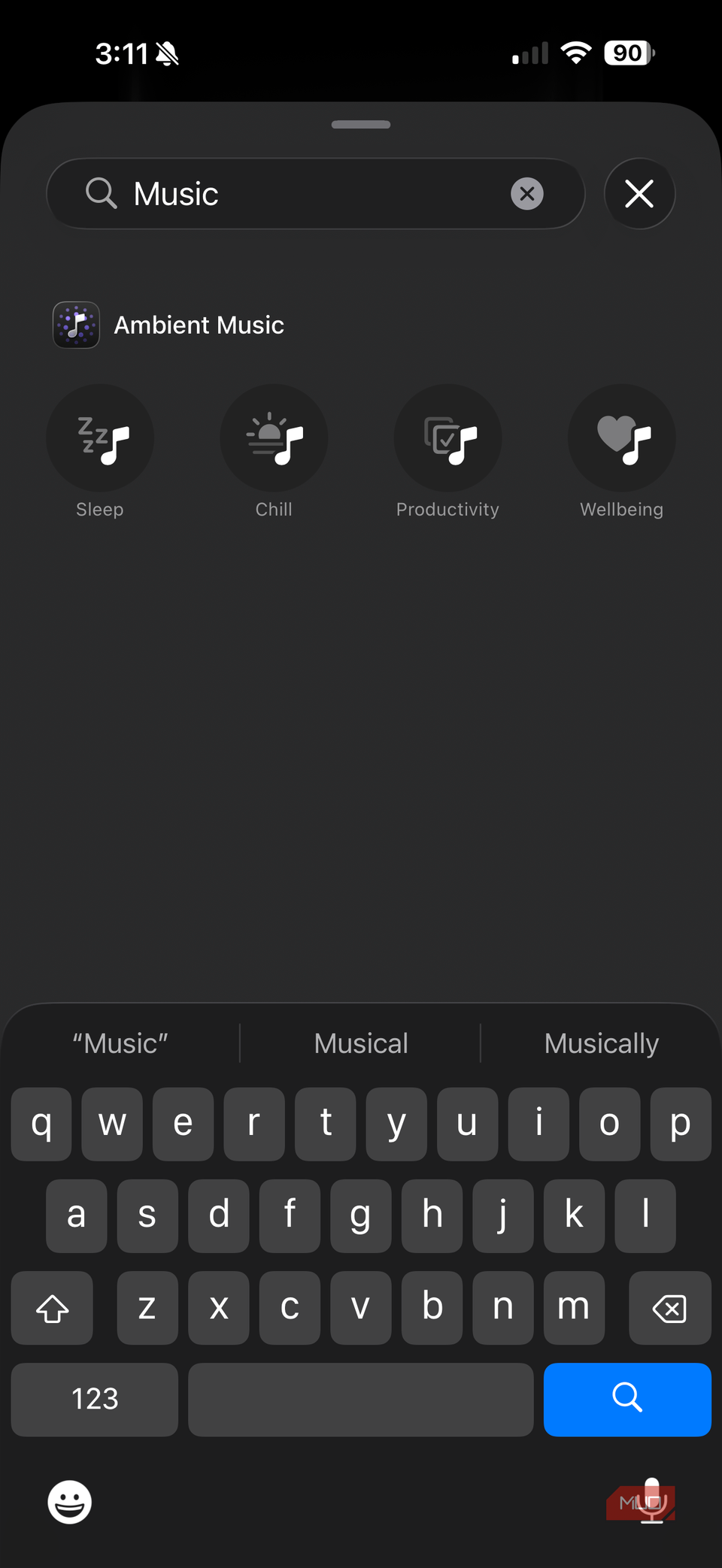
A Shortcut cuts all of that out. One press and the audio plays. The “Play Music” action lets you pick a specific playlist. “Play Podcast” resumes whatever episode you were on. Mine shuffles through some instrumental stuff I like. It’s mellow and works for making eggs or catching up on email. I hit the button and set the phone down and the music’s already going.
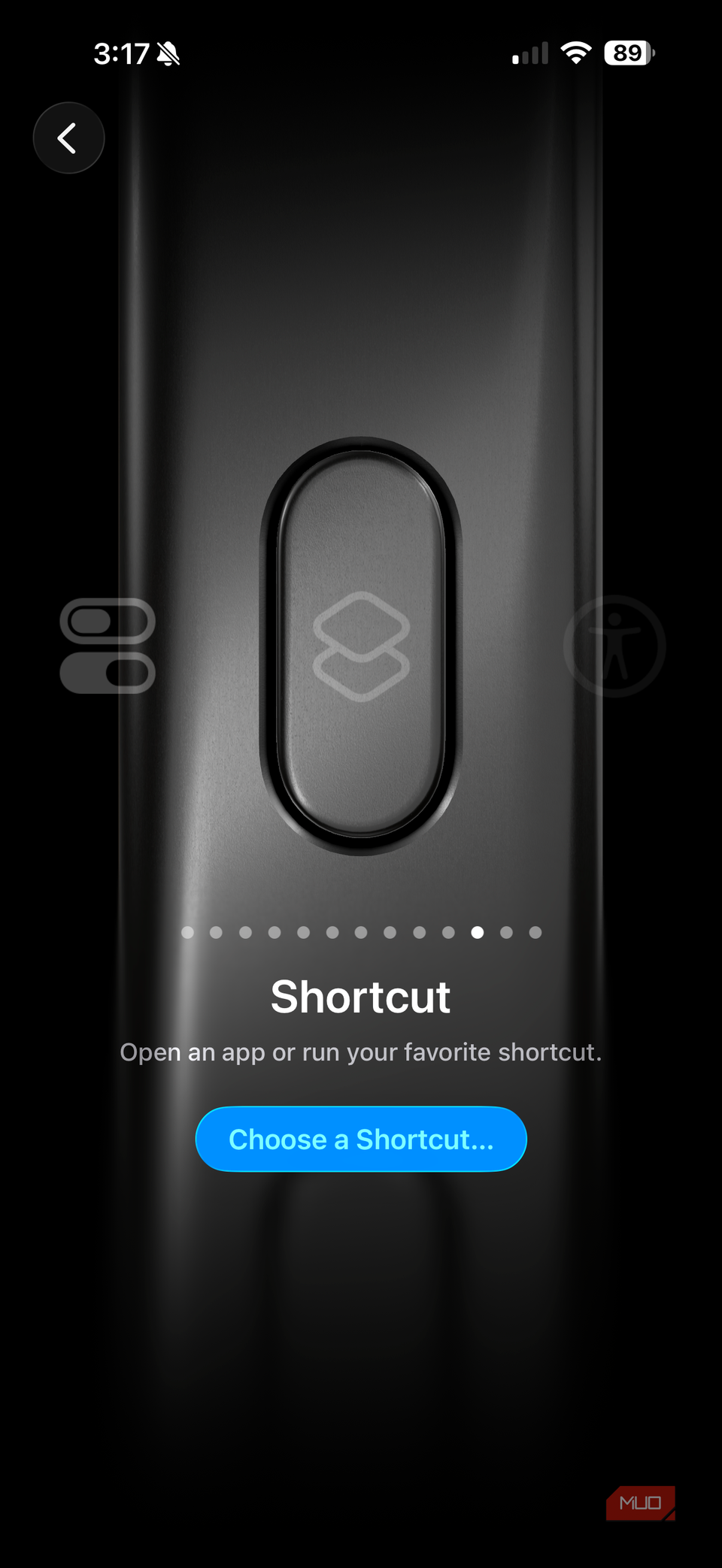
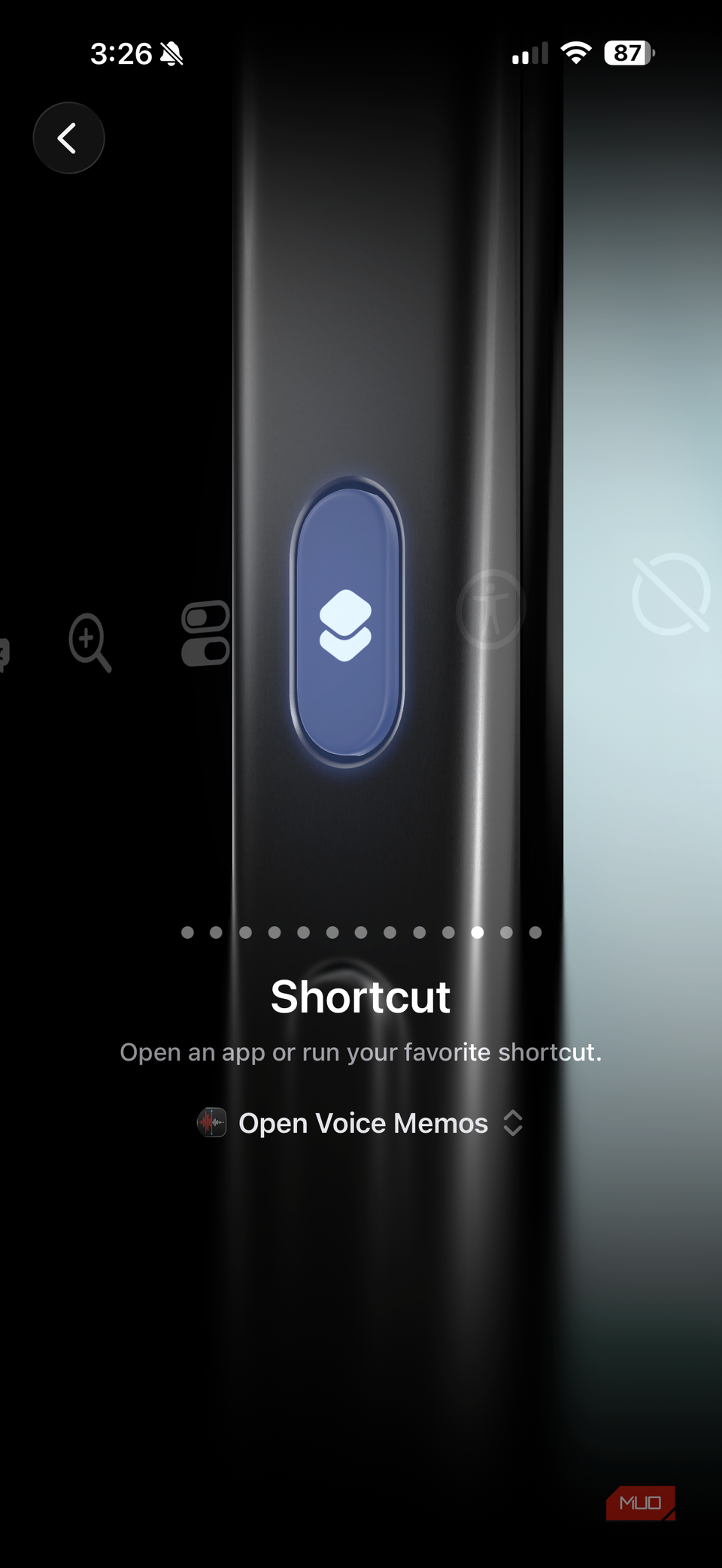
Want to get weird with it? Throw in an “If” action that looks at the current time. For example, if it’s before 9 AM, play the calm stuff. In the afternoon, switch to something with more energy. You could also just have it pick up your last podcast automatically. Head to Settings > Action Button > Shortcut once you’ve built it.
You can only have the Action Button perform one task or action, which you can easily change in the Settings menu. The Back Tap is another great option for physical control (enabling Shortcuts) on your iPhone.
Get a spoken briefing when you disable Sleep Focus
Your weather and calendar before the notification flood
Sleep Focus does its job overnight—no buzzing, no distractions. But the moment you turn it off, every notification from the past eight hours arrives simultaneously. That’s not a great way to ease into the day. My workaround is a Shortcut that turns off Sleep Focus, waits a beat, then has Siri read out the weather and whatever’s first on my calendar. I’ve had my Action Button set to run this shortcut for the last couple of months and I don’t think I’ll ever change it.
Hearing “47 degrees and cloudy, you have a dentist appointment at 10” while still laying down beats scrolling through apps trying to piece my day together. The pause between disabling Focus and starting the briefing prevents notification sounds from stepping on the summary.
Customize however you want—some people add commute estimates, unread email counts, or reminders due that morning. The Shortcuts actions you need are “Set Focus” (off), “Wait” (I use three seconds), “Get Current Weather,” “Get Upcoming Events,” and “Show Result” with Siri speaking the output.
Related
I turned off this one iPhone setting and boosted my battery life
You’re not getting all the battery you paid for unless you change this.
Log health data without opening a single app
Morning weigh-ins finally stick when they’re effortless
Credit: Jonathon Jachura / MUO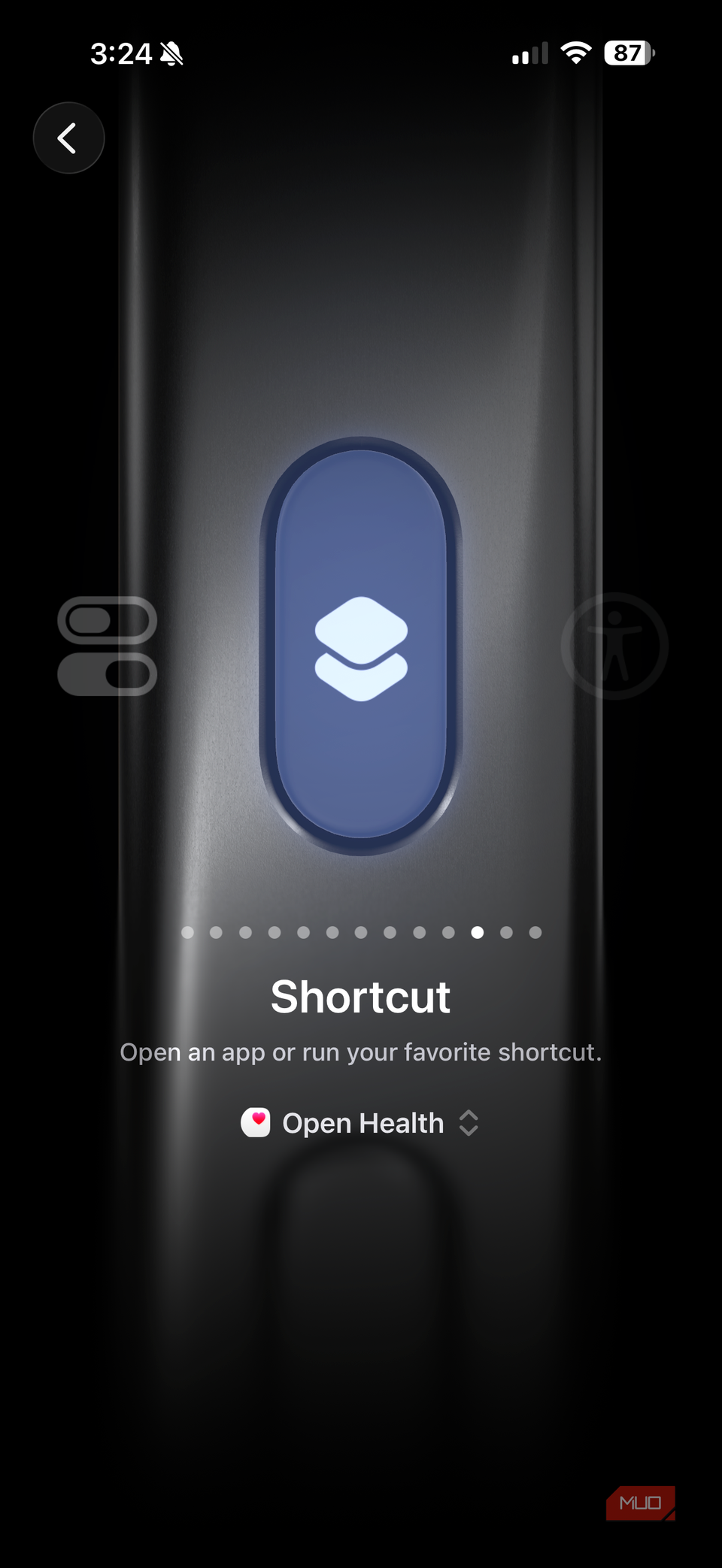 Credit: Jonathon Jachura / MUO
 Credit: Jonathon Jachura / MUO
I’ve tried tracking my weight consistently for years. I’ll have a strong start, gradual forgetting, and total abandonment by week three or four. The problem wasn’t entirely motivation—some of it was friction. Opening the Health app, navigating to the right category and tapping through menus was too many steps for 6 AM.
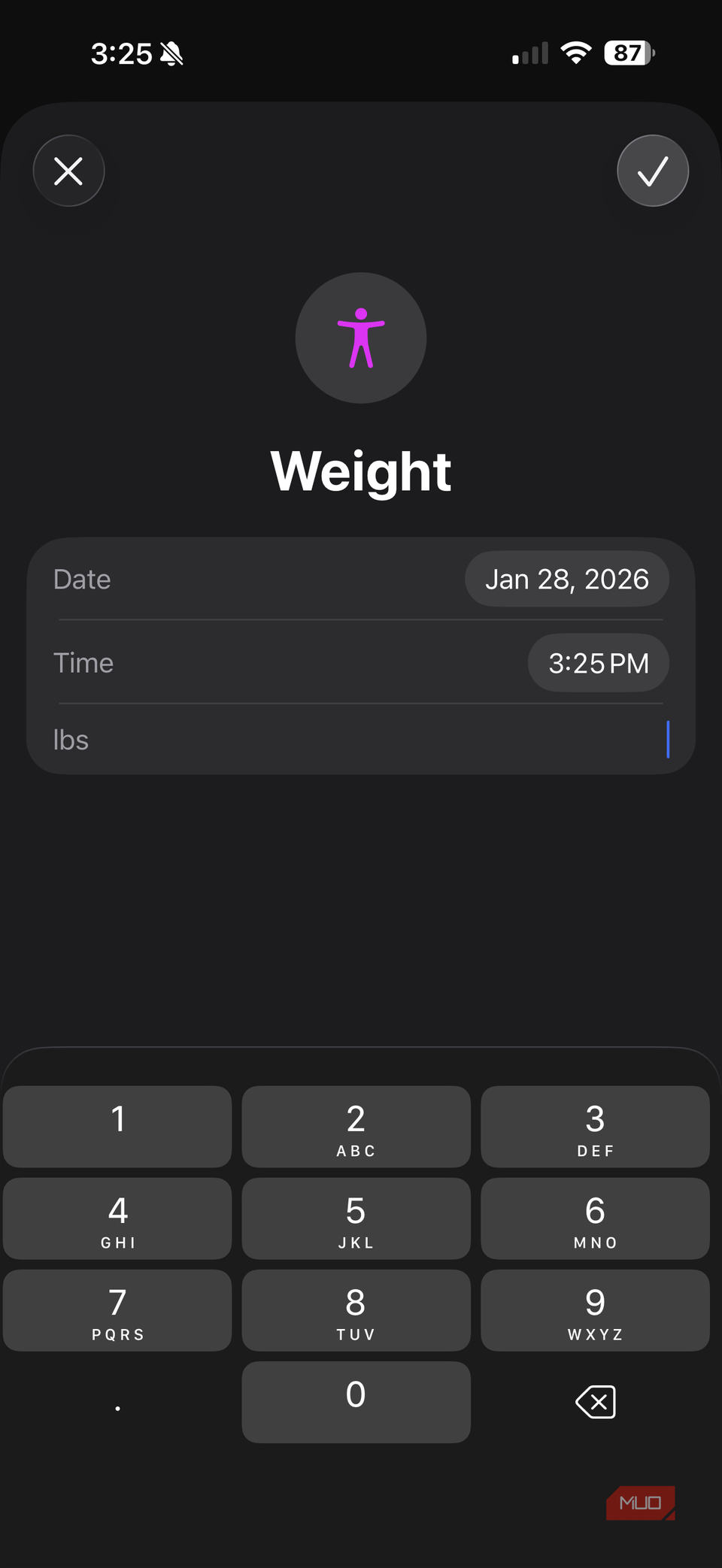
Now my Action Button triggers a Shortcut that prompts for a number, then logs it straight to Apple Health. The whole interaction takes four seconds. I’ve tracked consistently for months because the barrier dropped to nearly zero.
Chain multiple prompts together to log several things at once—weight, water intake, whether you took vitamins. Reddit’s Shortcuts community has built elaborate morning health checklists this way. For anyone managing medications or tracking symptoms, removing daily friction can mean the difference between useful data and an empty health record.
Capture ideas before your brain fully boots up
Voice memos from the lock screen, no unlock required
Credit: Jonathon Jachura / MUO
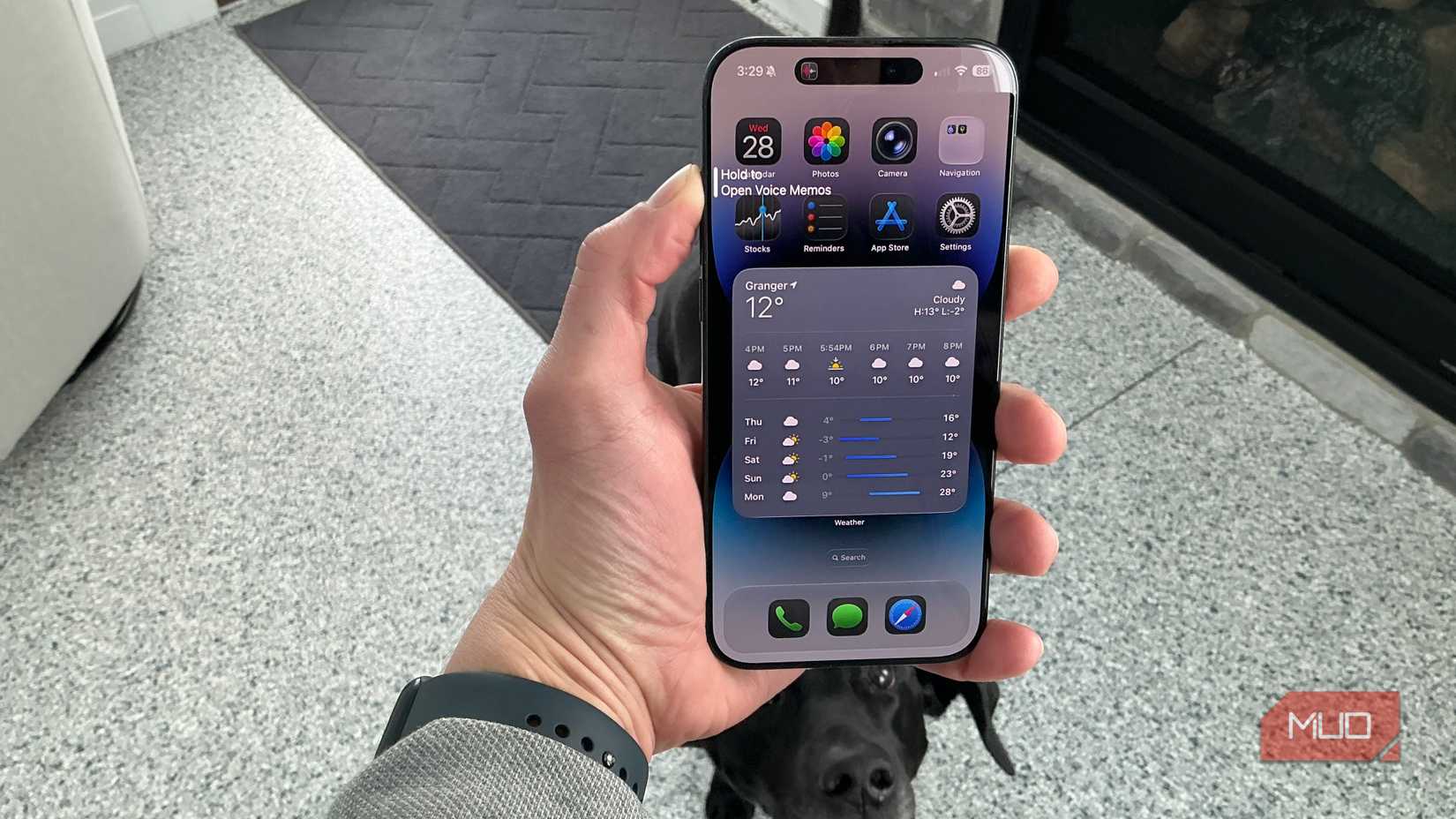
Good ideas tend to show up right when I’m least equipped to capture them. I’m barely awake. Eyes half open, still lying down, and thoughts are drifting in and out. Then something worth remembering actually lands. But by the time I grab my phone, unlock it, and tap through to Notes? It’s gone. Voice Memos changed this because it doesn’t need an unlock. Point the Action Button at it (Settings > Action Button > Voice Memo) and you can hit record without even opening your eyes. Press, mumble your thought, press again. Review and transcribe later when you’re coherent.
If you’d rather have text than audio, build a Shortcut using the “Dictate Text” action that creates a new note automatically. The transcription gets things wrong sometimes. Usually close enough that I know what I meant, though. I’ve caught a handful of solid ideas this way that I know for certain would’ve slipped away.
One button, multiple functions, zero confusion
 Credit: Jonathon Jachura / MUO
 Credit: Jonathon Jachura / MUO
 Credit: Jonathon Jachura / MUO
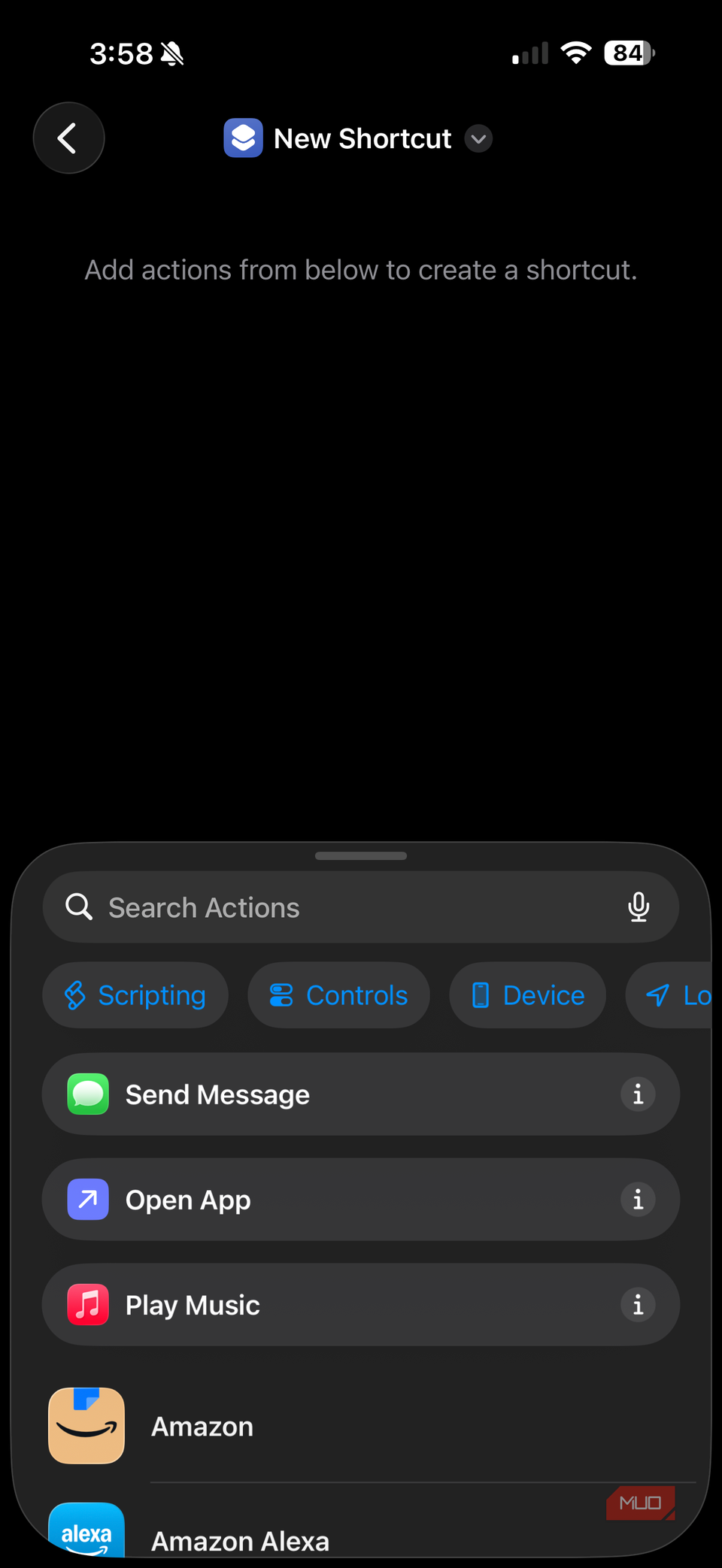
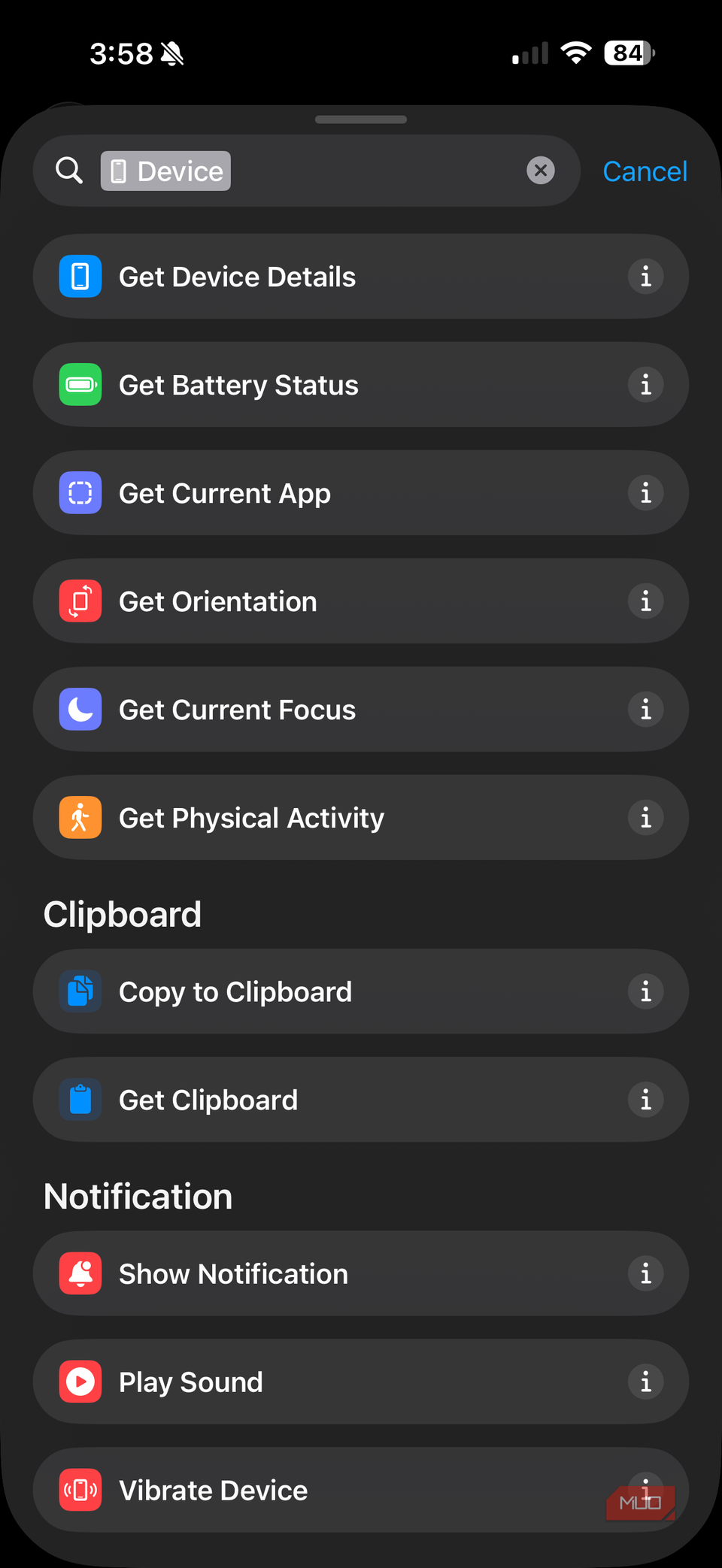
Here’s where things get clever. Using a Shortcut that checks your iPhone’s orientation, you can make the Action Button do completely different things depending on how you’re holding the device.
My setup: phone face-down on the nightstand triggers Do Not Disturb. Phone upright in portrait opens a quick menu with common options—camera, notes, weather, and calendar. When my iPhone is horizontal, the button turns on my flashlight.
You can build this yourself using “Get Device Details” in Shortcuts and branching based on orientation value. Face-up could extract text for scanning documents. Portrait upside-down could toggle mute. The combinations are endless.
Stop letting that button collect dust
Apple shipped the Action Button with boring defaults and hasn’t really shown off what it can do. Which is too bad. Pair it with Shortcuts and the Back Tap settings to optimize the physical controls on your iPhone.
Start with whichever setup matches your morning pain points. The playlist shortcut is probably the easiest win—just a few taps to configure. If you’re more of a data person, the health logging shortcut might click immediately. Once you see how much a single button press can accomplish, you’ll probably find yourself rebuilding it every few weeks as you discover new irritations worth automating away.