
Windows 11 has a habit of feeling heavier than it needs to be, but cleaning it up doesn’t require complicated tools or risky system mods. These three quick steps can declutter the OS and make it feel noticeably smoother in just a few minutes.
Although the operating system needs attention in several areas, one of the most urgent is the issue of bloatware. This typically refers to the growing number of unnecessary apps and background services that ship with the system by default, many of which add little value to most users while consuming storage and system resources and increasing the overall complexity of the experience.
You may like
How to debloat Windows 11
On Windows 11, you have at least three ways to debloat the operating system, including using the native options during installation and with the built-in App Package Deployment policies, or using countless third-party tools available on the web.
Debloating via Windows 11 Setup
To debloat Windows 11 using the installation setup wizard, use these steps:
Connect the Windows 11 USB bootable media.Start the device.Press any key to continue.Choose the “English (World)” or “English (Europe)” option from the “Time and Currency format” setting.
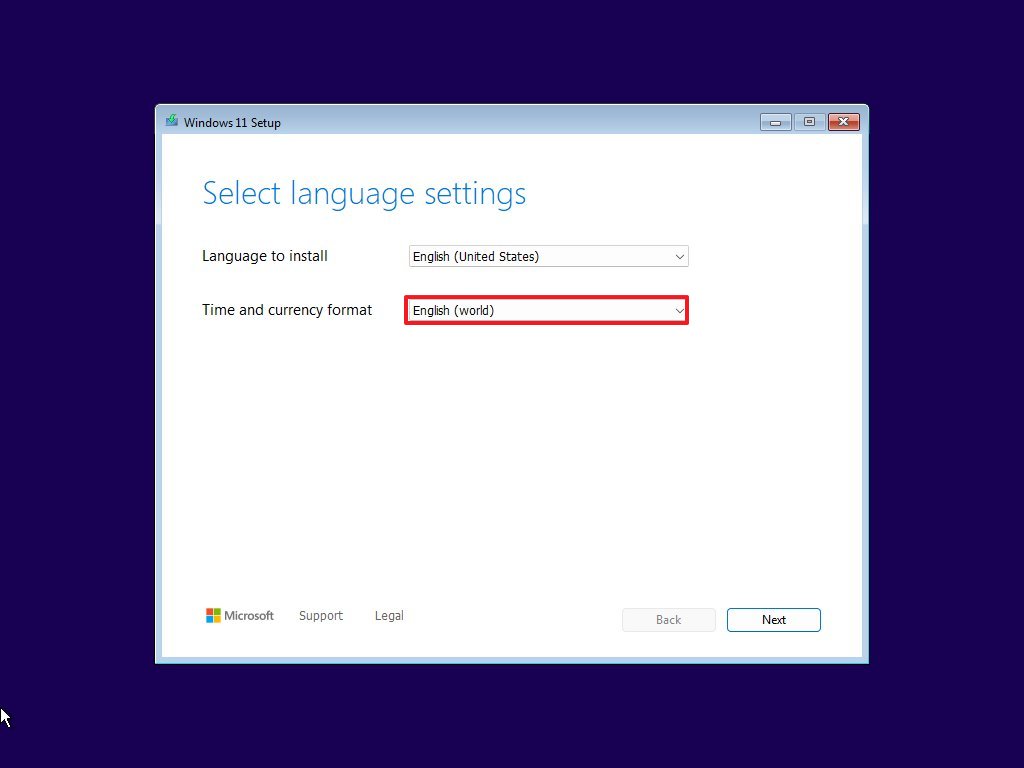
(Image credit: Mauro Huculak)Choose the language to install with the operating system.Click the Next button.Select the “Install Windows 11” button.
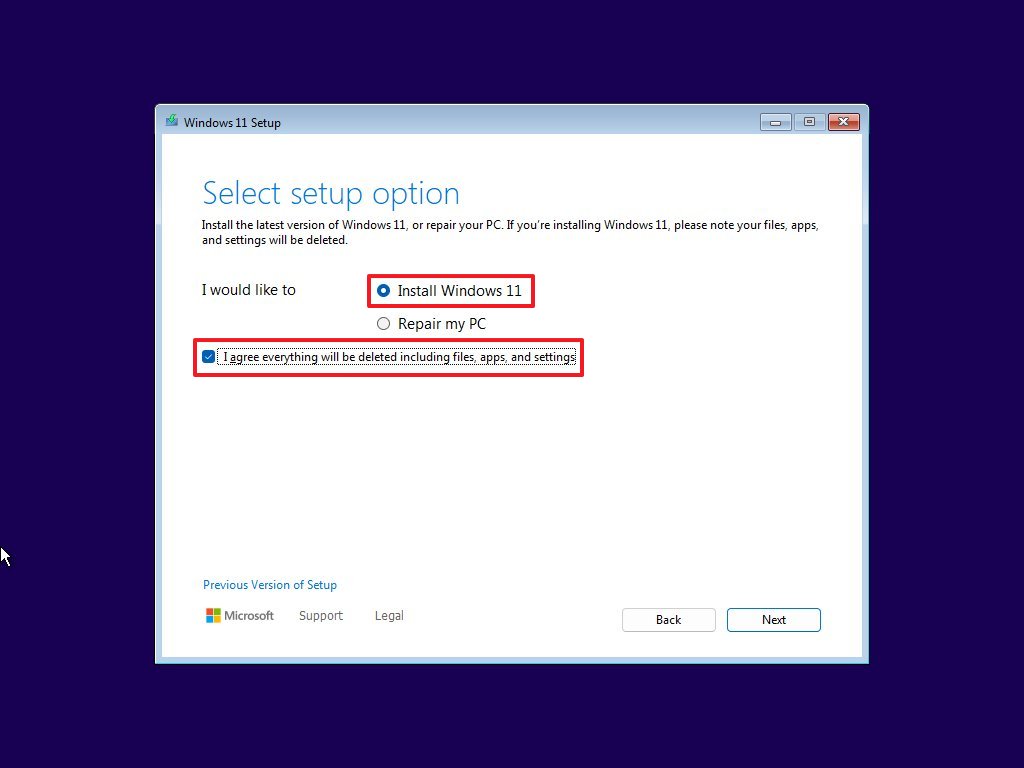
(Image credit: Mauro Huculak)Check the “I agree everything will be deleted, including files, app, and settings” option.Click the Next button.Click the “I don’t have a product key” option.Quick note: If this computer didn’t have an activated installation of Windows 11 or 10, you’ll have to provide a product key after the installation.Select the Windows 11 edition your license key activates (if applicable).Check the “I accept the license terms” option.
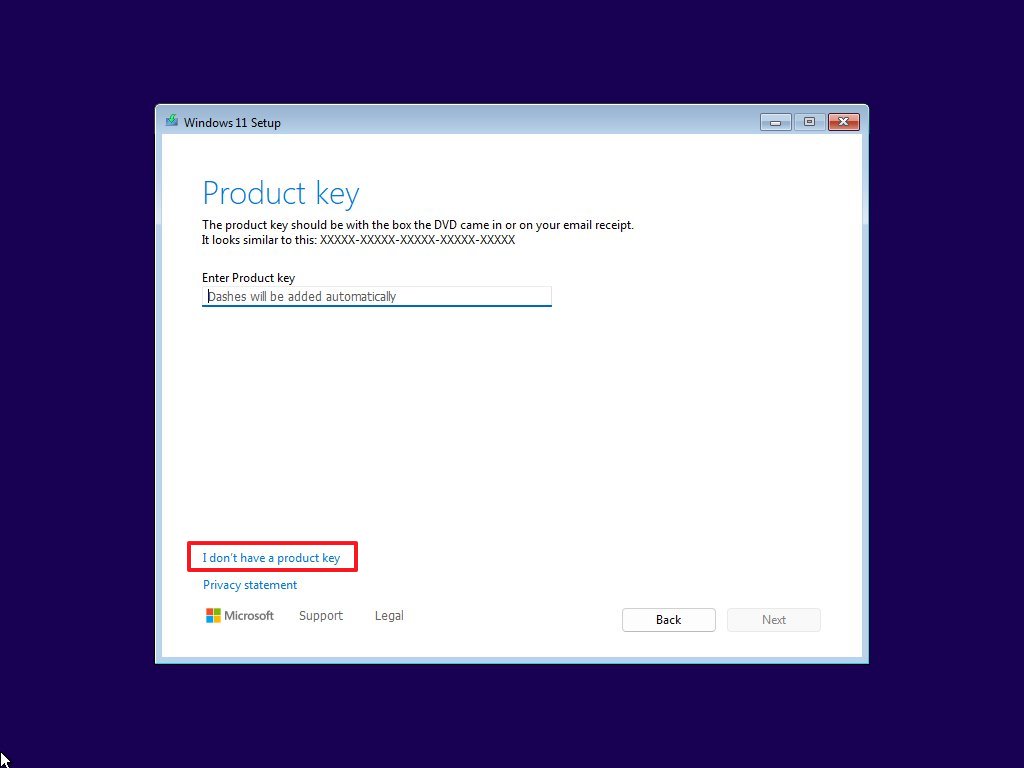
(Image credit: Mauro Huculak)Click the Next button.Select the edition of the operating system that your product key activates.Click the Next button.Click the Accept button.Select the drive where you want to install Windows 11.
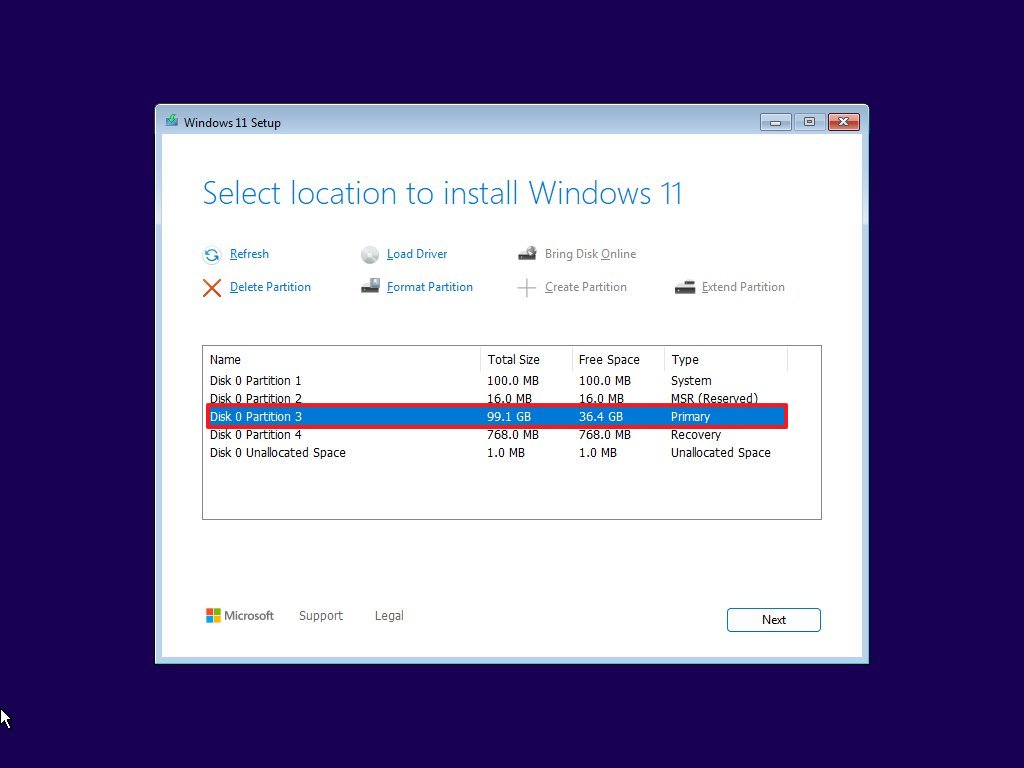
(Image credit: Mauro Huculak)Click the Next button.Click the Install button.Click the Skip option on the “Something went wrong” error page.Continue following the on-screen instructions to complete setting up the Out-of-box Experience (OOBE).
Once you complete the steps, the installation will be configured without bloatware.
It’s important to note that this process only cleans some components of the system that may be considered bloatware. This option won’t remove features such as Microsoft Edge, Xbox, or other apps.
Debloating via Group Policy
To create a new user account without bloatware, use these steps:
You may like
Open Start.Search for gpedit and click the top result to open the Local Group Policy Editor.Open the following path: Computer Configuration > Administrative Templates > Windows Components > App Package Deployment.Right-click the “Remove Default Microsoft Store packages from the system” policy and choose the “Edit” option.
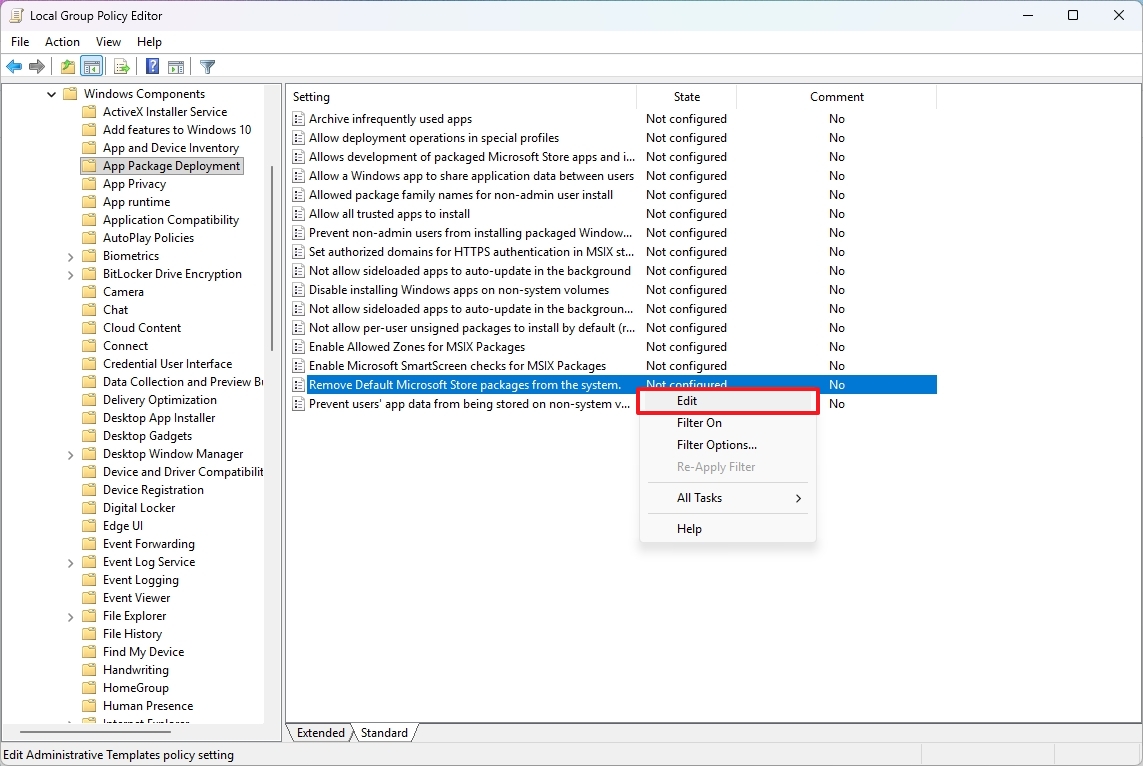
(Image credit: Mauro Huculak)Check the Enabled option.Check all the applications to remove from the operating system under the “Options” section.
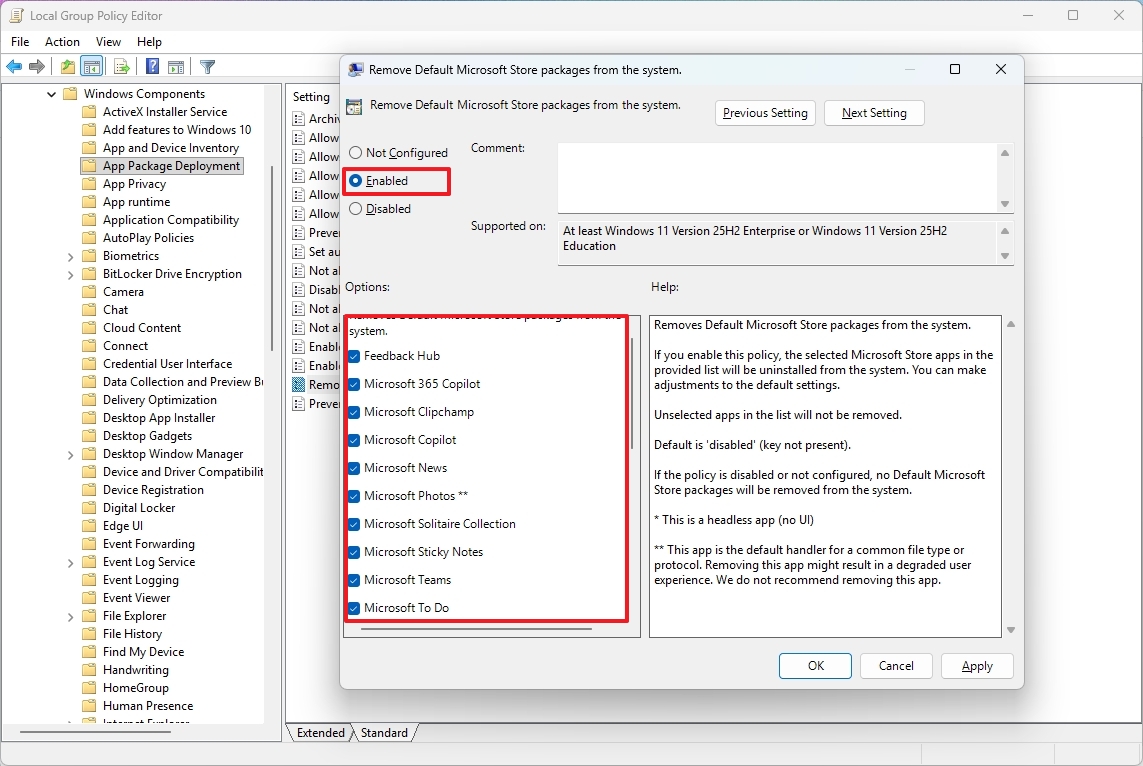
(Image credit: Mauro Huculak)Click the Apply button.Click the OK button.
After you complete the steps, the setting will be saved on the device, and the next time you create a new account, the operating system will automatically uninstall most bloatware, such as Feedback Hub, Microsoft 365 Copilot, Copilot, Clipchamp, Photos, and others.
Debloating via FlyOOBE
To debloat Windows 11 using FlyOOBE, use these steps:
Open the FlyOOBE GitHub page.Click the download option for the latest version.
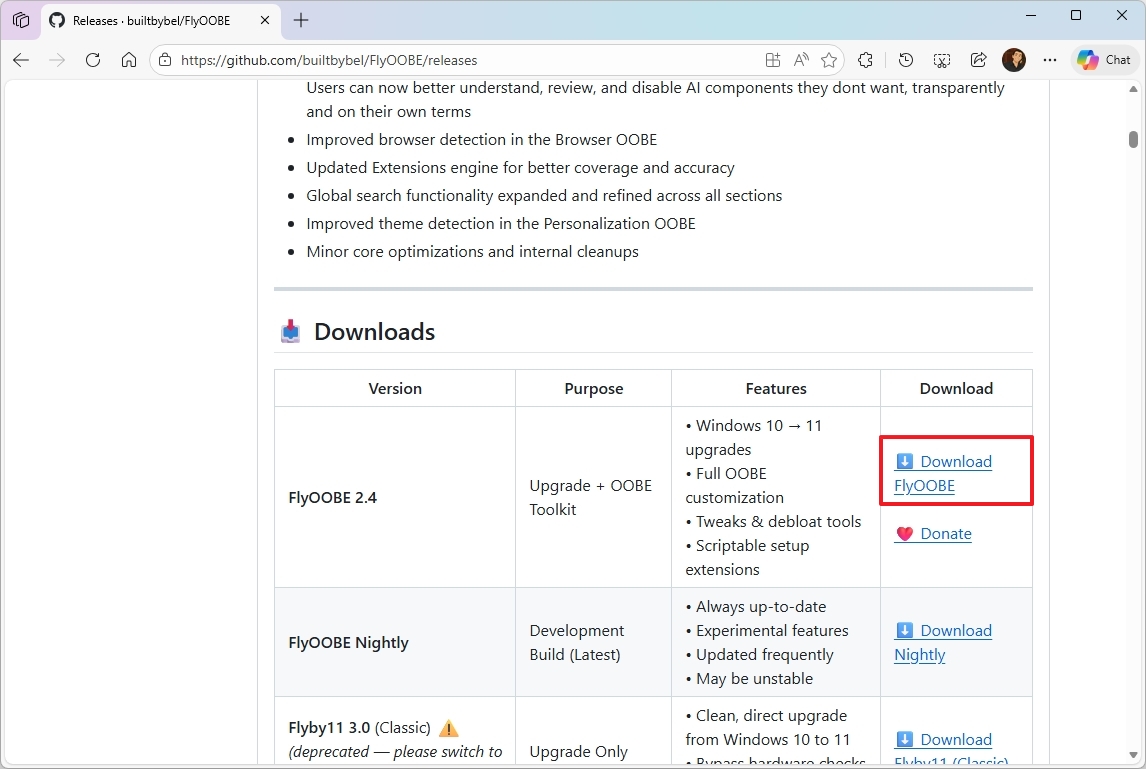
(Image credit: Mauro Huculak)Save the zip file to your device.Select the zip file and click the Extract all button from the “Compressed Folder Tools” tab.Click the Extract button to unzip the files from the container.
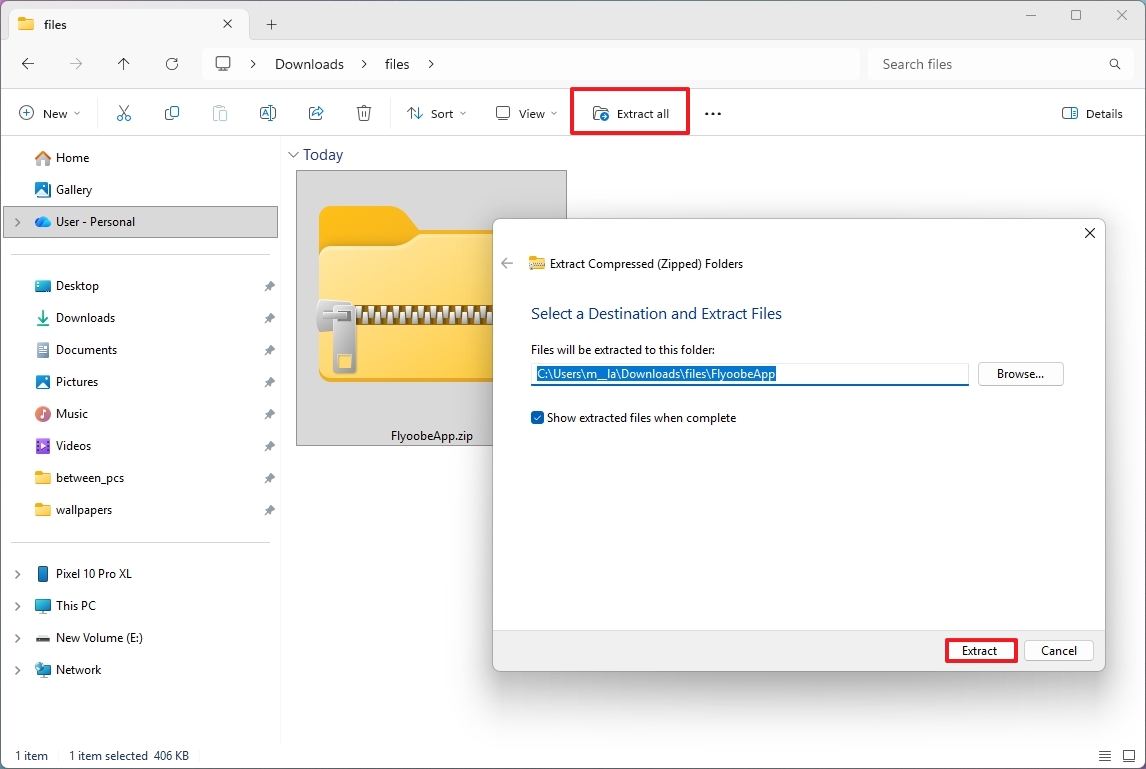
(Image credit: Mauro Huculak)Open the folder with the extracted files.Double-click the FlyOOBE.exe file to open the tool.Click the More Info option, then click the Run anyway button.Click on OOBE from the left pane.Click on Apps.Select the option to debloat Windows 11: “Balanced,” “Full Microsoft Experience,” “Minimal Windows,” or “Community.”
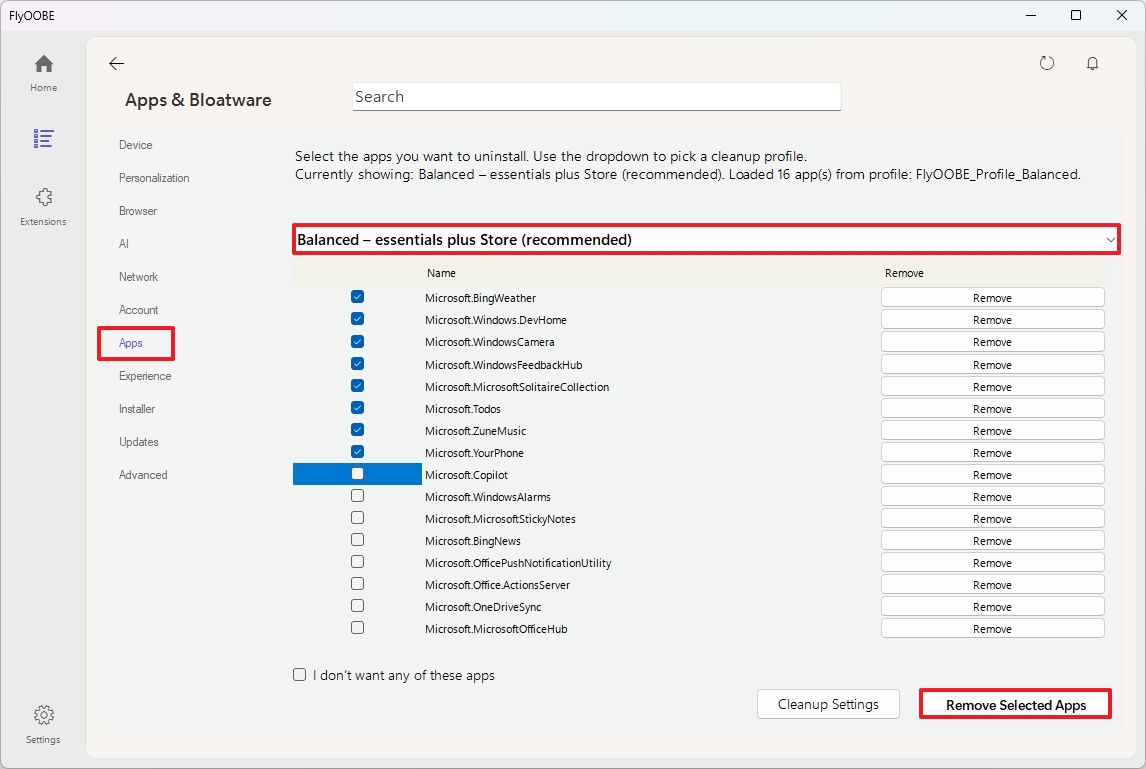
(Image credit: Mauro Huculak)Check the components to uninstall from the computer.Click the “Remove Selected Apps” button.
Once you complete the steps, the applications cluttering the system will be uninstalled from the computer.
A few small changes go a long way toward making Windows 11 feel cleaner and more responsive. Whether you’re trying to speed up an older machine or just prefer a streamlined setup, these tweaks offer an easy starting point.
If you’ve found other simple ways to cut the clutter, we’d love to hear them.
FAQs about debloating Windows 11
These are common questions regarding getting rid off the bloatware on Windows 11.
What is bloatware in Windows 11?
Bloatware refers to preinstalled apps and background services that add little value to most users while consuming storage, system resources, and increasing complexity. Examples include Feedback Hub, Clipchamp, and trial versions of Microsoft 365.
Will debloating Windows 11 remove essential apps like Microsoft Edge or Xbox?
No. Built-in debloating methods, including Windows Setup and Group Policy, typically do not remove core apps such as Microsoft Edge or Xbox. Third-party tools like FlyOOBE can remove additional components but some system apps remain protected.
Can I debloat Windows 11 without reinstalling the operating system?
Yes. You can use Group Policy for new accounts or FlyOOBE to remove apps from your current installation without a full reinstall.
Is FlyOOBE safe to use?
FlyOOBE is widely used in the Windows community for removing bloatware. Always download the latest version from the official GitHub page, and follow the instructions carefully to avoid accidentally removing critical system components.
Will debloating Windows 11 improve system performance?
Yes. Removing unnecessary apps and background services can free up storage, reduce memory usage, and streamline startup processes, making the system faster and more responsive.
Can I undo the debloating process?
Some changes can be reversed by reinstalling removed apps from the Microsoft Store. For deeper system changes, a clean installation or backup recovery may be needed.
Do these methods affect Windows updates?
Standard debloating through Windows Setup or Group Policy does not affect updates. Using FlyOOBE to remove system components could potentially interfere with certain updates, so proceed carefully and create a backup before major changes.
Which method is best for a completely clean system?
For a lean installation with minimal preinstalled apps, a clean Windows 11 Setup combined with FlyOOBE for additional uninstalls offers the most control and results in the least cluttered system.
More resources
For more helpful articles, coverage, and answers to common questions about Windows 10 and Windows 11, visit the following resources:

Follow Windows Central on Google News to keep our latest news, insights, and features at the top of your feeds!