
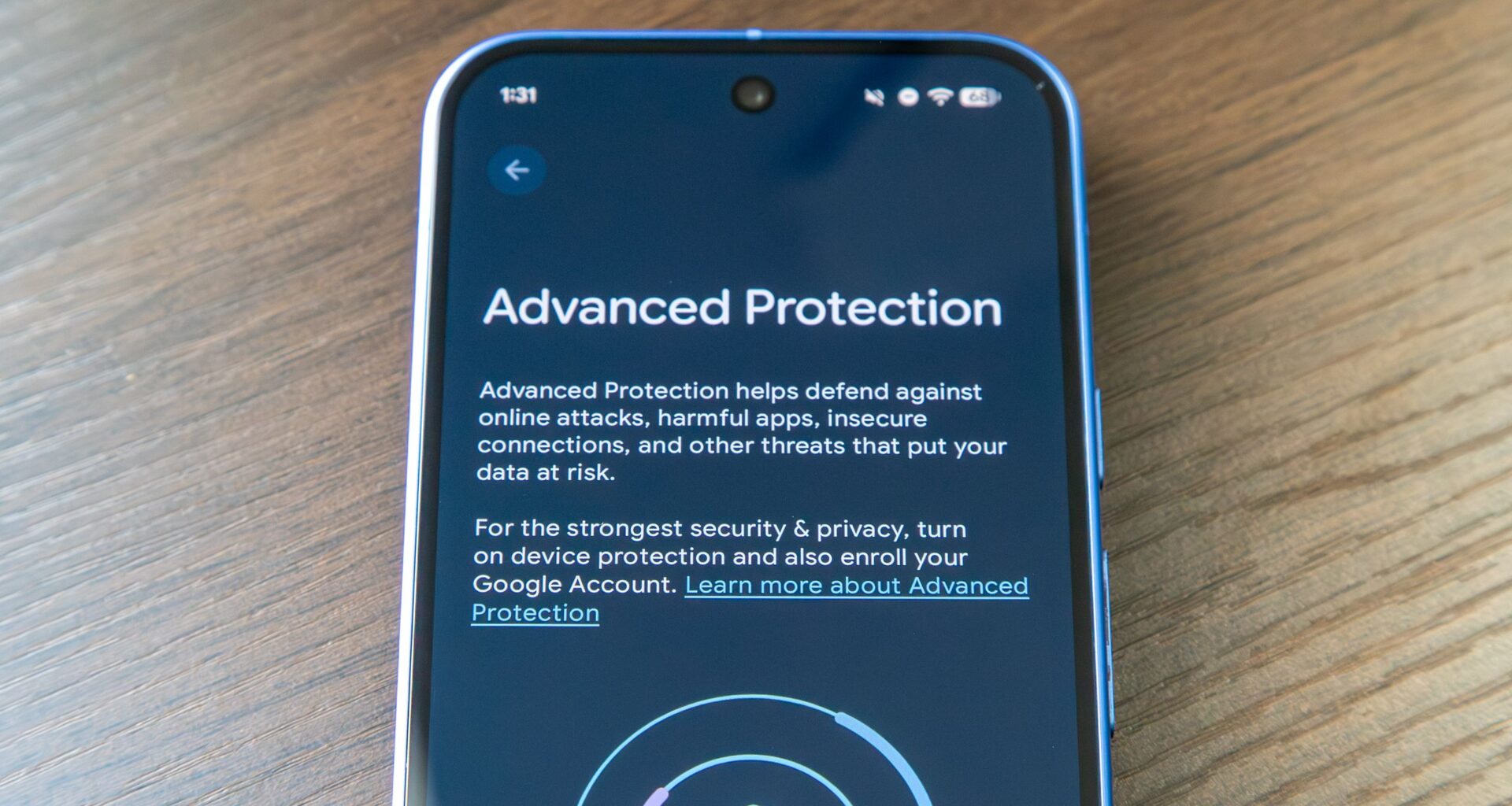
Google Pixels are already among the most secure Android phones you can buy today. In fact, Google even claims that Android phones now block more scams than iPhones, which have long been perceived as more secure devices.
Honestly, I have never really felt the need to tweak my Pixel 10 Pro‘s security settings. Most protections are enabled by default, and I have always trusted my Pixel to keep my data safe.
You may like
Advanced Protection absolutely seals your Pixel tight
(Image credit: Derrek Lee / Android Central)
The feature I’m talking about is Advanced Protection. Google initially didn’t ship Android 16 with this feature out of the box, but the company has now added it, and it’s available on Pixel phones running Android 16.
Google says that when you turn on Advanced Protection, you get the “strongest security and privacy features” to protect you from online attacks, harmful apps, and other risks. It blocks most, if not all, of the ways malicious apps or bad actors can access your Pixel, keeping it protected while largely keeping the same overall experience.
Think of this feature as a one-stop toggle that elevates your phone’s security to the next level. The best part is that it’s easy to enable, although there are a few drawbacks to turning it on, which we’ll get into below.
What Android Advanced Protection changes on Pixel
(Image credit: Derrek Lee / Android Central)
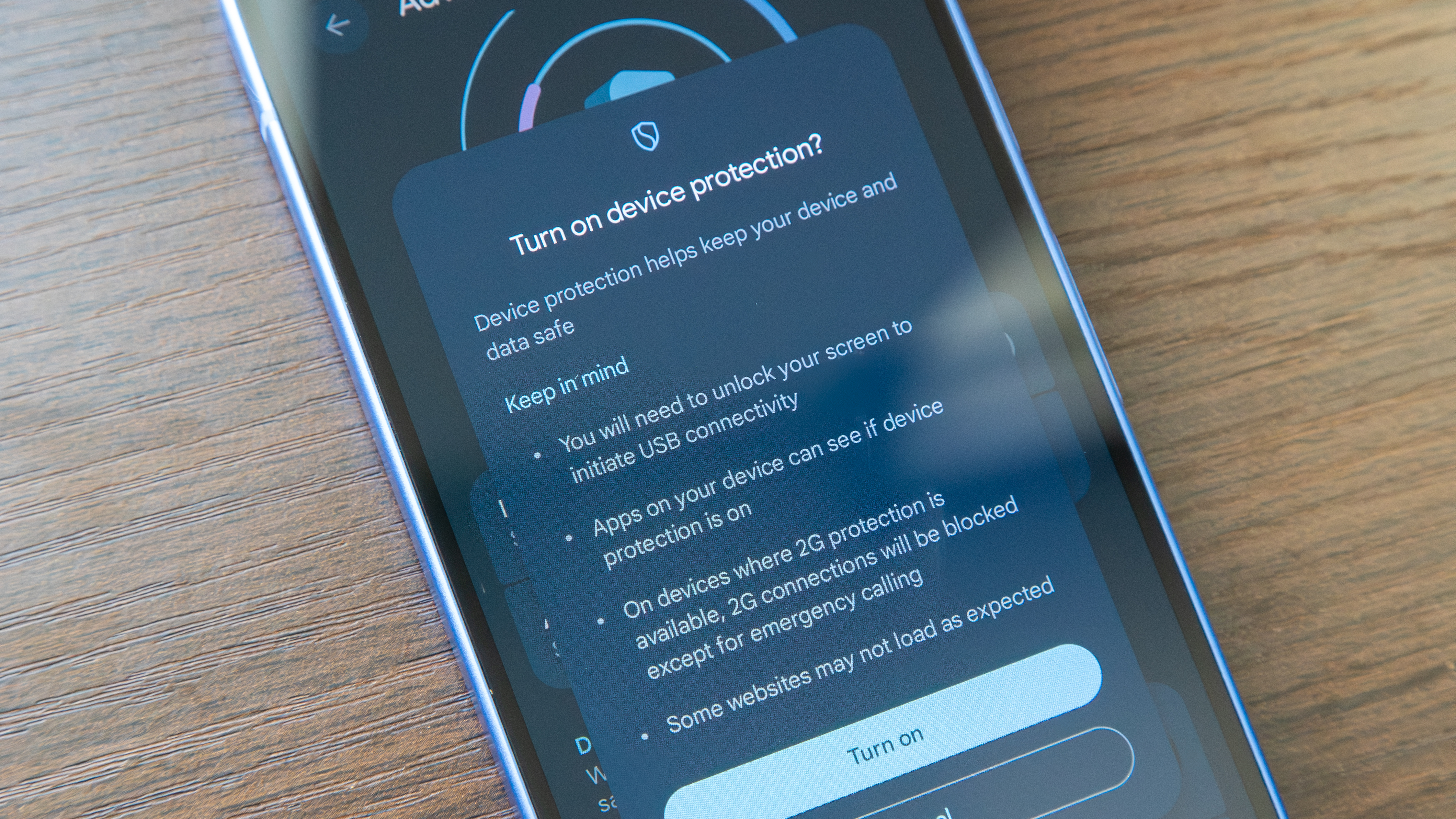
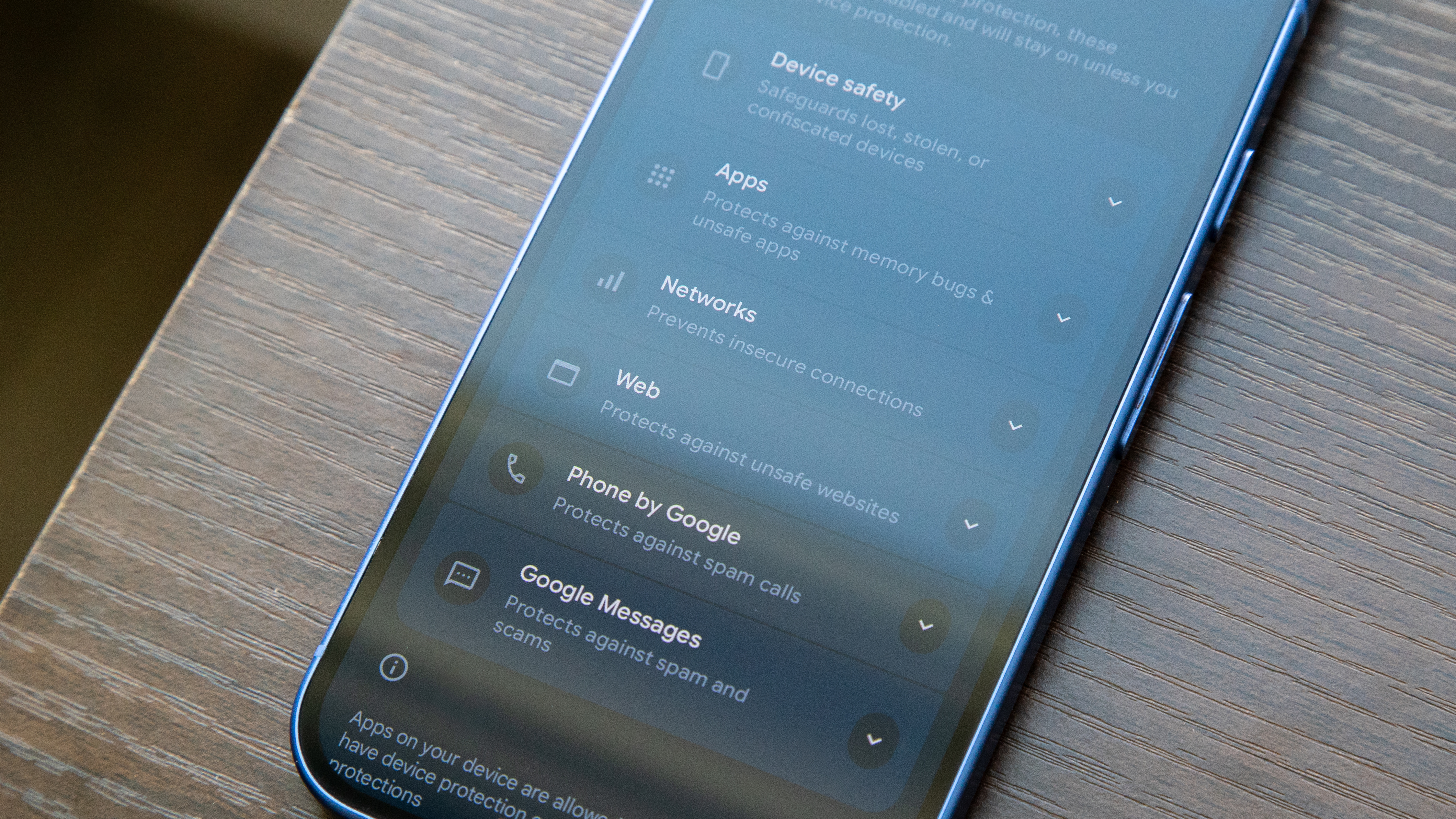
Before we talk about how you can enable Advanced Protection on your phone, it’s important to understand what turning on this feature actually does to your device. When you enable Advanced Protection Mode, it activates several security features across different parts of the phone.
For starters, it turns on all device protection features by default. This includes Theft Detection Lock, which automatically locks your phone when it detects sudden snatching-like movement, and Offline Device Lock, which locks your device if it stays offline for an extended period.
In apps like Messages, spam and scam protection is enabled, while the Phone app automatically identifies known spam callers. Android also turns on Safe Browsing to block phishing attempts from emerging malicious websites, and Chrome enforces HTTPS, so all websites you visit use secure connections.
It’s also worth noting that when Advanced Protection is enabled, your device will no longer connect to 2G networks, which are considered less secure. You also won’t be able to turn off Google Play Protect on your Android phone.
You may like
(Image credit: Andrew Myrick / Android Central)
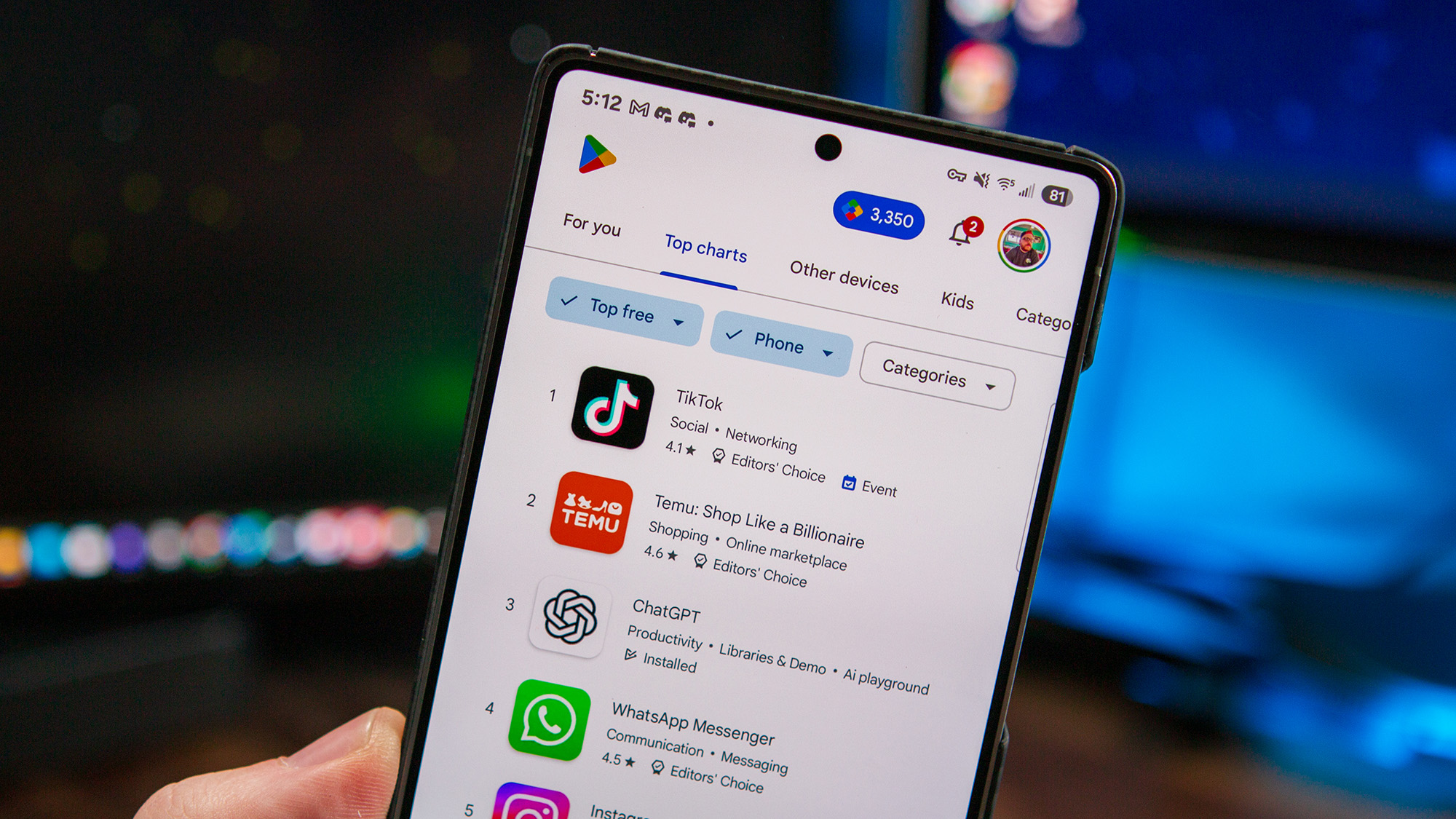
That leads to the biggest limitation. When Advanced Protection is active, you can no longer sideload apps on your device. This means you won’t be able to install APK files or apps from sources outside the Google Play Store, which could be a deal breaker for some users. However, to fully protect your device from malicious actors, Google disables sideloading when this mode is turned on.
How to enable Advanced Protection on your Google Pixel
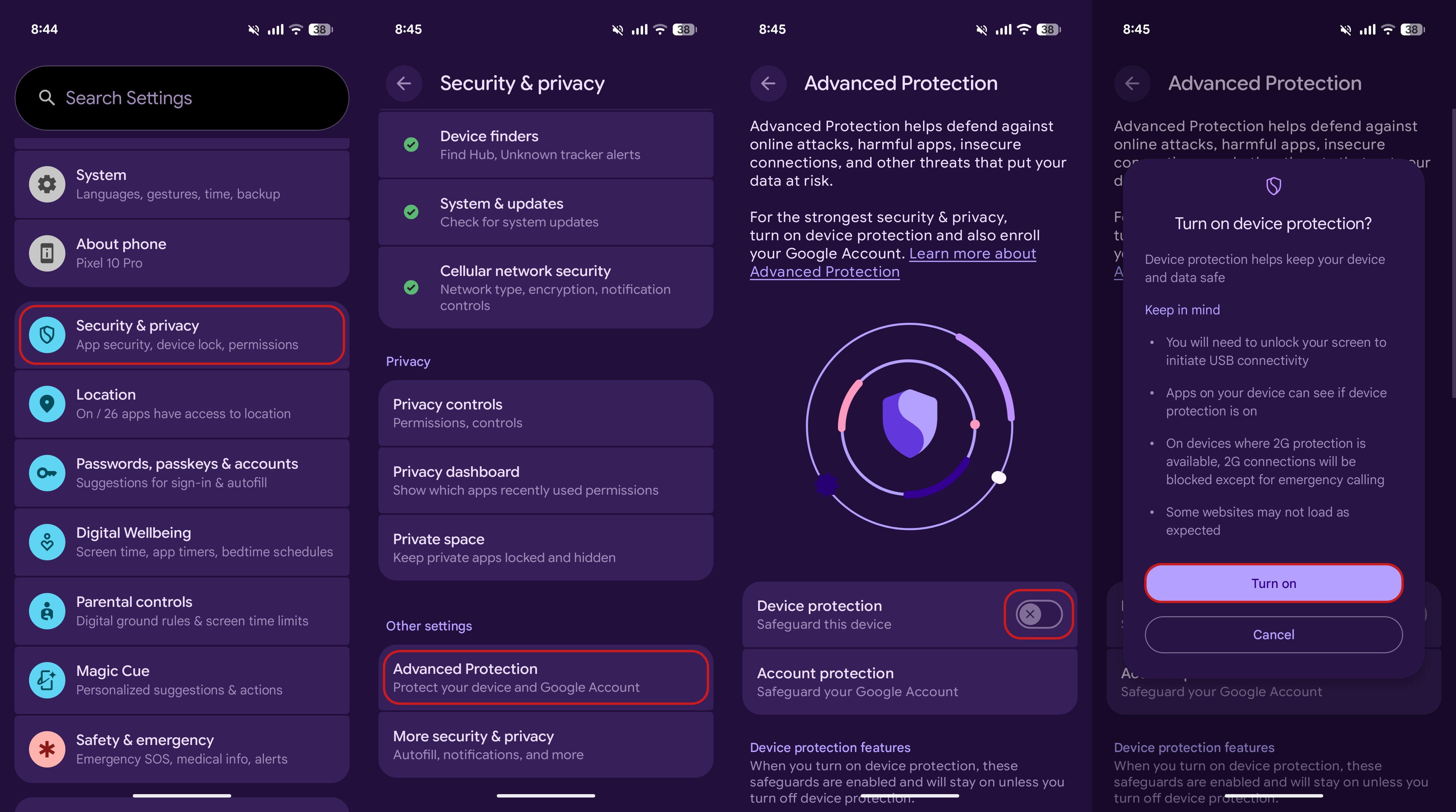
You’ll be able to see exactly what Advanced Protection does by heading into Settings once you enable it on your phone. That said, the feature isn’t enabled by default on any Android device. If you want to turn it on and make your Pixel even more secure, here’s how you can enable it:
1. Open the Settings app on your phone.
2. Scroll down and tap Security & Privacy.
3. Scroll to the bottom and, under Other settings, tap Advanced Protection.
4. Turn on the toggle for Device protection and then tap Turn on.
5. You may be required to restart your device after enabling Advanced Protection.
6. Optionally, you can also enable Account protection by tapping the section below Device protection. This helps secure your Google account using features like passkeys and a recovery email.
(Image credit: Future)
In the Advanced Protection section, you’ll also be able to clearly see what changes the mode makes to your device. If you ever want to disable Advanced Protection, you can do so by returning to the same menu and turning the toggle off.
Why Advanced Protection may not be for everyone
(Image credit: Jay Bonggolto / Android Central)
As good as it sounds, Advanced Protection may not be for everyone. Most of us buy Android phones for the freedom and customization they offer, but with Advanced Protection enabled, access to things like sideloading apps goes away.
This may sting for users who like downloading apps outside the Google Play Store, including trusted open-source apps from places like F-Droid. That said, if you only download apps from the Google Play Store and prioritize your device’s security over everything else, Advanced Protection is absolutely worth using.
Of course, this doesn’t mean you can’t use these security features without turning this feature on. You can still turn on features like Theft Detection Lock, Offline Device Lock, 2G network protection, and other security options individually without activating Advanced Protection on your phone.