
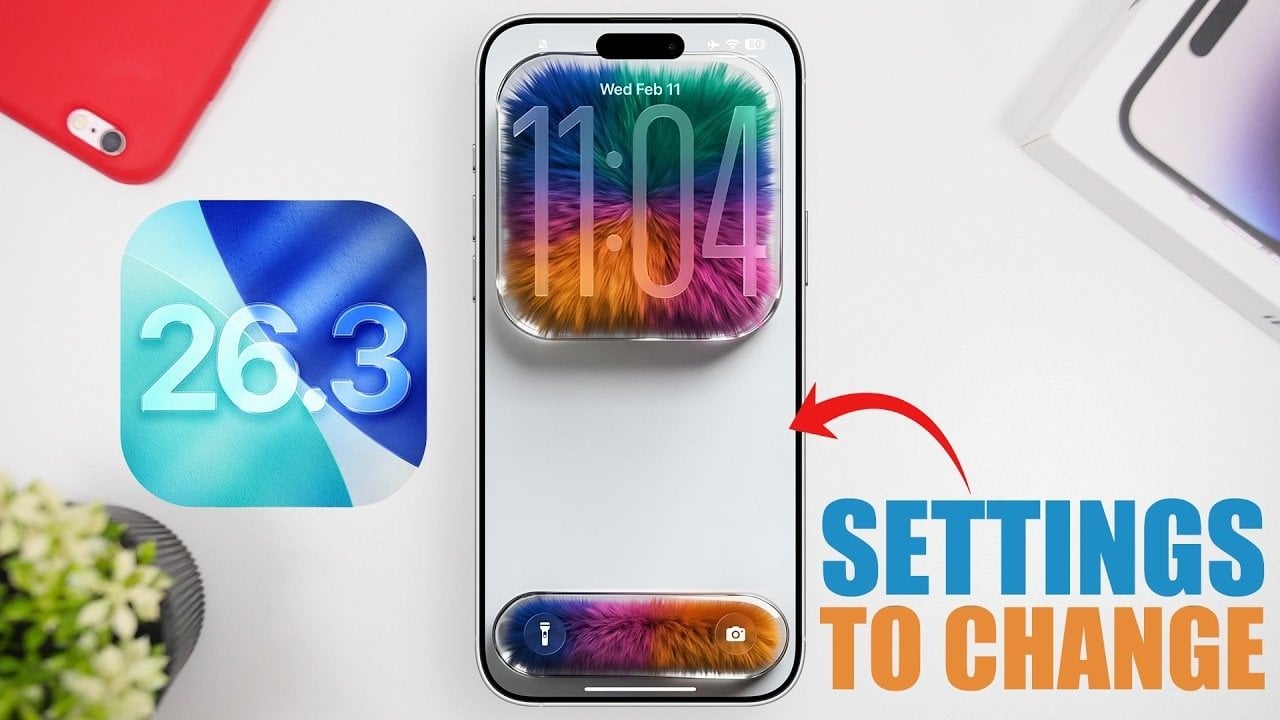
The release of iOS 26.3 brings a range of new features and updates designed to enhance your iPhone’s privacy, security, and overall functionality. By adjusting key settings, you can ensure your device runs efficiently while safeguarding your personal data. Below is a detailed guide to the most important settings you should review and update to get the most out of this update. The video below from iReviews gives us more details on the settings you should consider changing once you update.
Privacy and Security: Strengthen Your Protection
Apple continues to prioritize user privacy and security with iOS 26.3, introducing features that help protect your personal information from potential threats. Here are two critical settings to review:
Background Security Updates: This feature ensures your iPhone automatically installs the latest security patches without requiring a full system update. By allowing it in the Privacy & Security menu, you can stay protected against emerging vulnerabilities in real time.
Limit Precise Location: Restrict apps and carriers from accessing your exact location. This is especially useful in regions with less stringent privacy regulations. To enable this, go to Location Services in the Settings app and toggle on the option to limit precise location tracking.
These settings are essential for maintaining control over your data and making sure your device remains secure against unauthorized access.
Notification Forwarding: Stay Connected Across Devices
iOS 26.3 introduces a notification forwarding feature, particularly beneficial for users in the European Union. This setting allows you to forward notifications from your iPhone to third-party devices, such as tablets or smartwatches. To activate this feature:
Navigate to the Notifications menu in Settings.
Toggle on the notification forwarding option.
This feature ensures you stay informed and connected, regardless of which device you are using, making multitasking more seamless and efficient.
Display and Battery: Optimize for Longevity
Battery life remains a top concern for many iPhone users, and iOS 26.3 introduces several tools to help you conserve energy while maintaining functionality. Consider these adjustments:
Always On Display: If your iPhone supports this feature, you can turn it off to save battery life. Alternatively, enable the “Blur Photo” option to maintain privacy while still using the Always On Display feature.
Spatial Wallpaper Effect: While visually appealing, this feature can drain your battery. Disabling it under Wallpaper settings can help extend your device’s usage time.
By making these changes, you can maximize your iPhone’s battery life without sacrificing essential functionality.
Camera and Screenshot Settings: Save Power and Space
Small adjustments to your camera and screenshot settings can have a significant impact on both battery life and storage space. Here are two key settings to consider:
Swipe to Open Camera: Disabling this feature on the lock screen prevents accidental activation of the camera, which can drain your battery unnecessarily.
Screenshot Format: Switching the default screenshot format to SDR (Standard Dynamic Range) reduces file sizes, freeing up storage space without compromising image quality.
These tweaks are particularly useful for users who frequently take photos or screenshots and want to optimize their device’s performance.
Battery Management: Smarter Energy Use
iOS 26.3 introduces advanced battery management tools that help you monitor and optimize your device’s energy consumption. These features are designed to adapt to your usage patterns:
Adaptive Mode: This setting adjusts power usage based on your daily activity patterns, making sure efficient energy consumption throughout the day.
Adaptive Power Notifications: Allowing this option allows you to receive alerts when adaptive power-saving measures are active, giving you greater control over your device’s performance and battery life.
These tools provide a smarter way to manage your iPhone’s energy use, helping you get the most out of your battery.
Call Screening: Manage Incoming Calls Effectively
The new call management features in iOS 26.3 make it easier to handle incoming calls and reduce distractions. Here are two settings to explore:
Ask Reason for Calling: This feature prompts unknown callers to state their reason for calling before you answer. It’s an effective way to screen spam or unnecessary calls.
Call Filtering: Missed calls and voicemails from unknown numbers are automatically sorted into a separate list, keeping your call log organized and minimizing interruptions.
These updates are particularly useful for users who want to maintain focus and avoid unwanted distractions during their day.
Maximize Your iPhone’s Potential
The iOS 26.3 update is packed with features designed to enhance your iPhone’s performance, security, and usability. By adjusting these 12 essential settings, you can take full advantage of the latest improvements while making sure your device operates at its best. Whether it’s conserving battery life, protecting your privacy, or managing notifications, these updates offer practical solutions for optimizing your experience. Take a few moments to explore these settings and make the necessary changes to unlock the full potential of your iPhone today.
Find more information on iOS 26.3 settings by browsing our extensive range of articles, guides and tutorials.
Source & Image Credit: iReviews
Filed Under: Apple, Apple iPhone, Guides, Top News
Disclosure: Some of our articles include affiliate links. If you buy something through one of these links, Geeky Gadgets may earn an affiliate commission. Learn about our Disclosure Policy.