
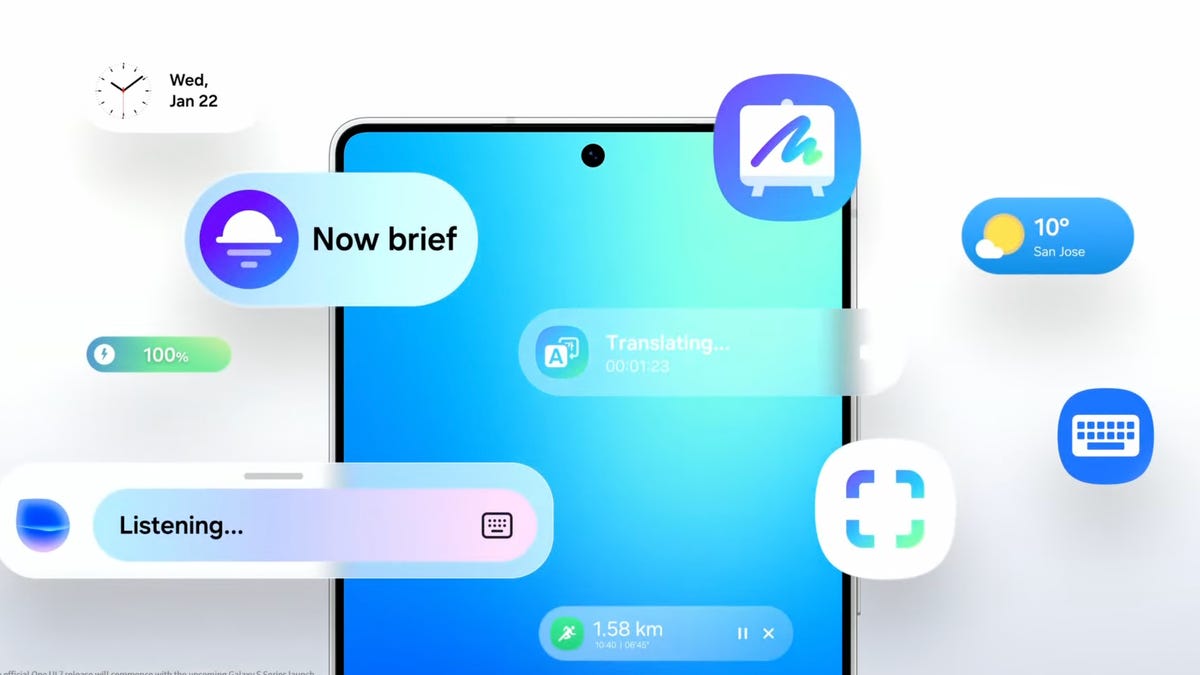
Smartphones are becoming AI-first devices these days, with nearly every major phone maker prioritizing the technology — whether you want it or not. Samsung, known to throw any feature it can into its phones, is no different, and you might want to tone some of these AI features down if you don’t use them.
The latest lineup of Galaxy devices from Samsung have more AI features in them than any previous generation, but you’re luckily not stuck with them. If you want, you can disable certain features and keep the ones you want or you can completely disable AI on your device entirely. Best of all, it’s not hidden down a long path of settings menus and just takes a couple of taps.
If you’re looking to manage the AI features on your Samsung device, we’ll show you how below.
How to turn off Galaxy AI services
You can turn off most Galaxy AI features with a couple of taps.
Nelson Aguilar/CNET
Some of the features that smartphones can do using AI are undeniably cool. If you like some of them but don’t want AI everywhere, Samsung lets you pick and choose which to use.
To turn off AI for individual services:
Go to Settings.Tap Galaxy AI.Select the service to disable.Tap the toggle to Off.
You’ll see a list of the services that form Galaxy AI. You can choose the apps for which you want to turn AI on or off from here.
If you’re more privacy-minded but still want to take advantage of Galaxy AI features, there’s a toggle at the bottom of this screen that limits AI from sending anything to the cloud and keeps data processing on your device. Choosing this option will disable some AI features that require an internet connection to process, and the results may be less useful.
Goodbye, Bixby
Samsung luckily makes it easy for you to ditch Bixby for another voice assistant.
Nelson Aguilar/CNET
Bixby, the Samsung digital assistant that you may not even realize is on your phone, is something that you’ll want to disable if you’re trying to tame the AI on your Galaxy device.
Samsung offers a way to replace Bixby with another voice assistant of your choice. For all intents and purposes, Google Assistant will be your best bet, even if it will eventually be replaced by Google’s advanced AI assistant somewhere down the road.
Depending on the specific model of Galaxy phone you have, your options may vary. For instance, on the Galaxy S26, Bixby is no longer an option, but if you download the Perplexity app, it will become an option.
It’s likely already installed on your phone, but you may need to redownload the Google app if you uninstalled it or never had it.
Go to SettingsTap AppsTap Default appsTap Digital assistant appTap Google
That’s it. Now, when you trigger your voice assistant, you’ll be greeted by Google Assistant instead of the AI-powered Bixby. Something to note here is that you may have additional options to replace your assistant if you have the apps downloaded.