
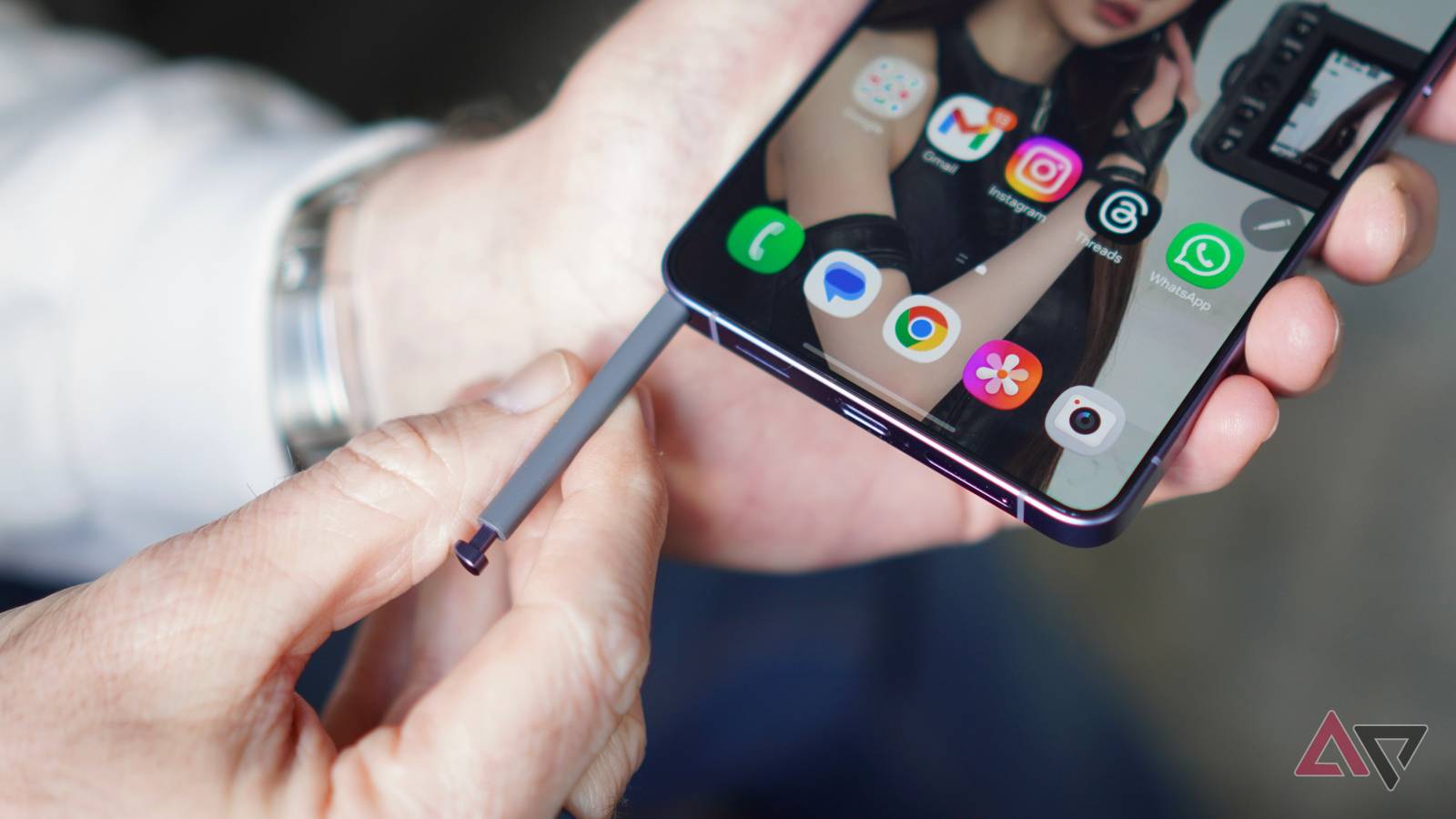
The S Pen is often treated like a bonus feature that most Galaxy Ultra owners forget about after the first few days.
I used to feel the same way, until I started using Screen off memo properly.
But the real trick is what happens next.
I can pin that handwritten note directly to the lock screen and keep it visible like a digital sticky note.
Related
The Good Lock module I forced myself to learn — and now can’t use a Galaxy without
I forced myself to learn this Good Lock module, and now I’m stuck
The S Pen is often misunderstood
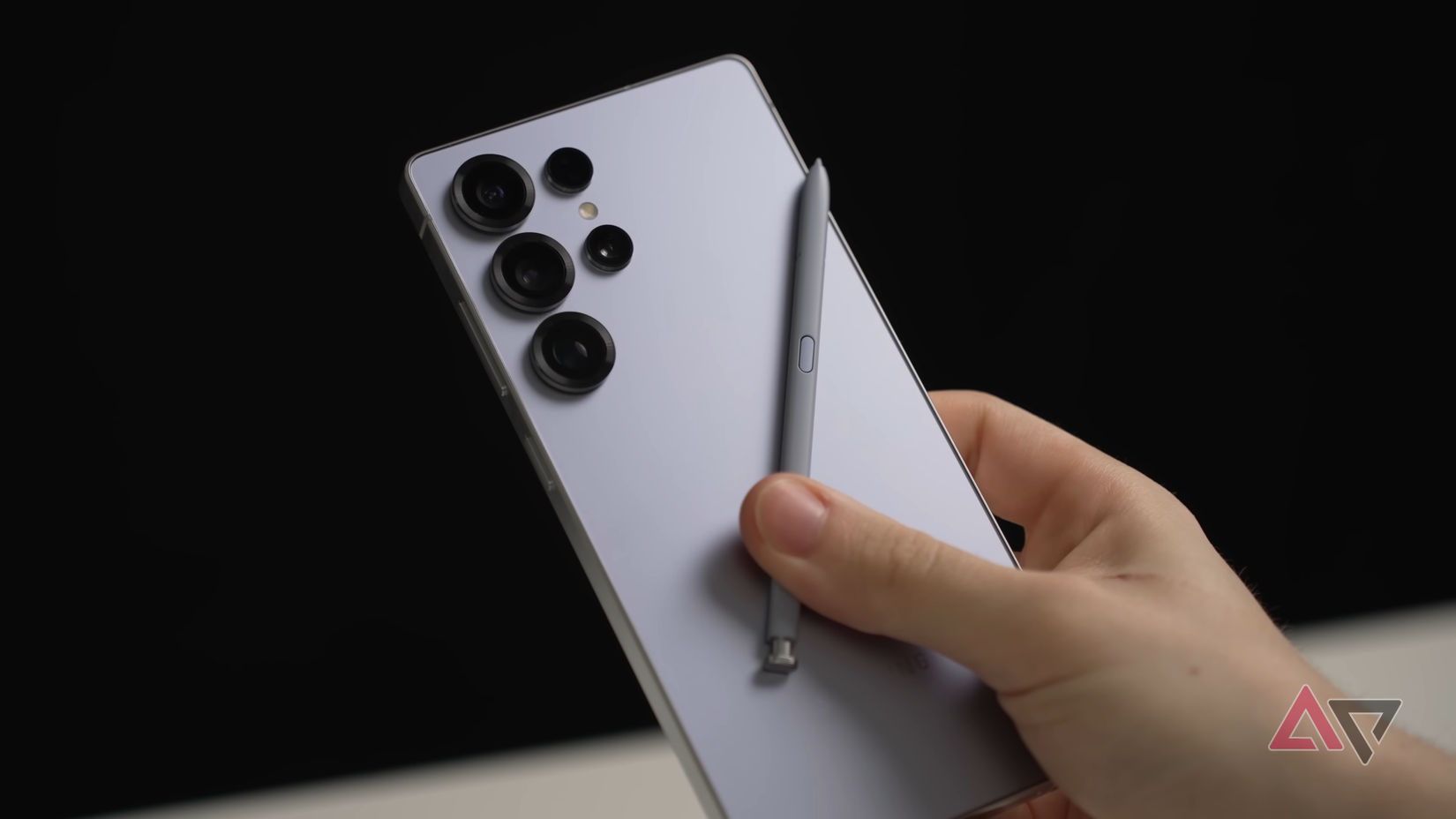
I used to think the S Pen was mostly designed for artists, students, or anyone who signs documents on their phone.
The drawing tools looked impressive, and features like remote camera control were fun to demonstrate, but I never saw them as essential to my daily routine.
That is why the S Pen is often misunderstood. Its value is not always in the flashy features Samsung highlights during a launch event.
It is in the smaller tools that remove friction from everyday tasks. Screen off memo is the perfect example.
Screen off memo removes every step
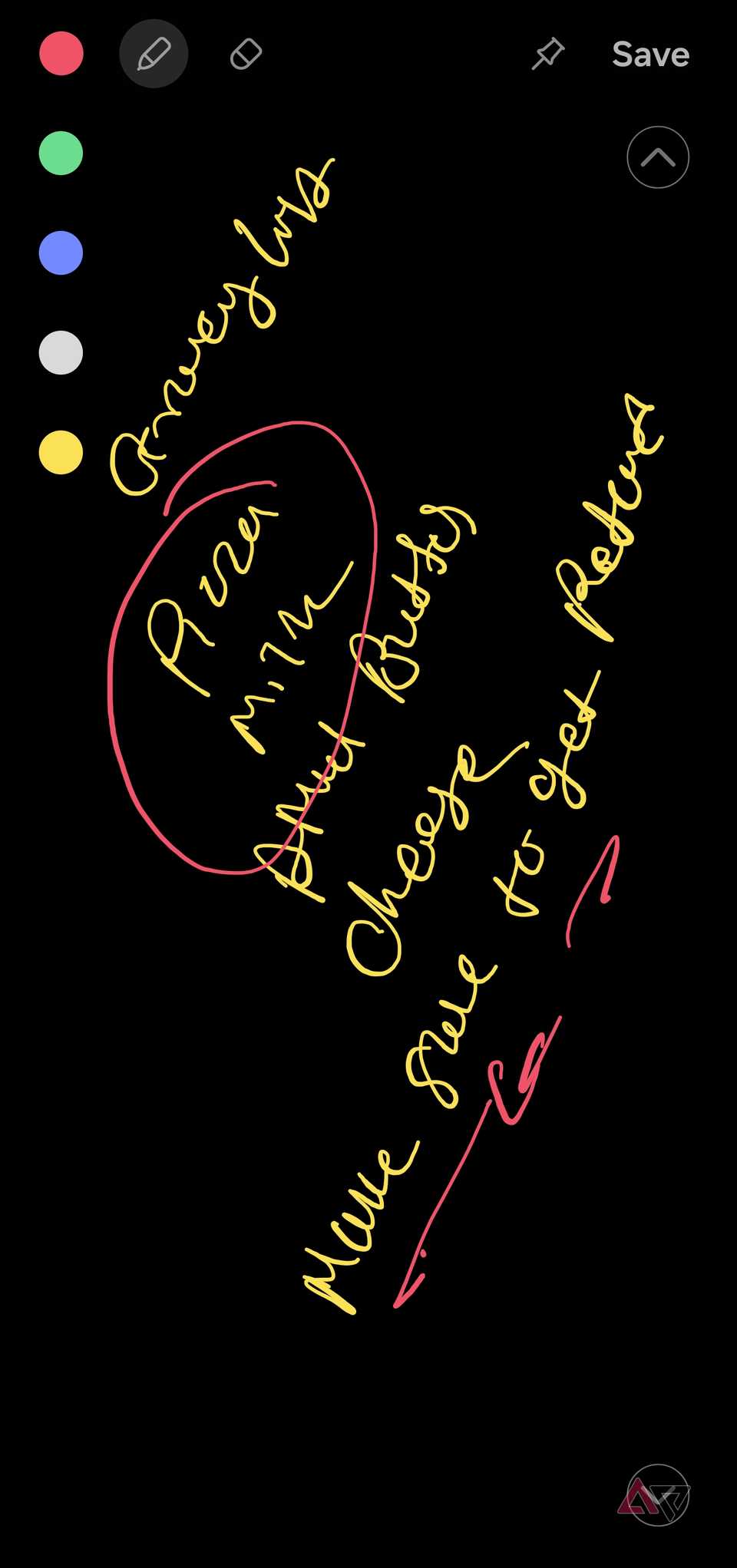
Most note-taking methods still create unnecessary friction.
With other phones, I normally have to wake the phone, unlock it, find the right app, create a new app, and bring up the keyboard before I can write anything.
That may take only a few seconds, but it is enough to interrupt my train of thought to make me postpone the note entirely.
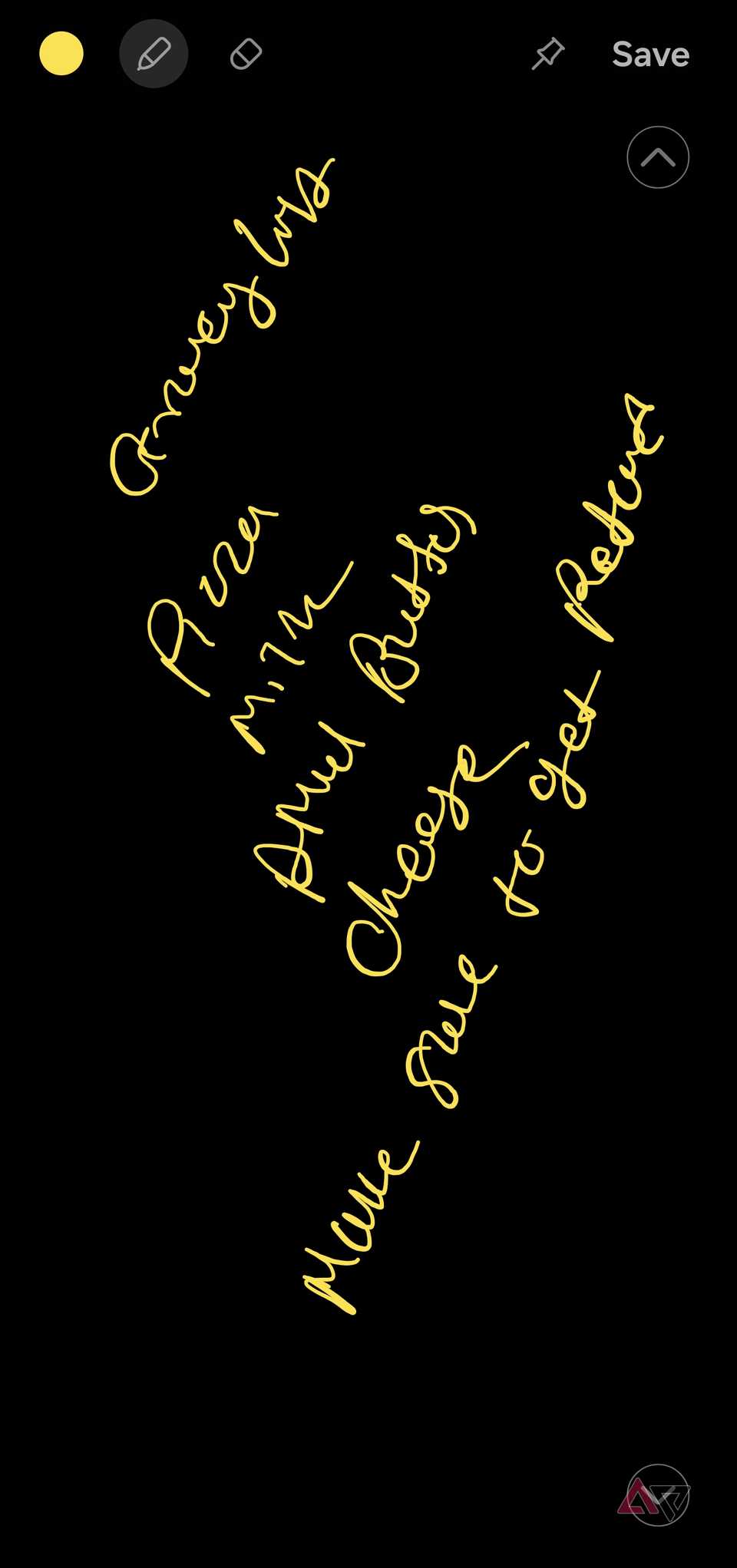
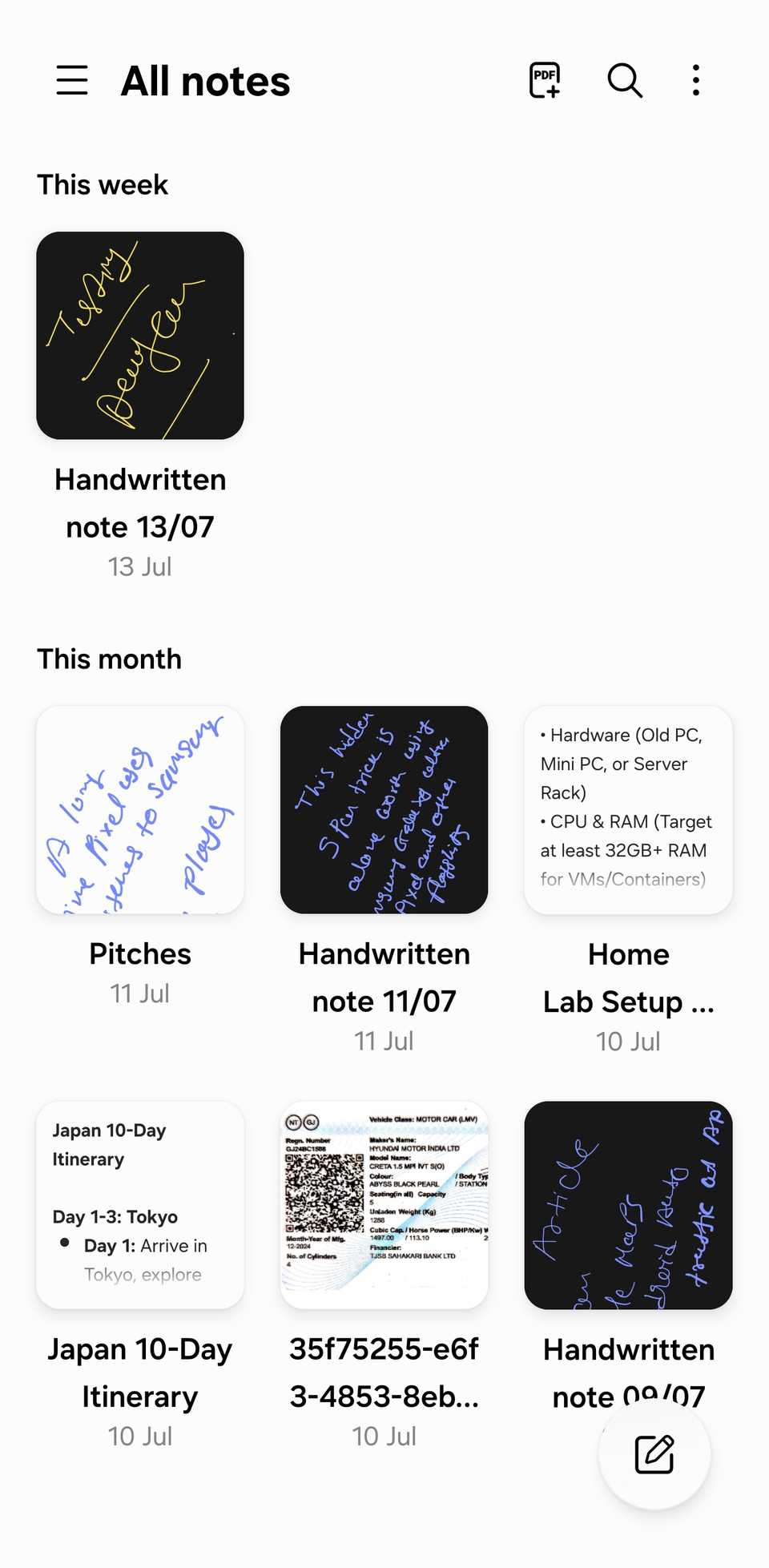
Screen off memo removes all those steps. I can pull out the S Pen while the display is off and start writing immediately.
There is no loading screen, app menu, or folder to deal with. When I am done, I can save the memo to Samsung Notes.
I often use it to write down my parking floor or slot number before walking away from the car.
While shopping, I can pin a short list or product measurement to the lock screen and check it without opening an app.
It is also handy for flight gates, hotel room numbers, delivery codes, Wi-Fi passwords, and phone numbers that I only need for a short time.
On busy days, I sometimes write my most important task and keep it pinned as a persistent reminder.
Because it appears whenever I glance at the phone, it is much harder to ignore than another notification buried among emails, messages, and promotional alerts.
Pinning transforms a quick note
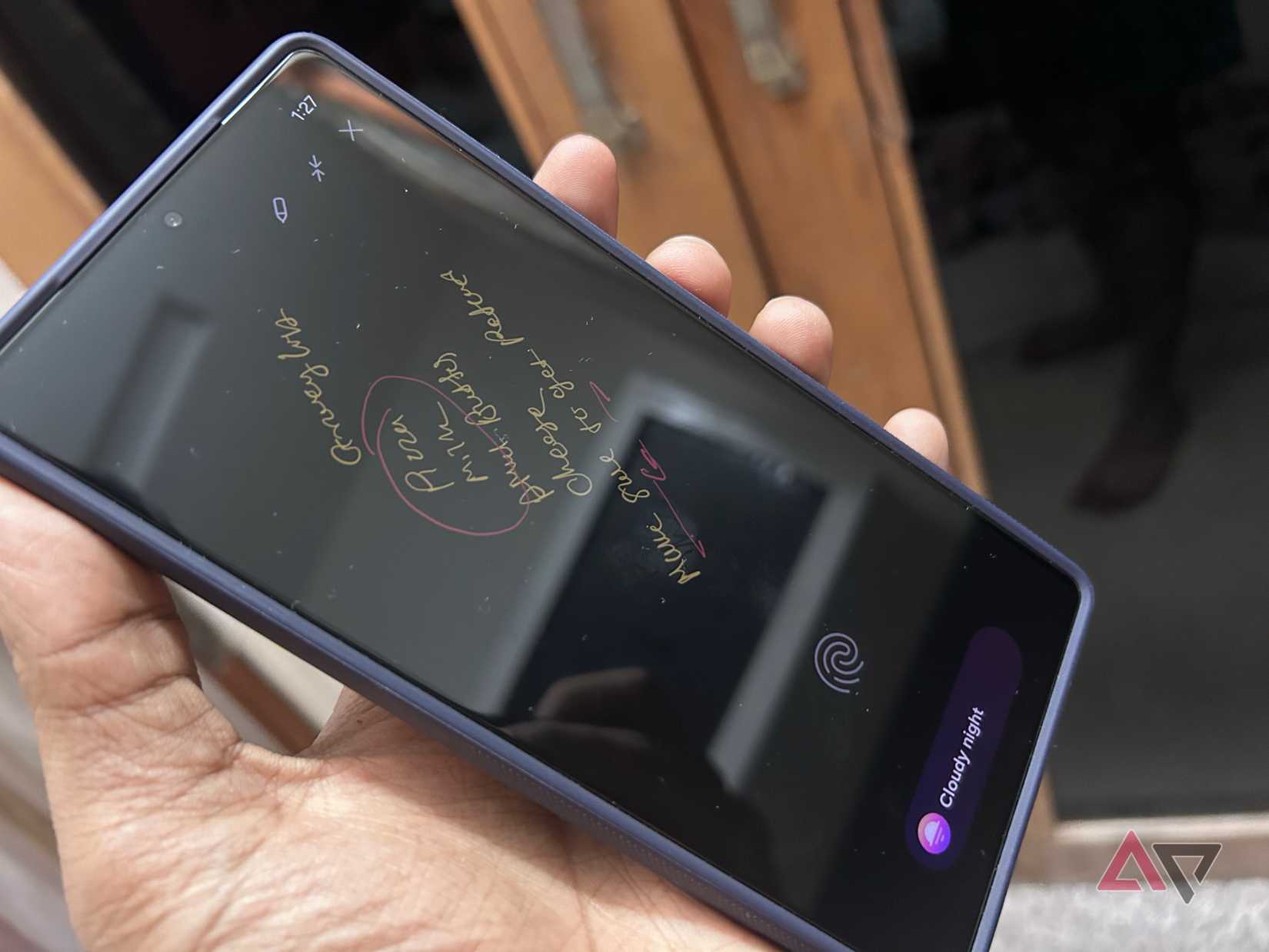
Writing something with Screen off memo is already convenient, but pinning it to the lock screen is what makes the feature useful for me.
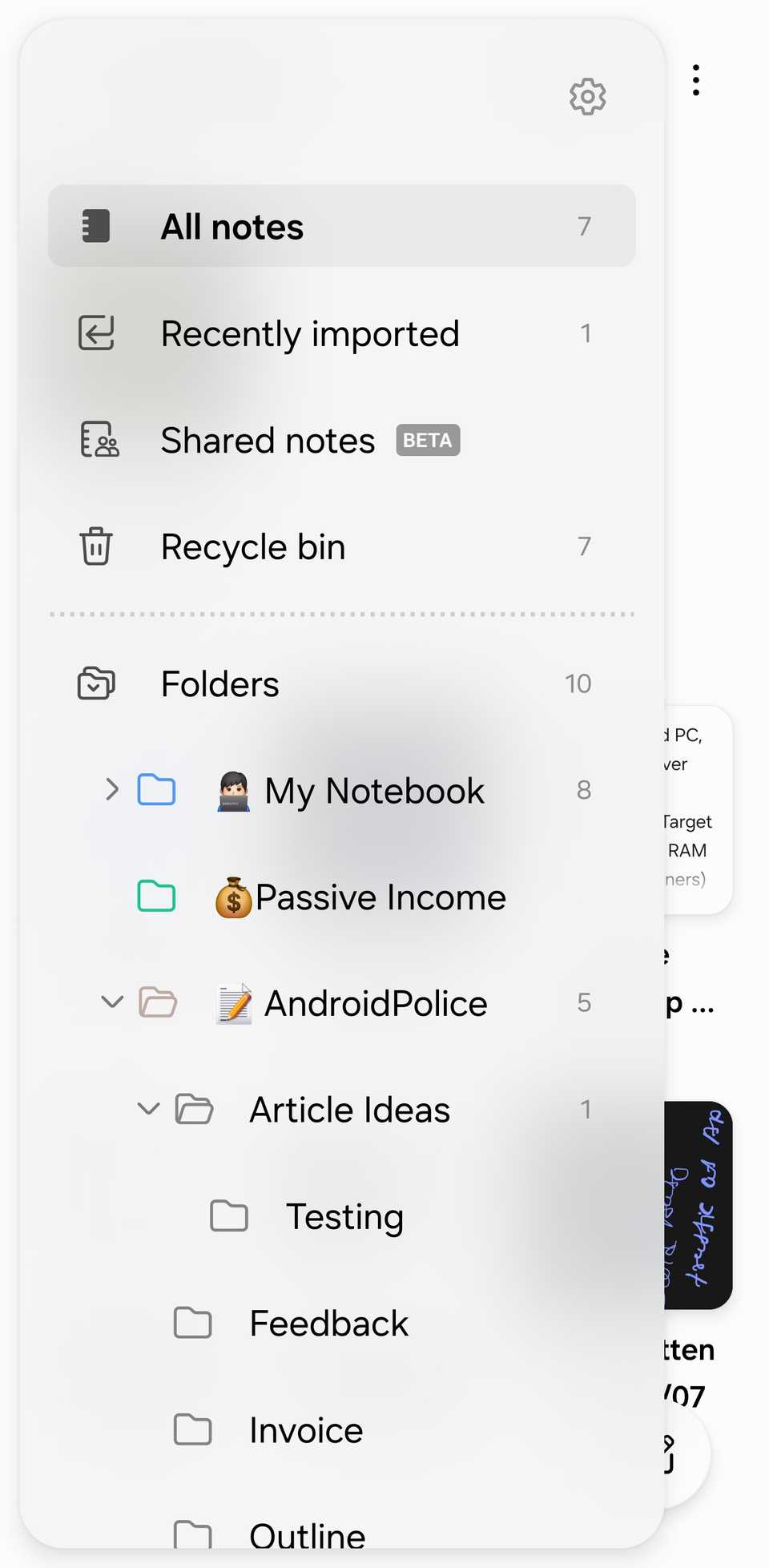
A saved note can easily disappear into Samsung Notes and be forgotten, especially when I already have dozens of other notes.
A pinned memo stays visible every time I glance at my phone, and turns a quick scribble into a persistent reminder.
For example, when I am dealing with a busy day with too many tasks, I pull out the S Pen, write down essentials on the lock screen, and pin it.
Whenever I head out or feel confused at a store, I can tap the pinned note icon on the Always On Display and glance over the list. I don’t need to unlock the phone to check note details.
Since my home renovation work is going on, I can write measurements and pin the note before buying furniture or accessories.
Another useful example is delivery codes. When a courier arrives, I can glance at the pinned memo instead of digging through my email or message inbox.
It works better than notifications
I use reminders and notifications all the time, but they are easy to ignore.
My lock screen is already crowded with messages, emails, delivery updates, and promotional alerts, so an important reminder can quickly blend into the noise.
I may dismiss it automatically and forget about it a few minutes later. A pinned Screen off memo feels much more deliberate.
It stays visible on the lock screen and shows the exact message in my own handwriting whenever I check the phone.
For example, if I write ‘Call the bank before 4 PM’ and pin it, the task remains in front of me throughout the day.

Related
My Samsung Galaxy S25 became a productivity weapon with this one-tap app strategy
The experience is surprisingly seamless
It is faster than typing
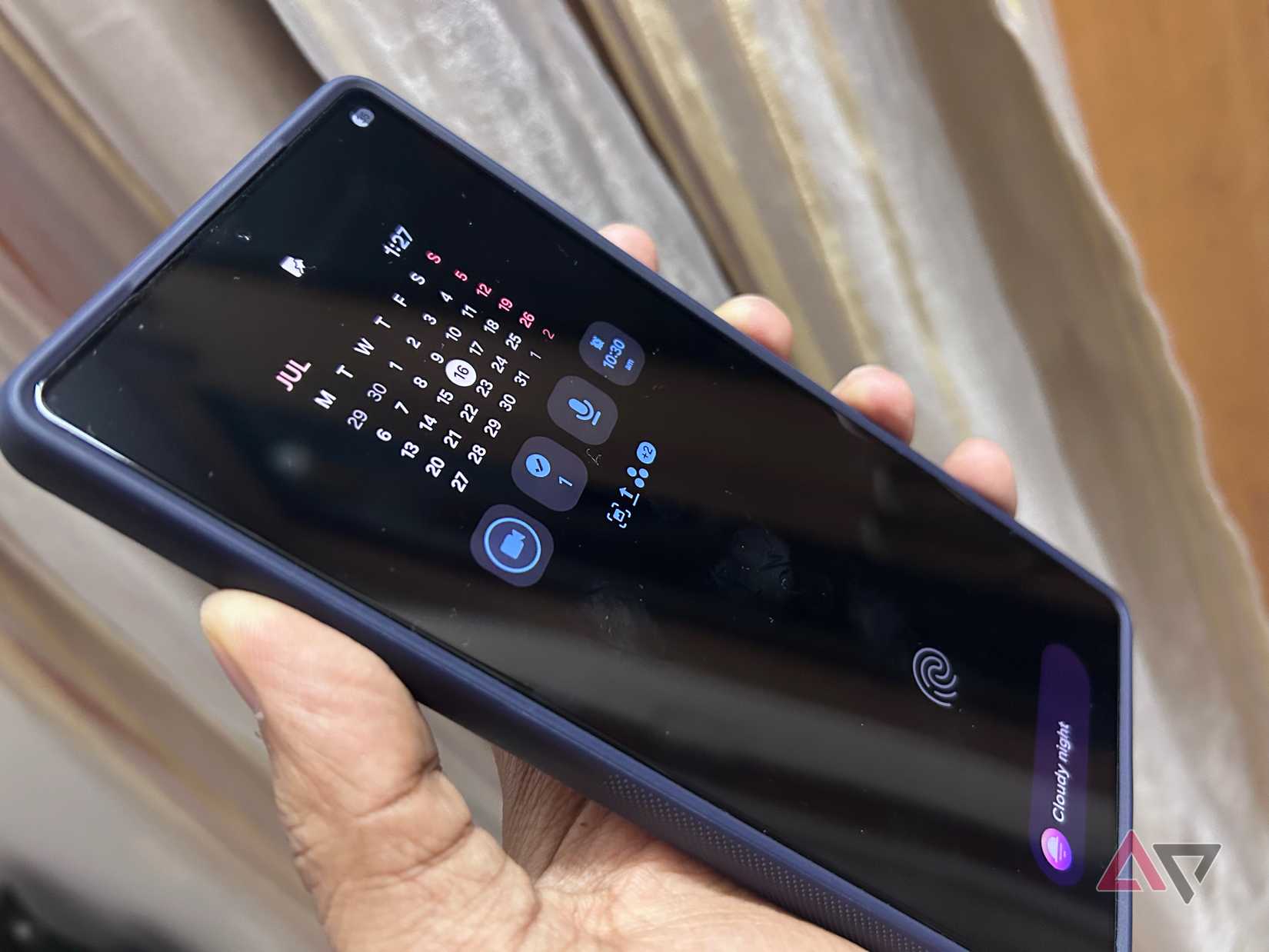
I can create a quick note on an iPhone from Control Center or tap the Google Keep widget on a Google Pixel, but both methods still feel slower than Screen off memo.
I first have to wake the phone, tap the shortcut, wait for the notes app to open, bring up the keyboard, and start typing.
On my S25 Ultra, I pull out the S Pen while the display is off and begin writing. There is no app launch or keyboard getting in the way.
The iPhone and Pixel offer convenient shortcuts, but Samsung’s approach feels closer to grabbing a pen and writing on paper.
This is why the Ultra wins
The S Pen still has plenty of clever tools, but Screen off memo is the one I keep returning to.
There is no app to open, widget to configure, or voice command to repeat. It feels simple, natural, and genuinely useful rather than gimmicky.
Pixel and iPhone users can take quick notes in other ways, but neither device offers this exact combination of handwriting, instant access, and persistent visibility.
It is a small feature, but it gives the Galaxy Ultra a practical advantage I notice every day.