
Framesira/Shutterstock
Since smartwatches have smaller screens than smartphones, they need to make every pixel count. Even the Samsung Galaxy Watch Ultra 2 needs to use its visual real estate wisely. While these devices will tell you when you have new notifications, some methods are so concise they boil down to simple colors and shapes.
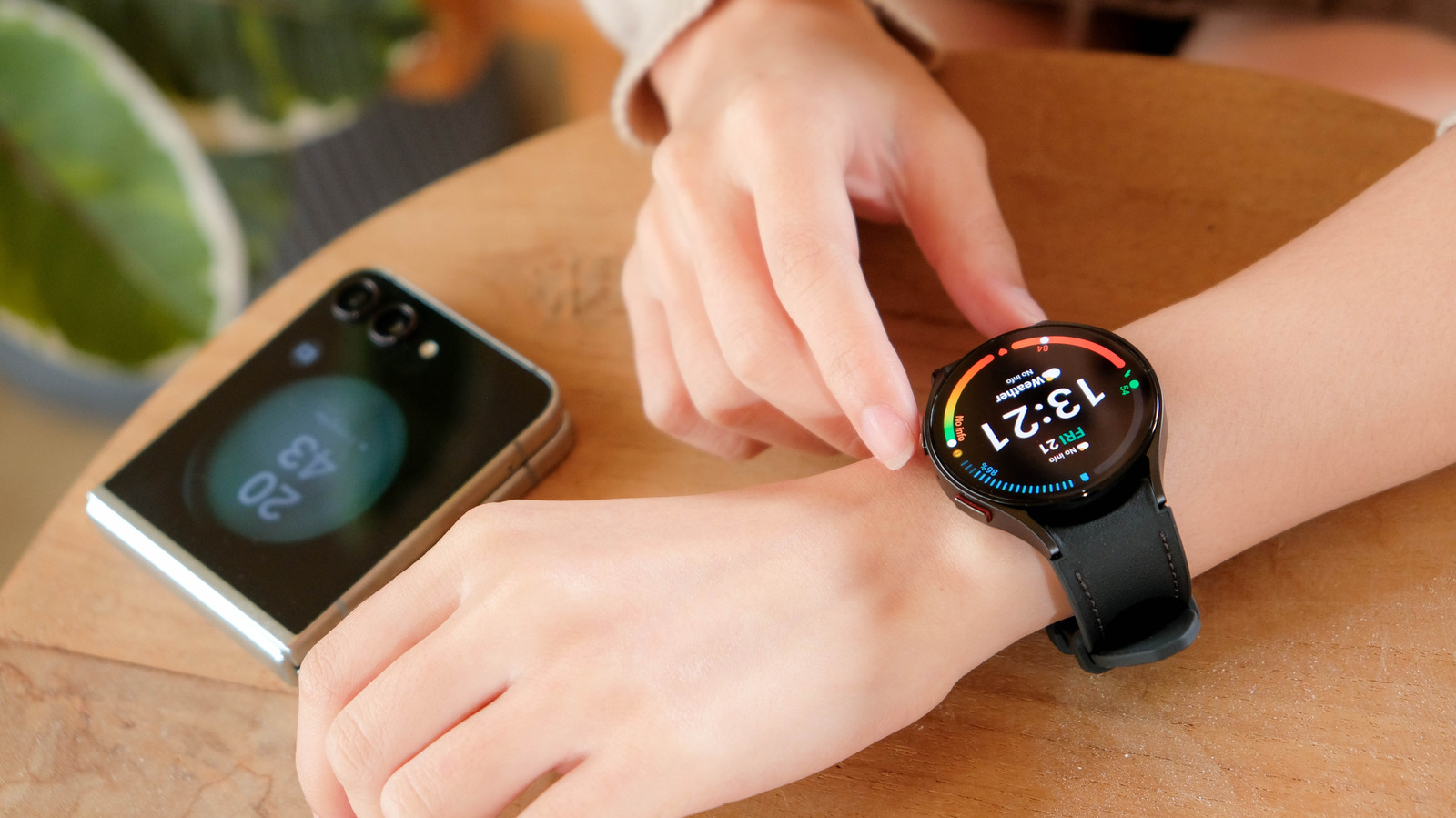
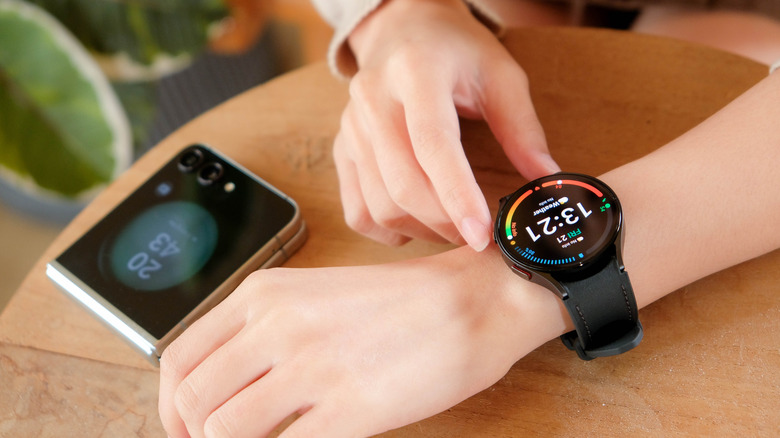
Depending on your phone’s background (more on that later), you might see an orange dot on the left side of your Galaxy Watch screen, right where 9 o’clock would be on an analog watch. This sometimes imperceptible orange circle means you have unread notifications. It doesn’t matter how many you have; the dot won’t go away until you’ve read them all. The only exception is when the dot turns red. When this happens, you have an urgent notification and should probably read it ASAP. To read notifications, swipe right on your Galaxy Watch’s screen.
While Samsung primarily documents the notification dots and their functions in the “One UI Watch for Tizen” section of the Samsung Developer website, don’t let that scare you. Earlier this month, Samsung stopped providing software support for the Galaxy Watch 4 Series, which ended Tizen support. However, newer Samsung Galaxy Watch models still have orange indicators, so if you currently own a Watch 4, you don’t have to worry about learning a new notification system when you eventually trade in your aging device for a new one.
What to do if the orange dot annoys you
Framesira/Shutterstock
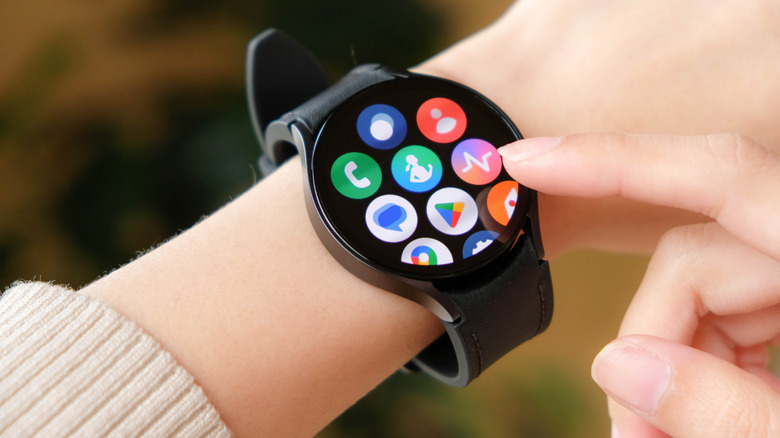
Depending on your Galaxy Watch settings, you might get inundated with notifications. When this happens, the orange dot won’t go away. Technically, you can get rid of it by skimming through your notifications, but it will seem to pop up again a few minutes later. If this happens, you might want to deactivate the setting altogether.
While you should sync your Galaxy Watch to your phone, you can still do many tasks on the smartwatch alone, such as turning off its notification settings. Here is how to deactivate the orange and red dot on your smartwatch:
Open the “Settings” menu.
Tap on “Display.”
Scroll down to “Notification Indicator” and tap it to turn it off.
However, if you find your Galaxy Watch’s screen a little too restrictive, you can use your Galaxy Wearable instead and follow these steps:
Open the app.
Select “Watch settings.”
Tap “Notifications.”
Scroll down and select “Advanced notification settings.”
Tap “Notification Indicator” to turn it off.
Once the notification indicator is deactivated, you won’t have to worry about any dots mucking up your UI screen. However, you won’t know if you have any messages — urgent or otherwise — until you check. Alternatively, you can always choose a screen wallpaper that masks the dots. Maybe something that hides the orange indicator but makes the red one visible so you aren’t inundated with notifications but still know when your Galaxy Watch wants to share important information.