iOS 26.2 is launching to all users very soon, and it will introduce several new ways to customize the way your iPhone looks and works. Here’s what’s coming.
#1: Expanded Liquid Glass slider for Lock Screen clock
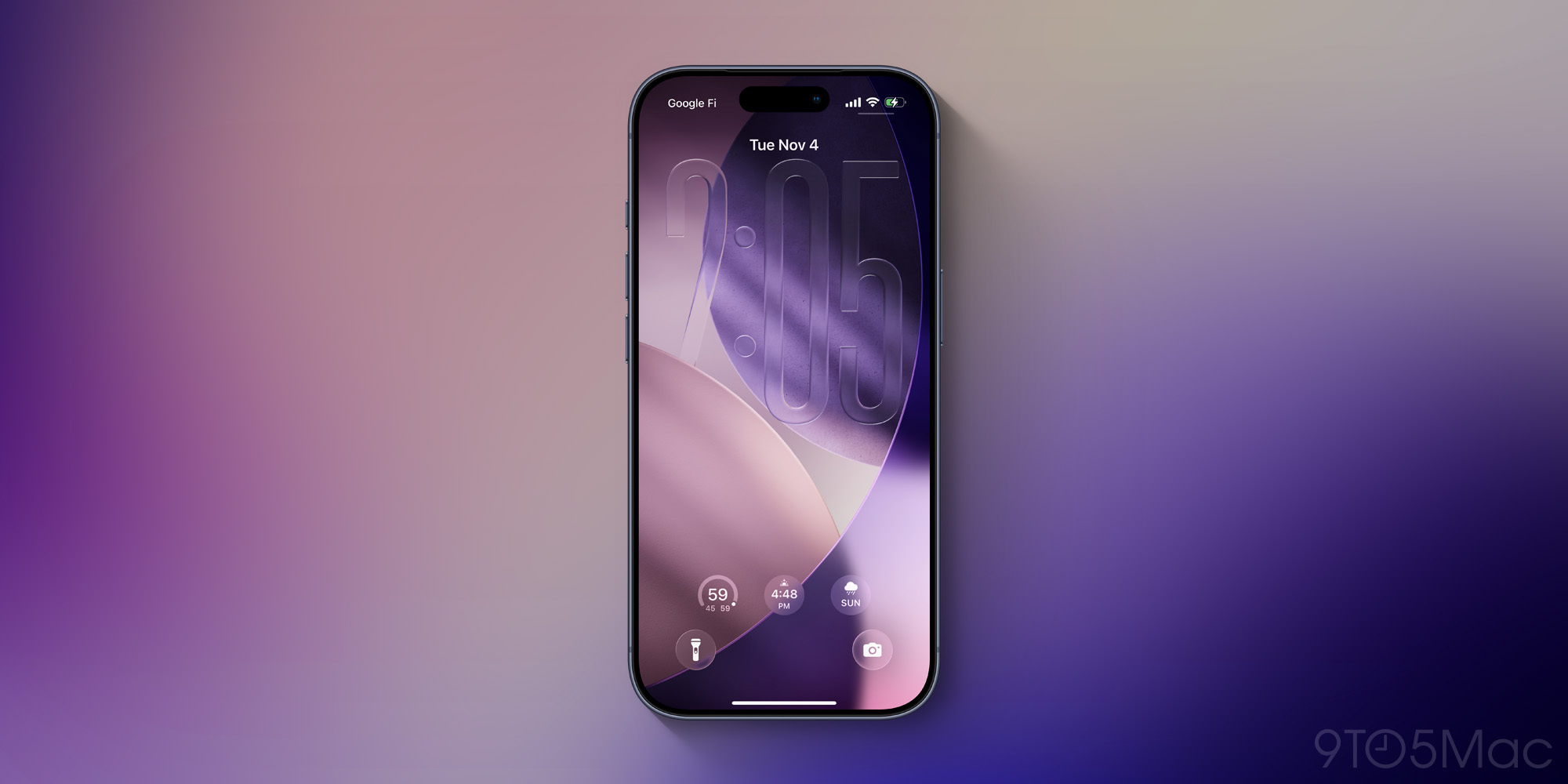
The Lock Screen is one of the best ways you can personalize your iPhone’s look and feel. And in iOS 26, Apple added the ability to make the Lock Screen’s clock use a Liquid Glass design.
Now in iOS 26.2, the slider for adjusting the clock’s opacity has been expanded to let you go more transparent or more opaque than before.
Make sure your clock is set to the ‘Glass’ setting, not ‘Solid,’ then play around with it to find the right look for your Lock Screen. The image above shows the new, most extremely transparent clock.
This updated slider is available no matter which font option you’ve chosen. Unfortunately you can still only expand the clock’s size with the default font, though.
#2: New screen flash for notifications
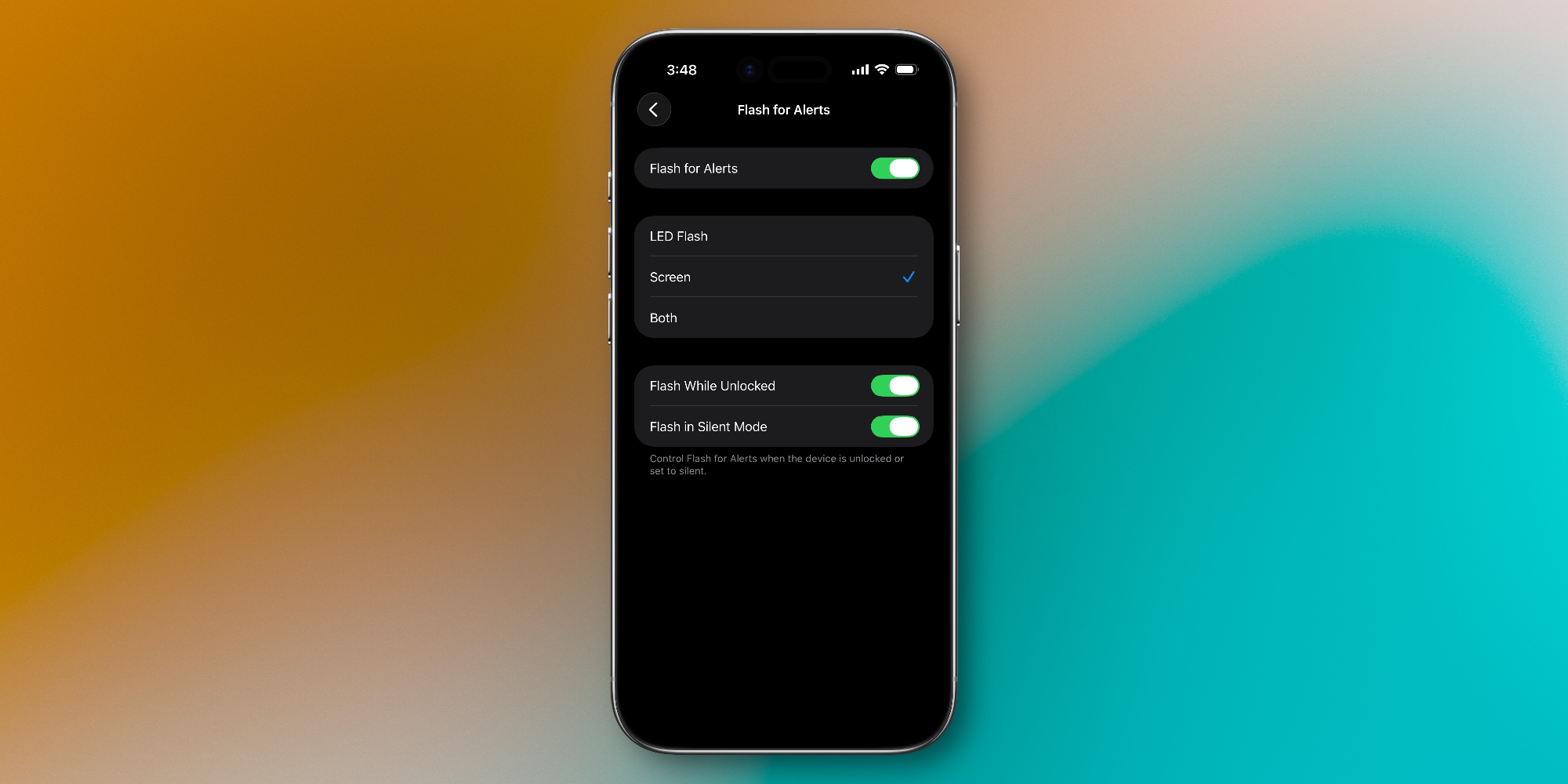
Notifications have long offered a special accessibility feature that triggers an extra visual cue. You can set your iPhone’s camera flash to go off when an alert comes in.
This feature is great for the hard of hearing, but it’s also just a nice option for making notifications pop.
Now in iOS 26.2, there’s a new alternative along the same lines.
Inside Settings ⇾ Accessibility ⇾ Audio & Visual ⇾ Flash for Alerts you’ll see a new ‘Screen’ option.
With ‘Screen’ toggled on, notifications will cause your iPhone’s display to fully light up for a brief moment before returning to normal brightness. You can even pair it with the camera flash option to maximize the effect.
#3: Reminders alarm options
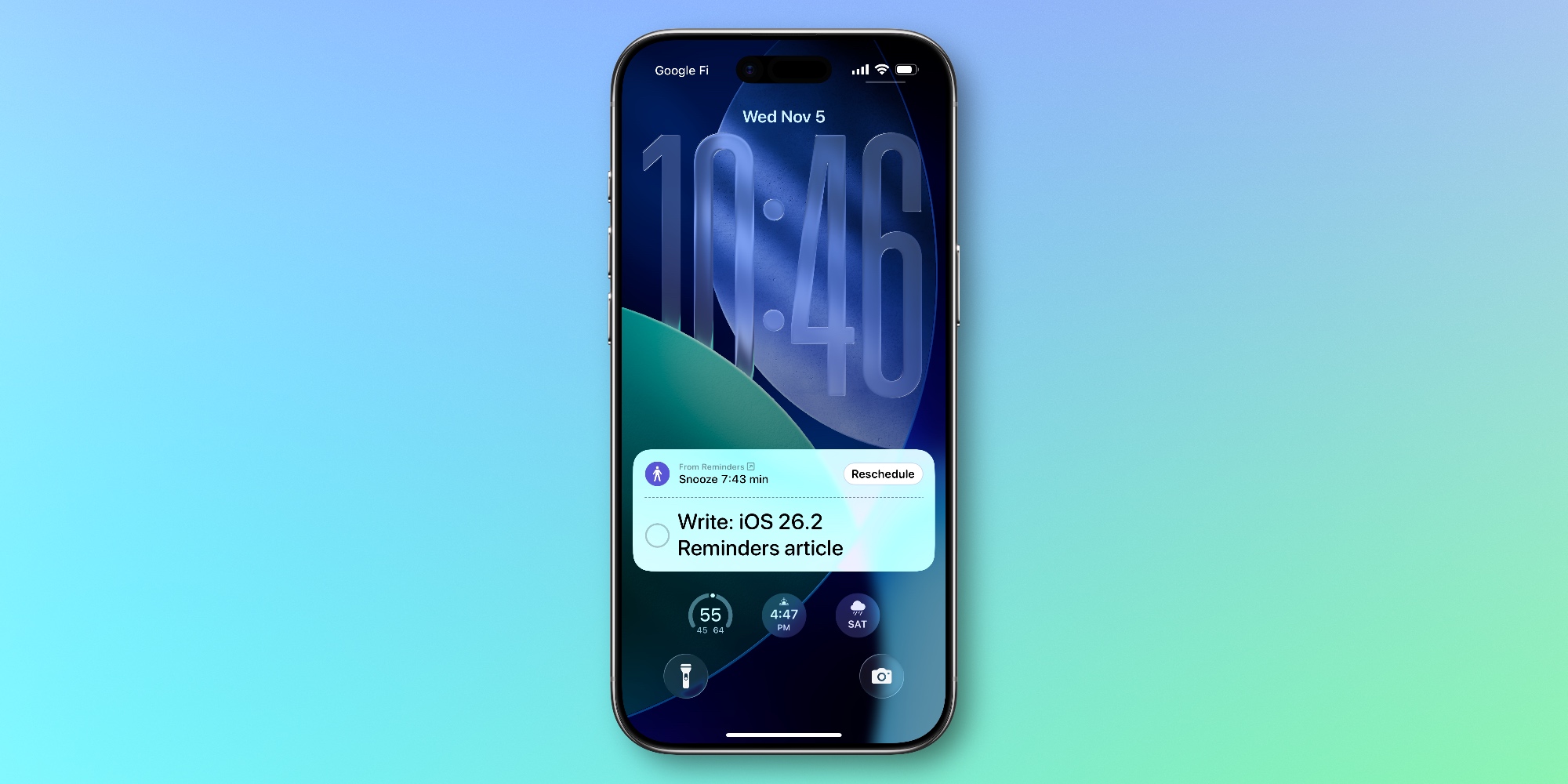
iOS 26.2 adds a brand new ‘Urgent’ toggle for time-based reminders in Apple’s Reminders app.
It’s easily one of my favorite new features in the update. And there’s an accompanying setting that lets you customize how it works.
By default, when an ‘Urgent’ reminder comes due, an alarm will trigger on your iPhone’s Lock Screen. You’ll see ‘Snooze’ and ‘Stop’ options just like with your morning wakeup alarm.
But inside Settings ⇾ Apps ⇾ Reminders, you can change this behavior, replacing the ‘Snooze’ option with a ‘Complete’ button instead.
‘Complete’ not only stops the alarm, but also marks that reminder complete immediately. Otherwise, stopping an alarm won’t actually mark the task as done.
I personally prefer having the Snooze option, but I imagine some users will opt for a ‘Complete’ button instead.
For more new features coming to your iPhone in iOS 26.2, check out our coverage here.
Best iPhone accessories


FTC: We use income earning auto affiliate links. More.