
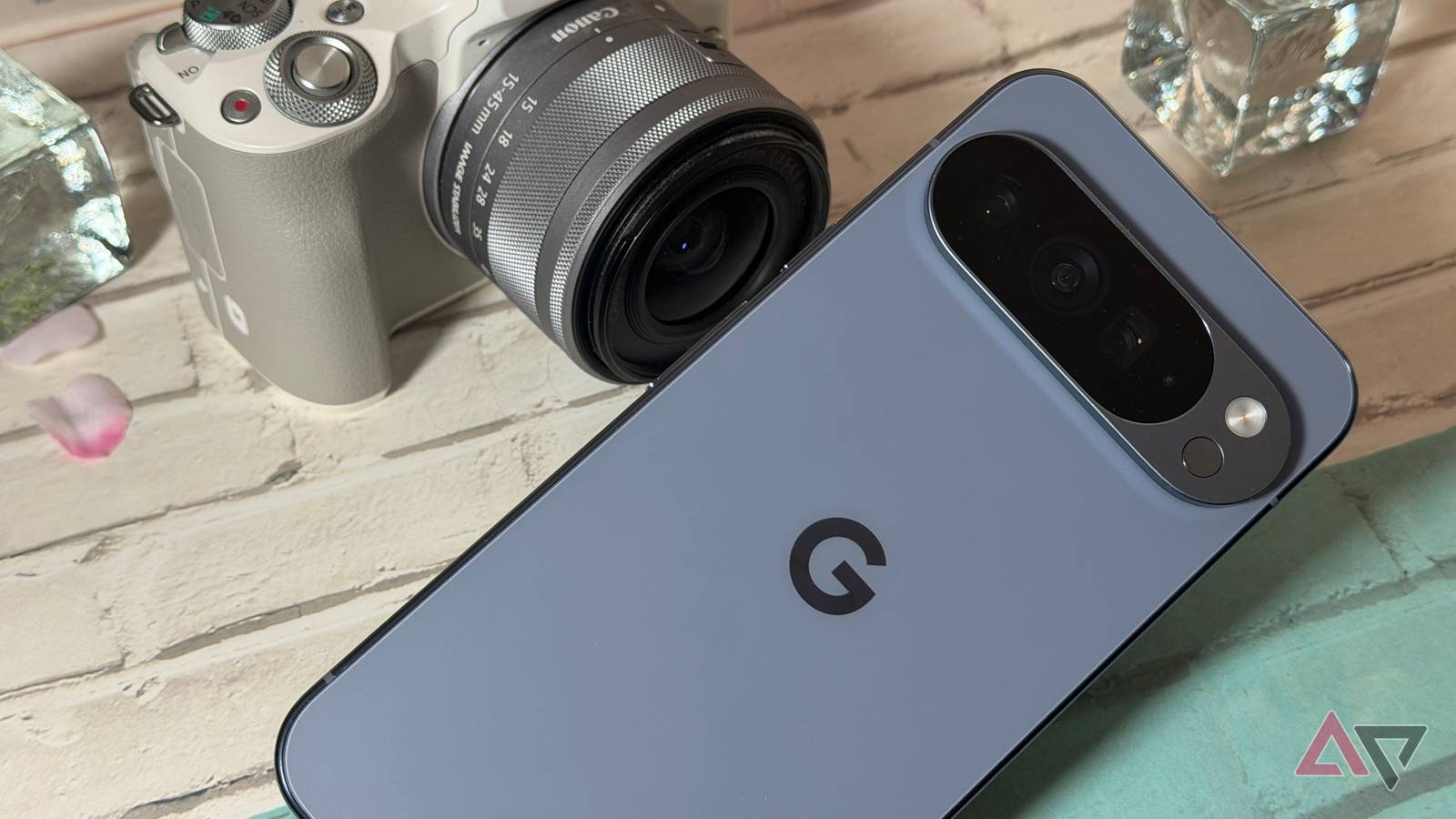
Google Pixel smartphones have long been lauded for their excellent cameras, and rightfully so.
The Pixel 2 XL transformed the way we think about mobile photography, and I still remember where I was the first time I saw a portrait shot from the device.
Google built on that lead, and if you’re serious about smartphone photography, I still recommend a Pixel.
However, the other manufacturers didn’t give up. Samsung and Apple have significantly improved to the point where I think it’s a matter of personal preference which photos you prefer.
After testing the Samsung Galaxy S26 Ultra, I found myself wanting a little more from my Pixel photography, and here’s how I went about getting it.
Related
My Pixel Camera is infinitely better since I tweaked these settings
Hidden camera settings for professional photos
You can just talk to your Pixel
Natural-language editing is helpful
I’m the first to admit I’m not a shutterbug. I know how to adjust a saturation slider, but if you told me to adjust a photo’s mood, lighting, or shadows, I’d give you a blank stare only a beagle could reproduce.
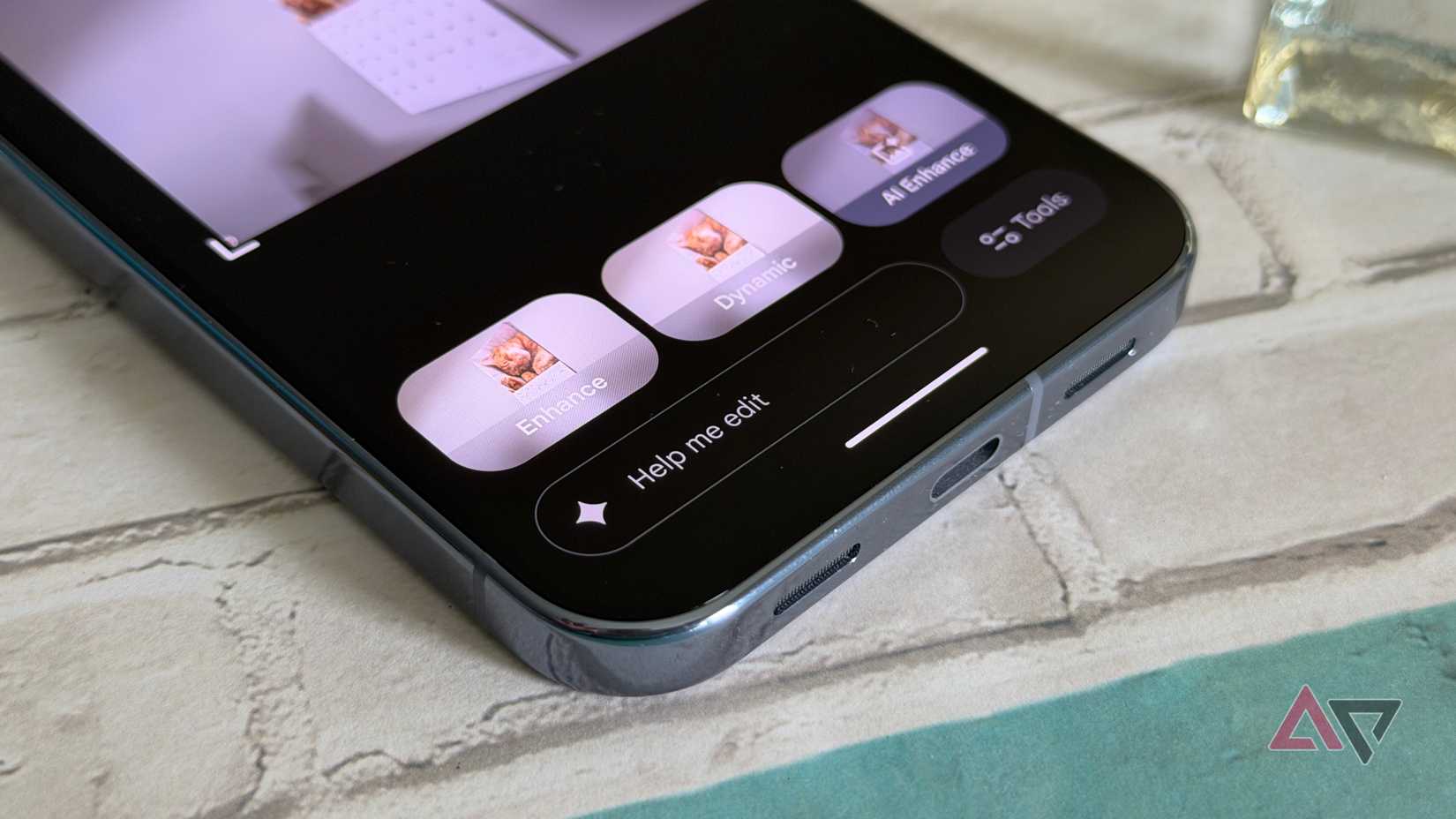
Thankfully, I don’t have to know anything about exposures and apertures if I own a modern Pixel. When I go in to edit a photo, I can use natural-language prompts to explain what I want done.
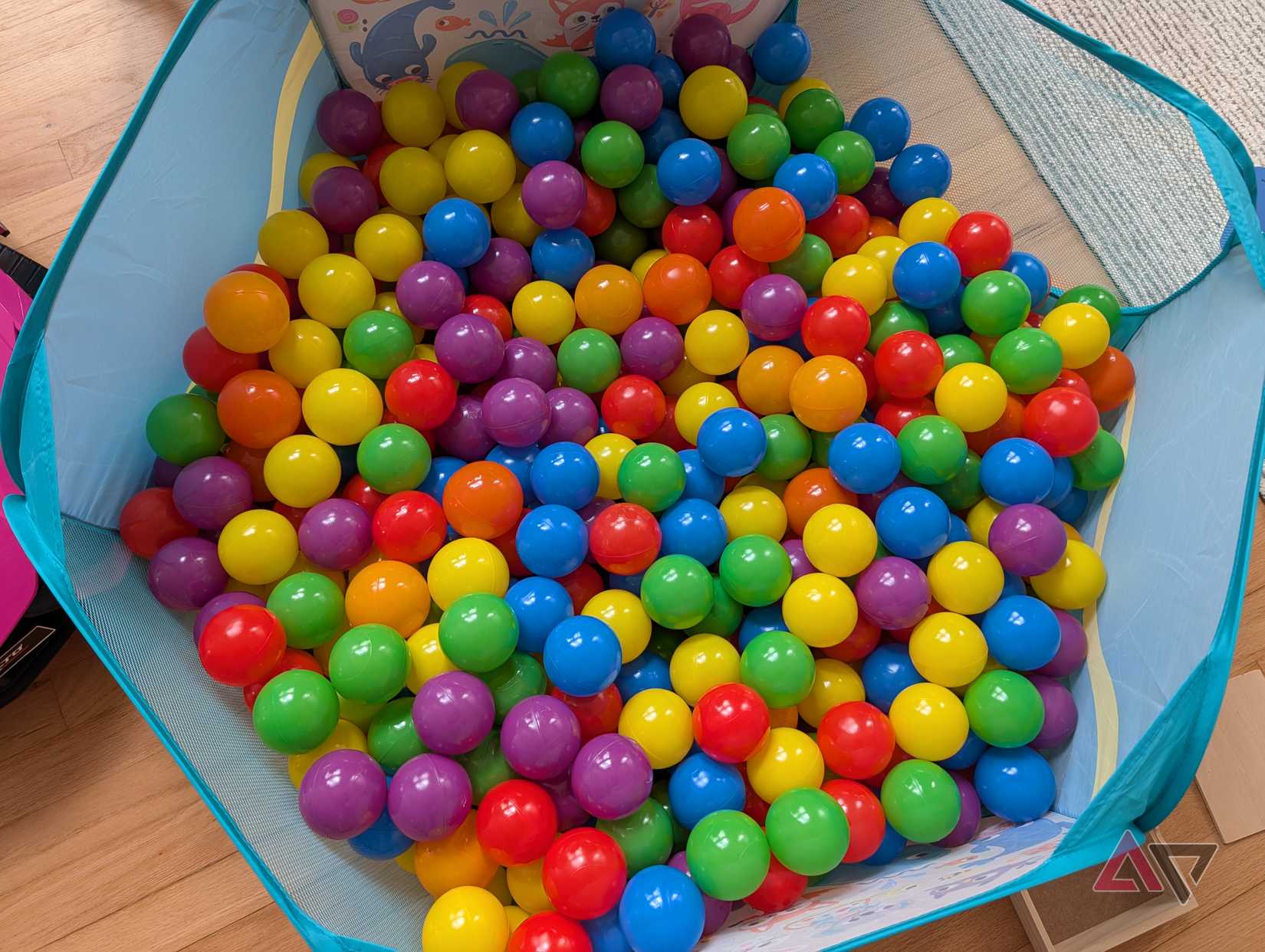
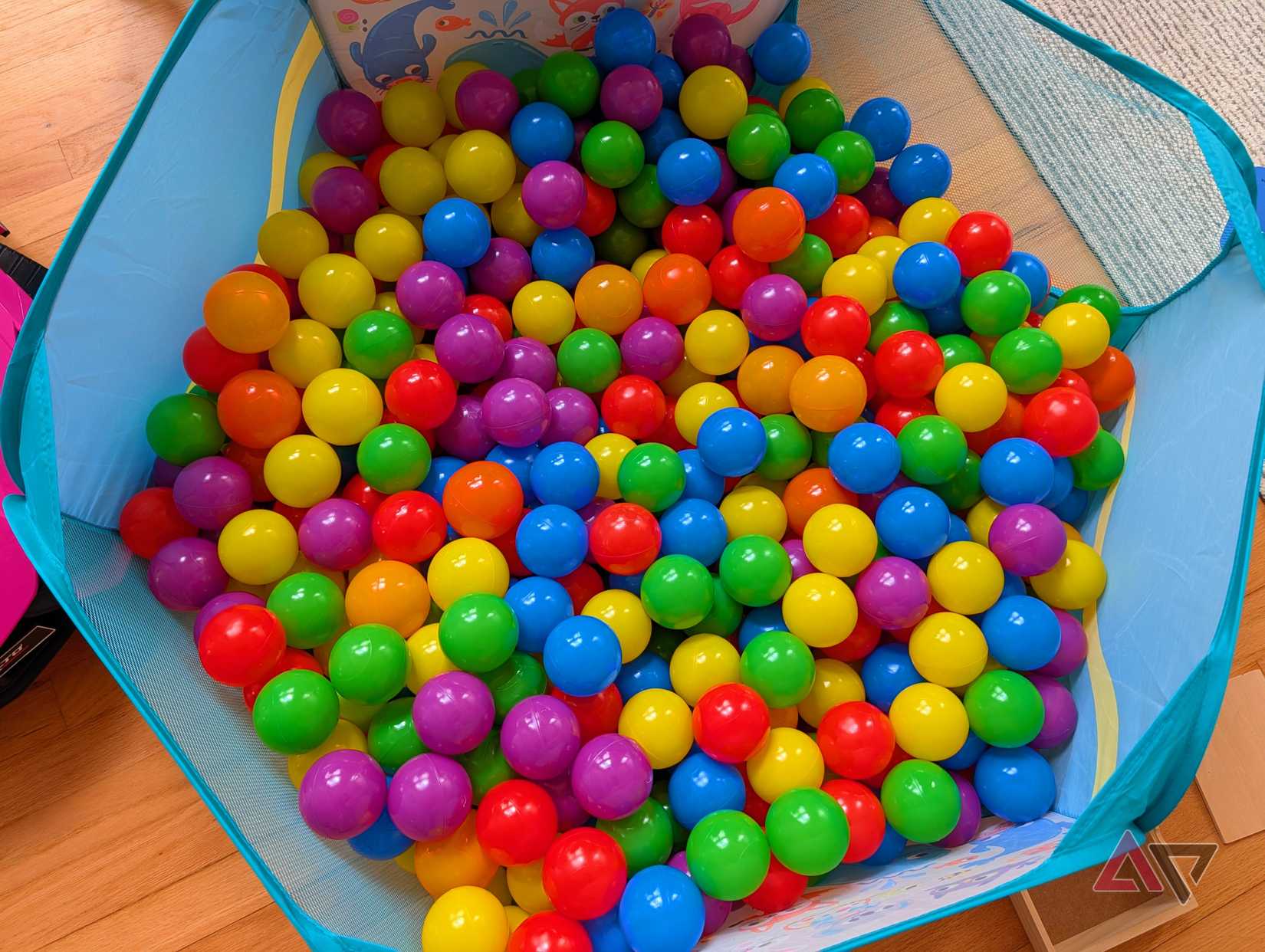
I prefer the more vibrant colors in photos from the Galaxy S26 Ultra. I think they are better for social media, and how I want to remember the moment.
My Pixel 10 Pro XL delivers a better technical image, but that’s not always enough. I open the edit function and tell Gemini I want the photo to be more saturated.
It’s not always perfect, but you can keep prompting as needed until you get the desired result.
Low-light images can also benefit. Night Sight is phenomenal, and it’s where Google still holds an edge over the competition.
Not everyone will agree, but I think there are times when nighttime photos can almost be too good, bringing in a ton of light. I don’t always want that.
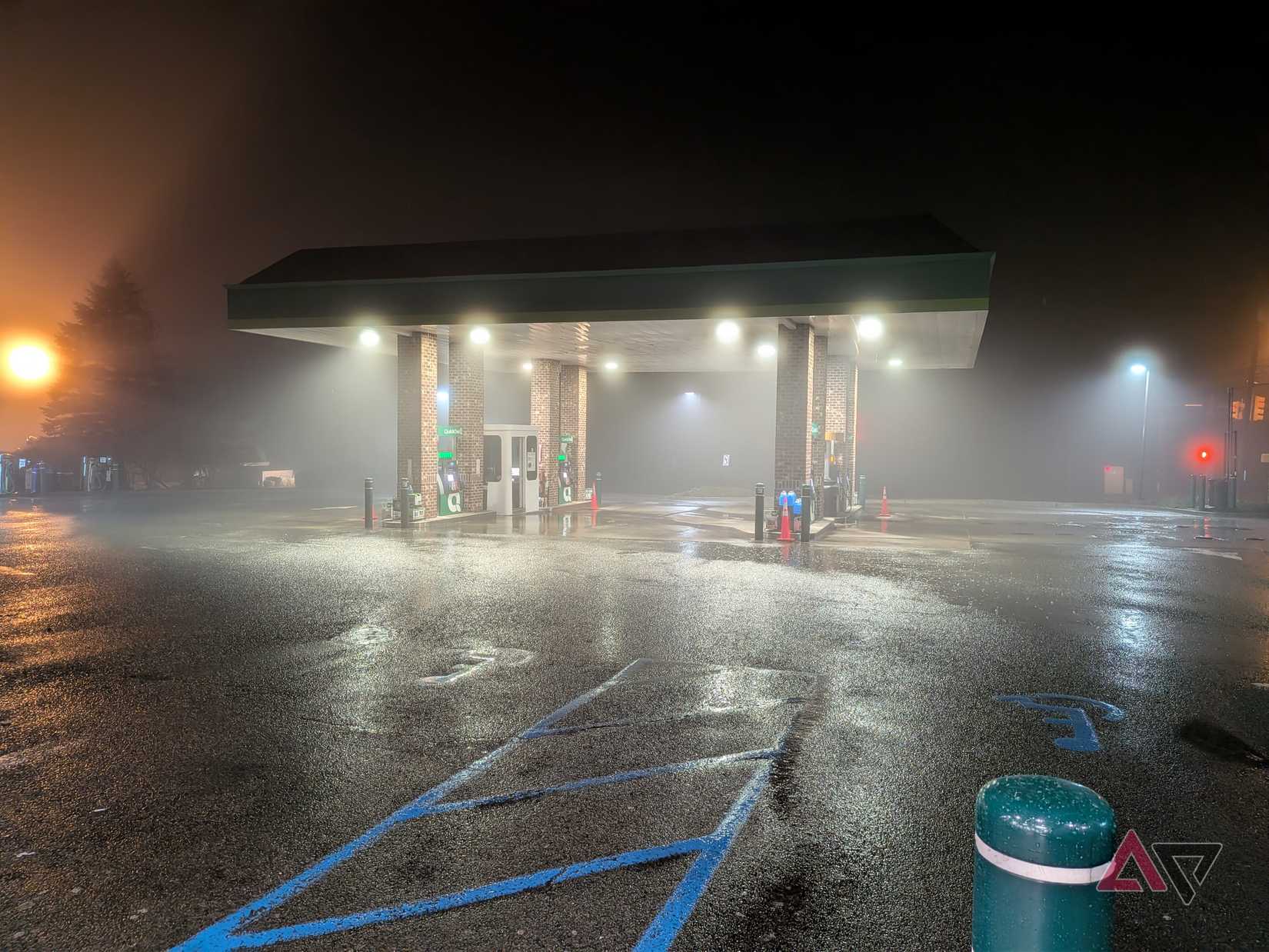
I recently used my Nokia Lumia 1020 again, and when you’re taking photos with an older camera system, you appreciate the ambiance those photos capture.

I want some of that back in my low-light images. I’m not sure which settings would get me that. That’s where I ask Gemini, and after a few swings, I get the mood I’m looking for.
If you know what you’re doing, you can edit yourself
Google provides plenty of tools
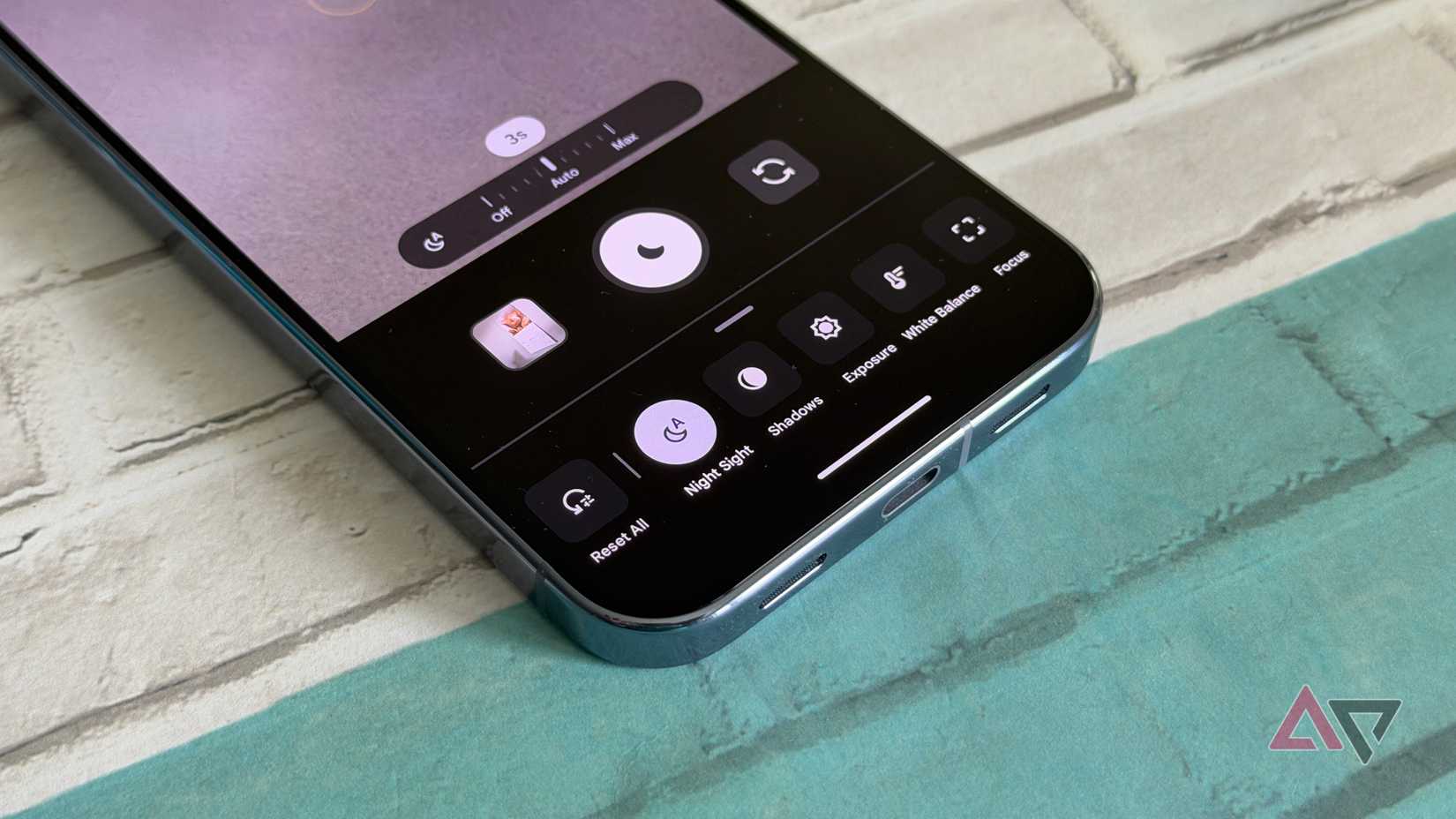
I may prefer the photos from the Galaxy S26 Ultra, but the Pixel 10 Pro XL gives me more to work with.
If you are a shutterbug, you’ll most likely want to capture what you saw and be in control of what happens after.
If you know what you’re doing, there are plenty of tools available to edit photos without AI. It’s almost as if Google is counting on that, in direct contrast to Apple’s solution, which we’ll talk about in a moment.
I can alter the lighting, tone, and brightness of my photos with a few taps.
I use the saturation slider most often, tilting my images more towards warmer color tones. It gives you more granular control, rather than the broad strokes you get when relying on AI to edit your photos.
Professionals and enthusiasts can still throw images into Lightroom or other editing programs, so having a natural, accurate image is more important than snapping a photograph meant for immediate upload to Instagram.
Apple has the best solution of them all
I wish Google had come up with something similar
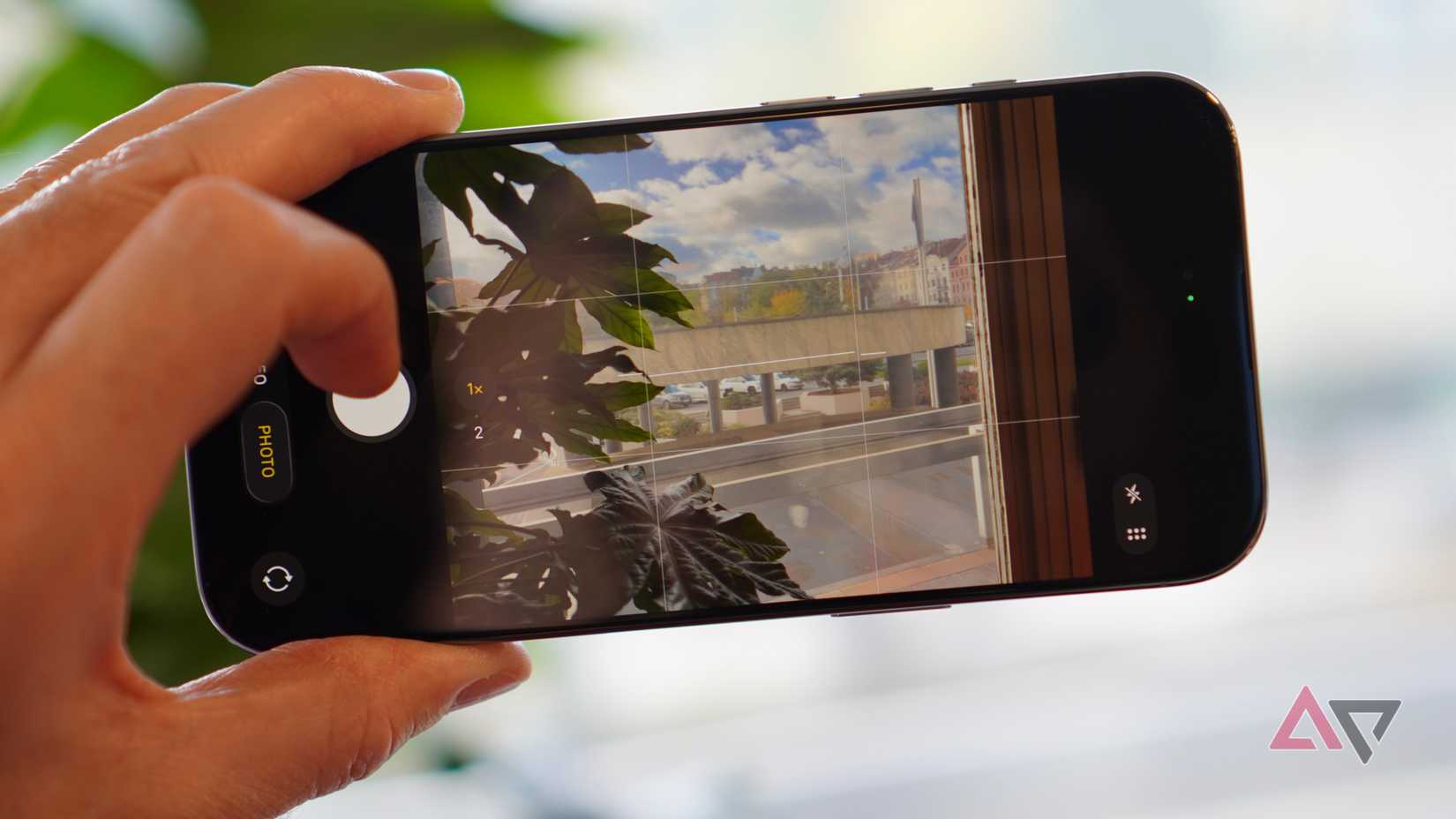
Apple Photo Styles are the cleanest solution to this problem I’ve seen. It applies a constant filter that you see in the preview, before the shot is taken. You know precisely what to expect, without any guesswork.
Google provides plenty of tools and powerful processing after the snap, but I’d prefer an overriding filter before I take the photo.
I’d bet the Tensor G5 is powerful enough to generate a filtered preview, so I’m hopeful Google will add something similar in the future.
Being able to adjust white balance and tones before I take my photo is helpful, but Photo Styles on iOS is a turnkey solution for those who aren’t photographically inclined.
Don’t get wrapped up in misleading solutions
P3 color won’t help you much
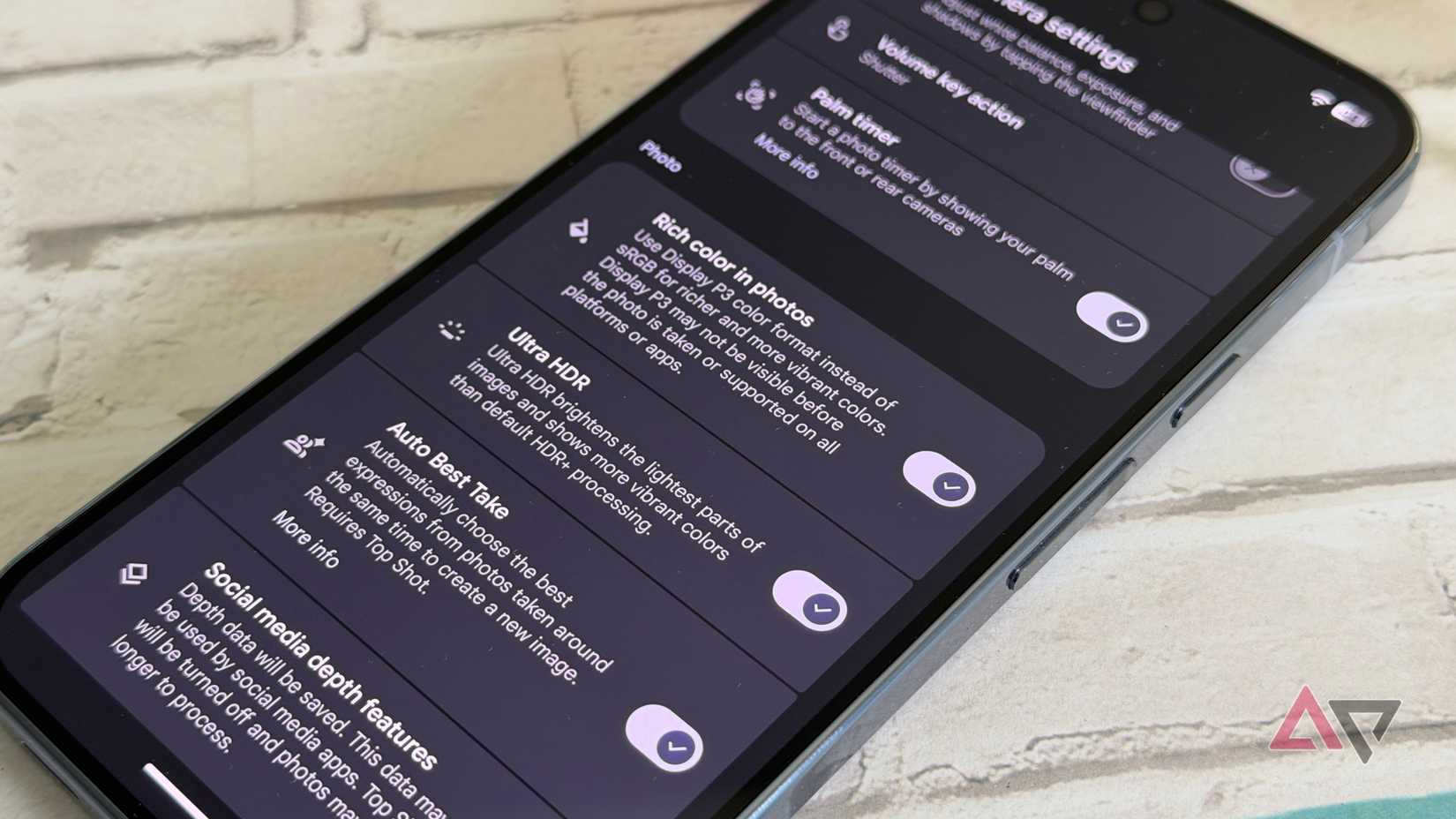
It’s a little confusing because in the camera app settings, there’s a toggle for richer colors. On the surface, that sounds amazing, but it doesn’t do what you think it does.
Yes, it unlocks a deeper color profile, but unless you’re using a certain monitor or apps designed to handle it, you won’t notice a difference. That’s why it’s off by default.
Still, my Pixels take excellent photos; I just wish I got more of that social-media-pop right off the lens.
Thankfully, there are plenty of tools to get me there, even if I don’t know anything about photography.