
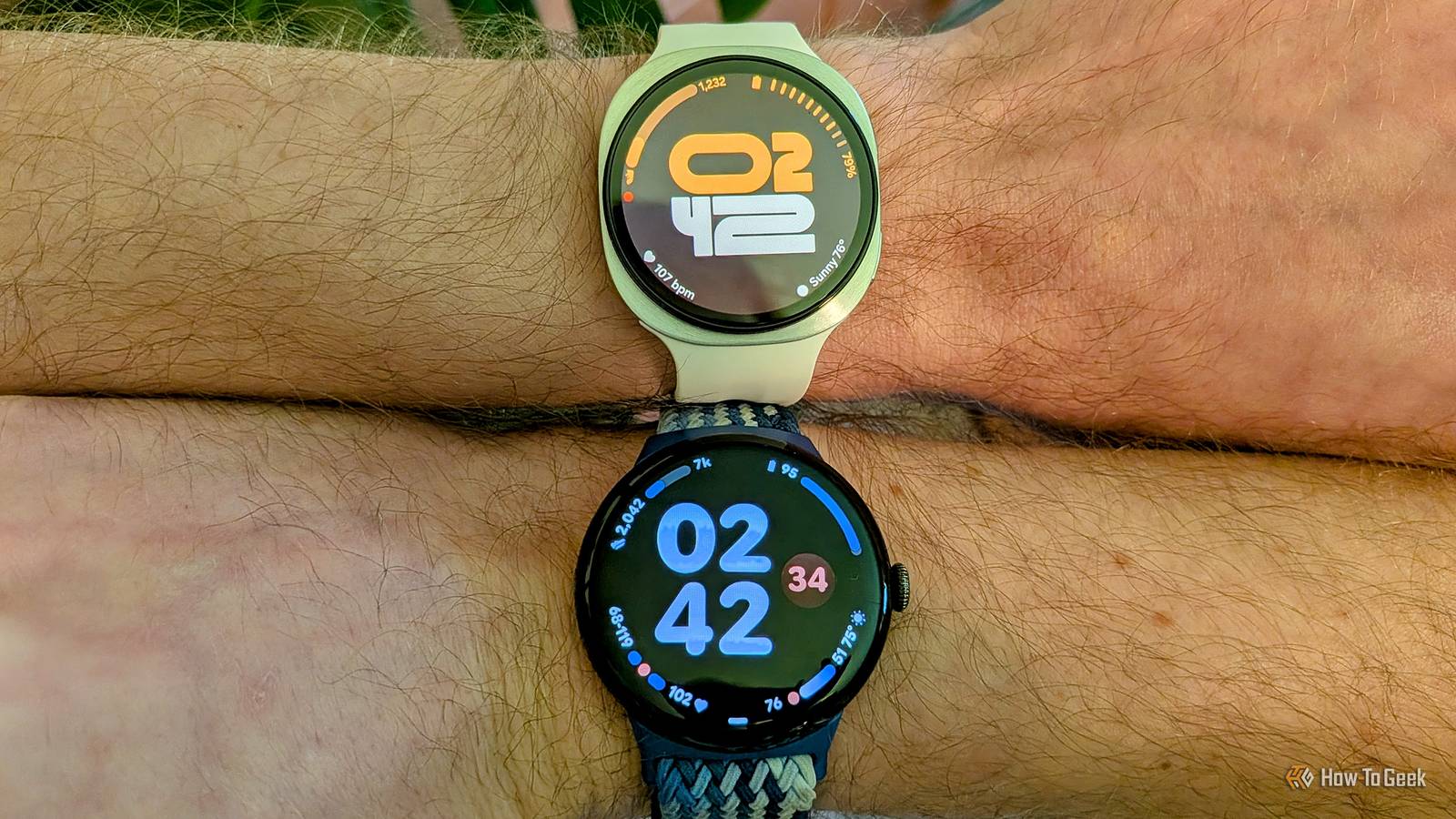
Samsung’s Galaxy Watches are among the most feature-loaded smartwatches out there, so much so that it could be difficult for users to explore every option. Hence, we’ve compiled a list of five hidden features every Galaxy Watch owner must know about.
Lock Your Galaxy Watch’s Screen
Whether you want to keep your personal data safe or you’ve set up Samsung Pay on your Galaxy Watch, you can lock the smartwatch so that it requires a pin or a passcode to unlock.
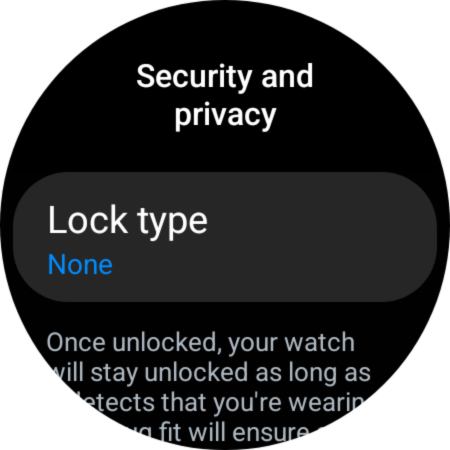
On your Galaxy Watch, head to Settings > Security and privacy, and select Lock Type.
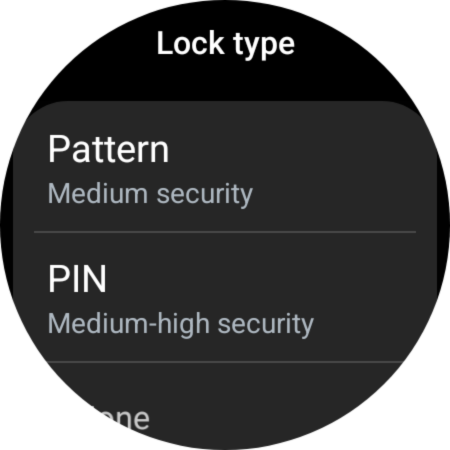
On the following screen, select the type of lock from two options: pattern (medium security) or PIN (medium-high security).
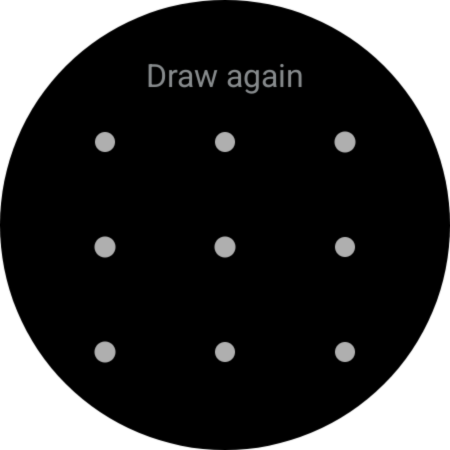
Once you select an option, draw the pattern or enter the passcode on the next screen. Re-enter the pattern or passcode to confirm and set it as the screen lock.
That’s it. From now on, you’ll have to enter the passcode once after you wear the smartwatch, which should keep it unlocked unless you take it off. The feature could come in handy, especially if you use your Galaxy Watch to make payments.
Enable Wrist Gestures
Apart from the general inputs, your Galaxy Watch supports plenty of wrist gestures. Once enabled, you can use these gestures for many different things, like answering calls, dismissing notifications or alarm alerts, or launching a particular app.
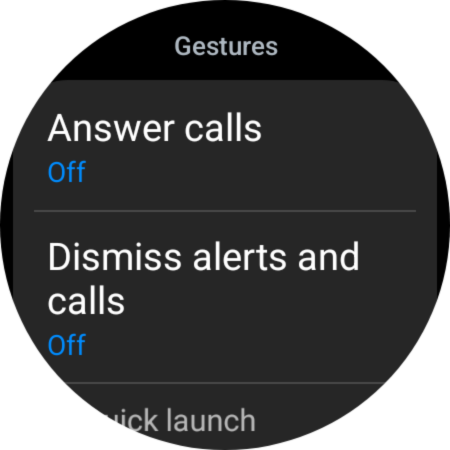
To set up the wrist gestures, head to Settings > Advanced Features and scroll down to reach the Gestures section. You have three options: Answer calls, Dismiss alerts and calls, and Quick launch.
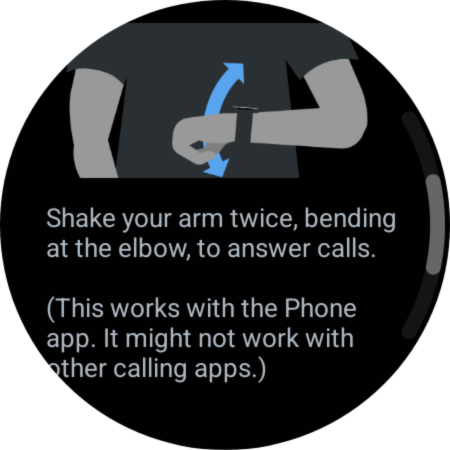
The first option, Answer Calls, lets you pick up incoming calls by moving your forearm up and down (when your arm is raised, in the position you usually check the time or other notifications) twice directly from the Galaxy Watch.
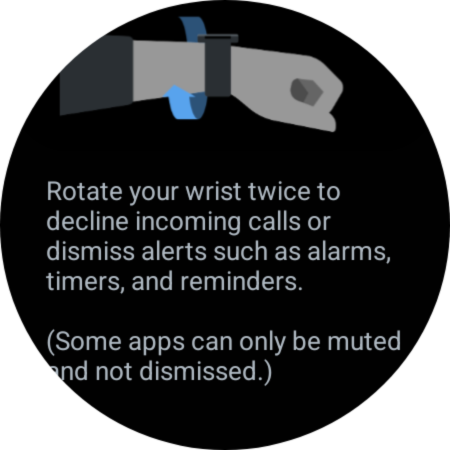
The second gesture entails rotating your wrist twice to reject an incoming call or dismiss other notifications (including alarms).
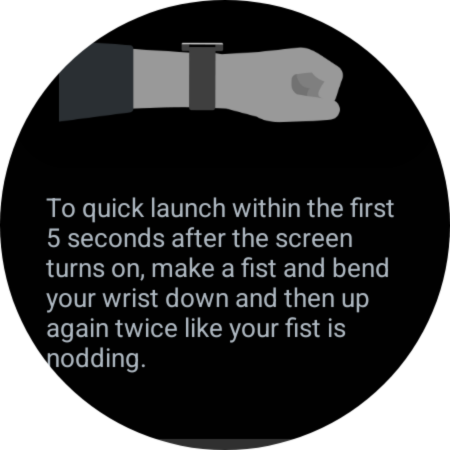
The third gesture option lets you flex your wrist twice to open the set app or watch feature.
Enable Hourly Chime to Keep Track of Time
Remember how digital watches used to chime at the beginning of every hour? In my opinion, it was a great feature to keep track of time without even looking at the watch. If you’ve been missing the hourly chime as well, you’re in luck, as Galaxy Watch supports this feature. It’s hidden deep into the system settings, but we’ll help you find it anyway.
Go to Settings > Sound and Vibration, scroll down, and select System Sounds.
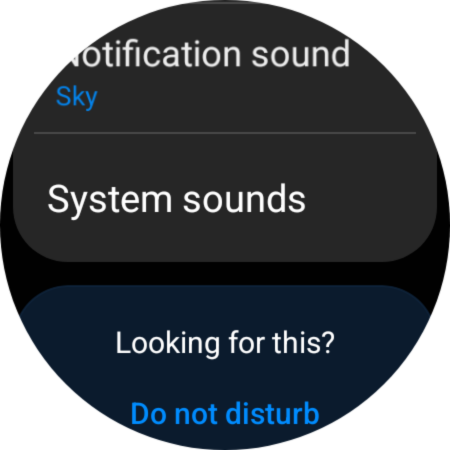
On the following menu, scroll a bit until you see the Hourly chime option, and tap on the toggle to enable it.
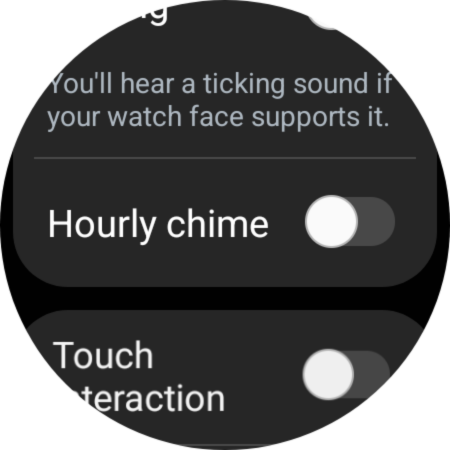
Now, your Galaxy Watch will play a sound once every hour.
Limit Notifications on Your Galaxy Watch
If you’re tired of receiving notifications from dozens of apps on your smartphone, here’s a quick way to limit them. You can use this feature to take control of the alerts that show up on your Galaxy Watch and keep the notifications section uncluttered.
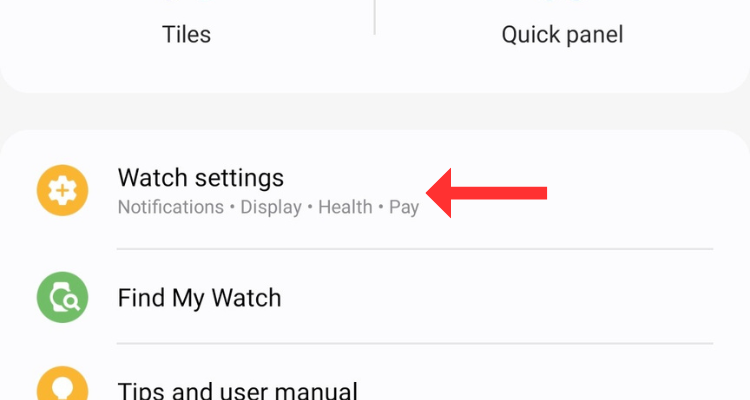
Open the Galaxy Wearable app on your smartphone and tap on Watch Settings.
On the following screen, select Notifications.
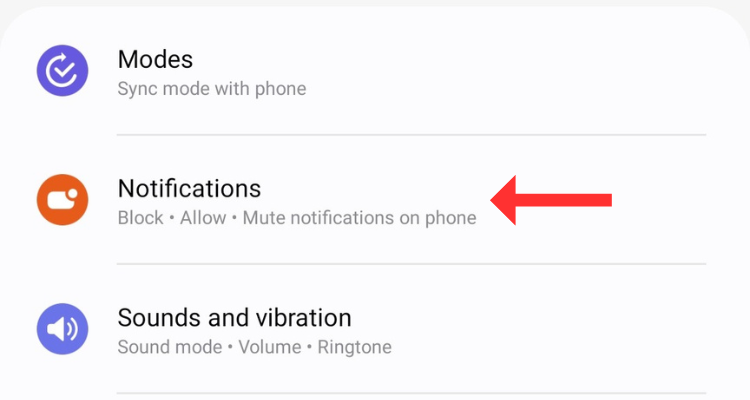
Now, choose App Notifications (at the top of the screen).
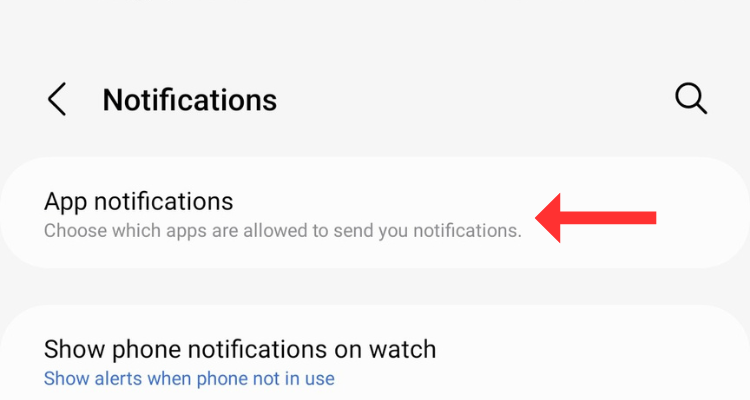
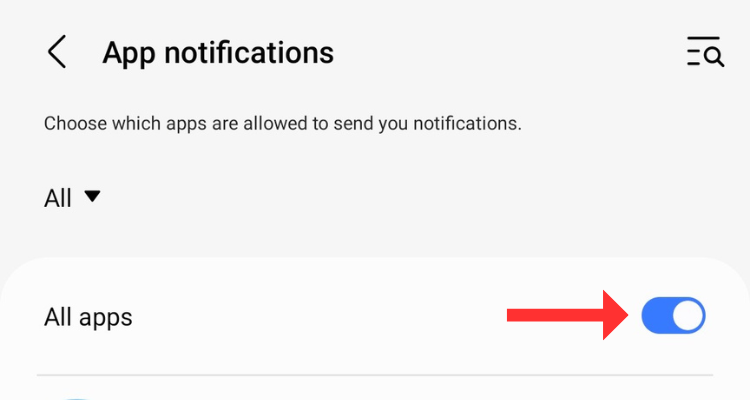
You’ll see a list containing all the apps installed on your smartphone. First, disable the “All apps” toggle at the top of the list.
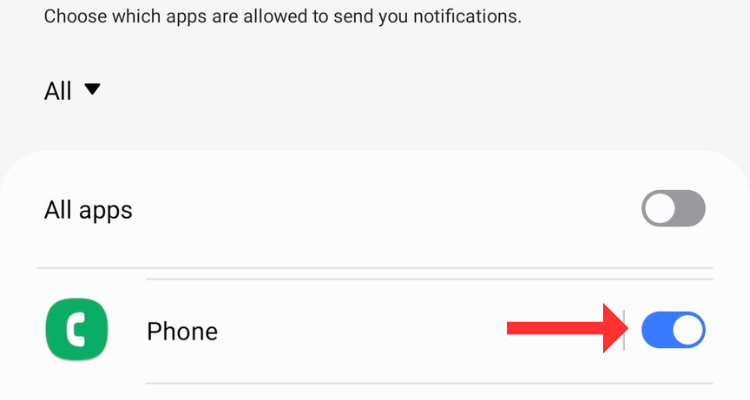
Next, browse through the list and enable the notifications from the apps that you actually want to have a look at on your wrist.
Customize the Home and Back Keys
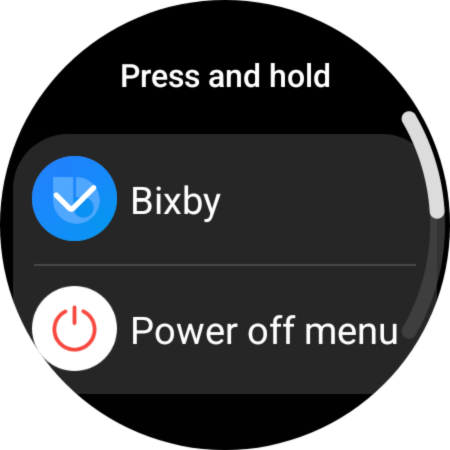
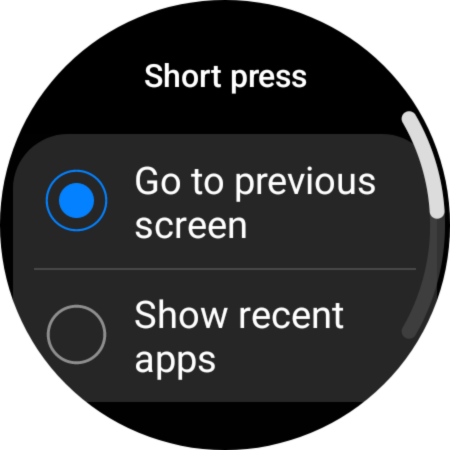
By default, double-pressing the home button opens the most recent app you used on your Galaxy Watch, and holding it brings up the Boxby voice assistant. Similarly, pressing the side button takes you to the previous screen; it acts as a back button. However, you can change what these buttons do and set them to something you prefer.
Go to Settings > Advanced Features and select Customize Buttons.
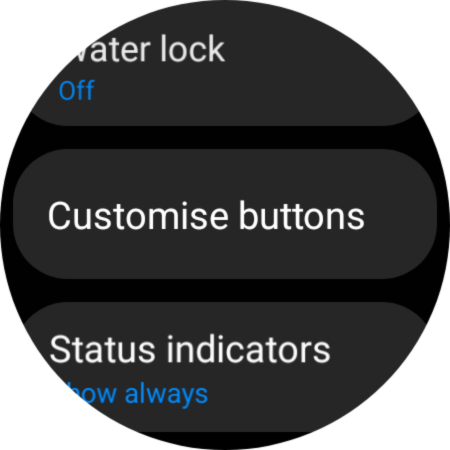
Under the Home button, tap Double Press.
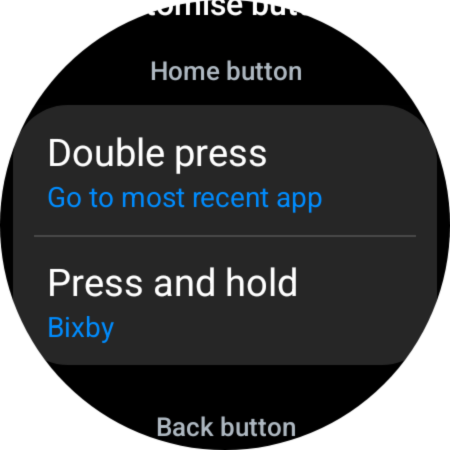
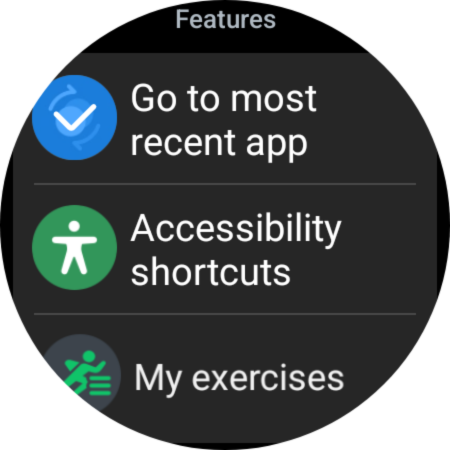
Choose what the button should do from invoking features (including going to the most recent app, accessibility shortcuts, or My Exercises. Alternatively, you can use the action to open an app of your choice.
While double-pressing the home button has a lot of customization options, holding the home button either brings up Bixby (by default) or the power-off menu.
By default, pressing the side button navigates back to the previous screen, but you can change it to show recent apps.
If you’re in the market for a new smartwatch, consider going through our detailed comparisons between the Galaxy Watch 7 and the Apple Watch Series 10 and between the Galaxy Watch Ultra and Apple Watch Ultra 2.